

The connector for SAP Business Suite provides several functions for Velocity scripts. The connector's script API must be registered for this purpose. Within this script API, the connector provides several functions—the "simpleRFC API"—that can be used to call BAPI/RFC functions in Velocity scripts. However, the main focus of the Connector for SAP Business Suite's scripting functionality is on "Groovy." In conjunction with the integration of SAP systems, Groovy can be used to call SAP BAPI/RFC functions. This allows you, for example, to generate or modify SAP data (such as customer master data and orders). SAP processes (e.g., workflows) can be initiated using this functionality. To use the Grovvy functionality, you must have a configured connector for SAP Business Suite with an active View & Write or Developer API license.
Overview of the SAP Sales Order Scenario
Using an SAP sales order as an example, this section demonstrates how a typical integration project should proceed. SAP sales orders are triggered, for example, by online stores when a customer saves the order they have compiled in their shopping cart.
Documentation of Requirements
This scenario assumes that an SAP R/3 system with SD order entry configured is in place. SAP R/3 is the leading system and sets the framework. Conversely, however, this also means that in the SAP world, a specific result—the SAP SD order—is expected. The sales order can be created using SAP transactions via standard SAP user interfaces (the SAPGUI). For the sales order, this would involve entering the order using transaction "VA01." If this is not the case—that is, if SAP is not yet capable of meeting the basic requirements on its own—it is still too early for an integration scenario with Intrexx. First, the technical prerequisites must be set up in SAP (an SAP implementation project, SAP Customizing). This is not part of this documentation but is standard SAP business practice. The technical requirements for the SAP sales order in this example can be stated as follows: The customer logs in to the Intrexx portal. The order entry feature is available to him in the menu. There, he puts together an order, which is then sent to the SAP system. If the transaction is successful, the customer must be provided with the order number immediately after submission. The order should be available in SAP R/3 as an SD sales order (transaction "VA01") without any manual intermediate steps. For the sake of simplicity, this example scenario assumes that
-
The customer master data already exists in both SAP and the Intrexx portal (linked to the SAP customer number).
-
For the time being, to keep things simple, only one line item should be created per order.
-
The customer knows the item number and simply enters the desired quantity.
Simulation of the Process in SAP
Since we are assuming a fully configured SAP system here, it must be possible to enter an SAP sales order as if it were received from a customer via an alternative interface. Therefore, this must be simulated in SAP using standard SAP transactions. For the SAP SD sales order, this is transaction "VA01."
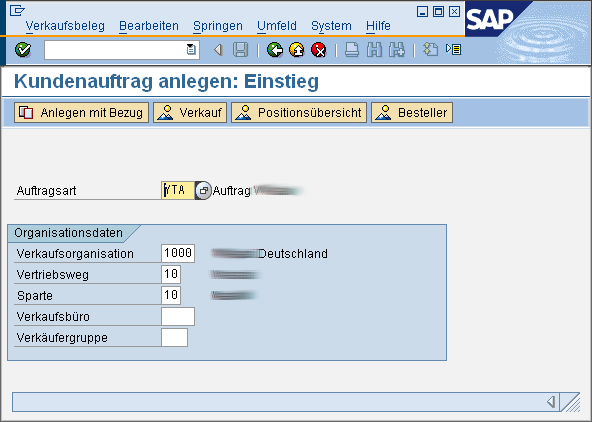
In this context, it has proven effective to identify only the most essential information required to process an order correctly. For the SAP SD sales order, this includes the following information:
|
Information |
Example |
Origin |
|---|---|---|
|
Order Type |
YTA |
Constant specified by the SAP business user |
|
Sales Organization |
1,000 |
Constant specified by the SAP business user |
|
Distribution Channel |
10 |
Constant specified by the SAP business user |
|
Division |
10 |
Constant specified by the SAP business user |
|
10,000 |
Registered customer information, customer number |
|
|
Order Number |
TEST0001 |
Customer input from the user interface |
|
Order Date |
August 20, 2008 |
Customer input from the user interface |
|
Material |
B100000 |
Customer input from the user interface |
|
Quantity |
10 |
Customer input from the user interface |
Depending on the Customizing settings in the SAP system, additional information may be required.
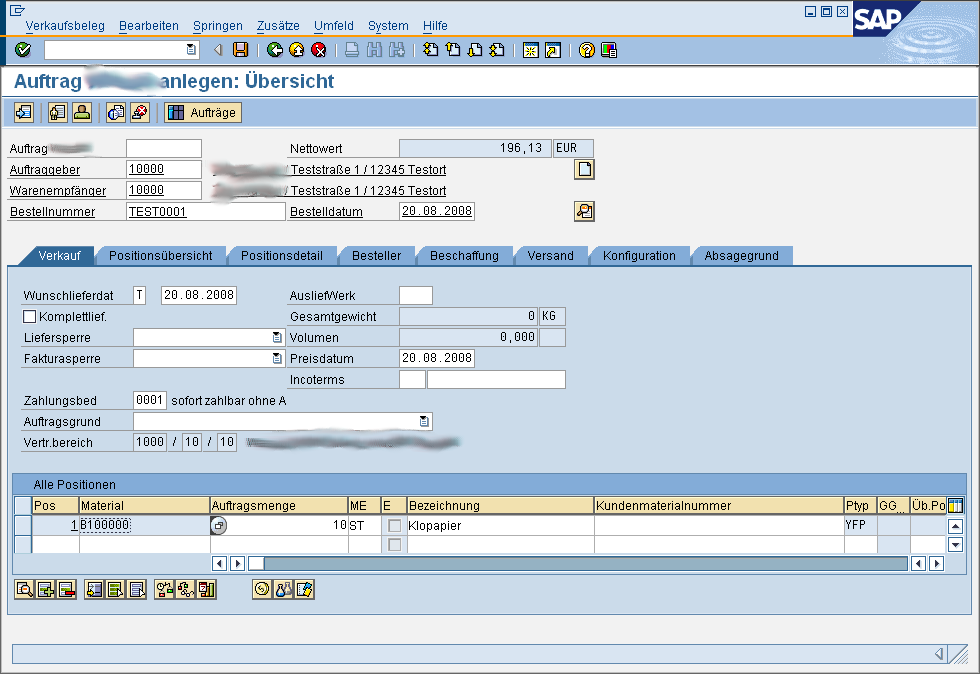
After the order has been saved, the SAP department must verify that the order is correct and complete in terms of content.

It is essential that the latter be checked here. For example, the SAP order may be correct based on the SAP Customizing settings. Since a customer order is followed by other processes, such as delivery and invoicing, it must be possible to handle the entire process correctly as well. It is up to the relevant department to make that determination.
Analysis of Available SAP BAPI Functions
In the final step, the standard SAP transaction and the necessary information were identified in order to simulate the desired SAP process. In this step, we analyze which functions SAP provides to external systems to produce the same result—a sales order that looks identical. The SAP system includes a number of API-like functions that can and should be used by both SAP itself and external functions. In most cases, these are what are known as function modules. Some of these function modules can be used with external systems. These have an additional feature: they can be accessed remotely. The term used here is "Remote Function Calls" (RFC for short), some of which are business objects. This means they are specially marked and represent object-oriented access to an SAP business object. SAP AG refers to the total set of business objects and their access routines as the "Business API" (BAPI). The individual function module is also referred to here as a "BAPI." SAP recommends the Business API, along with all its BAPI function modules, for external access to SAP objects and their processes. Therefore, every integration project should be implemented using the BAPI functions.
BAPI Transaction
In many cases, the SAP transaction "BAPI" can help you identify the BAPI functions needed to achieve the desired result. Here, you can check whether official BAPI functions are available for the desired SAP object. For the SD sales order example, you'll find what you're looking for very quickly.
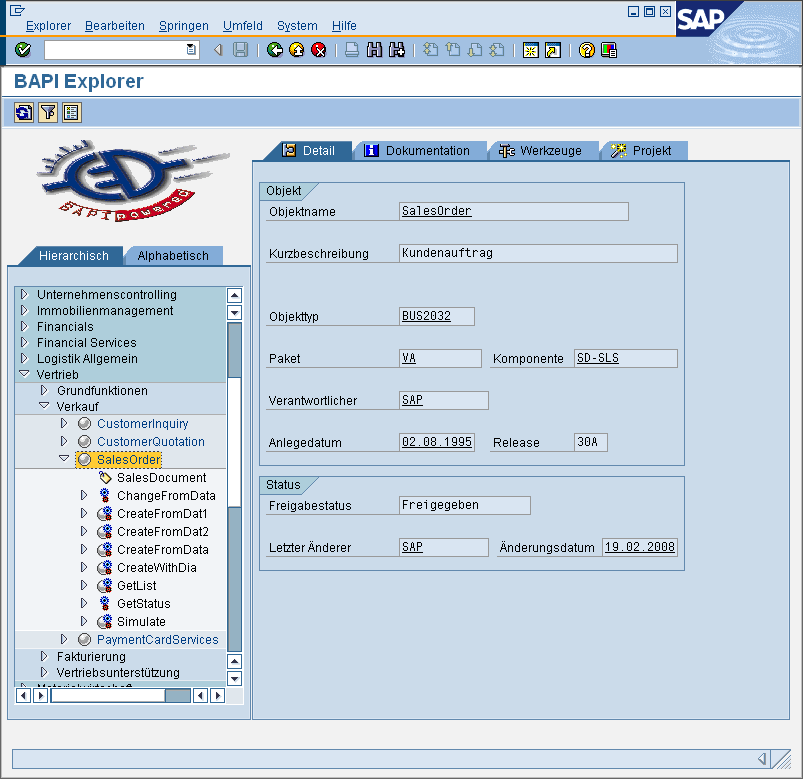
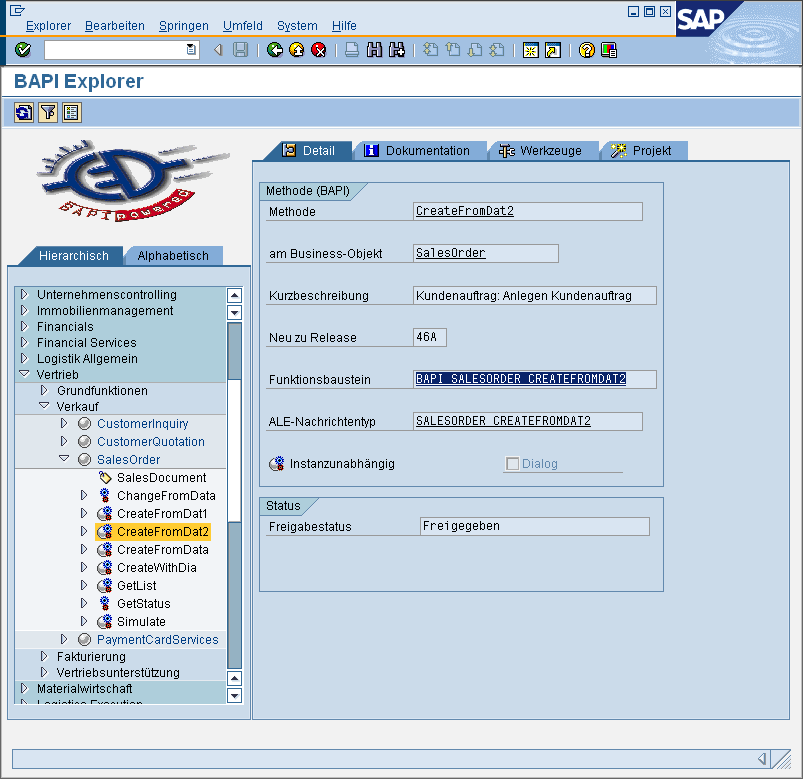
For the example "Create SD Sales Order," for instance, the SAP business object "BUS2032" and the object method (the BAPI function module "BAPI_SALESORDER_CREATEFROMDAT2") are available.
4.2 Business Object Repository (BOR)
The Business Object Repository (transaction "SWO1") is primarily used for the SAP Business Workflow functionality. All SAP objects that are relevant to the SAP workflow have a defined business object here.
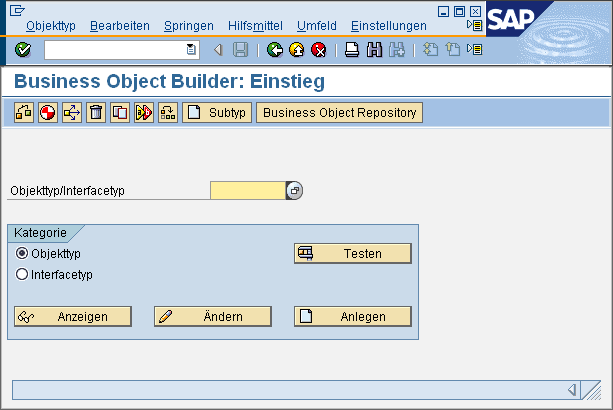
You should be able to quickly find the desired business object using the available search tools.

Once you've found the business object, you can also quickly identify the available BAPI functions within the methods. For these, you can navigate directly to the respective function block by clicking the "  " button.
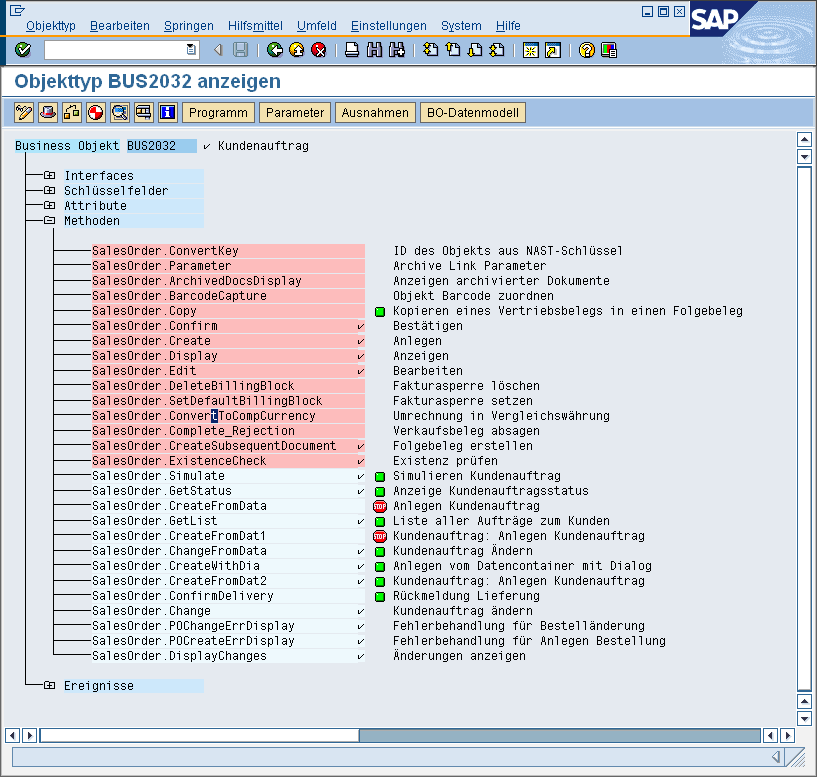
4.3 Search for Function Modules That Can Be Called Remotely
If previous efforts have been unsuccessful, you can search for keywords in all function modules that can be called remotely. The "RFC_FUNCTION_SEARCH" function module is suitable for this purpose and can be called using transaction "SE37."
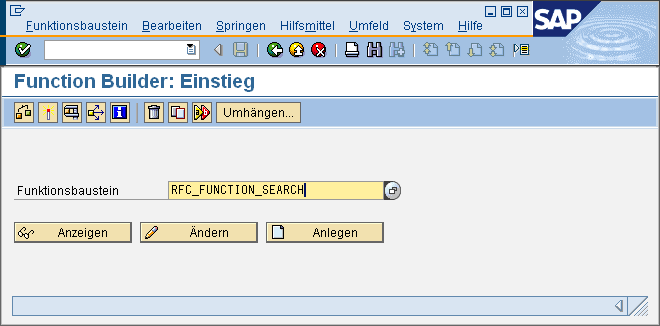
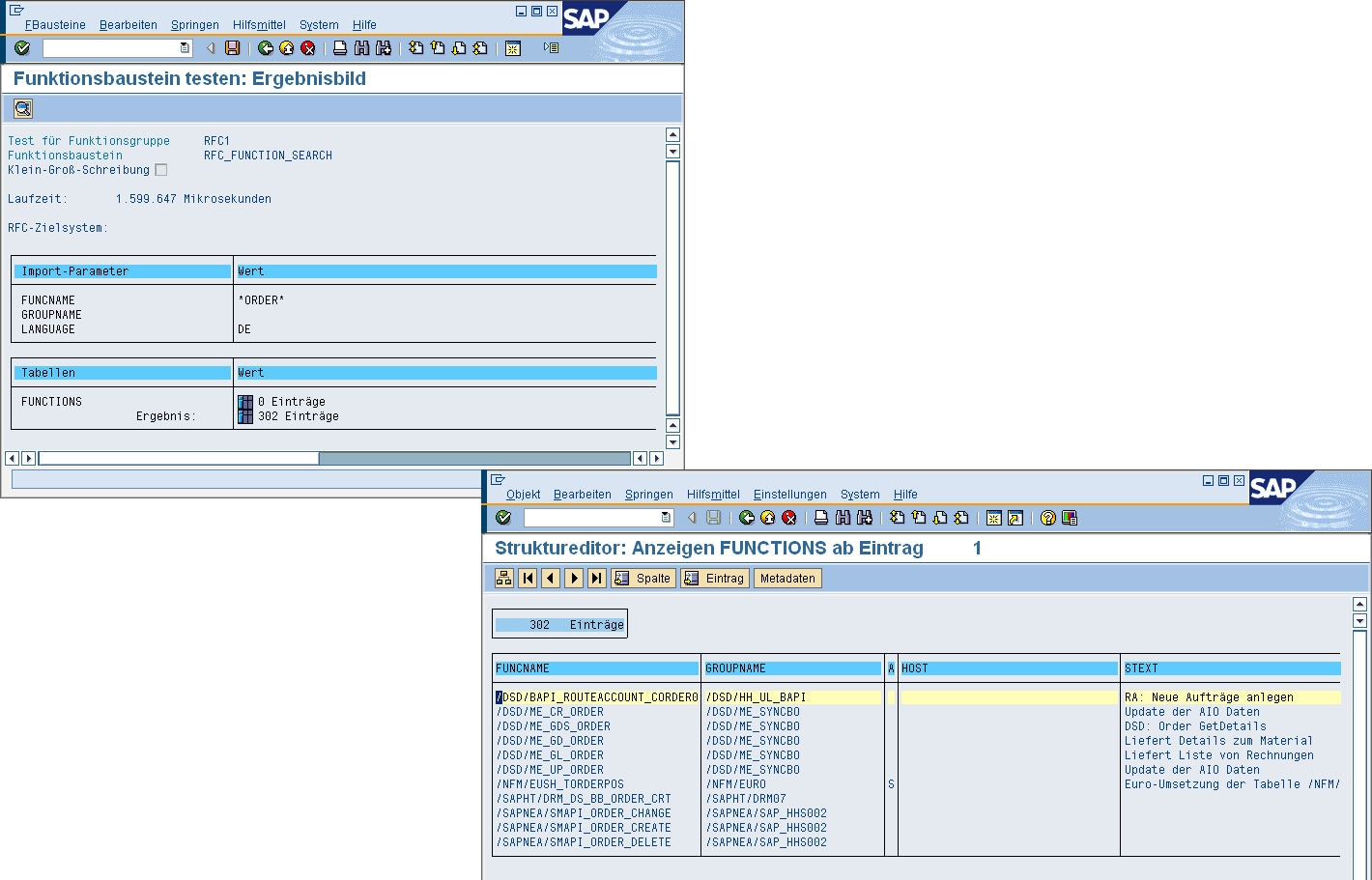
Using the input parameters, you can search for *ORDER*, for example.

The list of results then contains all function modules that could be called by an external component. Of course, it must be determined whether these serve the intended purpose.
4.4 Proxy Function Blocks
If all previous attempts to achieve the desired result in the SAP system have been unsuccessful, there is one last option: custom programming. To do this, you must create at least one function module shell that is classified as RFC-capable. The function module must pass on calls to other function modules that may not be marked as remotely callable. The customer's own RFC function module then acts solely as a proxy. Alternatively, this function module can also call other functions available in ABAP (such as subroutines) or generate and run batch input sessions. Of course, the latter requires extensive ABAP expertise. It should also be noted that SAP does not recommend this approach and therefore does not provide support for it in this context. This implementation method should be chosen when no alternatives are available, the client implementing it is aware of the associated risk, and can assume responsibility for it. For the sake of simplicity, it can sometimes be useful to use your own proxy function modules, even though official BAPI function modules exist for the desired requirement. Especially for external systems, the call is much clearer when only the parameters that are actually needed have to be filled in, rather than the sometimes very extensive list of parameters. Proxy function modules can then link various BAPI calls and, if necessary, enrich the parameters with SAP Customizing settings (e.g., determining the correct sales organization in SAP).
Parameter Concept
Once it is clear which function modules—preferably BAPI function modules—can be called remotely, an external call must be simulated. This process confirms whether the information gathered previously is indeed sufficient to create the desired SAP object. All function modules offer a test option via transaction "SE37" that allows you to check the functions and their parameters. Here, you can simulate the view from an external system. The parameters available in the function block interface must be set as they were identified in the simulation.
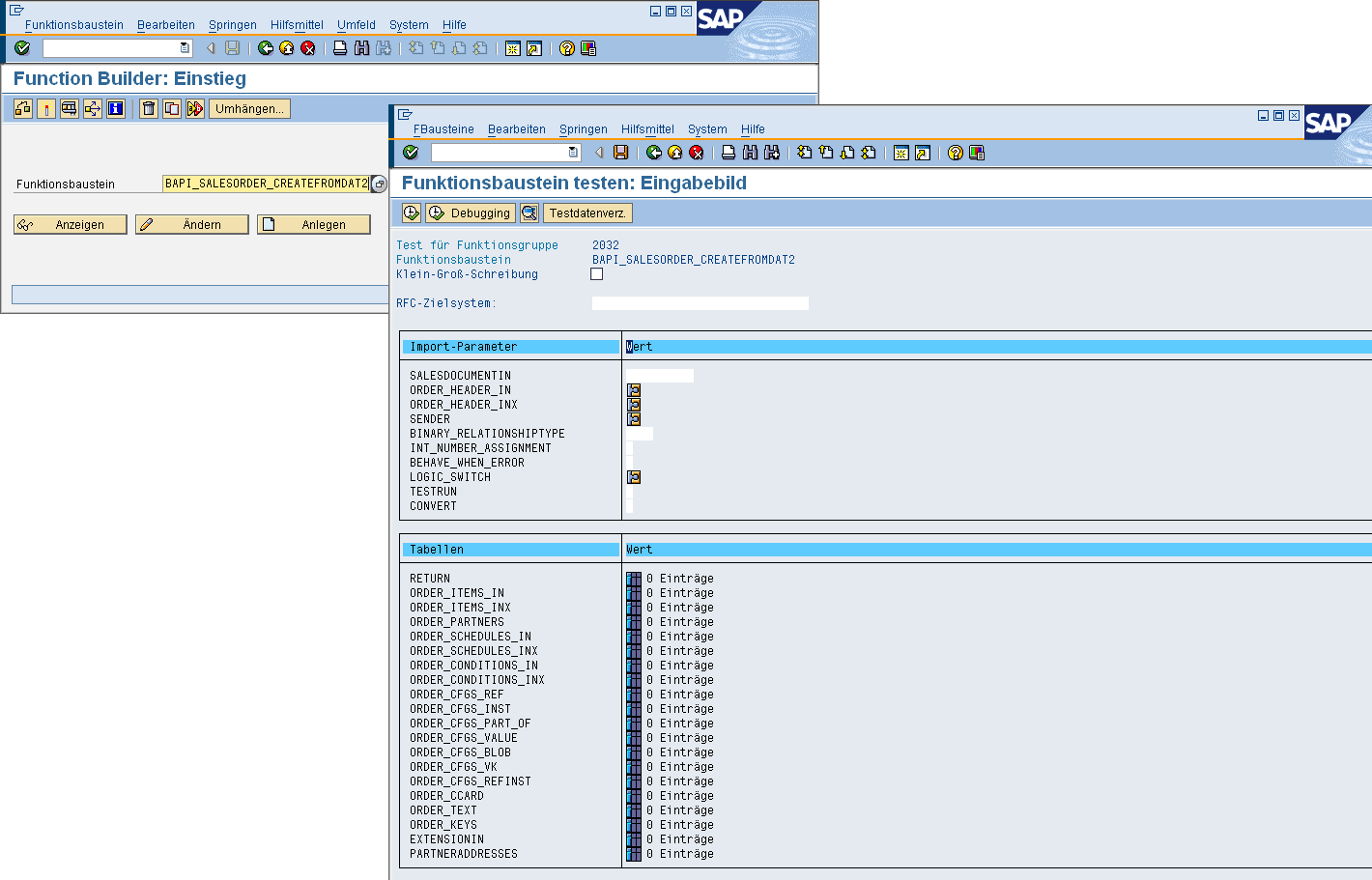
The minimum information from the previous steps must be entered here in the corresponding parameter fields. The Test Workbench, accessed via transaction SE37, supports simple parameters, structures, and table parameters. Documentation for the function module can be very helpful in identifying the correct fields.

Since entering the parameters can be very tedious, these entries can be saved. You can access your entries at a later time via "Test Data." Once all parameters have been entered, the function block can be started by pressing the F8 key.
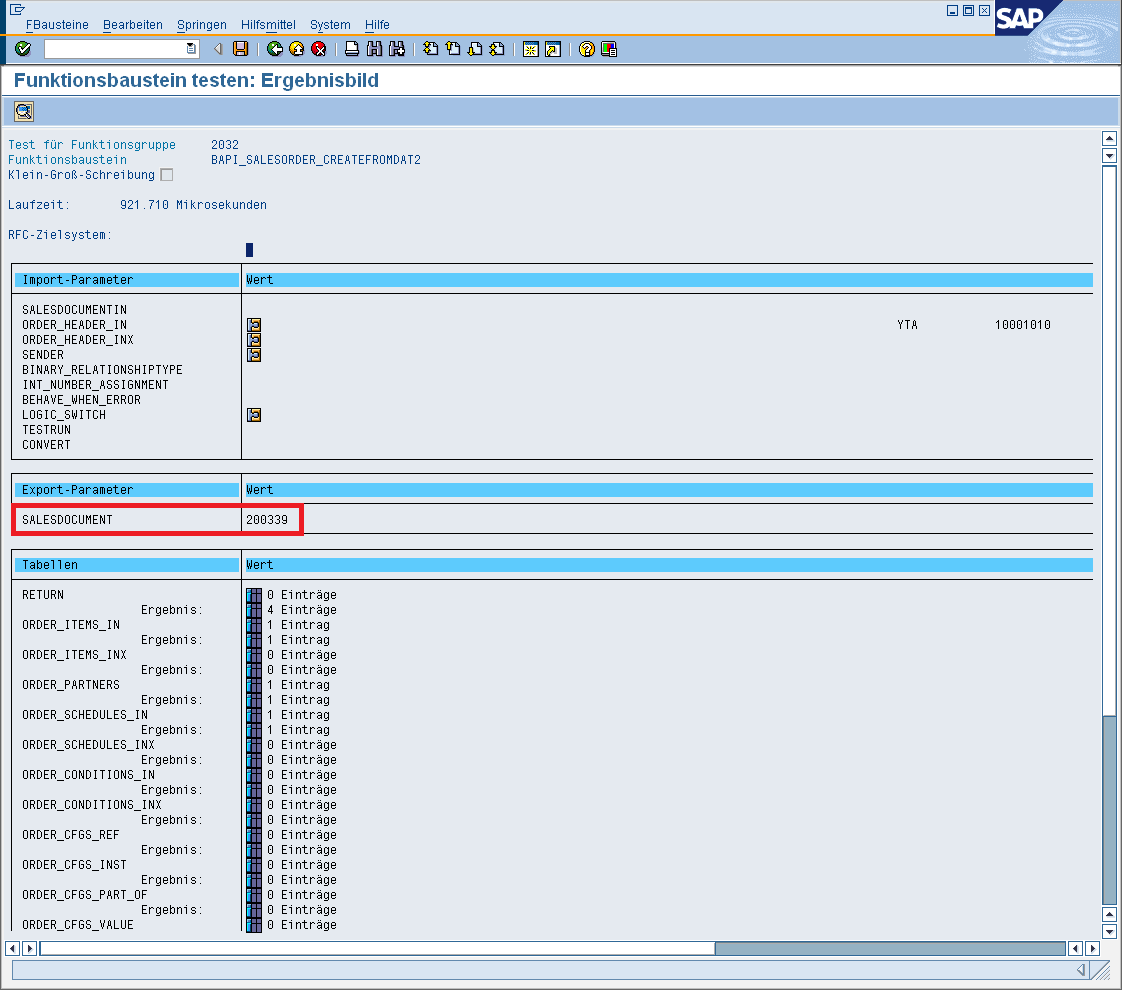
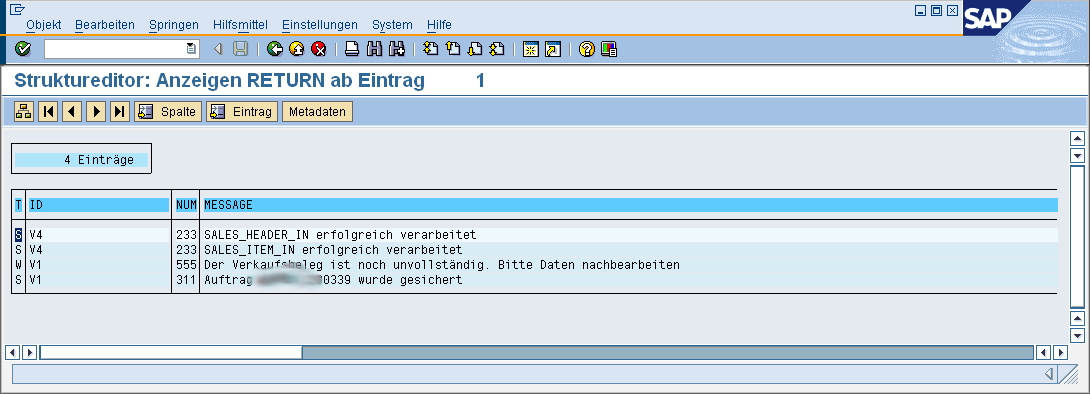
Function modules typically report the success of a call using export parameters, such as a document number generated by the system (see red marking). BAPI functions often need to be confirmed by calling the "BAPI_TRANSACTION_COMMIT" function module. Otherwise, this is where the issue arises where a document number or similar was created, but the document cannot be found in the system. If you want to test this type of BAPI function, you must either settle for the successful generation of a document number or program the SAP system to call the function module from an SAP report (transaction "SE38") and then commit the changes. In most cases, however, the generated document number is sufficient to assume that the SAP object has been created successfully. BAPI functions also typically have the feature that messages regarding the success or failure of internal operations are documented in a table with the structure "BAPIRET2" (here, the "RETURN" parameter). Here, all lines of type E, A, or X are treated as errors. In these cases, the document number should also be omitted from the export. The error messages often include detailed information explaining why the function could not be processed successfully, such as when required fields have not been filled in.
User Interface Design
The next step involves creating a preliminary design for a user interface for the integration scenario. In this case, the user should be able to enter all parameters required for the SAP function or determine them from the context. Any constant values that may exist (e.g., order type) can be added to the script later. For test cases, this information can also come from pre-populated input fields.
6.1 Create an Application
Create a new application using the " Basic Application" application template. On the existing input page, create the following input fields. In each case, select the "New Data Field" option and configure the settings listed below:
- Order Type
"Text" control type
Input Required
Maximum input length: 4 characters
Default for new records: YTA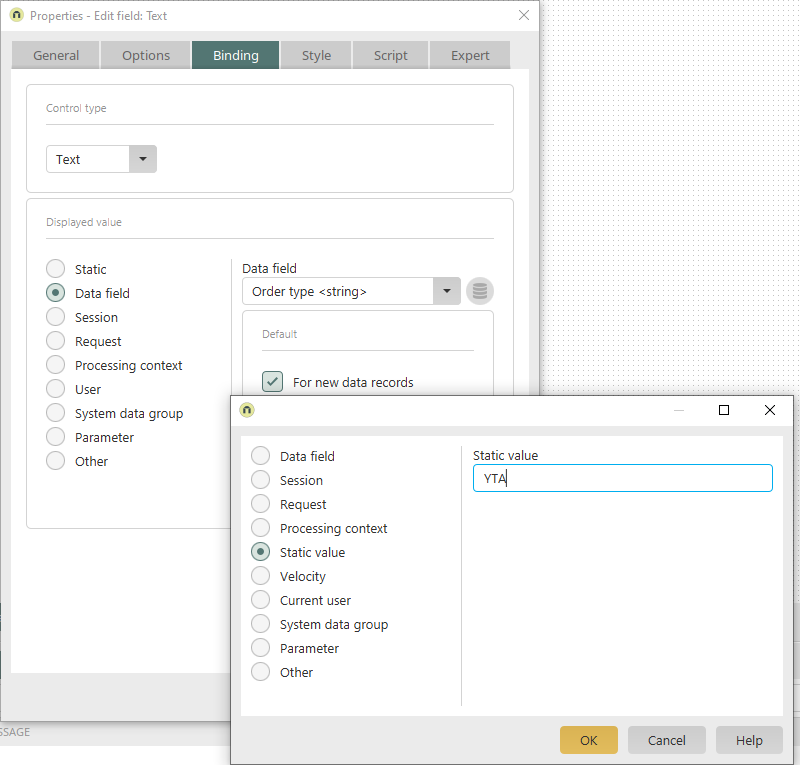
- Sales Organization
- Distribution Channel
- Division
- Customer Number
"Text" control type
Read-only
Display Value - "User" option, value "BIASAP-KUNNR", default for new data records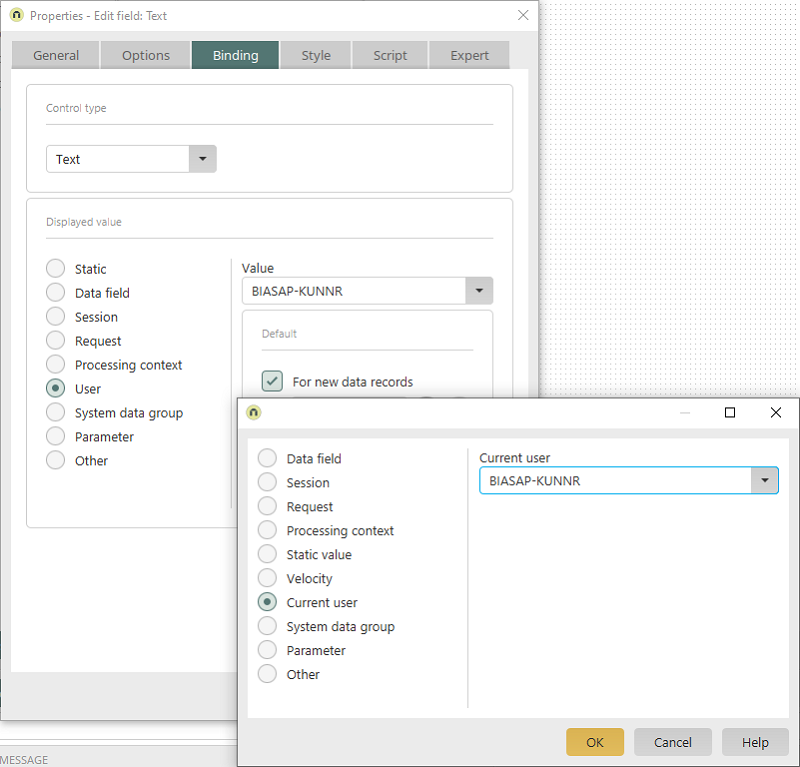
With these settings, the customer number entered in User Management is automatically populated when a new record is created. The write protection prevents manual entry. Here you will find instructions for creating the additional attribute "BIASAP-KUNNR" in User Management.
- Order Number
- Order Date
- Item No.
- Quantity
- SAP Order Number
Once all the input fields have been created, the input page looks something like this:
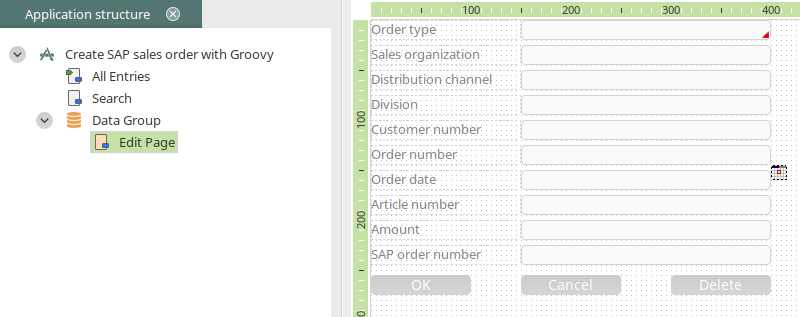
You can change the application title to "Create SAP Sales Order with Groovy" by double-clicking the application node.
6.2 Summary Table on the Home Page
On the "All Entries" home page, all items except for the table can be deleted.
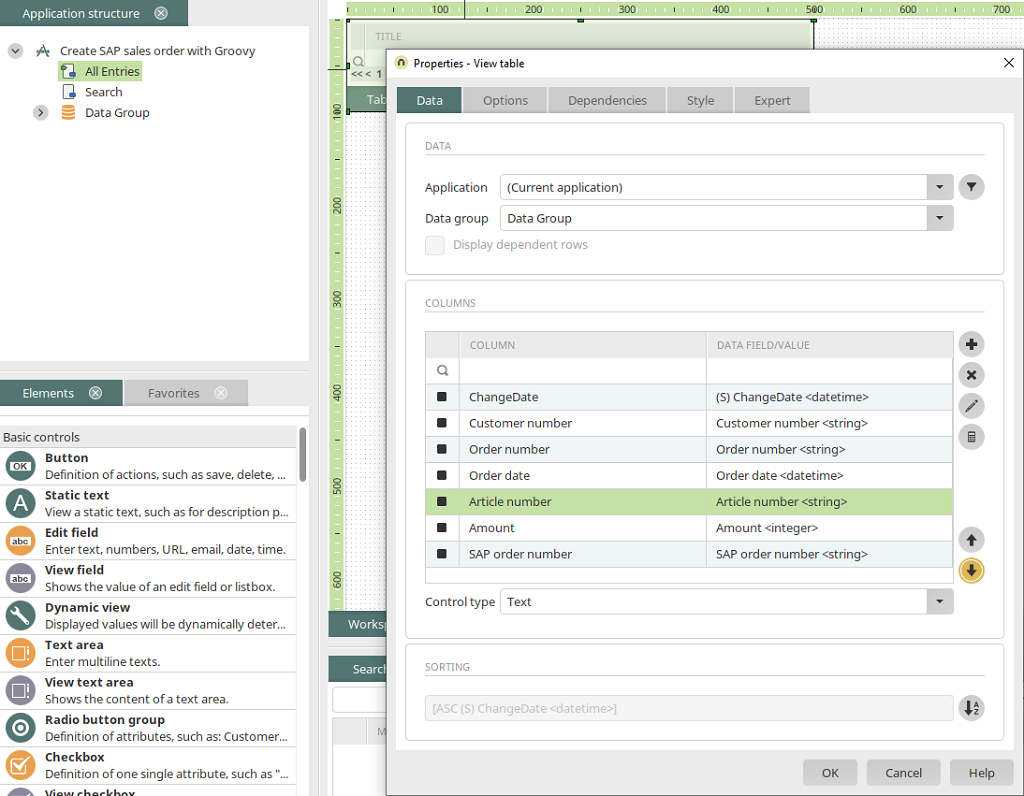
Select the following fields as table columns here:
-
Date of Change
-
Customer Number
-
Order Number
-
Order Date
-
Item No.
-
Quantity
-
SAP Order Number
Save the application and place it in the portal menu structure.
The Application in the Browser

On the input page, you will now see the input fields that have been created, along with their default values. Enter test data into the empty fields that are not read-only. Click "OK."

The new record is now displayed in the table on the home page.
Summary
The application we developed enables the collection of all data required for further processing in SAP. For the sake of simplicity, the system has been configured to allow the entry of only one order line item.
Process Integration
This section describes the actual integration of an SAP system with the goal of using a process to generate an SAP sales order from the entered data. The SAP sales order is created using a Groovy script via an SAP function module.
7.1 Generating the Groovy Script
SAP function modules can offer very complex parameters. To help prevent errors when creating the script, Intrexx also comes with a script generator. You can find the complete description here.
Create a process
In the Processes module, create a new process with a data group event handler.
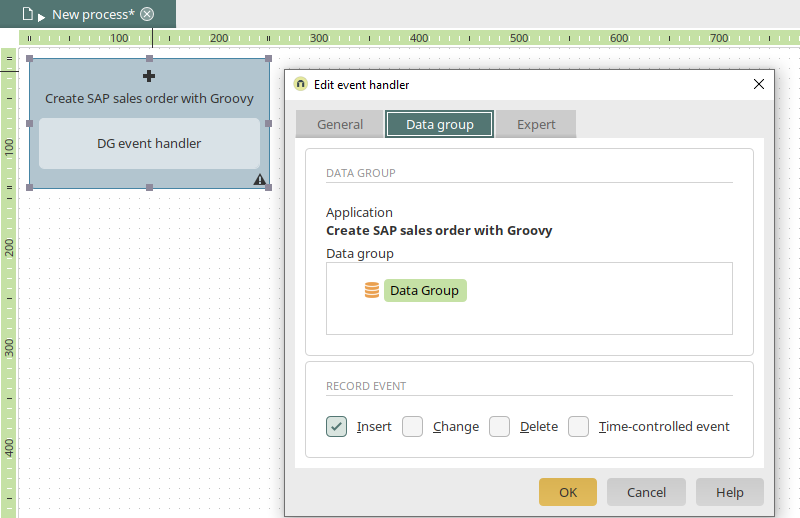
Select the "Create SAP Sales Order with Groovy" application that was created in this section of the developer's guide. The event handler should respond to the "Insert" record event.
Groovy Event
When a new record is inserted into the application, an SAP sales order should be created using a Groovy script.
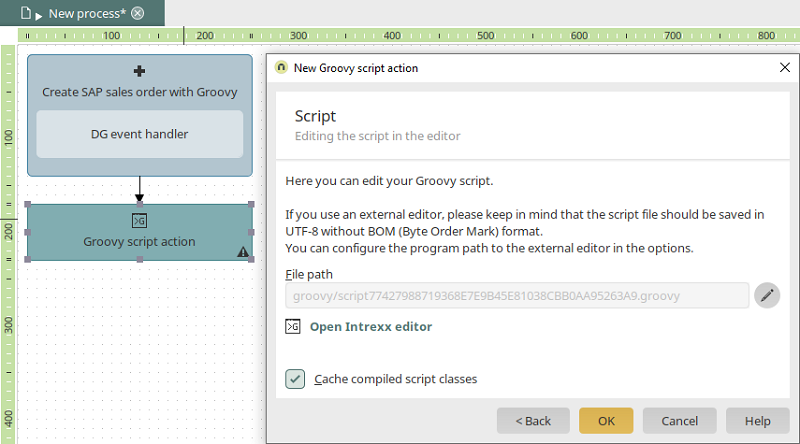
To do this, a Groovy action is linked to the record event handler that was created earlier. Double-click to open the Groovy action's Properties dialog, and then open the Intrexx Editor.
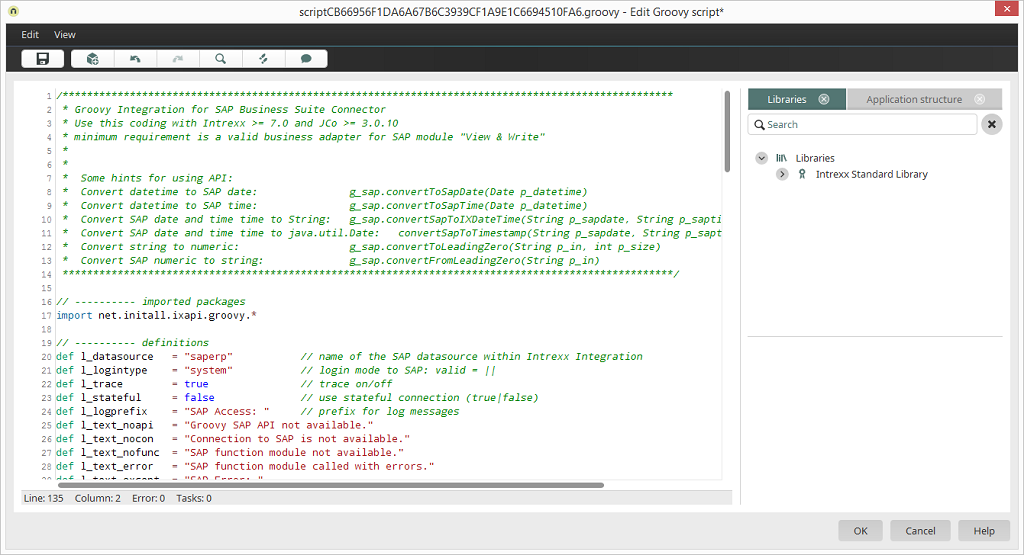
You can paste the Groovy script generated by the script generator here.
Determine fields from the data group
The script is now being modified.
Please note that Intrexx GmbH assumes no liability for errors resulting from incorrect adjustments.
First, the data fields must be identified in the Intrexx application.
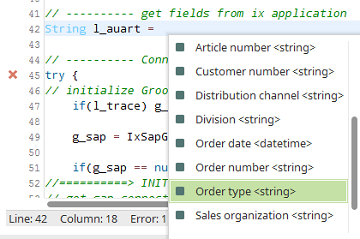
To do this, a section is inserted into the script below the variable declaration, in which the Intrexx data fields are referenced. Here is the complete script for the data field references:
            //----------- get fields from intrexx application
String l_auart     = g_record["62DA58045C6CFD8563C3DEF0BAAE7C735D795DEA"].value /* datafield Auftragsart <string> */
String l_vkorg     = g_record["52F0E7D8EA1F753A9DDF0C1935CCAAA830A2366F"].value /* datafield Verkaufsorganisation <string> */
String l_vtweg     = g_record["FFAEE9A26755F1D3B97A8CA6BACE62CE7F9B323C"].value /* datafield Vertriebsweg <string> */
String l_spart     = g_record["C070F4974E8D089E39F161B42DD69F4F8BB8B5A1"].value /* datafield Sparte <string> */
String l_kunnr     = g_record["FD187855859411C25BE71F49712CA25BDDE35BB1"].value /* datafield Kundennummer <string> */
String l_bstnk     = g_record["23921A42F9BDF289B2C9525EB6B4136502E906D6"].value /* datafield Bestellnummer <string> */
String l_bstdt     = g_record["976D72ABB914AFACE9CFE6B8B68B3CC39FD21A4C"].value /* datafield Bestelldatum <datetime> */
String l_matnr     = g_record["370F41779D4901CB3A4291E618FD006AE1777581"].value /* datafield Artikel Nr. <string> */
String l_qunty     = g_record["F5FDA4922F324BA082A87A8BE2D6C169B59B9318"].value /* datafield Menge <integer> */
Replace the GUID in the sample script above with the GUID of the data fields from your application.
Fill in SAP Parameters
The data field variables must now be assigned to the correct parameters of the function module. The parameters are pre-generated in the script. The empty value "l_value" is assigned to the parameters. Example:
g_sap.setImpStrucParField(l_function, "ORDER_HEADER_IN","DOC_TYPE", l_value); // ABAP Type C: 4,0
These need to be replaced now. To do this, replace "l_value" with the variable "l_auart" in this example. Automatically generated code for tables can be modified as follows:
            // Imported Table ORDER_PARTNERS (ABAP Structure: BAPIPARNR) - Belegpartner
l_table = g_sap.getTable(l_function,"ORDER_PARTNERS");
for(int i = 0; i < 1; i++){
	l_table.appendRow();
	g_sap.setTableField(l_table, "PARTN_ROLE", "AG");  // ABAP Type C: 2,0
	g_sap.setTableField(l_table, "PARTN_NUMB", l_kunnr);  // ABAP Type C: 10,0
} // Table ORDER_PARTNERS end
For tables, a FOR loop is generally generated. If only one row of the table is needed (as in this simplified example), simply replace the 0 with a 1. You can delete any parameters you don't need to keep the script short and easy to read. If they are needed later after all, they can be copied individually from the code generated by the SAP Groovy Generator.
Analyze SAP Call
In the generated script, the SAP call is executed at this point.
            // Execute SAP function
if(g_sap.executeSapFunction(l_client, l_function)) {
if(l_trace) g_log.info(l_logprefix + "Fill export parameters")
// ---- get and check results
l_value = g_sap.getExpPar(l_function,"SALESDOCUMENT")	// ABAP Type: C 20,0 - Number of Generated Document
The following script launches the SAP function module, evaluates the returned order number, and writes it to the current record in the Intrexx data group. If an error occurs, a rollback is performed.
            //==========> EXECUTE SAP FUNCTION
if(g_sap.executeSapFunction(l_client, l_function)){
//  SALESDOCUMENT (ABAP Type: C 10,0) - Nummer des erzeugten Beleges
	String l_vbeln = g_sap.getExpPar(l_function,"SALESDOCUMENT");
	if(l_vbeln.equals("")){
		g_sap.BapiRollback(l_client);
		return null;
	}
//  save vbeln to datagroup
	l_conn = g_dbConnections.systemConnection;
	l_lid = g_record["66B1F38BA125C4C22444D27AC9108B91A208EE16"].getValue(); // datafield (PK) (S) ID
	l_stmtOrderUpdate = g_dbQuery.prepare(l_conn, "UPDATE XTABLE9EB02DDB SET SAP_VBELN = ? WHERE LID = ?");
	l_stmtOrderUpdate.setString(1, l_vbeln);
	l_stmtOrderUpdate.setInt(2, l_lid);
	l_stmtOrderUpdate.executeUpdate();
//  final commit
	g_sap.BapiCommit(l_client, false); // set to true if commit should wait
}else{
	g_sap.BapiRollback(l_client);
	return null;
};
The following code is also useful for troubleshooting, as it writes the BAPIRET2 messages to the log file.
            // output bapi return messages
if(!l_function.getTableParameterList().getTable("RETURN").isEmpty()){
   l_function.getTableParameterList().getTable("RETURN").firstRow();
      for(int i = 0; i < l_function.getTableParameterList().getTable("RETURN").getNumRows(); i++){
         if(l_function.getTableParameterList().getTable("RETURN").getString("TYPE").equals("E")){
	g_log.error(l_function.getTableParameterList().getTable("RETURN").getString("MESSAGE"));
         }else{
	g_log.info(l_function.getTableParameterList().getTable("RETURN").getString("MESSAGE"));
         }
	l_function.getTableParameterList().getTable("RETURN").nextRow();
   }
}
If an error occurs, the output from the BAPI messages is recorded in the portal logog file. You can access the log file in the Processes module via the main menu: Process / Analyze Log File. Once the script is complete, the entire process can be published.
Test
Create a new record
In the previously created application " Create an SAP Sales Order with Groovy," you can now enter a test record. The order number is read-only and does not yet contain a value. Clicking "OK" inserts the record and thereby triggers the process using the Groovy action.
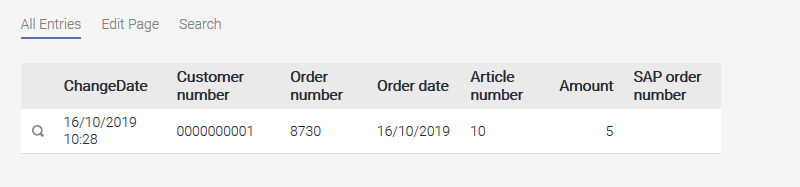
The record that was just created now includes the SAP order number. In the event of an error, or if the order number has not been entered, the log file should be analyzed.
View SAP Order
Using the SAP order number, you can display the corresponding order in SAP using transaction "VA03."
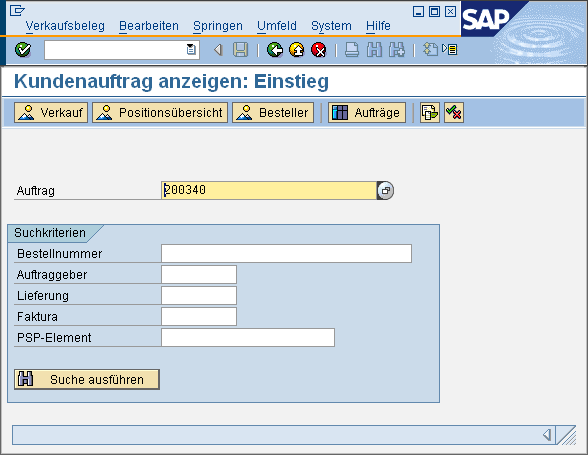

Checking for Completeness
The relevant department must now verify and confirm whether the order in SAP is identical to the record created in the Intrexx application. In addition, follow-up processes such as delivery or invoicing must also be reviewed.
Possible Extensions
RFC Functions with Position Data
In our example, we deliberately chose not to process multiple items. In many scenarios, this is impractical. Therefore, this section covers the steps required when processing multiple items using a Groovy script. In this context, the data group that stores the order header data can be viewed as the parent data group. Below this parent data group, child data groups—known as subordinate data groups —can be used, which contain the items associated with the header records. The child data group then contains the ID of the parent record in the "FKLID" data field.

Here is a greatly simplified overview of the shipping process. The "Items" data group was created as a subdata group of the "Shipping Document" data group, which contains the header data. Now, modifying a record from the "Shipping Document" data group could trigger the Groovy script in the corresponding process. However, you should check to see if the entire document is complete. The data record for the shipping document is stored in Intrexx even before the first line item is entered. So, from Intrexx's perspective, the process would look something like this:
-
Enter and confirm header data in the application
-
Enter Positions in the Application
-
Complete the entire document in the application, e.g., by checking a box manually or automatically
-
Further Processing Within the Process Using a Groovy Action

            // get db connection
def l_conn = g_dbConnections.systemConnection

// get Lid for parent record
def l_fkLid = g_record["BBCAC884A9397E98BD683B76386D58A39A8B56BC"].getValue(); // datafield (PK) (S) ID

// db query postions
def l_stmtPositions = g_dbQuery.prepare(l_conn, "SELECT LID, STR_BARCODEDERPOSITIO_616DDB16 FROM XDATAGROUP12A091EF WHERE FKLID = ?")
l_stmtPositions.setInt(1, l_fkLid)
def l_rsPositions = l_stmtPositions.executeQuery()

// loop all positions
l_rsPositions.each
{
	g_log.info("Record: " + it.value(1) + " = " + it.value(2))
}
For the Groovy script, you must determine the actual technical names of the "Items" data group and the "Barcode" data field on the Application Structure tab and use them to replace the names in the sample script. The script outputs the position information to the log file. Once a complete data set containing items has been entered, the following information is available there.
            INFO  2008-08-24 14:31:59,203 - de.uplanet.lucy.server.workflow.GroovySkriptCall[WebConnectorWorker-localhost:8102-8]
Record: 34 = 1000
INFO  2008-08-24 14:31:59,203 - de.uplanet.lucy.server.workflow.GroovySkriptCall[WebConnectorWorker-localhost:8102-8]
Record: 35 = 2000
If the position data is to be entered into the tables of an SAP function module, as in the previous example, the script for the loop needs only minor adjustments.
            // loop all positions
l_table = g_sap.getTable(l_function,"IT_POSITION");
l_rsPositions.each
{
	l_table.appendRow();
	String l_barcode = it.value(2);
	g_sap.setTableField(l_table, "BARCODE", l_barcode);
}
Using the Groovy API in Velocity
The methods of the Groovy API are implemented in the business logic of the connector for SAP Business Suite as the Java class "net.initall.ixapi.groovy.IxSapGroovyAPI." The available methods are listed in the appendix. To be able to use these methods in Velocity as well, the Groovy API must be registered as a "Callable." Callables are an extension concept for integrating any Java classes. These Java classes are registered in the portal configuration file "customcallables.cfg". To use the Groovy API of the connector for SAP Business Suite, you should use the context name "GSAP."
            <?xml version="1.0" encoding="UTF-8"?><callables

	xmlns:xsi="https://www.w3.org/2001/XMLSchema-instance"
	xsi:schemaLocation="urn:schemas-unitedplanet-de:lucy:server:velocity:callables callables.xsd">  <item contextName="GSAP" className="net.initall.ixapi.groovy.IxSapGroovyAPI" use="instance"/></callables>
Starting with Business Logic 2010, a quick configuration option is available that automatically applies these settings.
Using the simpleRFC Functionality
The simpleRFC API provides functions for calling BAPI/RFC functions in Velocity scripts. Velocity scripts can be embedded in Intrexx view pages, for example. Please note that Velocity scripts are executed on the server while the rendered HTML pages are being generated. Parameters must be passed via request values or through the session. At a minimum, the "View & Write" license is required. With the "View Only" license, however, you can use a simple call that invokes a basic remote-enabled function module with an import and export parameter. The complete API is described in the appendix. The following sections provide instructions for use.
Using the Trigger Functionality (Simple Call)
A special function in the simpleRFC API is available for simple calls to RFC functions. This can be used, for example, for typical triggers such as calculating current data in SAP, etc. be used. This allows you to populate an import parameter of type String and retrieve an export parameter. The RFC functions require a specific interface:
            function z_demo_trigger_simplerfc .
*"----------------------------------------------------------------------
*"*"Lokale Schnittstelle:
*"  IMPORTING
*"     VALUE(INPUT) TYPE  STRING OPTIONAL
*"  EXPORTING
*"     VALUE(RESULT) TYPE  STRING
*"----------------------------------------------------------------------

concatenate 'Antwort aus dem SAP. Eingabewert war:'
            input
            into result separated by ' '.

endfunction.
The "INPUT" parameter is expected as an import parameter with a character-based data type (e.g., string). If a result is to be written back, this must be done using the "RESULT" export parameter. This function module can then be launched from a view page on which a static text has been created using the "Programming, Standard Language Only" option. The call is specified as program code via the simpleRFC API:
$GSAP.simpleRfcTrigger("saperp", "system", "Z_DEMO_TRIGGER_SIMPLERFC", "externer Wert")
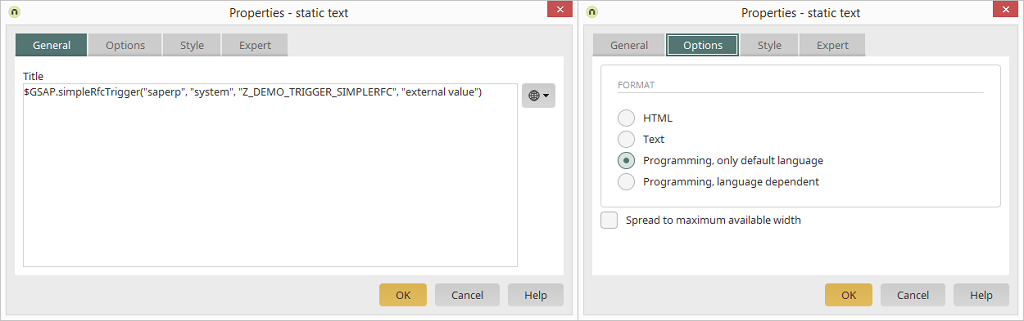
Loading the view page now always calls the function module and displays the result of the "RESULT" export parameter as text. In Intrexx, you can use JavaScript to access the displayed value of a static text field (attributes *.textContent). By incorporating request values, conditional execution can be implemented in the Velocity script.
            #set($command = $!Request.get("rq_command"))
#if($command == "trigger")
$GSAP.simpleRfcTrigger("saperp", "system", "Z_DEMO_TRIGGER_SIMPLERFC", "externer Wert")
#end
This simple call to BAPI/RFC functions is available under the "View Only" license.
Using the Full simpleRFC API
The following example demonstrates how to use the simpleRFC API in view pages for more complex function modules. The available API functions can be found in the appendix. Most API methods return a "boolean" value. This allows the SAP adapter to indicate whether the last call to an API method was successful or not. Error handling must be handled in your own Velocity script. A typical simpleRFC script has the following structure:
-
Open a connection to SAP
-
Load BAPI/RFC Function
-
Fill in the function's import parameters
-
Start Function
-
Read the function's export parameters
-
Close Function
-
Close the connection
As an example, we'll use a simple function that returns the inventory of promotional items in the "ET_STOCK" export table. This table must be filled out accordingly:
            function /iatl/messe_iphone_get_stock.
*"----------------------------------------------------------------------
*"*"Lokale Schnittstelle:
*"  TABLES
*"      ET_STOCK STRUCTURE  /IATL/MESSE_STOCK_INFO
*"----------------------------------------------------------------------

  define append_line.
    et_stock-matnr = &1.
    et_stock-maktx = &2.
    et_stock-count = &3.
    append et_stock.
  end-of-definition.

  append_line 'GA0001' 'Pfefferminze UP Design' 500.
  append_line 'GA0002' 'Geduldsspiel'           500.
  append_line 'GA0003' 'Porsche UP Design'      20.
  append_line 'GA0004' 'Skateboard UP Design'   100.
  append_line 'GA0005' 'Intrexx 4.5 10 User' 10.

endfunction.
The export structure has a simple layout and contains the material number, material short text, and the inventory level as an integer value.
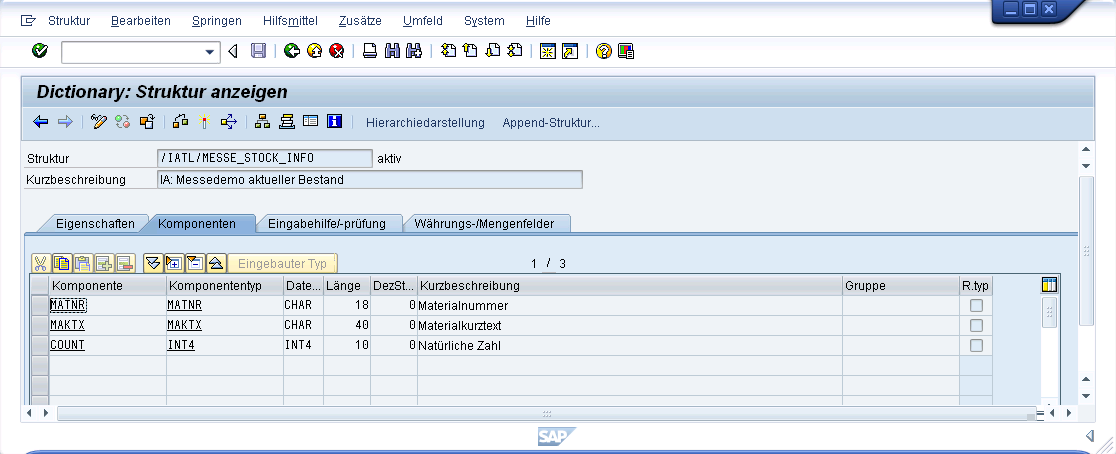
This SAP function is used in a view page.

In the Static Text element, enter the script for calling the SAP function module via the simpleRFC API. The result is an HTML representation of the returned table. This is passed to the "sapstock" request parameter. This first text box can also be moved to the hidden area. A second static text field then displays the current request value—and thus the currently generated HTML output of the inventory—as text. The script for the first static text field demonstrates how to use the simpleRFC API methods:
            ## open connection
Open Connecttion: $GSAP.simpleRfcConnect("saperp","system")

## function open
<br>Load Function: $GSAP.simpleRfcFunctionLoad("/IATL/MESSE_IPHONE_GET_STOCK")

## execute without commit
<br>Execute: $GSAP.simpleRfcFunctionExecute(false)

## loop export table
<br>Set Focus Table: $GSAP.simpleRfcSetFocusTable("ET_STOCK")
<br>Records found: $GSAP.simpleRfcTableGetCount()
#set($strOutput = "<table>")
#foreach($line in $GSAP.simpleRfcTableGetEntries())
 <br> List Item: $line
  Set Table Line: $GSAP.simpleRfcTableSetLine($line)

#if($GSAP.simpleRfcSetFocusTableField("MATNR"))
#set($strMatnr = $GSAP.simpleRfcGetParameterValue())
#end

#if($GSAP.simpleRfcSetFocusTableField("MAKTX"))
#set($strText = $GSAP.simpleRfcGetParameterValue())
#end

#if($GSAP.simpleRfcSetFocusTableField("COUNT"))
#set($strCount = $GSAP.simpleRfcGetParameterValue())
#end

#set($strOutput = $strOutput + "<tr><td>" + $strMatnr + "</td><td>" + $strText + "</td><td>" + $strCount + "</td></tr>")

#end
#set($strOutput = $strOutput + "</table>")

## function close
<br>Close Function: $GSAP.simpleRfcFunctionClose(false)

## close Connection
<br>Close Connection: $GSAP.simpleRfcClose()

## set output
$strOutput
$Request.put("sapstock",$strOutput)
In particular, setting and reading parameters of the function module interface can be time-consuming. Each parameter must first be focused before it can be read or set. Structures and tables require a two-step selection process—first, select the table or structure, then select the column (field). The simpleRFC API allows you to access tables using specific API methods, such as those for determining the number of rows, positioning, or adding new rows. In short, the following VM code loops through all available table rows:
            $GSAP.simpleRfcSetFocusTable("ET_STOCK")
$GSAP.simpleRfcTableGetCount()
#foreach($line in $GSAP.simpleRfcTableGetEntries())
	$GSAP.simpleRfcTableSetLine($line)
	#if($GSAP.simpleRfcSetFocusTableField("MATNR"))
		#set($strMatnr = $GSAP.simpleRfcGetParameterValue())
	#end
	...
#end
More Information
SAP Trust Manager SSO Configuration
API Description, Part 1 - Overview
API Description, Part 2 - SAP Portal Plugin
API Description, Part 3 - Implementing Custom Processing Modules
API Description, Part 4 - Sample Code
Developer's Guide, Part 2 - Integration Scenario: SAP External Data Group
Developer's Guide, Part 4 - Personalized SAP Access / Single Sign-On (SSO)