

In some scenarios, it will be necessary to use personalized SAP access. For SAP access, at least the system user maintained in the SAP data sources is used. However, it is also possible to use a user-specific SAP user in order to apply the authorizations stored there in the SAP system or to avoid having to log in to SAP again. This section explains how to handle requirements such as:
-
Password Verification by SAP
-
Accessing SAP with the actual SAP user
-
Accessing SAP Web Pages (WebDynpro, BSP Applications) Using Single Sign-On (SSO)
-
Launching SAPGUI Transactions with Parameter Passing
can be implemented.
Login Mode
In many areas where SAP access is required, the login mode is important. The Connector for SAP Business Suite uses the following login modes:
|
Login Mode |
Uses |
|---|---|
|
system |
Using the system user stored in the SAP data source |
|
user |
Use only the personal login credentials of the logged-in portal user. No login credentials are collected to determine this information. If these are incorrect, you will not be able to access SAP. |
|
mixed |
An attempt is being made to perform an access in user mode. If this fails, system mode is used. |
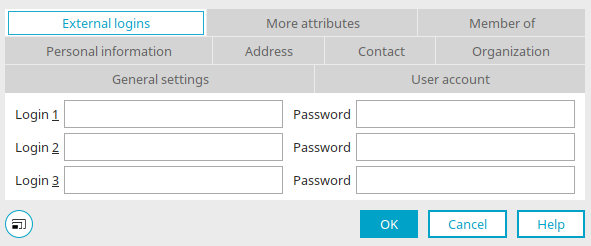
The login credentials for each portal user can be stored in Intrexx User Management as an " External Login."
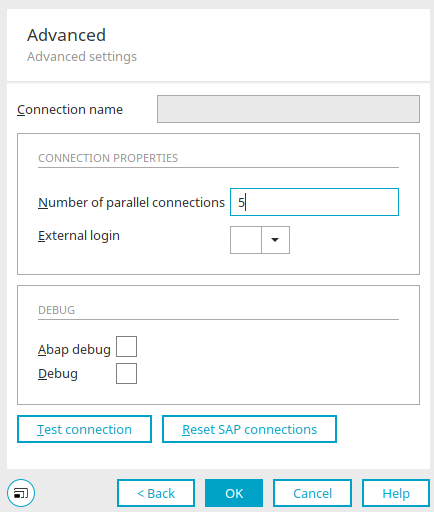
You can specify which external login is used to log in to the SAP system in the SAP data source.
Alternatively, users can log in to the portal by authenticating their password against an SAP system. The password entered is then verified against the specified SAP system. A user master with the same name must exist in Intrexx. In that case, parallel password maintenance or replication is not necessary. In addition, this login method also supports single sign-on scenarios using SAP login tickets. Using the script API of the connector for SAP Business Suite, you can specifically configure personalized access to enable additional login scenarios in projects.
SAP Login Modules
Intrexx login modules enable authorization on the portal through external providers. The login modules included in the standard release include, for example, authentication against an external LDAP server. The portal login can be configured so that various login modules run sequentially until one of them has authorized the portal user. A user record must exist in Intrexx for every potential portal user; however, this record does not need to include a password check and can be replicated using Intrexx’s built-in tools.The connector for SAP Business Suite includes its own login modules that, for example, implement password verification by SAP for SAP users, SU05 Internet users, or SAP business partners. The portal login and the login modules to be called are configured in the portal's "LucyAuth.cfg" configuration file. A login configuration that first checks the SAP user master, then the SU05 Internet users in the customer master, and finally the Intrexx standard login is shown here:
            SapUserAuth
{
	net.initall.ixapi.auth.IxSAPLoginModuleUser sufficient
		instance="saperp"
		mapuser=false
		initjco=false
		debug=false;

	net.initall.ixapi.auth.IxSAPLoginModuleIUser sufficient
		instance="saperp"
		logintype="KNA1"
		initjco=false
		debug=false;

	de.uplanet.lucy.server.auth.module.intrexx.IntrexxLoginModule sufficient
		debug=false;

	de.uplanet.lucy.server.auth.module.anonymous.AnonymousLoginModule sufficient
		debug=false;
};
This configuration is then enabled via the Portal Manager in User Management through the main menu: Users / Configuration / Authentication.
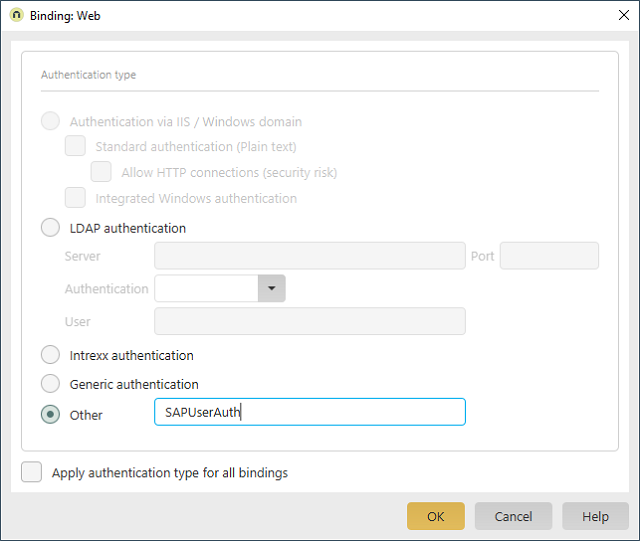
The SAP login module used here is a prerequisite for generating SAP logon tickets that are used in single sign-on scenarios. When a portal user successfully logs in to the SAP system, such a ticket is automatically generated, which can then be used later to integrate SAP web pages or SAP shortcuts.
Single Sign-On with SAP Logon Tickets
Single Sign-On (SSO)—or the elimination of unnecessary multiple logins—is achieved with Intrexx using SAP logon tickets. You can find information on this, for example, in SAP Note "304450." To do this, the SAP server must issue and accept SSO tickets (RZ10 parameters "login/accept*" and "login/create*"). In addition, the "TRUSTSSO2" transaction must be initialized. The portal creates a ticket using the SAP function module "SUSR_CHECK_LOGON_DATA" in the specified SAP system, which is then available for SSO scenarios. This process is provided by the SAP login modules. The SAP system must be configured to use logon tickets (see SAP Note "612670"). Currently, only authorization using an SAP username or alias and password is supported (function module "SUSR_CHECK_LOGON_DATA: AUTH_METHOD = "P""). Additional exams may be made available later or can be incorporated into projects.
More Information
SAP Trust Manager SSO Configuration
API Description, Part 1 - Overview
API Description, Part 2 - SAP Portal Plugin
API Description, Part 3 - Implementing Custom Processing Modules
API Description, Part 4 - Sample Code
Developer's Guide, Part 2 - Integration Scenario: SAP External Data Group
Developer's Guide, Part 3 - Integration Scenario: Scripting