

Checkbox / Checkbox View

The "Checkbox" element is one of the basic controls. This element is available as both an input and a view element. Checkboxes, as input elements, store Boolean values (true, false, or Yes, No) and can therefore be linked to Boolean data fields.
Starting with Intrexx version 12.1.0:
In view tables (control type "Checkbox") and for the "Checkbox" element, data fields with the data types Integer and String can also be used starting with Intrexx version 12.1.0. The following rules apply:
Integer: All values other than 0 are true; 0 is false.
String: true, 1, yes, "ja" becomes true; all other values become false. "Not set" (null) behaves like the Boolean data type—no value is displayed.
Depending on the value, the element is displayed in the browser as selected or unselected.
You can save the checkbox settings by clicking the corresponding button.

You can find the checkbox element in the "Applications" module under "Elements. " You can create a new checkbox by dragging and dropping the element from here onto the workspace.
You can find all the information you need to create the element here.
The Properties dialog box for a checkbox opens automatically when a new checkbox is created. You can open the Properties dialog box for an existing checkbox by double-clicking the element on the workspace, selecting "Properties" from the context menu, or choosing "Edit / Properties" from the main menu when the checkbox is selected on the workspace.
Properties Checkbox
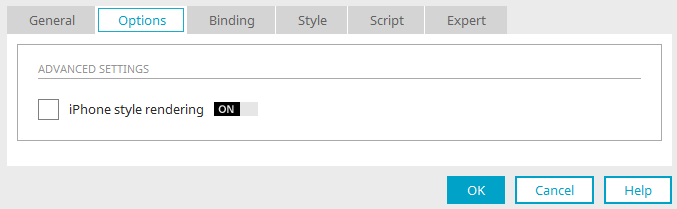
On the "Options" tab, you can enable or disable the iPhone view. When this setting is enabled, the checkbox appears as a typical iPhone on/off switch.
Properties Checkbox View
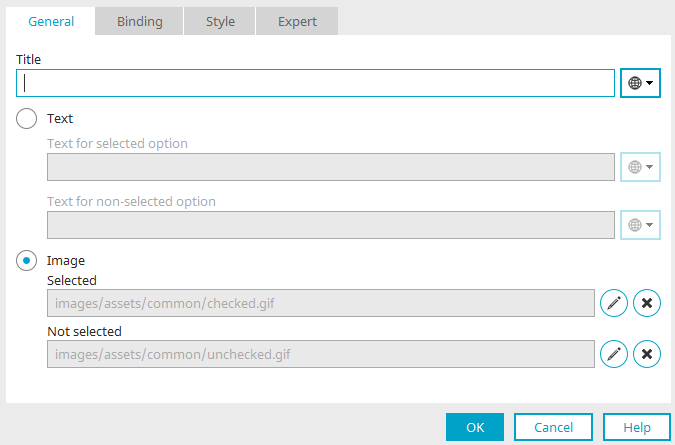
Title
Enter the label for the checkbox here. You can find information about multilingual titles here.
Text
-
Text for the selected option
You can enter text here that will be displayed if the linked data field returns the value "Yes."
-
Text for the unselected option
The text entered here will be displayed if the data field returns the value "No."
The template text can also be defined using constants.
Image
As with the button, you can select your own images here to replace the default checkbox.
-
Selected
This image is displayed when the connected data field returns the value "Yes."
-
Not selected
This image is displayed when the data field returns the value "No."
 Edit
Edit
Opens the dialog box for loading an image.
 Remove
Deselects the current image.