

For all application elements that display lists of data, fixed filters can be set up. Filters can also be applied to certain process elements, such as the data group action.
Dependencies
Unlike hard-coded filters, filters in applications can also be set up dynamically using what is known as a "dependency." In this case, an entry made in another application element triggers the filter that is defined via a dependency (e.g., in a view table).
You can find all the information about dependencies here.
Hard-coded filters
In the Properties dialog box for application elements that can be filtered, you'll find the "Filter" button (  ) for each one.
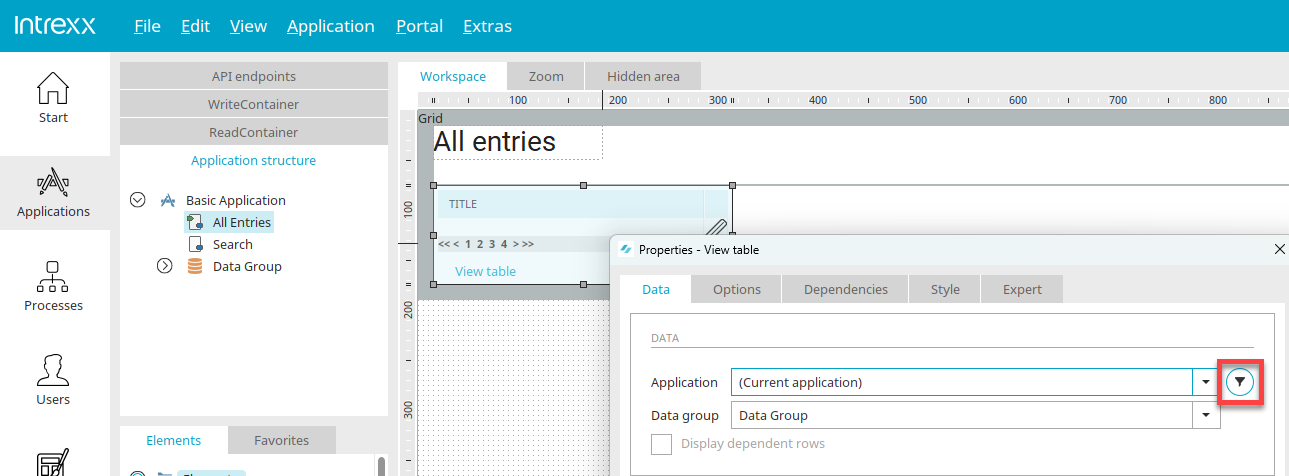
Click "Filter" under " ."
Filter
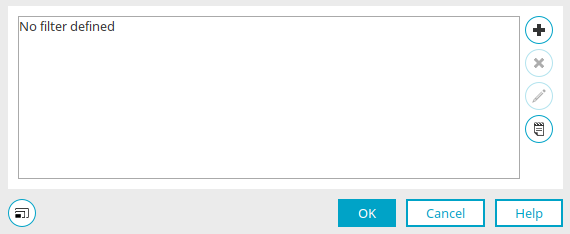
In this dialog, which you can access from the Properties of application and process elements, you will find all the filter expressions that have already been defined.

 / Edit filter expression
Opens a dialog box where you can create or edit one or more filter expressions.
Filter Expression
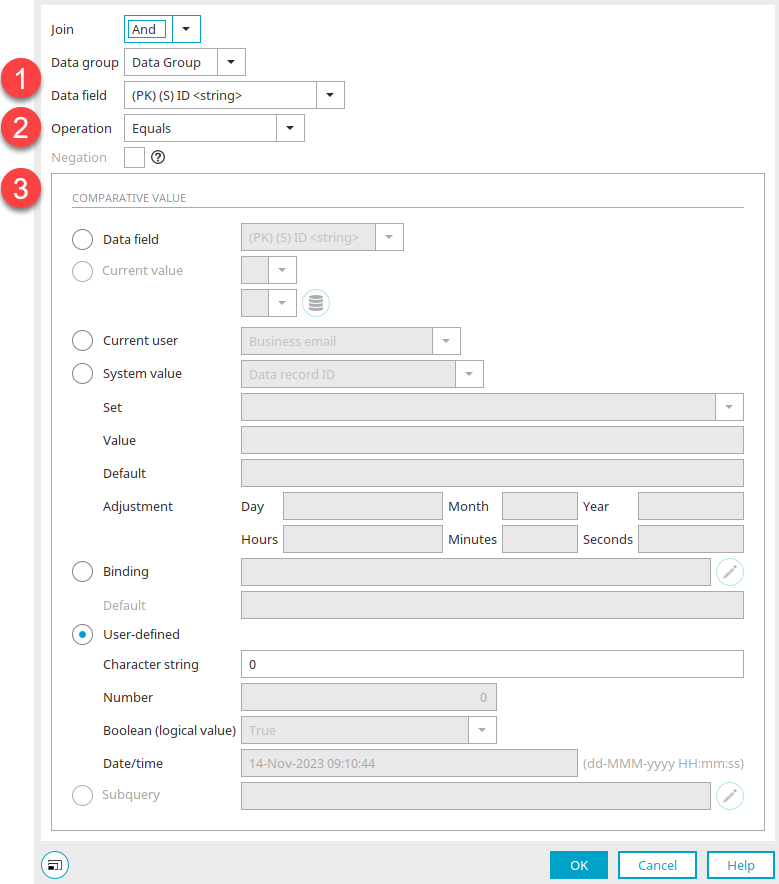
If you create multiple filter expressions, you can choose how the individual expressions are combined. With an "AND" operator, only records that meet all criteria are returned; with an "OR" operator, records that meet at least one criterion are returned.
A filter expression consists of three parts:
-
Data to be filtered
-
Operator that determines the type of comparison
-
A reference value against which the data to be filtered is compared.
1. Data
Data Group / Data Field
Select the data group and data field here whose values you want to filter. Data fields from a parent or child data group can also be used in the filter expression.
2. Surgery
Depending on the data type of the selected data field, different operators are available.
|
Data type: string, text |
|
|---|---|
|
Operator |
Returns the following result |
|
Right away |
Any string that is identical to the reference value. This process distinguishes between uppercase and lowercase letters. |
|
Unequal |
Any string that is not identical to the comparison value. This process distinguishes between uppercase and lowercase letters. |
|
Less than or equal to |
Any string whose character value (ASCII) is less than or equal to the character value of the comparison value. |
|
Smaller than |
Any string whose character value (ASCII) is less than the character value of the comparison value. |
|
Greater than or equal to |
Any string whose character value (ASCII) is greater than or equal to the character value of the comparison value. |
|
Greater than |
Any string whose character value (ASCII) is greater than the character value of the comparison value. |
|
Undefined |
All records in which the data field does not contain valid values or has not yet been initialized. With this operator, you do not need to specify a comparison value. |
|
Defined |
The data field contains any value. An empty string is also considered an arbitrary value—for example, if the data was saved without any input. With this operator, you do not need to specify a comparison value. |
|
Contains |
All strings that contain the comparison value. |
|
Begins with |
All strings that begin with the comparison value. |
|
Ends with |
All strings that end with the comparison value. |
|
Included in |
All strings that appear as a subset in the comparison value. If the string returned by the data field is identical to the comparison value, no result is returned. Multiple values can be specified, separated by ||. |
|
Not included in |
All strings that do not appear as a subset in the comparison value. Multiple values can be specified, separated by ||. |
Using the operators "Less than or equal to," "Less than," "Greater than or equal to," and "Greater than," you can filter, for example, customer or item numbers that consist of letters and sequences of numbers.
For a number such as "C1000," the ASCII value of the character string can be used to determine smaller numbers. The uppercase letter "C" has the ASCII value 67, the digit "1" has the value 49, and the digit "0" has the value 48. The operators listed above compare ASCII values lexicographically. The "less than" operator returns all numbers that are less than "C1000" ("C999," "C998," etc.). To identify records that have no entry in a data field, you must use an OR operator to check whether the field's value is NULL (the "Undefined" operator) or whether the entry is empty because it was saved without an input.
To determine an empty string, select the "Equal" operator and set the comparison value to "User-defined." In this case, the "String" field remains blank. If you want to filter all fields that contain an entry (i.e., not an empty string and not NULL), you must use an AND operator to compare them in the same way.
|
Data types: integer, double, datetime |
|
|---|---|
|
Operator |
Returns the following result |
|
Right away |
All the same values |
|
Unequal |
All unequal values |
|
Less than or equal to |
Smaller and equal values |
|
Smaller than |
Smaller values |
|
Greater than or equal to |
Greater than and equal to |
|
Greater than |
Larger values |
|
Undefined |
All records in which the data field does not contain valid data or has not yet been initialized. With this operator, you do not need to specify a comparison value. |
|
Defined |
The data field contains any value. With this operator, you do not need to specify a comparison value. |
|
Included in |
like the "equal" operator |
|
Not included in |
like the "not equal to" operator |
|
Included in clients |
This option is available only if the User ID or a GUID from the user application has been selected as the data field. Can be compared with the system values "Selected clients of the current user" and "All clients of the current user" to filter the current data to the client(s) assigned to the current user. You can find more information on this topic here. |
|
Data type: boolean |
|
|---|---|
|
Operator |
Returns the following result |
|
Right away |
Equal Truth Values |
|
Undefined |
All NULL values |
|
Defined |
Records in which the data field has the value "True" or "False." |
Negation
For the operators "Contains," "Starts with," and "Ends with," you can select the "Negation" setting. This filters out all records to which the current operator does not apply.
Starting with Intrexx version 12.1.5:
Swap the order of the arguments
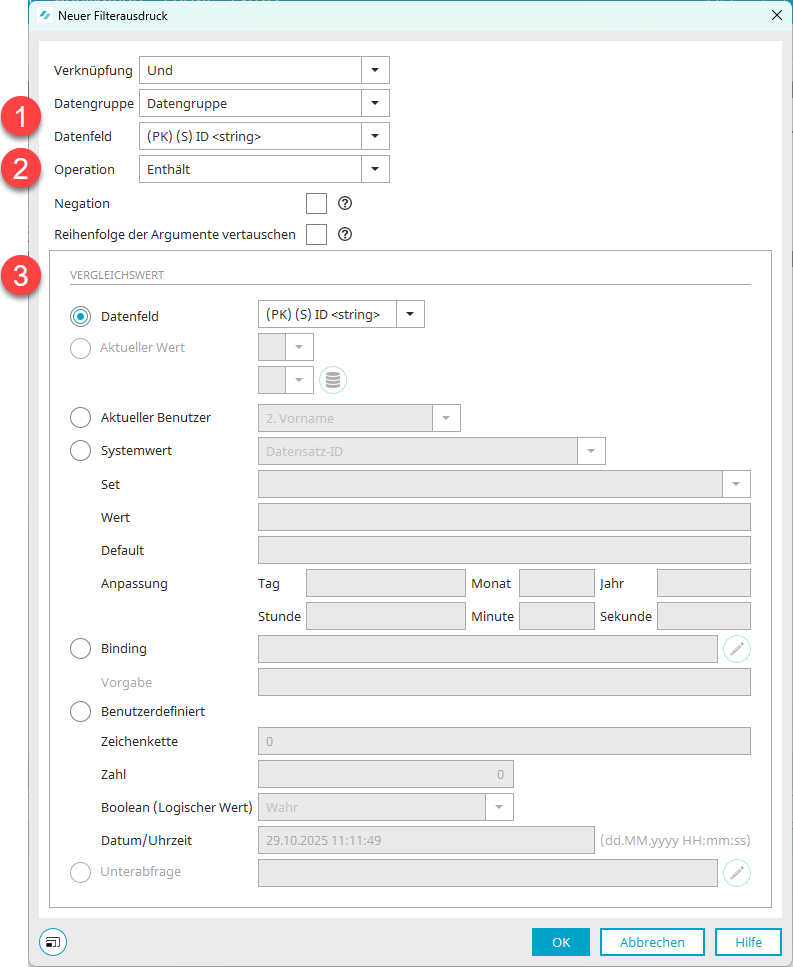
In filter expressions using the operators "Contains," "Starts with," and "Ends with," the order of the arguments can be reversed.
From
"Data field contains / starts with / ends with value"
will be
"Value contains / starts with / ends with data field".
Starting with Intrexx 12.1.5, the filter expression "Data field contains data field" can be applied to the following database types and OData:
-
MariaDB
-
Oracle
-
Postgres
-
Mssql
-
MySQL
3. Comparative value
Any data or reference field can be selected as a comparison value. A comparison is possible only if the data types match.
Current value
This option can be selected when the filter expression is created from a page that displays a record. The filter result will then contain all records that include the current value of the data field selected here—in accordance with the selected operator.
 Select a data field from a parent data group
Opens a dialog box in which data fields from a parent data group can be selected. The button is active only if the data group has a parent data group (or higher).
Current User
This option allows you to select a reference value from the "Users" module.
When comparing with an integer data field (1), the following options are available:
-
Login attempts (number of failed login attempts)
-
User ID / Container ID / Class ID
-
Gender
Blocked
-
User priority.
-
Deputy ID / Supervisor ID (using the "Contains" operator, you can determine the current user's deputy or supervisor )
For data fields (1) with other data types, additional corresponding fields from the "User" module can be selected as comparison values.
System value
Record ID
ID of the currently displayed record.
Parent Record ID
ID of the parent record.
Set / Container
Compare with the corresponding objects from the "Users" module, which can be selected from the drop-down list below the option.
Using the "Is contained in" operator, this returns records of users who are contained in the set or container. Only users are identified; no other objects, such as user groups, are included.
Exchange Mailbox Information
String or text data fields (1) can be compared with the system value "Exchange Mailbox Info." The following values are possible:
INBOX
(HRef of the Inbox folder),
USER EMAIL ADDRESS
(Exchange user's email address),
USER MAILBOX
(Exchange user's mailbox),
DRAFTS
(Href of the "Drafts" folder),
DELETEDITEMS
(HRef of the "Deleted Items" folder),
SENTITEMS
(Hyperlink to the "Sent Items" folder),
CALENDAR
(HRef for the "Calendar" folder),
CONTACTS
(HRef of the "Contacts" folder),
TASKS
(HRef of the "Tasks" folder),
VERSION
(Exchange Server version from the Exchange configuration)
In "Default," you can enter a default value that will be used if the variable is not defined.
Language
For the "Language" comparison criterion, the table entries are filtered based on the portal's language setting. This requires a comparison with a data field (data type "string") in which the language codes (e.g., de, en) were recorded for each data record.
Layout
For the "Layout" comparison value, the table entries are filtered based on the currently loaded layout.
Selected Clients of the Current User
Using the "Is contained in client" operator, this returns the records that are contained in the clients selected by the user. You can find more information on this topic here.
All clients of the current user
Using the "Is contained in clients" operator, this returns the records that are contained in all clients assigned to the user. You can find more information on this topic here.
Adjustment
If a comparison is made with a data field of the "datetime" data type, its value can be compared with the current date and time. You can find information about customization here.
When filtering by time periods, please note that a day always begins at 12:00 a.m. So if you select the date range August 1, through August 5 If you want to filter, the filter expression must be ">1.8. and <6.8." read, so that August 5 is still trapped in the filter.
Binding
Here, you can compare values using session values, request values, values from the processing context, system data fields, or parameters. Comparisons with parameters are only possible in applications. In processes, parameters are not available as reference values. In an API environment, API parameters can also be used here for comparison.
Specification
Enter the name of the binding here.
Custom
For string data fields, any string can be specified as a custom, static comparison value. Please be sure to use the correct uppercase and lowercase letters. For integer or double data fields, comparisons can be made with any number. Datetime data fields can be compared to any date.
Subquery
A subquery can be executed in the comparison value in combination with the operators "Is contained in" or "Is not contained in."
Edit Subquery
Opens a dialog box where you can define the subquery for a data set.
Subquery Properties
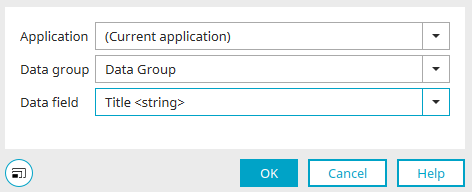
You'll also find this dialog in filter expressions within dependencies, among other places.
Select the application, data group, and data field for the subquery's return value here.
Click "OK" to save your changes and close the dialog box.
Click "OK" to save the filter expression configuration and close the dialog box.
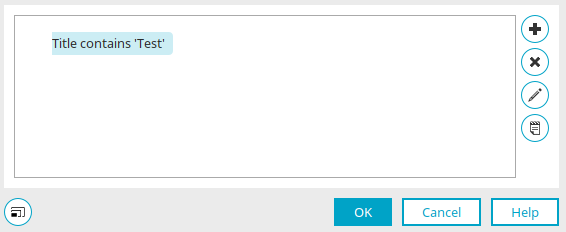
The completed filter output is now displayed here.
 Edit Filters in Expert Mode
Opens the filter editor, where you can edit the filter's XML directly.