

You can access the application properties in the "Applications" module within the open application by double-clicking the application node or, if the application node is selected, via the "Properties" option in the main menu, which is also available in the context menu.
General
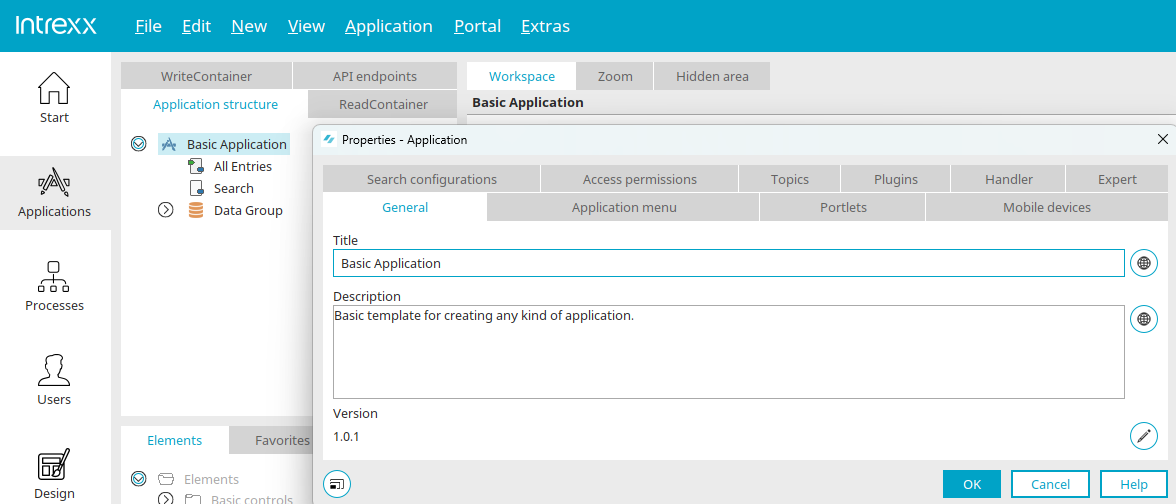
On the "General" tab, you can edit the application's title and description. You can find information about multilingual titles and descriptions here.
The description is displayed when a menu item loads an Intrexx default home page.
Version
The current version number is displayed here. Clicking "Open Version Manager" at  opens a dialog box where you can enter the version number.
Application Menu
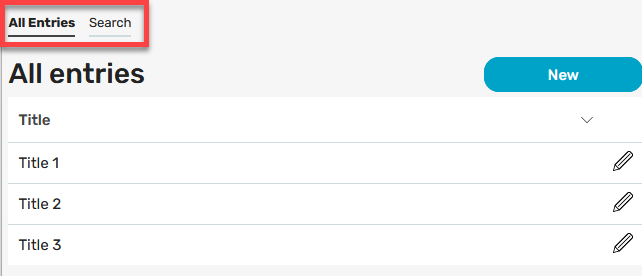
The individual pages of the application can be accessed in the browser via the application menu. On the "Application Menu" tab in an application's properties, you can specify which pages should be available in the menu.
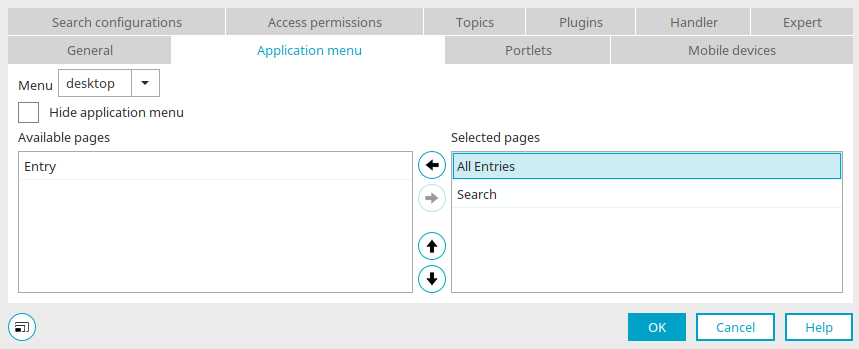
In the "Menu" drop-down list, you can select "desktop" and "mobile." Selecting "desktop" selects the desired pages for display in the application menu on desktops, while selecting "mobile" selects the pages for display on mobile devices.
All pages in the "Selected Pages" list can be accessed from the application menu.
Hide the application menu
With this setting, the application menu will not be displayed.
Available Pages
The pages that can be selected for the application menu are
-
All pages on the first level of the application structure
-
Input pages from first-level data groups


Moves pages from one list to another.


Changes the order of the pages. The following rule applies: The higher a page's position in the "Selected Pages" column, the further to the left it appears in the application menu.
When an input page is opened directly from the application menu, it loads with empty input fields for creating a new record.
Portlets
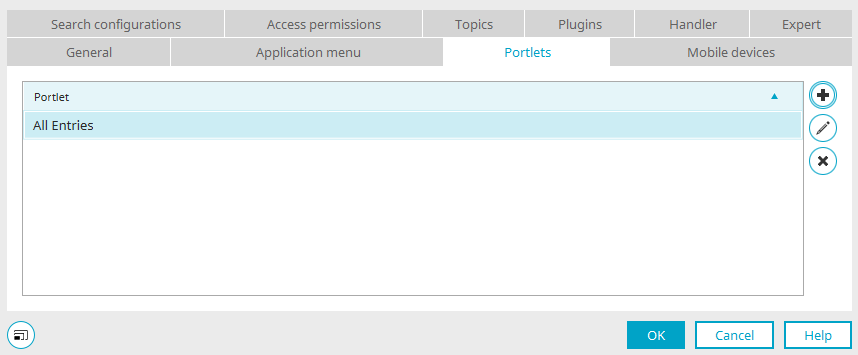
You can find all the information about the settings on the "Portlets" tab here.
Mobile Devices
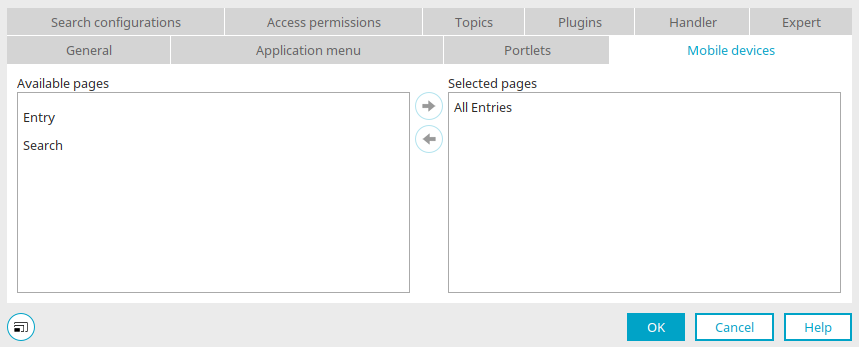
On the "Mobile Devices" tab, you can select the pages that you want to transform for display on mobile devices.
Click the " " arrow button to move the desired pages from the "Available Pages" list to the "Selected Pages" list.
For all selected pages, the "Transform for Mobile Devices" page property is automatically set.
When moving a page to the other list, the system checks whether the page is used in any plugins. If this is the case, the page cannot be moved.
Search Configurations
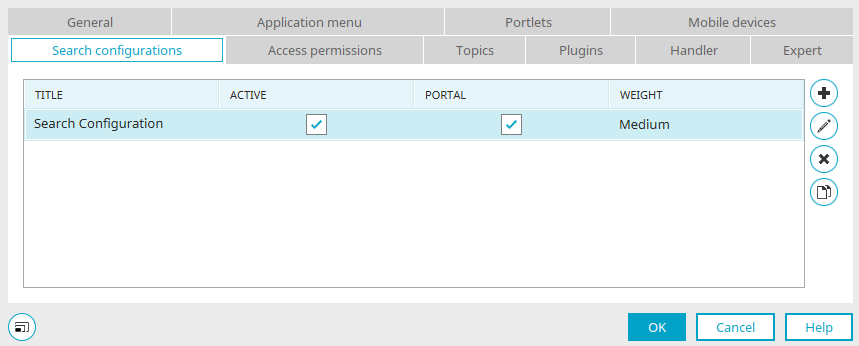
All search configurations used in the application can be managed. You can find all additional information about this dialog here.
Permissions
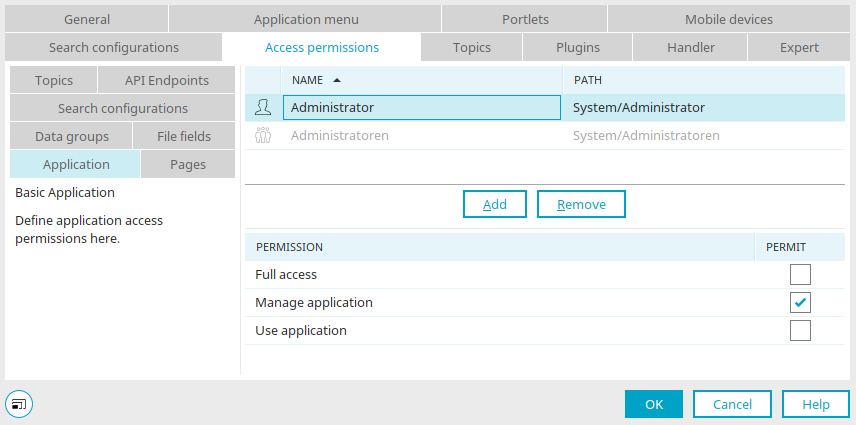
This is where access rights to applications are defined. You can find all additional information here.
Topics
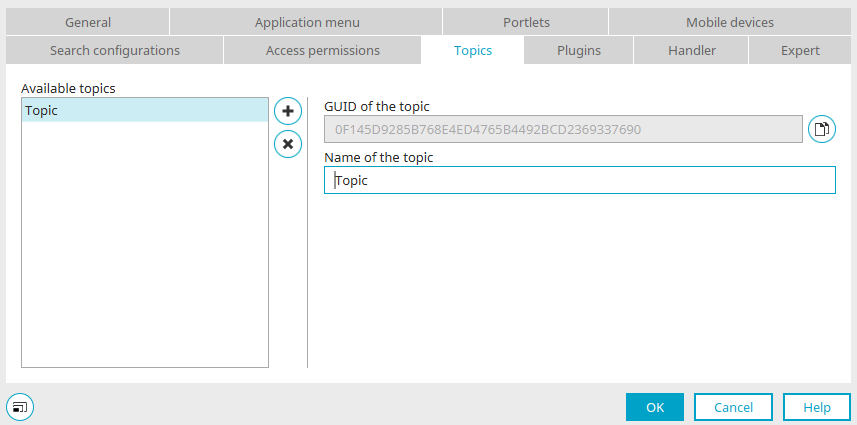
"Topics" are related to WebSockets. They represent the object that delivers or provides WebSocket messages. A "consumer" can subscribe to a topic. A topic can be compared to a news feed that you can subscribe to.
Available Topics
All topics that have already been defined are listed here. When you click on a topic in the list, the corresponding fields appear in the right-hand pane, allowing you to edit the topic.
 Create a topic
You can create a new topic here. The corresponding fields will automatically appear in the right-hand pane.
 Delete Selected Topic
The selected topic will be deleted.
GUID of the topic
The GUID of the topic is displayed in the right-hand pane of the dialog box. The GUID is automatically assigned by Intrexx and cannot be changed. You'll need the GUID if you want to reference this topic in a Groovy action or in JavaScript.
 Copy the topic's GUID to the clipboard
Copies the topic's GUID to the clipboard.
Topic Name
Enter a name for the topic. The topic name must be unique. It may appear only once in Intrexx. You can use the topic name if you want to refer to the topic in WebSocket actions.
More Information
Plugins
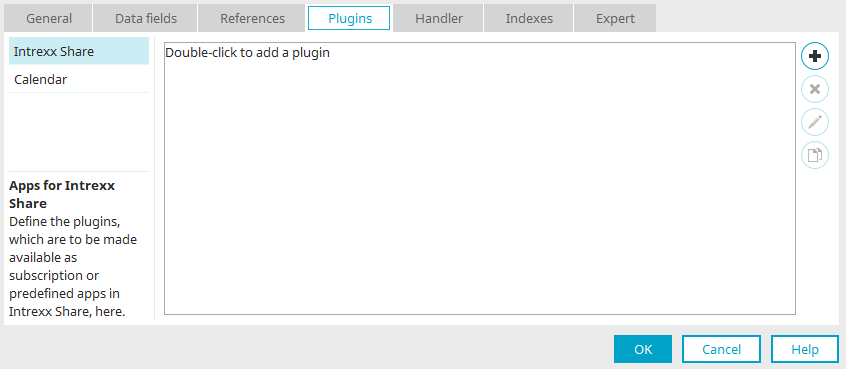
You can find all the information about plugins here.
Handler
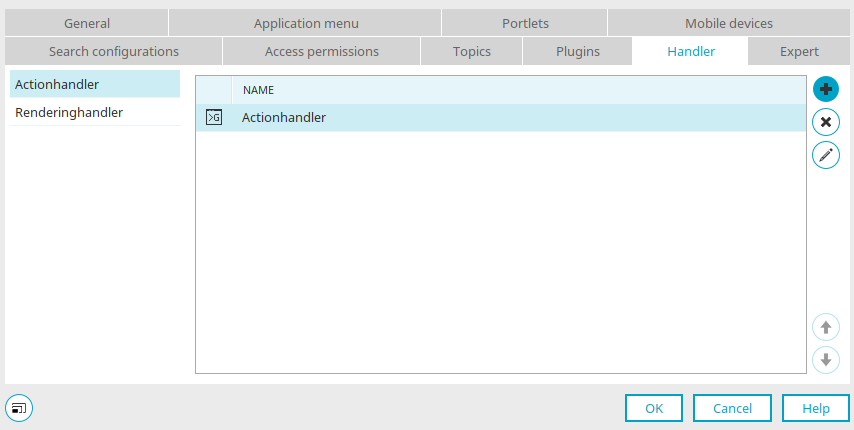
You can find all the information about action and rendering handlers here.
Expert
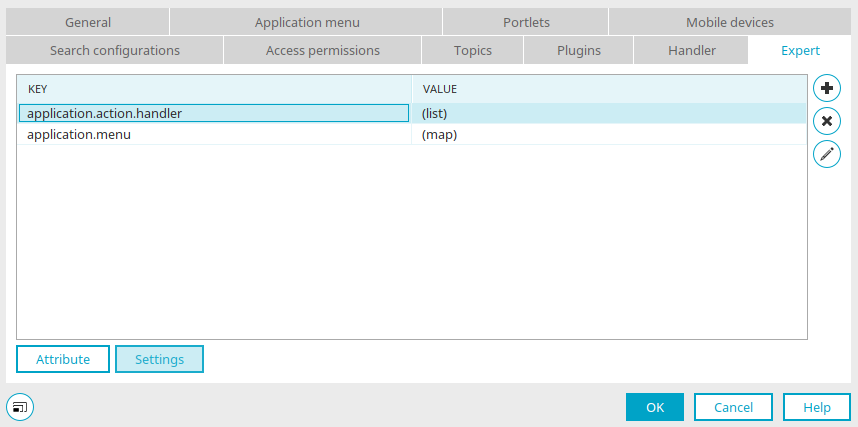
You can find all the information about Expert Mode in applications here.