

Create Pages
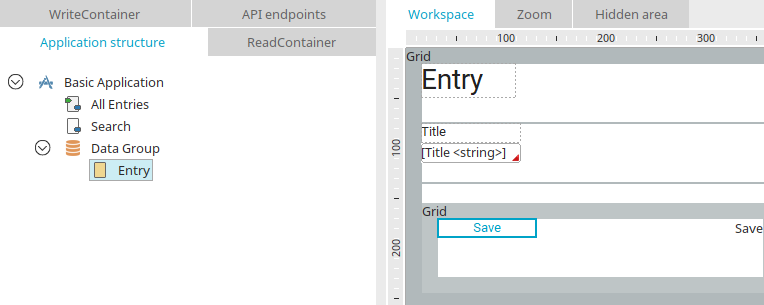
In Intrexx applications, there are two types of pages: view pages and input pages.
Input pages are marked with this  icon in the application structure and are always located within a data group. On input pages, you can create input and display elements and save the entered data by clicking a button.
View pages are identified in the application structure by this  icon and can appear at any level of the application structure. Data cannot be saved on view pages.
When you select a page in the application structure, its content is displayed on the workspace, where you can edit it.
Click here to learn how to set a page as the app's home screen or add it to the app menu.
Page Assistant
Pages can also be created very easily using the Page Wizard. It helps you build responsive web pages. You can find all the information here.
Form Wizard
The Form Wizard helps you set up existing pages, for example, when you have created a blank page in the application. You can find all the information here.
Features
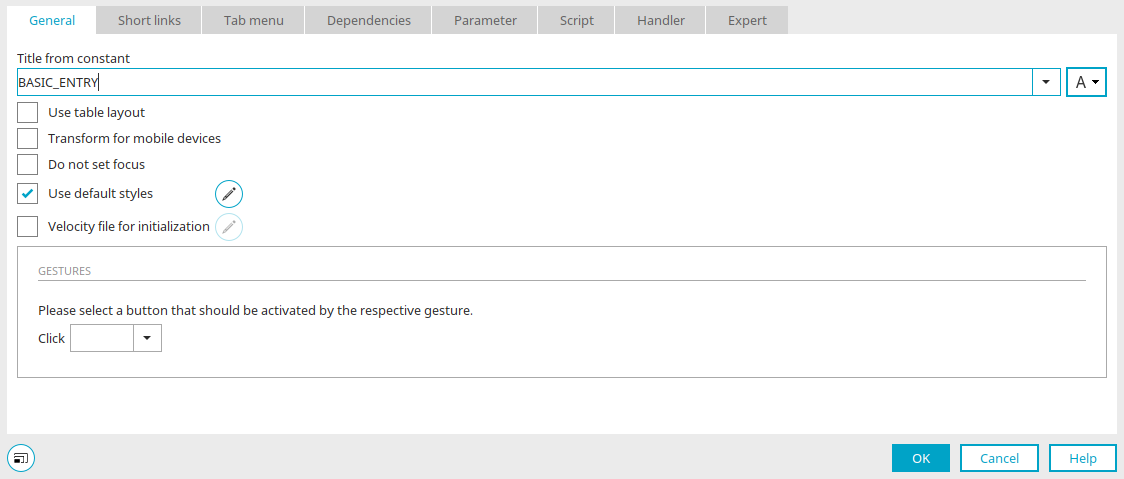
You can open the page's Properties dialog by double-clicking a page in the application structure or, if the page is selected there, by selecting "Properties" from the main menu or context menu.
Title
Enter the page title here. You can find information about multilingual titles here.
Use Table Layout
With this setting, table tags are preserved in the HTML; without it, no layout table is generated. The "Grid" element can only be placed on a page if that page does not use a table layout.
Transform for mobile devices
With this setting, the page is transformed for display on mobile devices. Well-structured HTML is used to build the page. If a page contains elements that cannot be transformed for mobile devices, those elements are marked on the workspace with a red, crossed-out  circle icon.
Elements That Can Be Used on Mobile Pages
-
Single-line text field (input and display)
-
Button (button, text, image)
-
Tagging (Input and View)
-
Multi-line Text Field: Input Without Editor Mode
-
Multi-line Text Field View
-
Shortlist
-
Slider
-
List Box
-
Radio button
-
User Information
-
Checkboxes (Input and View)
-
File (Input and View)
-
Freely Formatted Table
-
Checkbox Selection
-
Static Text
-
View Table
-
Web Service Table
-
Chart
-
Dynamic View
-
Multiple Selection (Input and View)
-
Status Indicator for the Navigation Element
-
Calculation Check
-
Calendar
-
Resource
-
Selecting the Display (Calendar Supplement Check)
-
Legend (Additional Calendar Check)
-
Selection of Resources (Additional Calendar Check)
-
Plugin Selection (Calendar Add-on Check)
-
Intrexx Share Comment
-
Odometer Inspection
-
Multi-source table (search results)
-
Series of Events
-
Color Picker
-
Dynamic Filter Calendar, if it has an event with the "synchronizeScaleRange" action
-
Grid
Elements that cannot be used on mobile pages
-
Sortable List (Input and View)
-
Tree (Input and View)
-
Exchange Tree
-
Path Navigation for Tree
-
Filter Information
-
Dynamic Filter Value Range
-
Dynamic Filter Operator
-
Dynamic Filter Alpha Index
-
Dynamic Filter Calendar, without an event, using the `synchronizeScaleRange` action
-
Gallery
-
Exchange File Selection for Attachments (Input and View)
-
File Sorting
-
Research
-
Filewalker
-
Repeating Grouping
The "Transform for mobile devices" setting cannot be changed if the page is used in plugins.
Do not set a focus
When the page loads on the web, no element receives focus.
Apply style class suggestions
Ensures that a suitable default style is assigned when new elements are created. If this is not desired—for example, because you want to apply custom styles—you can disable this setting.
 Edit Margins and Custom Style Classes for Elements in a Table-less Layout
Opens a dialog box where you can define margins and style classes within a DIV container.
Velocity file for initialization
With this setting, the Velocity file selected here will be executed when the page loads.
Select/Edit Velocity File
Opens a dialog box where you can load the Velocity file for initialization.
Actions for Gestures
If the group contains buttons, you can specify here which button should be triggered by a tap on mobile devices.