

Portlet Container
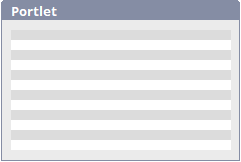
The portlet container is an application element that can be used to display portlets on view and input pages.
General information about portlets can be found here.
If you want to use a portlet container on a page, the "Use as Portlet" setting must not be selected in the page properties.
The "Portlet Container" application element belongs to the "Other Controls" element category.
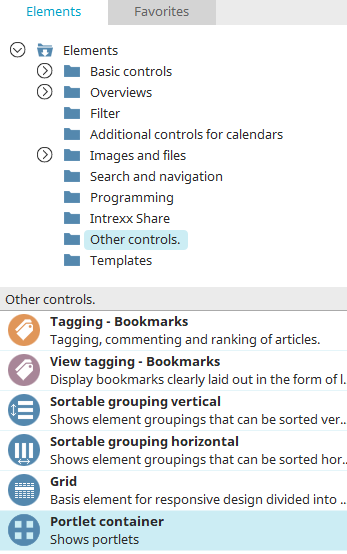
You can find the Portlet Container element in the "Applications" module under "Elements. " You can create a new portlet container by dragging and dropping the element from here onto the workspace.
For more information on creating elements, click here.
The properties dialog for a portlet container element opens automatically when a new portlet container is created. You can open the Properties dialog for an existing portlet container by double-clicking the element on the workspace, selecting "Properties" from the context menu, or choosing "Edit / Properties" from the main menu when the portlet container is selected on the workspace.
General
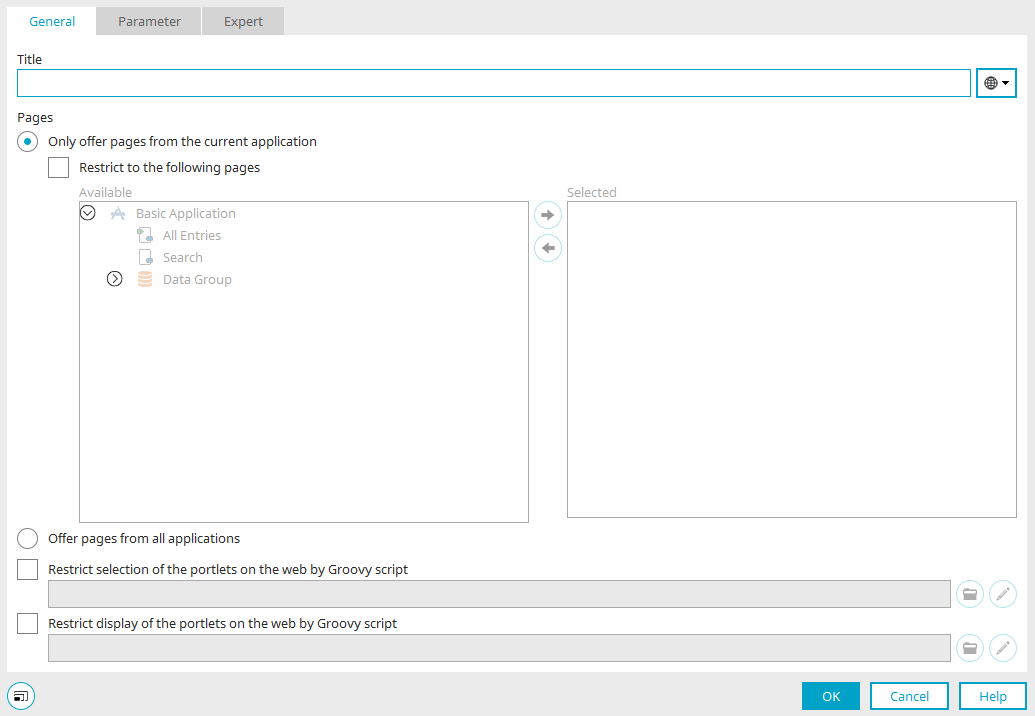
Title
Enter the title of the portlet container here. You can find more information on this topic here.
Pages
Show only pages from the current application
With this setting, all pages defined as portlets are displayed in the portlet container.
Limit to the following pages
Enables the application structure under the setting. Select the pages you want from the "Available" list and move them to the "Selected" list. If a page is added to the "Selected" list, it is automatically defined as a portlet. A page cannot be selected if it is already selected, if it is the current page, if it contains a portlet container, or if it is an input page.
Offer pages from all applications
This option makes portlet pages from all applications in the container available.
Restrict the Selection of Portlets on the Web Using a Groovy Script
If this setting is enabled, Groovy scripts can be used to control the portlet's selection in the browser.
Restricting the Display of Portlets on the Web Using a Groovy Script
If this setting is enabled, Groovy scripts can be used to control how the portlet is displayed in the browser.
 Select a script file
Each one opens a dialog box where you can select or create a Groovy file.
 Edit Script
Opens the script editor in each case.
Groovy Examples
You can find examples of how Groovy is used in this area here.
Parameters
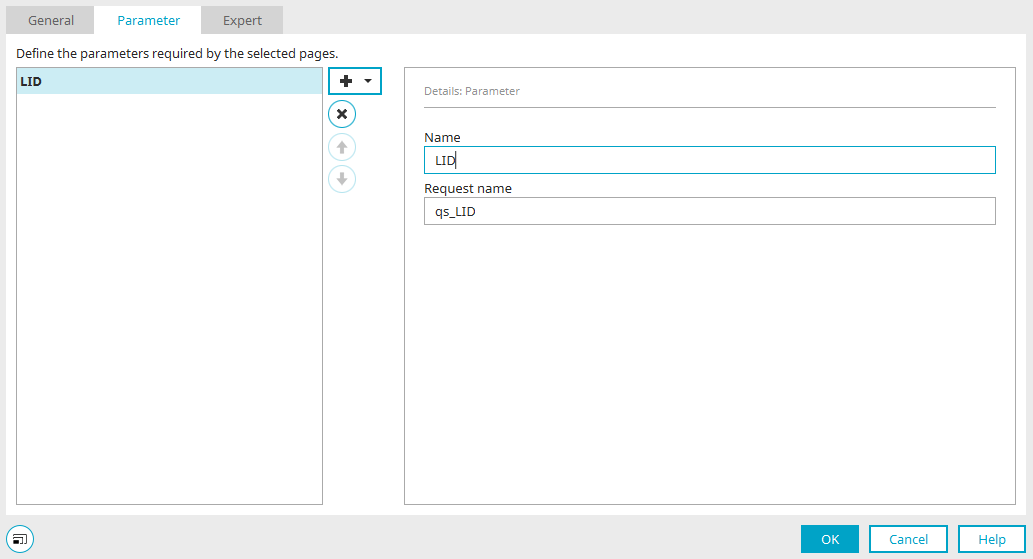
Here, you can create parameters for the pages embedded in the portlet container.
The portlet container distributes these parameter values to the embedded pages. For this reason, any number of semantic values can also be created in the portlet container.
For example, if two embedded pages each require the "LID" parameter from the portlet container, semantic values can be used to distinguish whether the portlet container is providing a customer number or an order number. The corresponding semantic value must also be defined in the properties of the embedded page on the "Parameters" tab so that the mapping can be performed correctly at runtime.
You can find all the information about the settings in this dialog box here.