

Create an MS365 Group
An MS365 group is the foundation for almost all MS365 services. For example, Team Sites, drives, Exchange group mailboxes, and so on are automatically set up for a group. The "Create MS365 Group" process action now allows you to create just one MS365 group.
Create an MS365 group
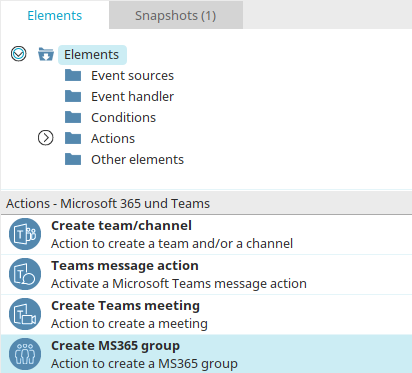
You can find the "Create MS365 Group" action in "Processes" under the "Elements" section. It belongs to the "Promotions - Microsoft 365 and Teams" category. From there, it can be dragged and dropped into the desired location in the process chain and then configured. General information on creating process elements can be found here.
If you have created the "Create MS365 Group" action on the workspace, double-click the item to open the Properties dialog box.
General
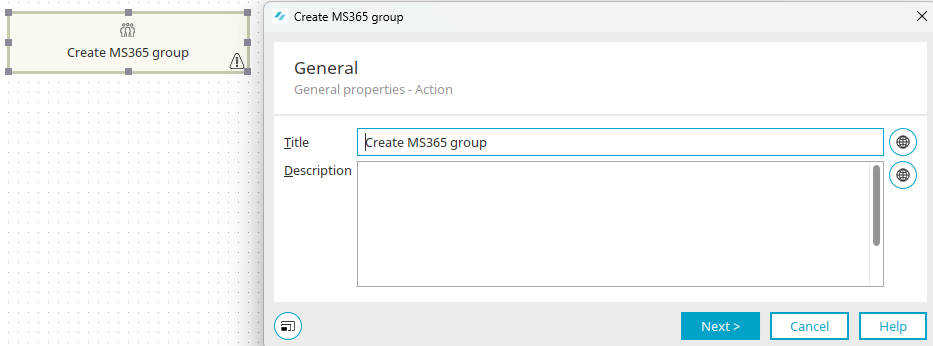
You can find all the information about the settings in this dialog box here.
Click "Next."
Microsoft 365 Configuration
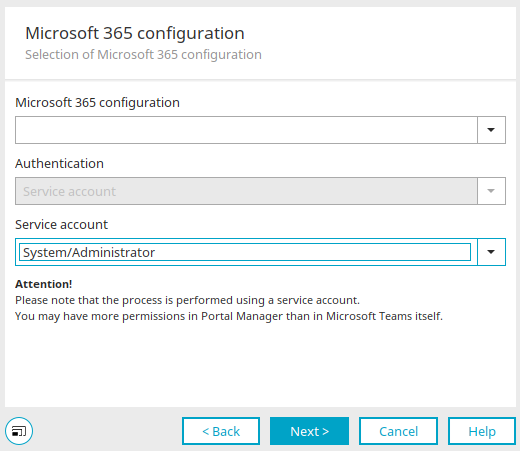
Select an existing Microsoft 365 configuration here. Also, specify a service account under which the process will run. Then click "Next."
Group Options
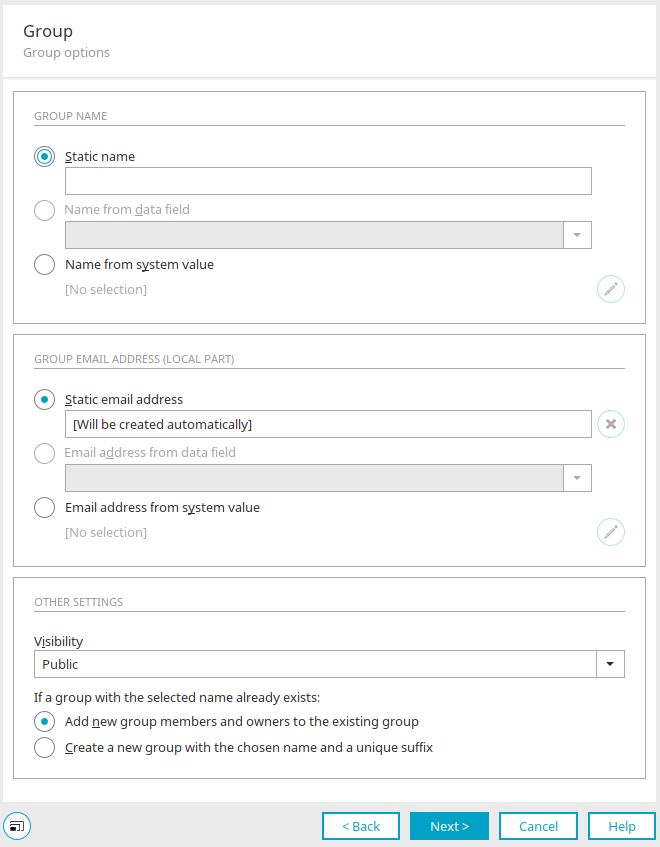
Group Name
Static Name
You can enter a simple, single-language text for the name here.
Name from data field
This option is available if the action has a data group context, for example, if a data group event handler has been defined as the event source. Select a data field from the data group whose content forms the name of the team.
Name from System Value
The group name is retrieved from a request value, a session variable, a variable in the processing context, a system data field, or a data field in the user data group.
Clicking "Edit System Value" at  opens a dialog box where you can define the system value.
Group email address (local part)
Only the local part of the email address is defined here. The @ symbol and the domain part come from the MS-365 configuration.
Static Email Address
You can enter an email address here for the new group, which will be created automatically when the process action is executed. The value can also be empty. In that case, an email address is determined from the group name when the process is executed.
Email address from data field
With this option, the value of the data field you select here will be used as the group's email address.
Email Address from System Value
The team name is retrieved from a request value, a session variable, a variable in the processing context, a system data field, or a data field in the user data group.
Clicking "Edit System Value" at opens a dialog box where you can define the system value.
More Options
Visibility
The group's visibility can be set to
-
Personal
-
Public
-
Hidden Membership
If a group with the selected name already exists:
This section specifies how to handle groups whose names are already in use by other groups. Either all new group members will be added to the existing group, or a new group will be created with a name consisting of the selected name and a unique suffix.
Click "Next." The next step is to select the members of the group.
Group members
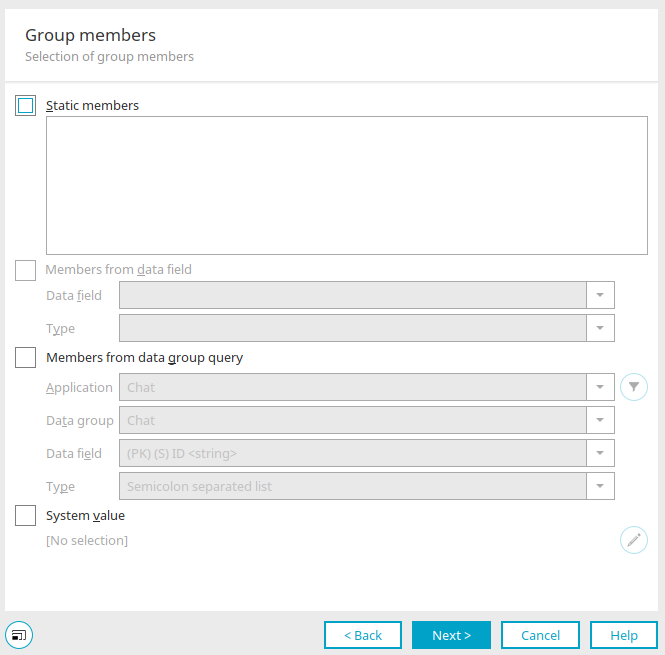
Static Members
Enter the members' email addresses here, exactly as they are listed as the "Principal User Name" at Entra ID (formerly Azure AD). Email addresses can be entered separated by commas or semicolons. Alternatively, you can enter one email address per line.
Members from the "Data Field"
This setting is available when the action has a data group context, for example, when a data group event handler has been defined as the event source. Here, you select a data field from the data group that contains the email addresses. The type specifies how the data is formatted for collecting email addresses (e.g., semicolon-separated, GENERIC (which extracts email addresses from free text according to RFC 5322), distribution list selection (pipe-separated list of organizational structure GUIDs), and double-pipe-separated.
Members from a query on a data group
Here, a data field is selected from a published application that contains the data, as specified in the "Members from Data Field" setting.
Clicking "Filter" at  opens a dialog box where you can create a filter to narrow down the data.
Here, too—just as with the "Members from Data Field" setting—you must select the type of formatting.
System Value
With this setting, email addresses are determined using a session variable, a request parameter, a variable in the processing context, or a system data field.
Clicking "Edit System Value" at opens a dialog box where you can define the system value.
Group Owner
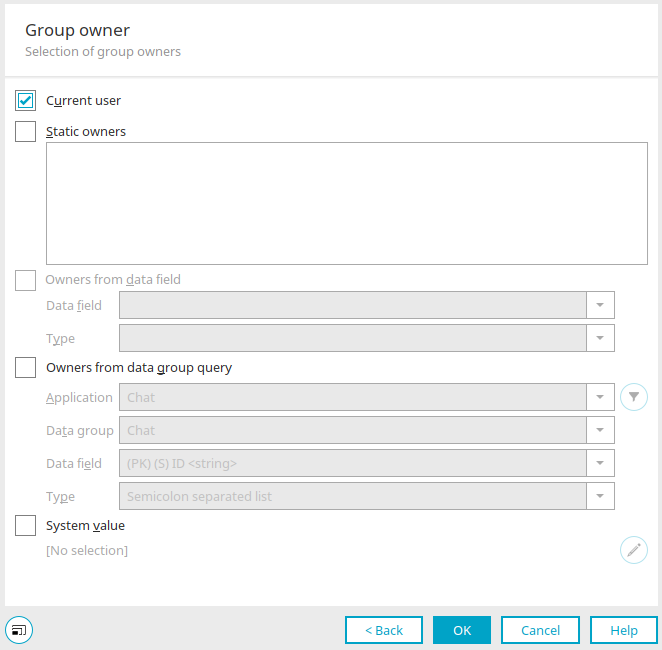
The group owners can be designated here.
Current User
The currently logged-in user is considered the owner of the group.
All other settings in this dialog box correspond to the settings in the dialog box where group members can be specified.
Exception Handling
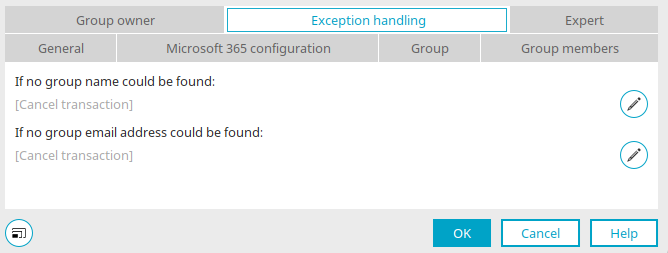
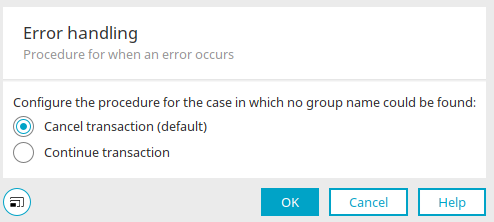
You'll only see this tab for a process element that has already been created when you open the Properties dialog box. Here, you can specify whether the transaction should be canceled or continued if no group name or group email address is provided. To do this, click "Configure Exception Handling" at .
More Information
Connector for Microsoft 365 and Teams
The sections of the "Processes" module