


Requirements
To connect to Microsoft Exchange using the Microsoft Exchange Connector, you need a MediaGateway installation. You can find the installation instructions here.
The connector must also be licensed.
If the data source is to be configured with OAuth 2.0 authentication, the Intrexx Portal must first be registered as an app with Microsoft Azure. You can find instructions on how to do this here.
You can then configure the connection in the "Integration" module. You can find the connector there in the left-hand pane under the "Consume Data" entry. Select the "Connector for Microsoft Exchange" entry. You can now create a new data source via the main menu ("Data Source / New Data Source") or the context menu ("New Data Source").
General
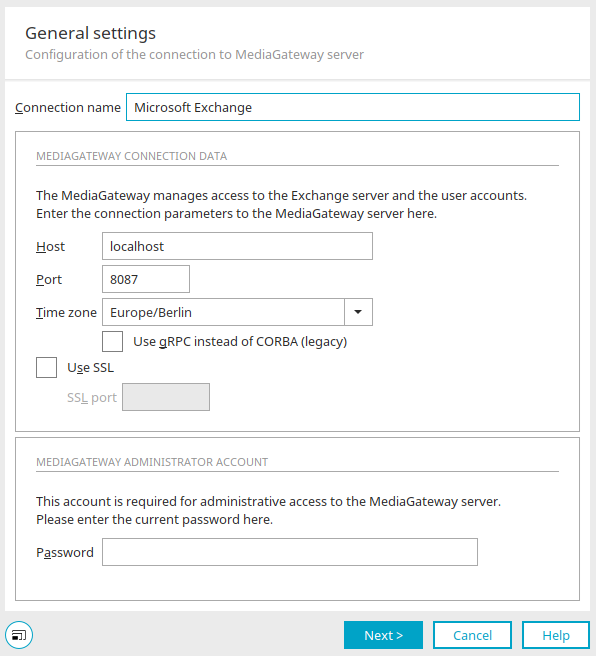
Connection Name
You can use the name you enter here to select the data source in applications later.
Host, Port, Time Zone
Enter the host, port, and time zone of the MediaGateway server here. The MediaGateway typically uses port 8087 and port 9087 for SSL-encrypted connections.
Use gRPC instead of COBRA (classic)
With this setting, the gRPC framework is used (recommended). If you do not enable this setting, the CORBA framework will (continue to) be used. You can find information on this topic here:
Use SSL
With this setting, communication between the Media Gateway Server and the Exchange Server is encrypted.
SSL port
Enter the port on the media gateway server through which the encrypted connection should be established.
 Password / Change Password
When creating a new Microsoft Exchange data source, you must enter the password for the Intrexx MediaGateway here. You set the password for the Intrexx MediaGateway during installation.
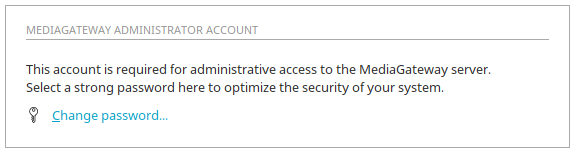
Once the data source has been created and you open its properties again, you'll find the "Change Password" link here: . Clicking on it opens a dialog box where you can change the password.
Change Password
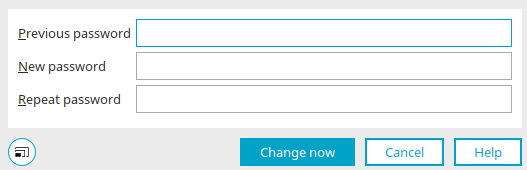
You should change the default password after the data source has been created.
Click "Change Now" to save your changes and close the dialog box.
Click "Next."
Exchange Version
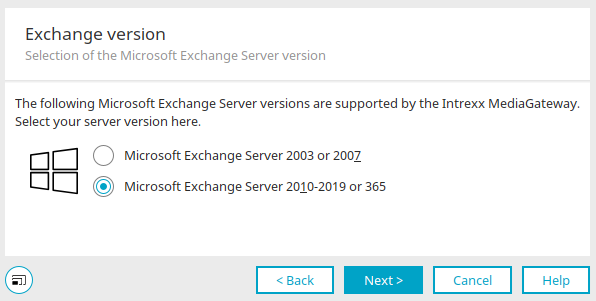
Select the version of your Exchange server here. Intrexx MediaGateway supports Microsoft Exchange Server 2003 or 2007 and Microsoft Exchange Server 2010–2019 or 365. Select the "Microsoft Exchange Server 2010–2019 or 365" option if you are using Microsoft Exchange Online.
Click "Next."
Authentication
There are three authentication methods to choose from for authenticating with Microsoft Exchange.
Username - Password
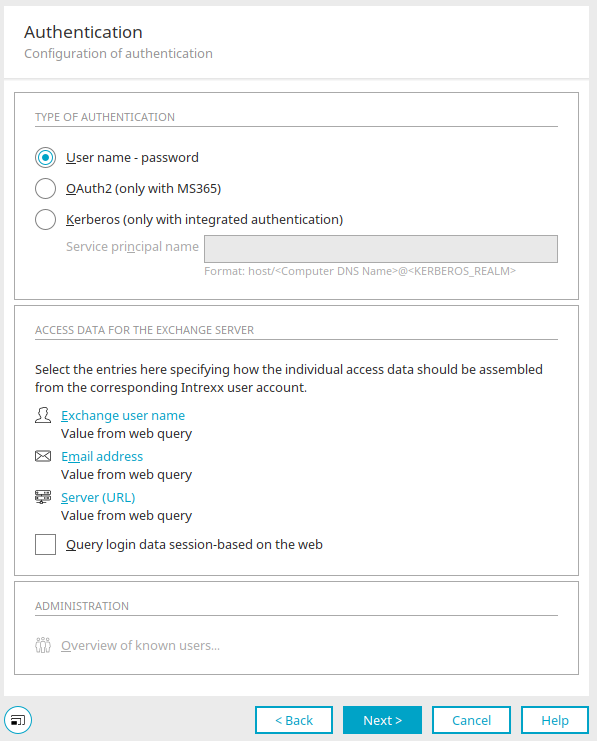
With this option, Intrexx will prompt you for the username and password used to log in to Windows when logging in to Exchange. Login credentials can be retrieved on a per-session basis. Users must then re-enter them each time they log in to the portal.
Another option is to store the login credentials in encrypted form on the MediaGateway to avoid having to log in again. In this case, a connection is established between the logged-in Intrexx user and the Exchange server using the stored credentials provided by Intrexx.
OAuth2 (only with Office 365)
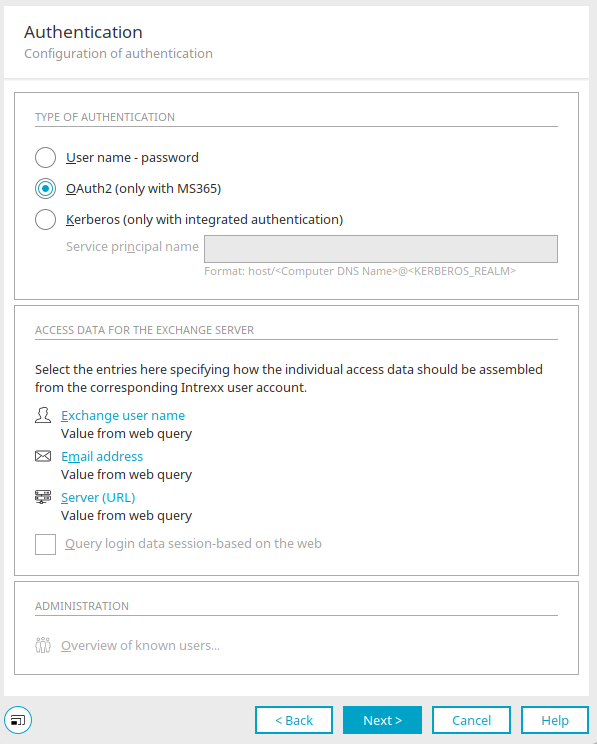
Intrexx can authenticate with Microsoft Exchange Online using OAuth2.
If you choose this option, you will need to perform a series of steps within Intrexx as well as some steps outside of Intrexx, specifically in Microsoft Azure.
For a detailed description of how to authenticate with Microsoft Exchange Online using OAuth2, see here: Add a Microsoft Exchange Data Source (OAuth2)
Kerberos
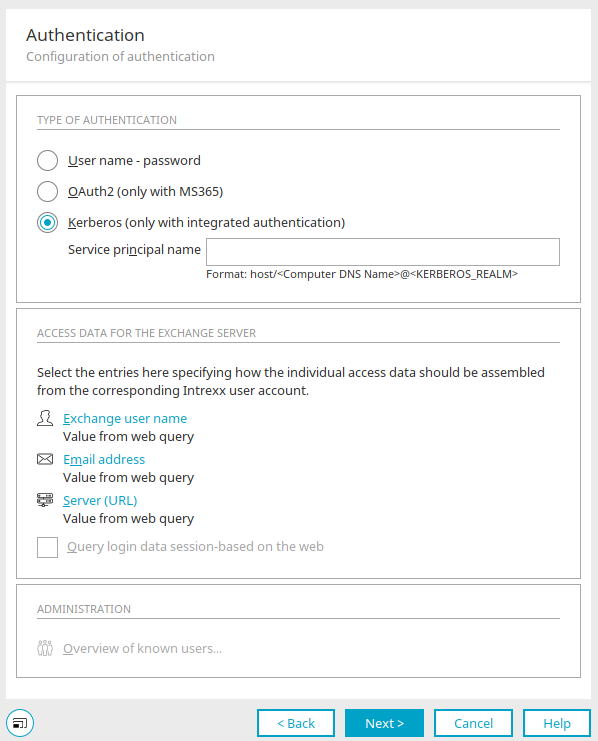
You can find all the information about this authentication method here.
Login credentials for the Exchange server
An Intrexx user logs in to the Exchange server via a login box that appears in the portal when an Intrexx Exchange application is opened.
Kerberos authentication only works if the client using the service includes the fully qualified name—and not the IP address—of the Exchange server in the server URL entered in the login box. Depending on the configuration of your DNS server, you must access the portal from client computers using one of the following URLs:
-
https://12.34.56.78/exampleportal
-
https://intrexxserver.example.org/exampleportal
-
https://intrexxserver/exampleportal
Please contact your system administrator for more information on this topic.
In the "Authentication" dialog box, in the "Exchange Server Credentials" section, you can specify whether certain credentials are automatically entered in the login box.
 Exchange username /
  Mailbox /
  Server URL
Each option opens a dialog box where you can specify the source from which the username, email address, and server URL for logging in to the Exchange server should be retrieved.
Login Credentials - Configuration
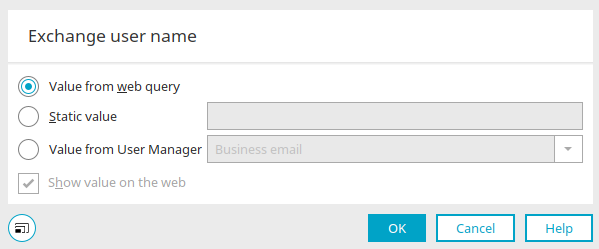
Value from a web query
Uses the username that a user enters in the login box of an Intrexx Exchange application.
Static value
A fixed value can be entered here, which will then be automatically filled in the login box when a user wants to log in.
Value from User Management
Here, you can select a field from the "Users" module whose value will be entered in the login box. In this process, Intrexx identifies the currently logged-in user and returns the corresponding data.
Display Value on the Web
This setting can be configured when either the "Static Value" option or the "Value from User Management" option is selected. This will then display the corresponding value in the login box on the website when the user logs in.
Click "OK" to save the settings and close the dialog box.
Retrieving Login Credentials on the Web on a Per-Session Basis
If this setting is not enabled, all login credentials entered in the login box are saved as a user account in MediaGateway the first time a user logs in to the Intrexx Exchange application. If this registration was successful, the corresponding account information is stored in the MediaGateway using RSA encryption.
The next time you visit the Intrexx portal, you won't need to log in as long as a connection to the Microsoft Exchange Server can be established. After that, the login box will only reappear if there are changes to the user's login information—for example, if the value of a relevant field in user management has changed.
If this setting is enabled, the information is retrieved on a per-session basis, and no user account is created in the MediaGateway. As a result, the login box always appears when an Intrexx user opens an Exchange application in the portal for the first time.
A user of the Intrexx portal can access only those pieces of information on the Exchange server for which they have been granted the appropriate permissions by the Exchange server.
Administration
 List of Known Users
Opens a dialog box containing a list of users in MediaGateway. This link is active if MediaGateway accounts have already been created because users have logged in.
MediaGateway User Accounts
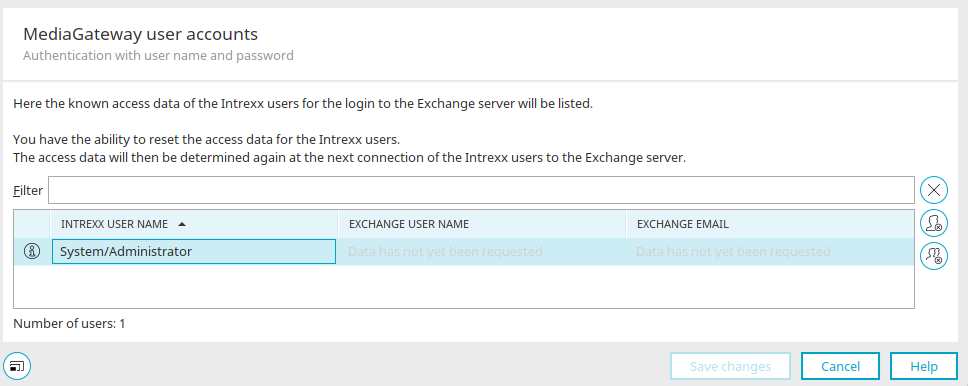
You can use the "Filter" field to search for specific users. Clicking "Remove Filter" at  clears the search field.
 Reset Login Credentials
The MediaGateway account for the selected known user will be deleted.
 Reset All Login Credentials
All MediaGateway accounts for known users will be deleted.
 Information
Opens a dialog box that displays additional details about the selected user.
View Details
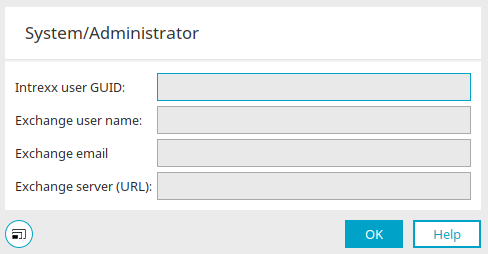
Here you can view details about the currently selected user, such as the user GUID and the Exchange username. For Kerberos authentication, you will find only the Exchange email address and the Exchange server URL here.
Click "OK" to close the dialog box.
Click "Save Changes" here if you have made any changes, or "Cancel" to close the dialog box. You will then return to the "Authentication" dialog box.
Click "Next."
Exchange account
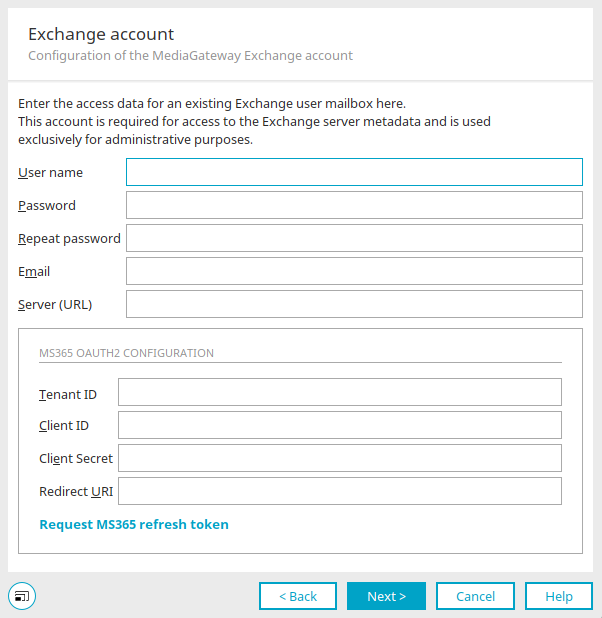
Username, Password
Enter the login credentials for a user mailbox created on the Microsoft Exchange server here. The account does not require any permissions. The Microsoft Exchange connector uses this account to request metadata from the Microsoft Exchange server, which is then available when creating applications and provides information about data fields, field types, or existing tables.
Enter the name of the Exchange mailbox or the email address here. If possible, use a primary email address. When using alias addresses, the connector's functionality may be limited.
Server (URL)
Enter the URL of the Microsoft Exchange server that is running the Client Access role (e.g., the OWA server) here. The Exchange Server can be a server that you host yourself or Microsoft Exchange Online.
Example
Self-Hosted Exchange Server (Exchange 2010 and Later)
https://mailserver.meinefirma.de/ews/Exchange.asmx
Typically, the URL begins with the "https" protocol, followed by the fully qualified server name and "/ews/Exchange.asmx" (starting with Exchange 2010).
Microsoft Exchange Online
https://outlook.office365.com/ews/Exchange.asmx
MS365 OAuth2 Configuration
In this section, enter the information from Microsoft Azure for OAuth 2.0 authentication. You can find all the information here.
Click "Next."
Additional Users
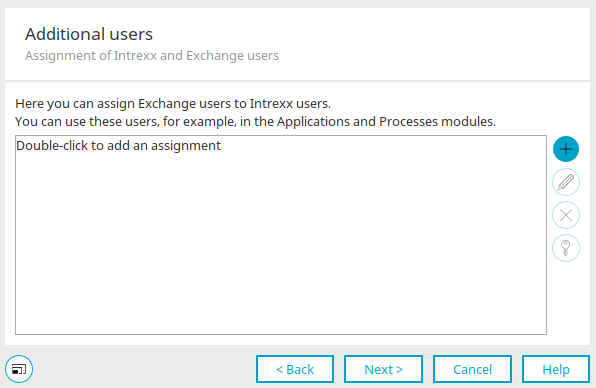
In various scenarios, it may be necessary to access multiple mailboxes using a specific account—for example, to consolidate appointments from different Exchange calendars into a single Intrexx calendar.
For this purpose, a mailbox can be created on the Exchange server that is granted permissions to the desired Exchange calendars. Users must grant access to the respective calendars themselves in Microsoft Outlook.
Here, you can set up a mapping between an Intrexx user and an Exchange mailbox, which can then be permanently configured in applications and processes. Using these static users can be useful in applications when the goal is to display an overview of a series of appointments for different users. This prevents the need for each user to grant permissions to every other user's calendar. In a process, a user switch action can be used to specify that all subsequent actions take place in that user's role. The process can then, for example, search the shared mailboxes for appointments with specific characteristics and create or modify appointments for individual users.

 / Edit
Opens a dialog box where a user can be created and assigned.
User Assignment
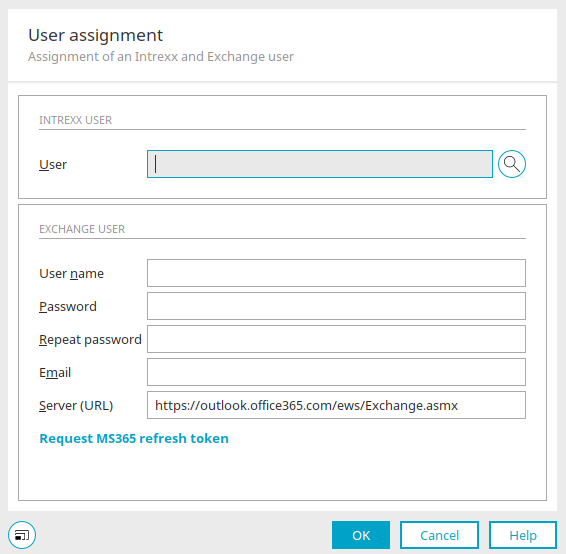
Clicking "Select User" at  opens a dialog box where you can select the desired user from the "Users" module.
Exchange users
Enter the Exchange user's username, password, and email address here. Be sure to enter the URL of the Exchange server as well.
Click "OK" to save your changes and close the dialog box.
Remove
Removes a user from the assignment.
Manage Access to Shared Folders
Opens a dialog box where you can edit access permissions for Exchange items. You can find all the information on this topic here.
Click "Next."
Connection Test
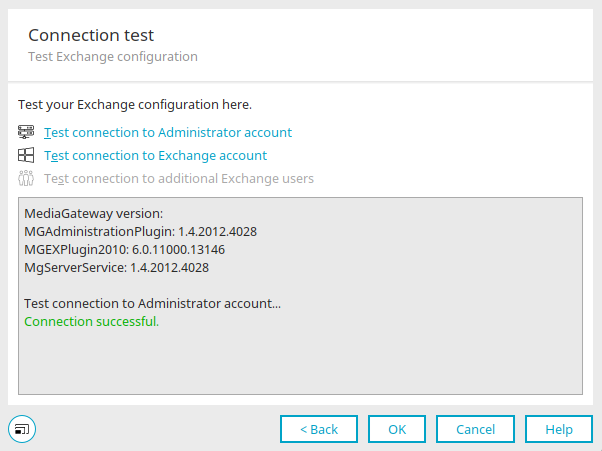
 Test the connection to the administrator account
Clicking this link will test the connection to the administrator account. If the test is unsuccessful, please check the following points:
-
MediaGateway is not installed
-
The MediaGateway service has not started
-
The host or IP address has been entered incorrectly
-
Incorrect password (the default password is 1234)
-
Firewall Settings (Port 8087 is blocked)
 Test the connection to the Exchange account
Clicking this link will test the connection to the Exchange account. If the test is unsuccessful, please check the following points:
-
The mailbox does not exist
-
Invalid credentials
-
The mailbox has not yet been initialized on the Exchange server—for a newly created mailbox, you must have logged in at least once using Outlook.
-
Outlook Web Access is unavailable. In this case, contact your Exchange administrator.
 Test the connection to additional Exchange users
Clicking this link will test the connection to additional Exchange users. If the test is unsuccessful, please check the same items that should be checked for the connection test to the Exchange account.
You can find troubleshooting information here.
Click "OK."
If necessary, a security notice will appear prompting you to change the MediaGateway password. Follow these instructions if you are still using the password that came with the MediaGateway.
The Microsoft Exchange data source is now fully configured and can be used, for example, in applications or processes.