

Path Navigation for Tree
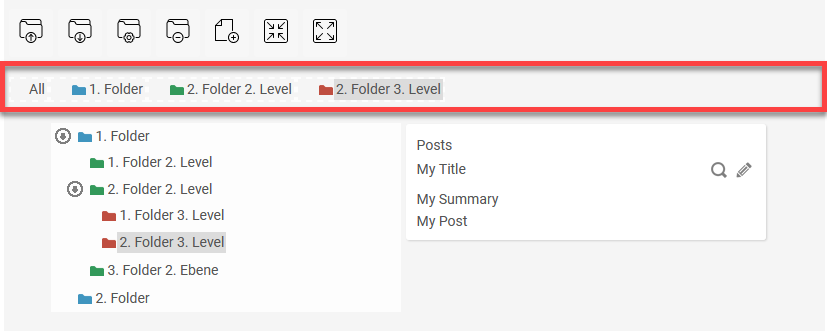
Path navigation can be configured for the "Tree" and "Tree View" elements. You can navigate through the folder structure either using the tree view or by specifying a path.
When you create a tree element, you have the option in the final settings to create a path navigation at the same time, which will then already be configured accordingly.
The breadcrumb navigation is part of the overviews.
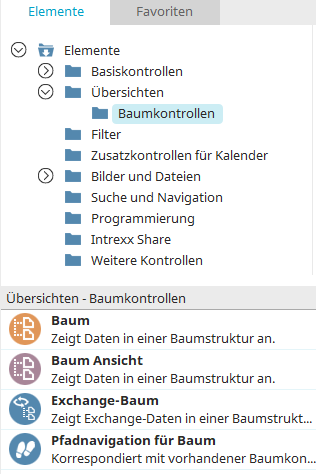
You can find the path navigation in the "Applications" module under "Elements. " You can create a new element by dragging and dropping it from here onto the workspace.
For more information on creating elements, click here.
Path Navigation - Properties
General
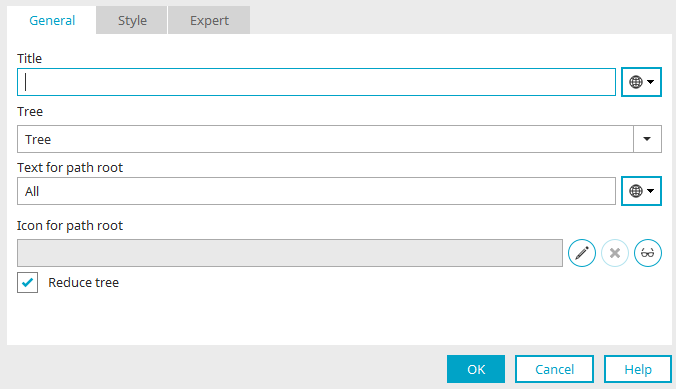
When you create a new path navigation, the Properties dialog box opens automatically.
Title
Enter the title of the breadcrumb trail here. You can find information about multilingual titles here.
Tree
In this drop-down list, you can select the tree control for which you want to set up path navigation.
Text for the start of the trail
This is where you specify the text to be displayed at the start of the path. You can find information about multilingual text here.
Symbol for the start of the path
Displays the path and filename of the image selected as the starting point for the path.
 Edit
Edit
Opens a dialog box where you can select an image.
 Delete
Export the image. It is no longer displayed.
 Edit Text Alternative
Opens a dialog box where you can enter text to be displayed on non-graphical devices.
Trim a tree
If this option is selected, only the child elements of the selected node are visible in the tree. The parent nodes can be accessed via the path navigation. Without this setting, all nodes in the tree are always visible. The breadcrumb trail then serves merely as a guide.
More Information