

Calculation
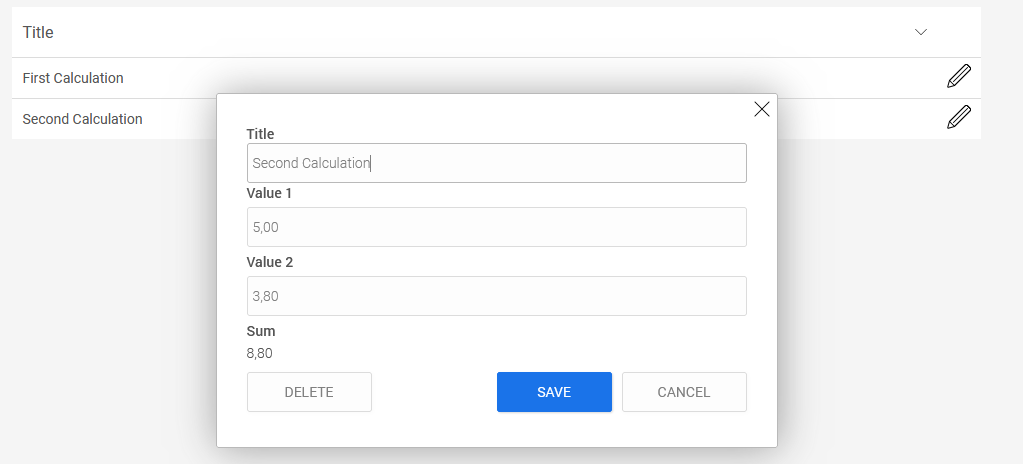
The calculation element allows formulas to be used in applications.
Calculations can also be performed using the columns in view tables. You can find all the information here.
The "Calculation" application element belongs to the "Programming" element category.
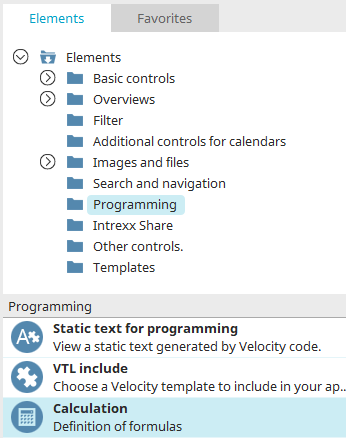
You can find the calculation element in the "Applications" module under "Elements. " You can create a new element by dragging and dropping it from here onto the workspace.
For more information on creating elements, click here.
An element's Properties dialog box opens automatically when it is created. The Properties dialog box for an existing element can be opened by double-clicking the element on the workspace, selecting "Properties" from the context menu, or selecting "Edit / Properties" from the main menu when the element is selected.
"General" tab
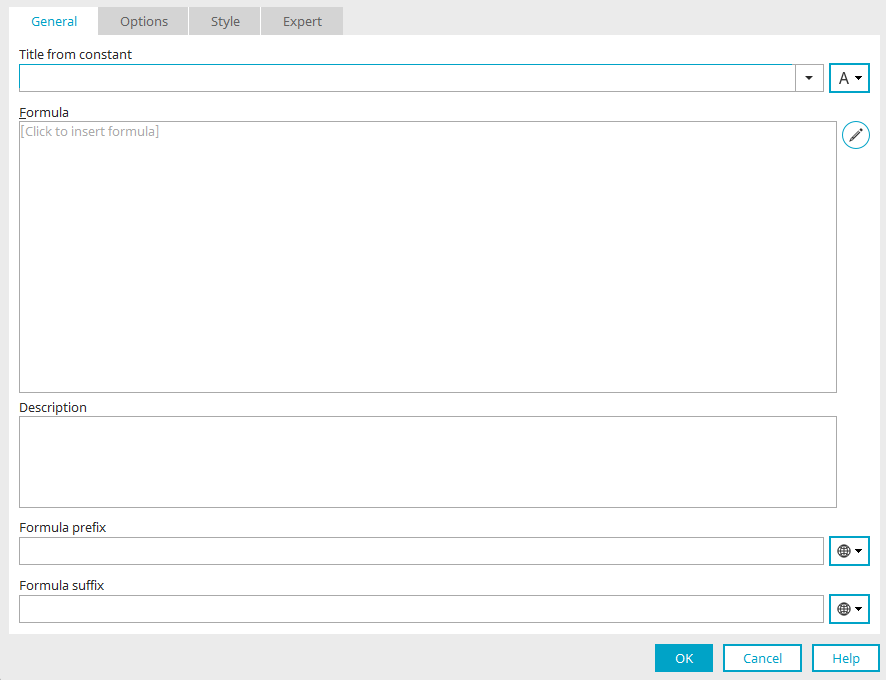
Here, you can set the title of the calculation, the desired formula, a description, and text to be displayed before or after the formula.
You can find more information about this dialog here.
"Options" tab
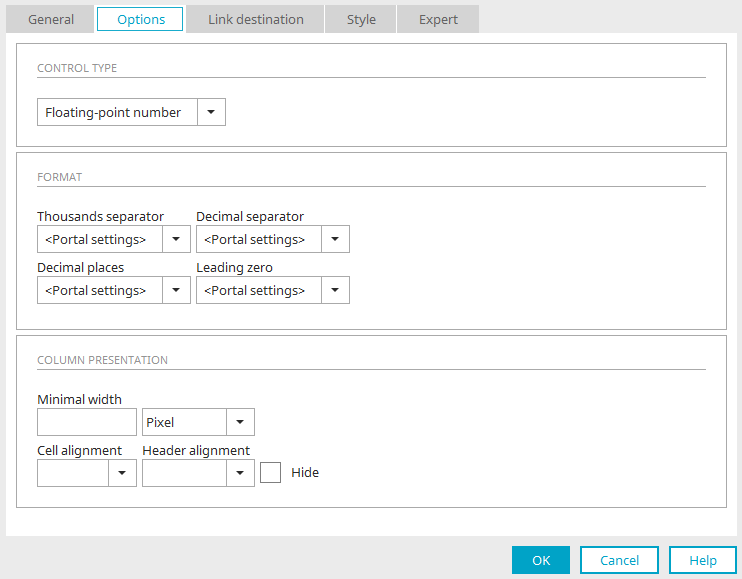
Control Type
Here, you can select the "Floating-point number" or "Currency" control type for displaying the numerical values.
Format
Thousands separator, decimal point, decimal places, leading zeros
Select the desired format here. When you select the "Portal Settings" entry, the format is applied according to the settings in the portal properties.
Re-run calculations during reload operations
The calculation is performed again if an element (such as a view table) on the current page is reloaded.
Column Display in View Tables
You can find all the information on this topic here.
Example of a calculation on an input page
In a simple application created using the "Basic Application" template, the sum of the values in two input fields is calculated. The two input fields, "Value 1" and "Value 2," contain floating-point numbers.
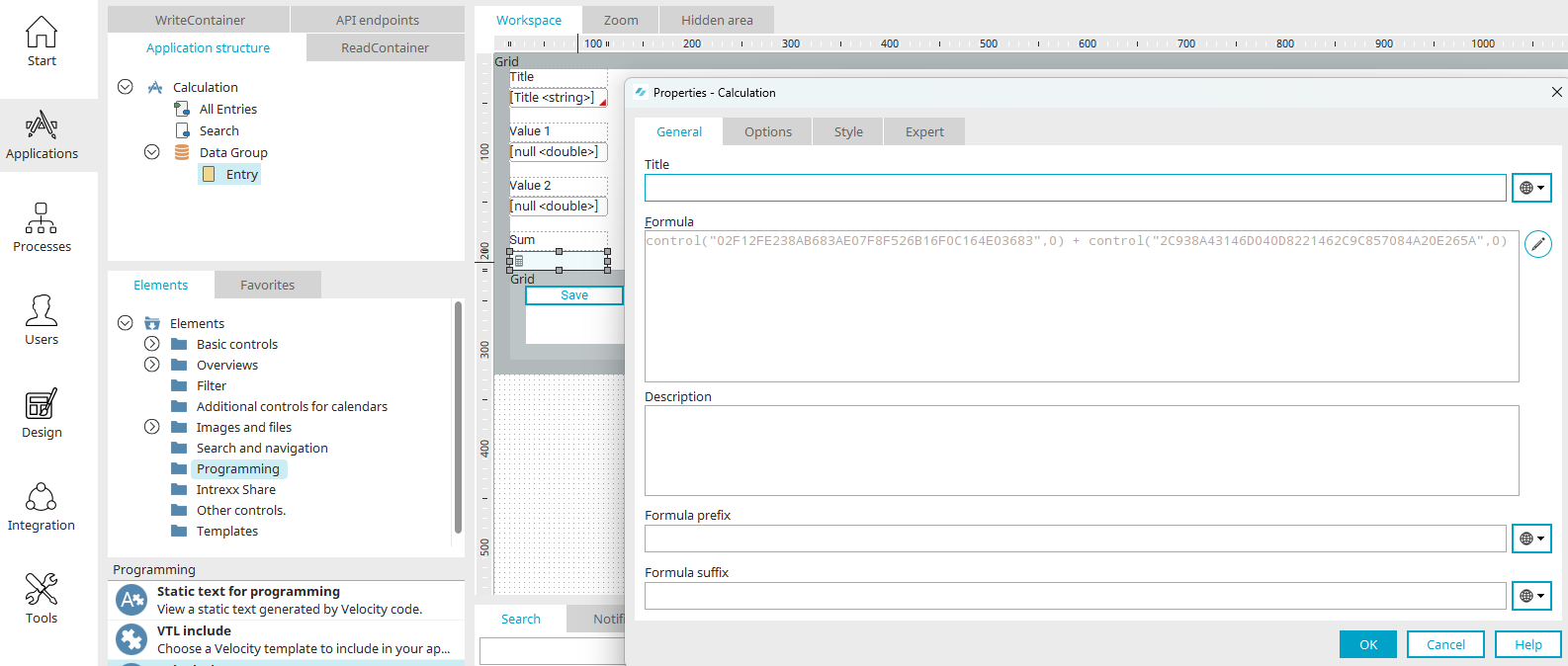
To do this, the calculation element is created on the input page and given the title "Total."
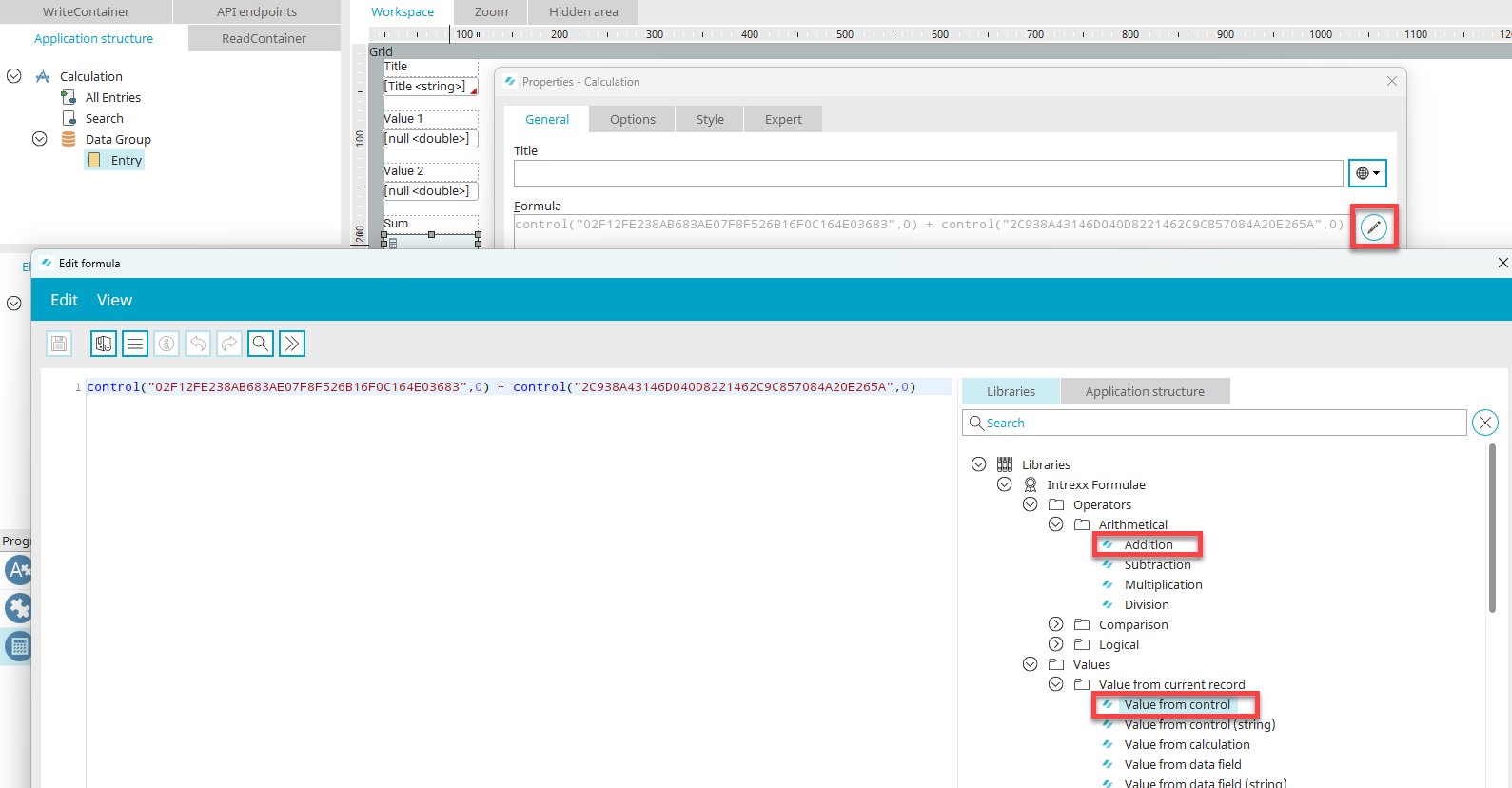
You can access the formula editor by clicking "Edit Formula" at  . There, the "Value from Control" function from the formula collection was used in conjunction with the addition operation. Here, you'll learn how to easily insert the GUID of the controls and the formula itself into the workspace, among other things.