

Tips & Tricks - View Events from Other Calendars
This article explains how to use a calendar plugin to display events from other calendar apps in the calendar of your choice. Here, we'll walk you through the process step by step.
Create a Calendar Application
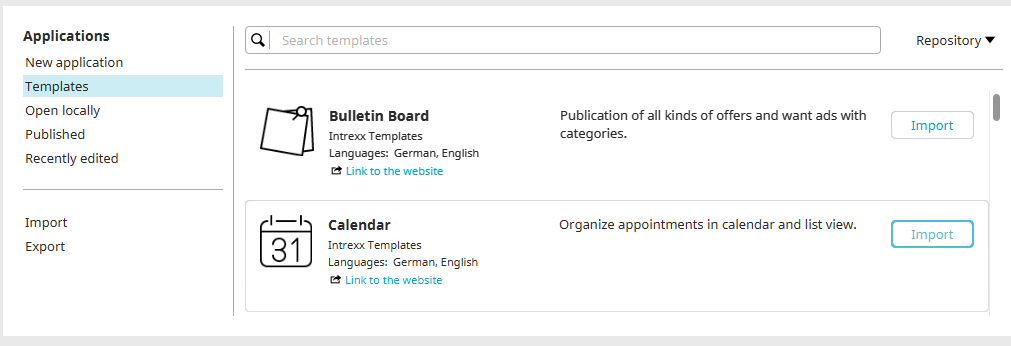
Create two new applications based on the "Calendar" template and publish them to any location in the menu structure. Name one of the applications "Calendar 1" and the other "Calendar 2."
Add Plugin to Target Calendar
You can find general information about plugins here.
Every application created using the "Calendar" template already has a plugin defined.
In "Calendar 2," the plugin from "Calendar 1" is now added so that the events from the "Calendar 1" application are also displayed in "Calendar 2."
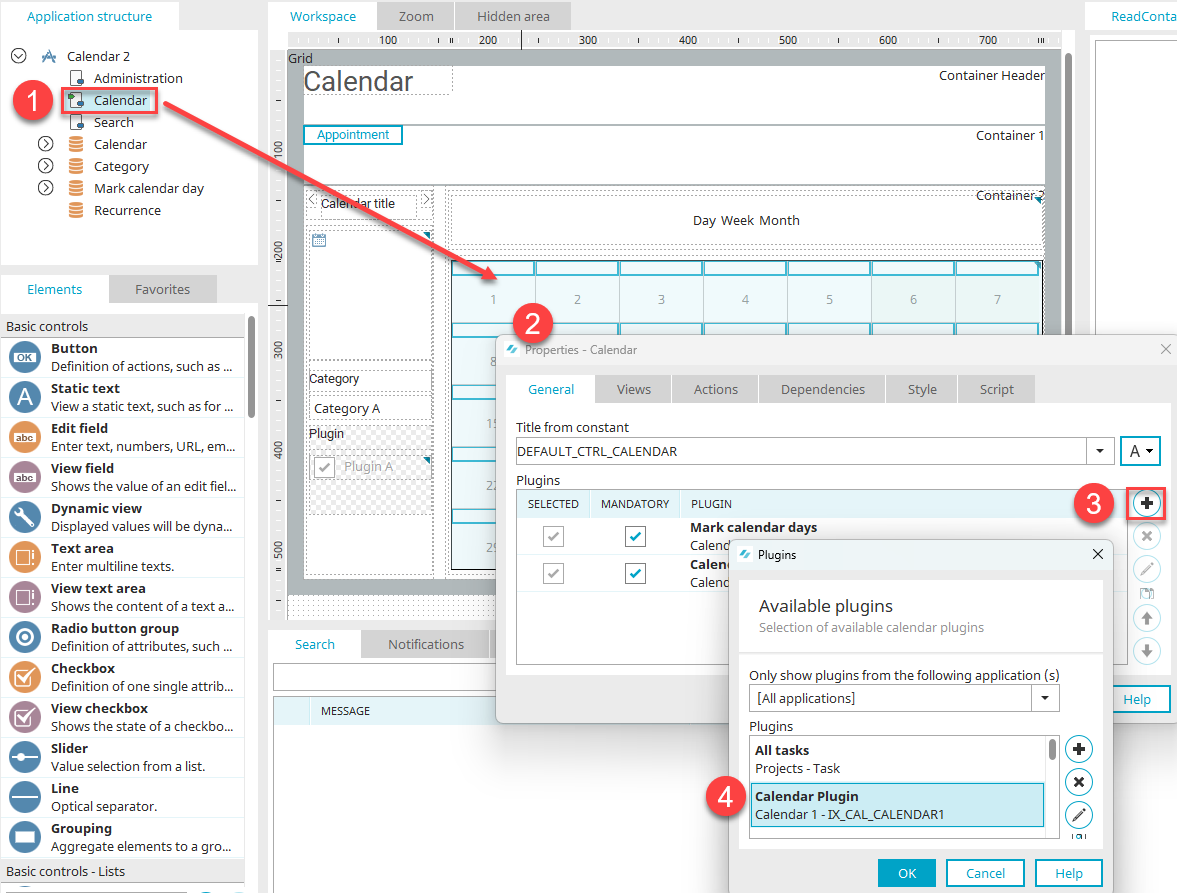
1. Open the "Calendar 2" application and select the "Calendar" page from the application structure.
2. Double-click to open the diagram's Properties dialog box.
3. Click "Add Plugin" on  .
.
4. In the next dialog box, select the "Calendar 1" plugin.
5. Close all open dialog boxes by clicking "OK."
Publish Application / Test in Browser
Save the application.
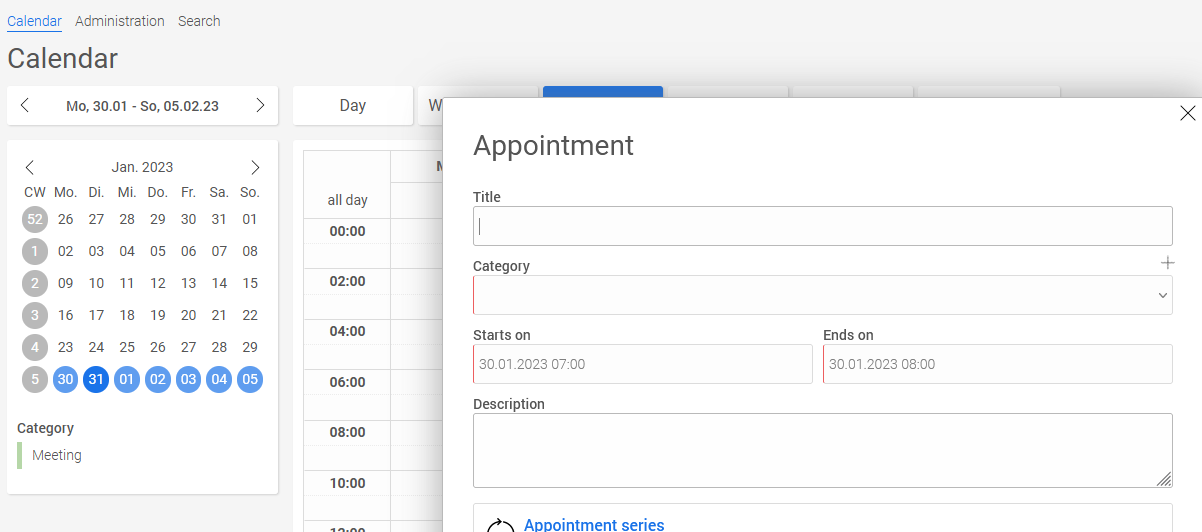
Open the portal in your browser and enter any appointment in "Calendar 1." You can open the input page by double-clicking the calendar chart.
Switch to the "Calendar 2" app.
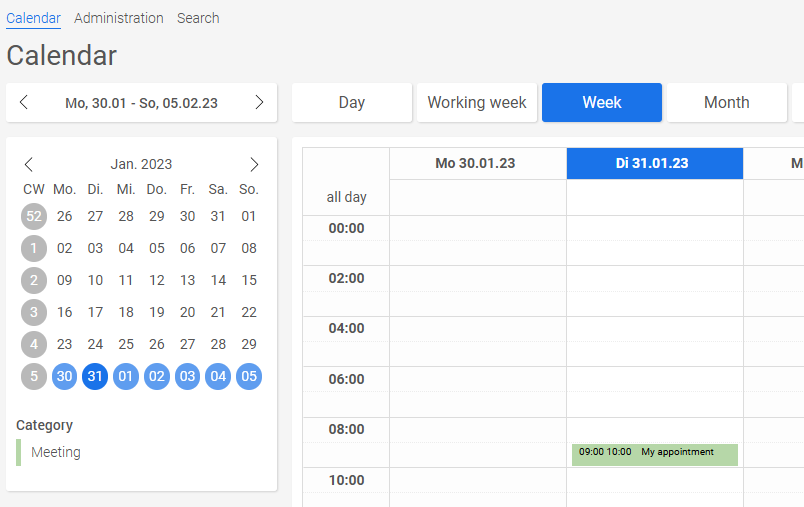
The appointment from the first calendar is now displayed here as well.
More Information
General Calendar Functions and Types
Template for Calendar Applications