

Resource
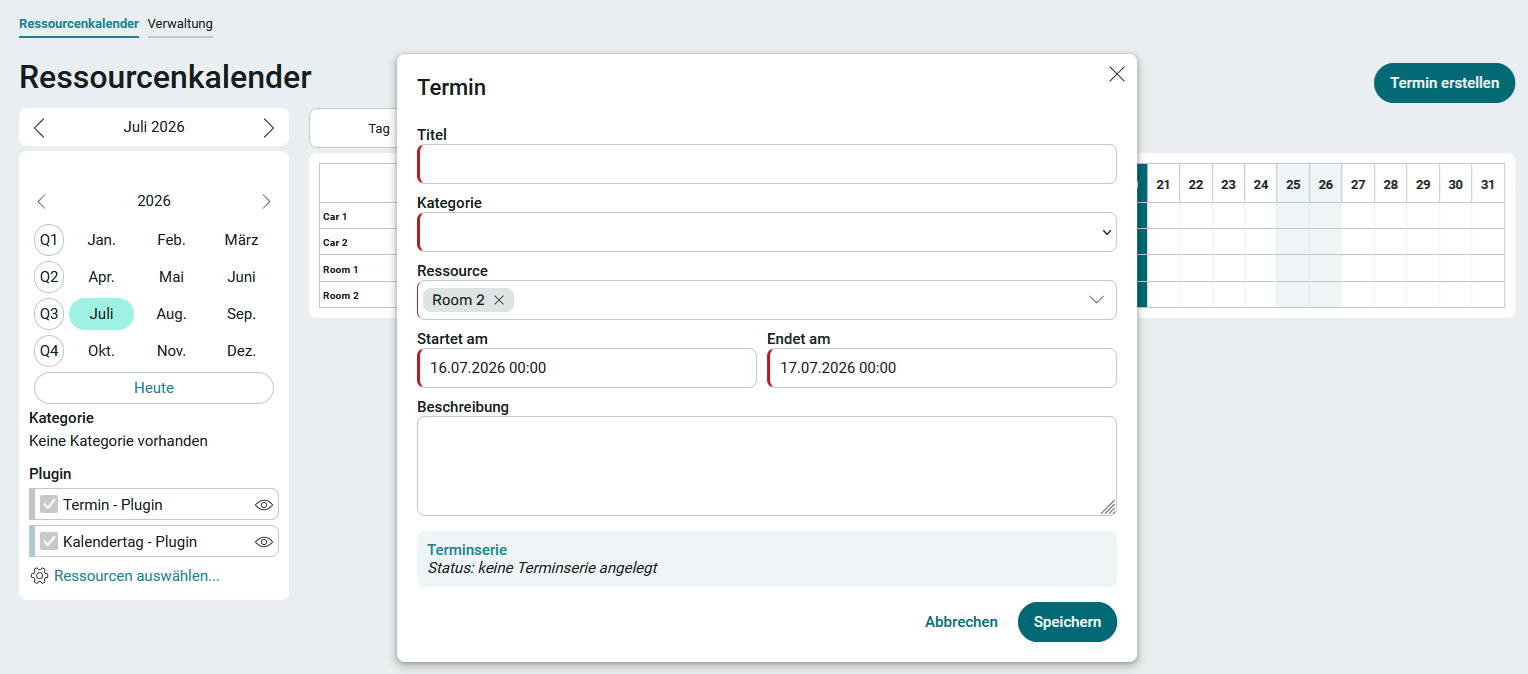
With this application, users with the appropriate permissions can reserve resources such as meeting rooms or company vehicles. To learn how to import the template, see: Importing Online Application Templates.
Roles
Roles are automatically created when the template is imported.
App_Resource_User
As a member of this role, you have access to the Resource Calendarpage and can book resources there.
App_Resource_Manager
This role allows you to manage resources and categories and mark calendar days on the Administration page. In addition, it includes all the permissions of the App_Calendar_User role.
To learn how to add portal users as members to these roles, see: Roles and Permissions in Application Templates.
Reserve a Resource
Resources can be reserved on the Resources Calendar page on the home page, provided you have the appropriate permissions.
Step-by-Step
-
In the resource chart in the right-hand pane, click the desired date or click the " Create Appointment" button in the upper-right corner.
-
Enter the relevant information.
-
Click "Recurring Event" to create a recurring event. You can find all the information here:Calendar / Event Series.
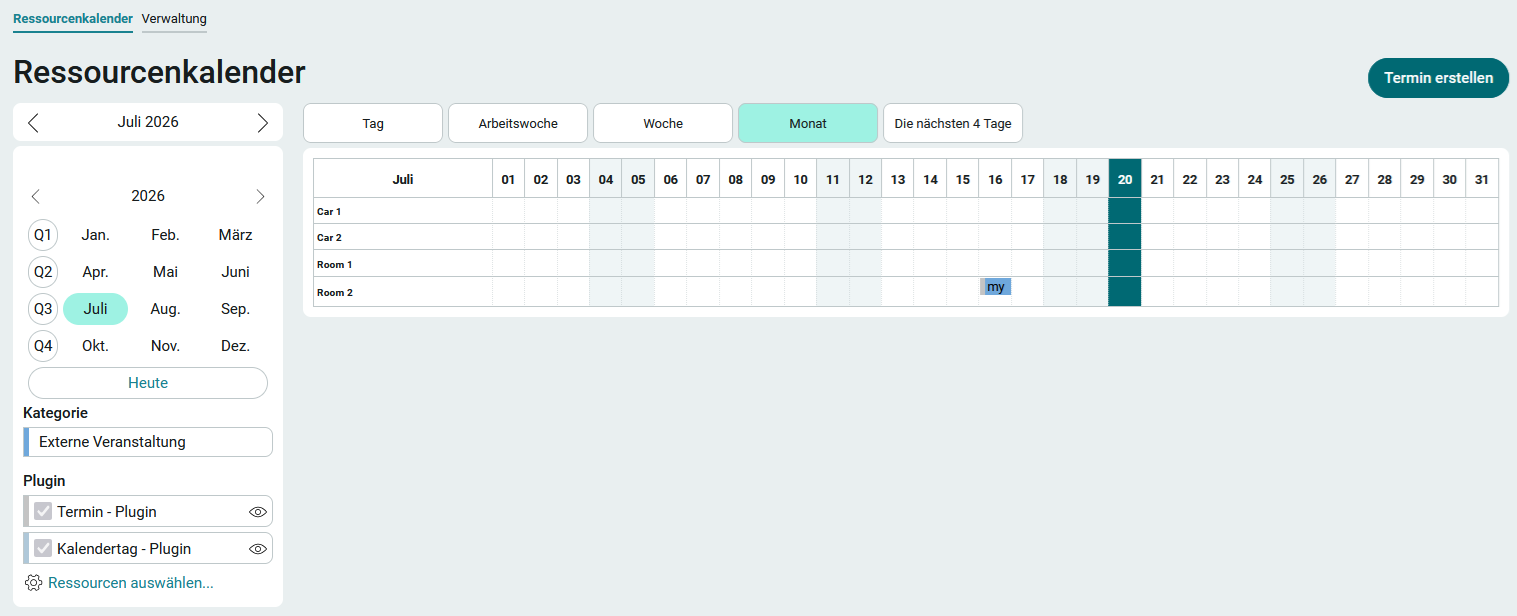
The appointment is now displayed in the resource chart. Click on the event to view the details.
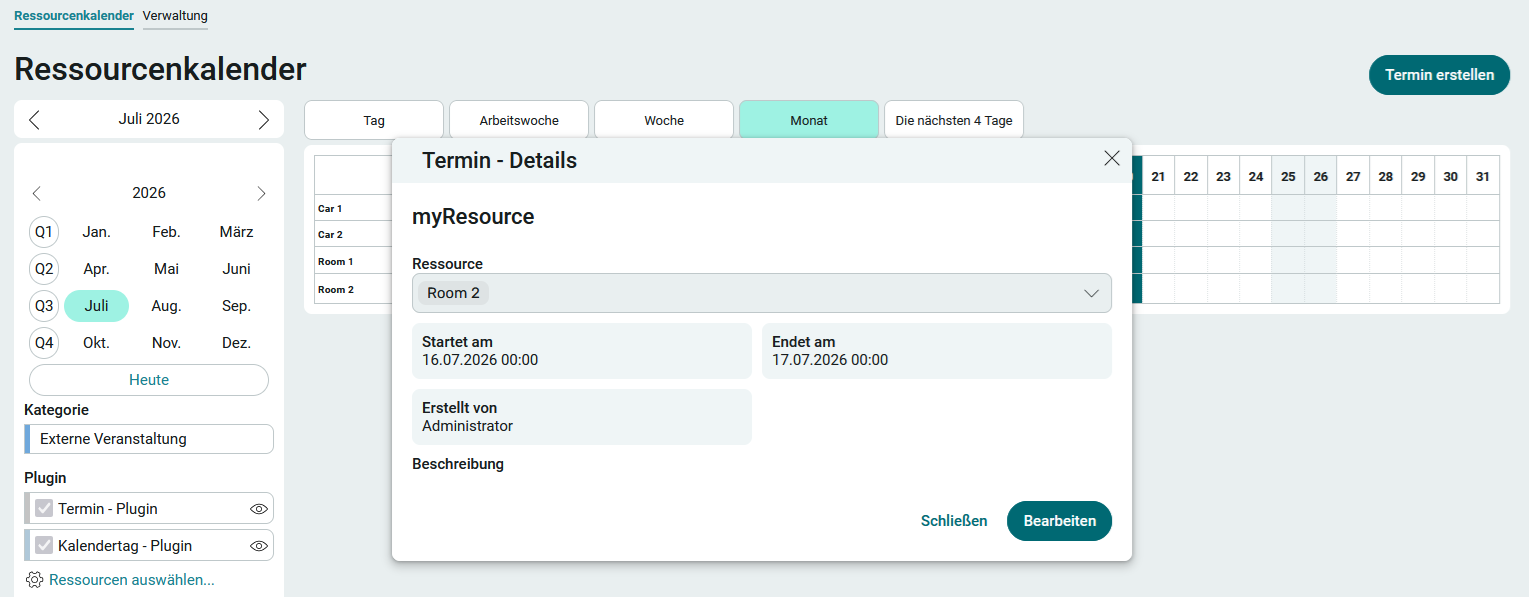
The appointment can also be edited or deleted here.
Appointments can also be moved in the resource chart using drag-and-drop.
Export Appointment
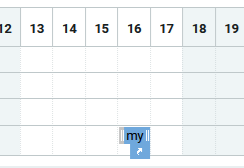
Appointments can be exported in Outlook format (.ics). When you hover over the appointment, an arrow button appears. Clicking it will start the export.
Administration
Members of the App_Resource_Manager role can access the Administration page, where they can manage resources and categories and mark calendar days.
Resource
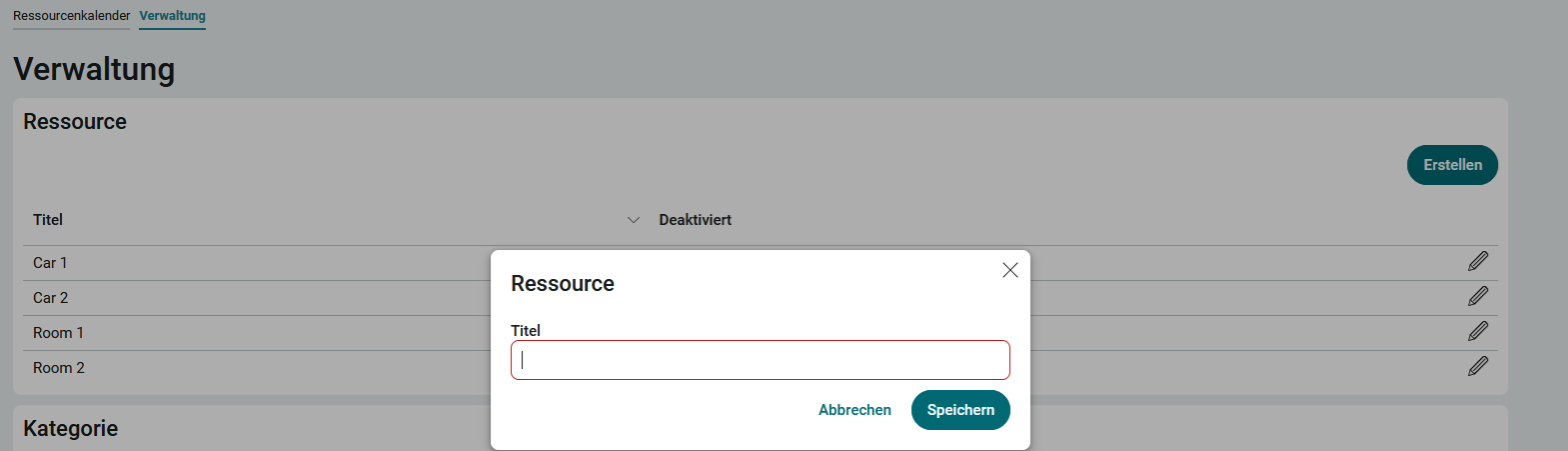
To create a new resource, click " Create " and enter a title. Click Save.
By clicking "  " > " Edit," you can change the title of existing resources or deactivate the resource.
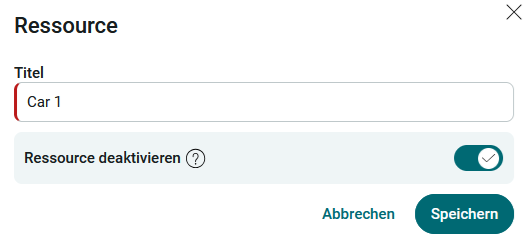
To delete a resource, you must first deactivate it. The system then checks whether there are any entries that still reference the resource. If not, the resource will be automatically deleted at regular intervals. Disabled resources can no longer be selected.
Category
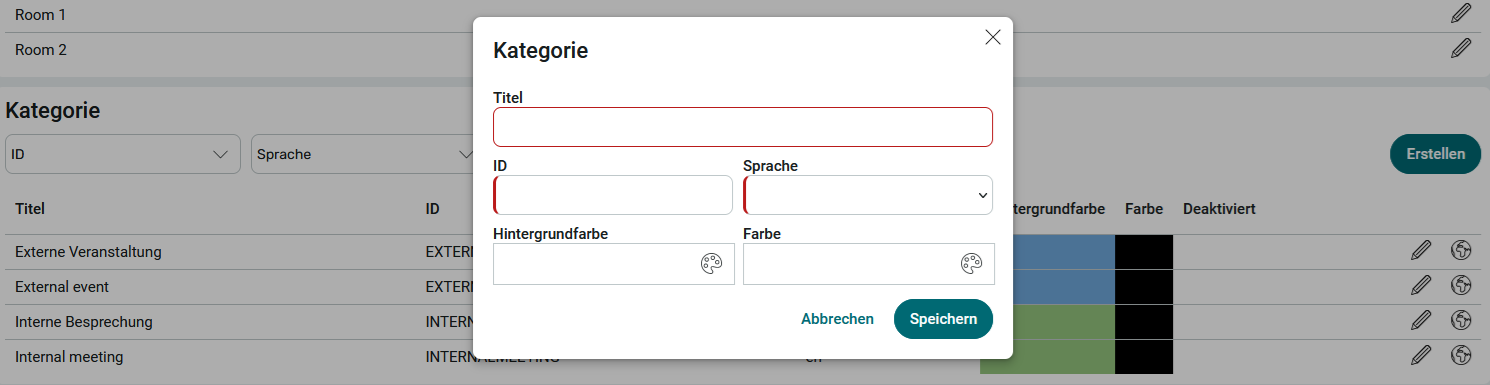
Categories can be created on the Administration page if you have the appropriate permissions. To do this, click " Create " and enter a title.
Any characters can be used for the ID. Once saved, the ID cannot be changed.
Categories can be entered in multiple languages. To do so, simply select the language you want.
Select a background color and a color to highlight the category in the resource chart.
Click Save.
Click " Edit " at to edit an existing category.
To delete a category, you must first deactivate it. The system then checks whether there are any entries that still reference the category. If not, the category will be automatically deleted at regular intervals. Disabled categories can no longer be selected.
Additional language variants can be created for existing categories. This allows the category to be translated into another language. You can find all the information on this topic here: Multilingualism.
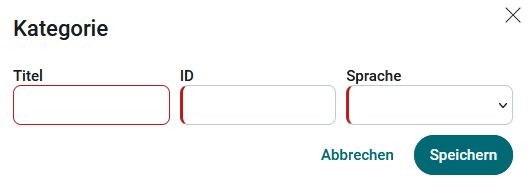
Simply use the same ID for the different languages within a category. When the user switches languages in the browser, they will see the corresponding translation.
Mark calendar days

Here, you can mark holidays or other days on which resources cannot be booked. The selected calendar days are displayed in the resource calendar.
Click "Create" to mark a calendar day.
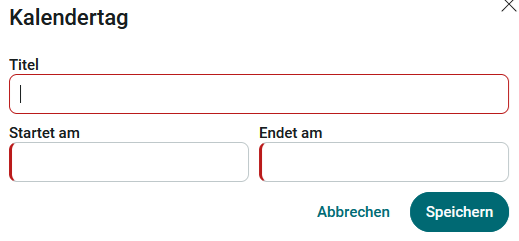
Enter a title and the start and end dates during which resource reservations should not be allowed.
Plugins
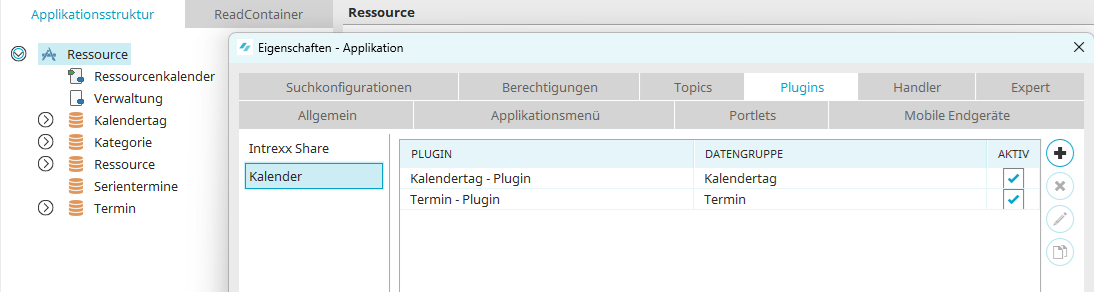
You can find the plugins used in the application template in the application properties on the Plugins tab.