

Set up "Register as a User" as an administrator
"Welcome Portlet"
To allow a user to register on a portal, you must drag and drop the "Welcome Portlet" ( ) onto the home page for the user " (
 ).
).
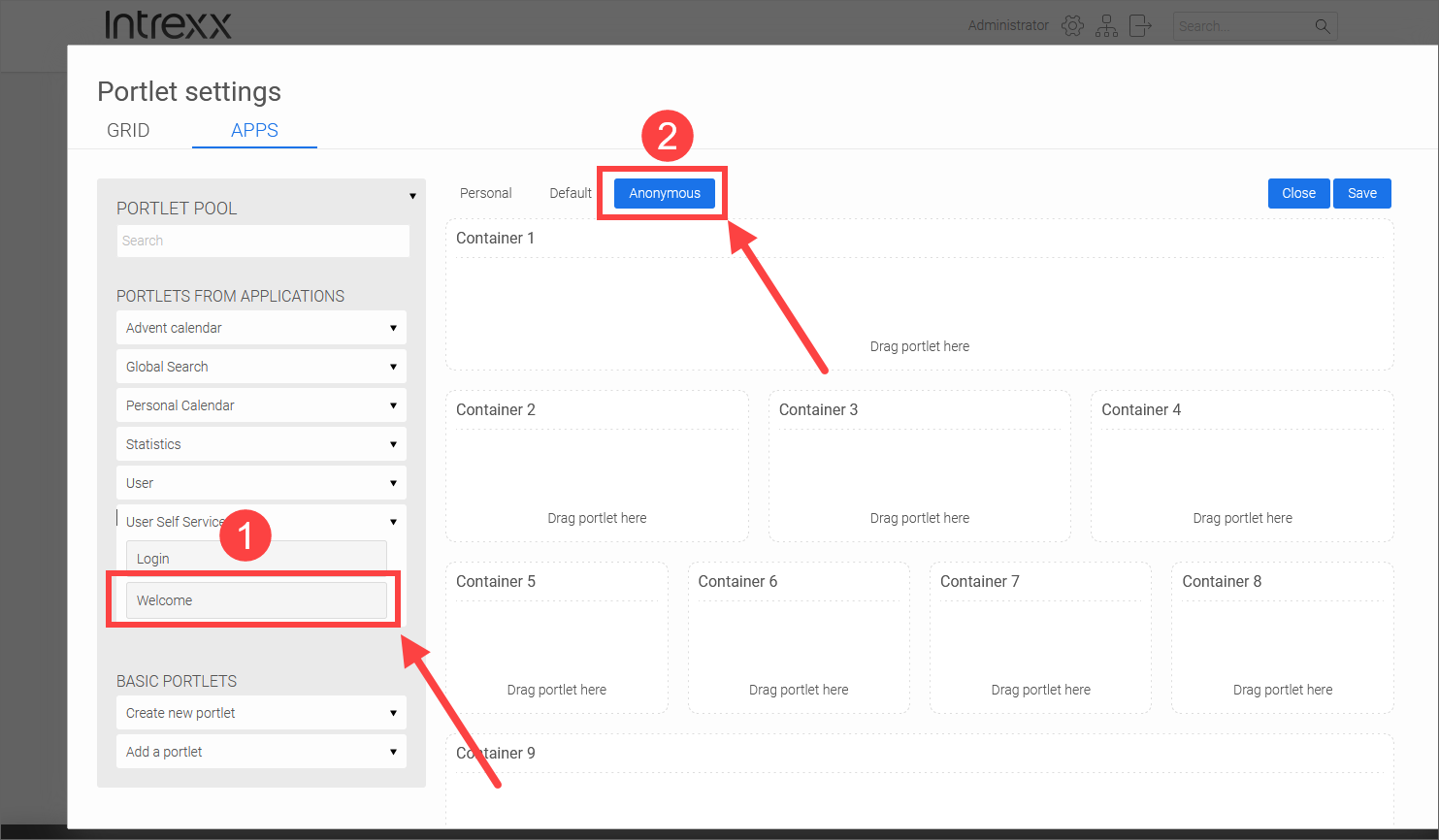
For detailed information about portlets, see the Portlet and Grid Settings" section.
Set Up the Registration Process - "Administration" Page
As an administrator, you can configure the registration process for (future) portal users in various ways. For example, you can specify that, as an administrator, you must first approve a registration request before the portal user can complete the registration. You can also specify whether the portal user can set their own password or whether it should be generated automatically and sent to them by email.
You can configure the settings on the "Administration" page.
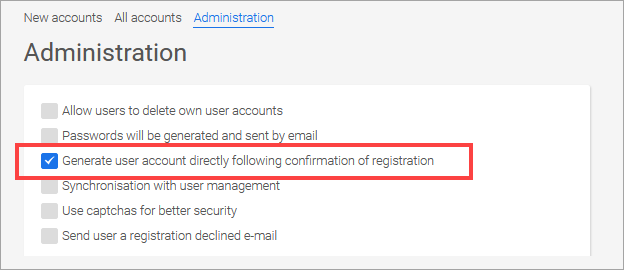
Below is a brief example of the registration process—once with and once without administrator approval.
At the end of this section, you will find a table summarizing all possible settings related to setting up the registration process.
Self-registration without administrator approval
You can configure user registration so that you, as the administrator, do not have to actively intervene in the registration process.
The advantage of this option is that the user performs all the tasks themselves. Registration takes place immediately, without any delay for the (future) portal user.
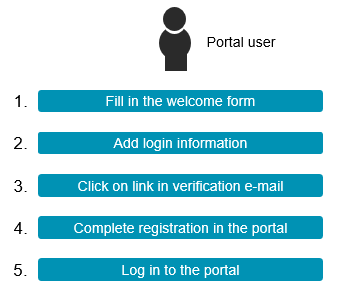
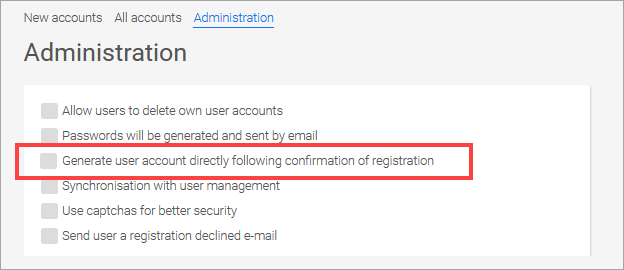
To ensure that self-registration occurs without administrator review, you must select the "Create user account immediately after registration confirmation" checkbox on the "Administration" page.
Self-registration with administrator approval
You can configure user registration so that you, as the administrator, must intervene in the registration process. With this option, a registration request is first sent, which you, as the administrator, can approve or reject. Only after receiving confirmation can the (future) portal user complete the registration process on the portal.
The advantage of this option is that, as an administrator, you can actively control who is allowed to register as a portal user. For (future) portal users, there may be delays in the registration process if you do not process registration requests in a timely manner.
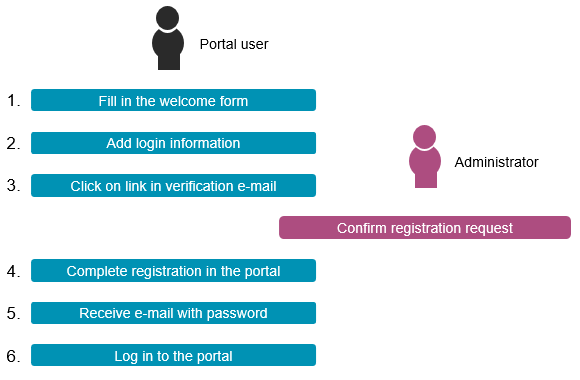
For detailed information on processing registration requests, see the sections " Confirm the registration request as an administrator; create a user account " and " Delete or Reject a Registration Request as an Administrator."
To ensure that self-registration is subject to administrator review, you must uncheck the "Create user account immediately after registration confirmation" checkbox on the "Administration" page.
Users who have registered themselves in the Intrexx user management system
When users register on a portal themselves, you must collect their login information (username, email address, and password). In addition, you can enter your personal information (last name, first name, phone number, street, house number, ZIP code, and city). All information is (also) stored in Intrexx User Management.
This would look something like this, for example:
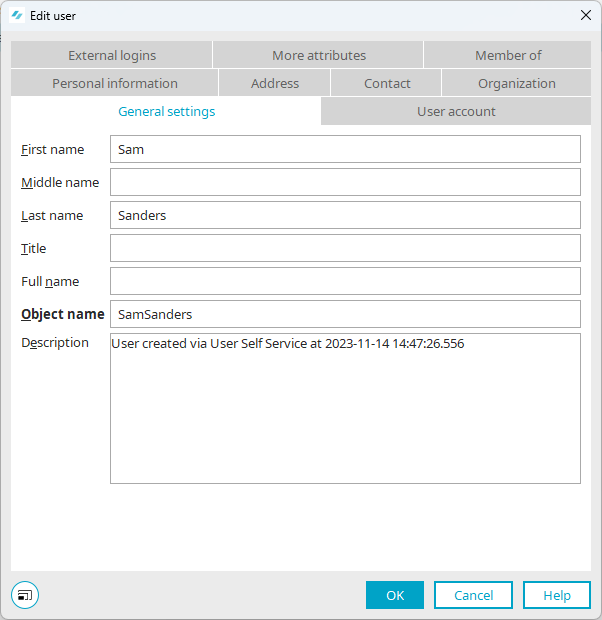
In the "Description" field, you'll also see a note indicating that the user registered on their own.
Synchronization with Intrexx User Management
The data that portal users provide during self-registration is automatically stored in the Intrexx user management system.
In addition, the "Synchronization with User Management" option is available on the "Administration" page.
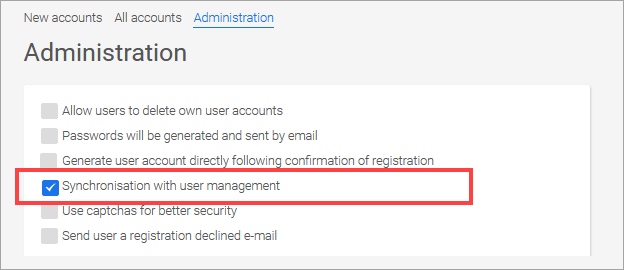
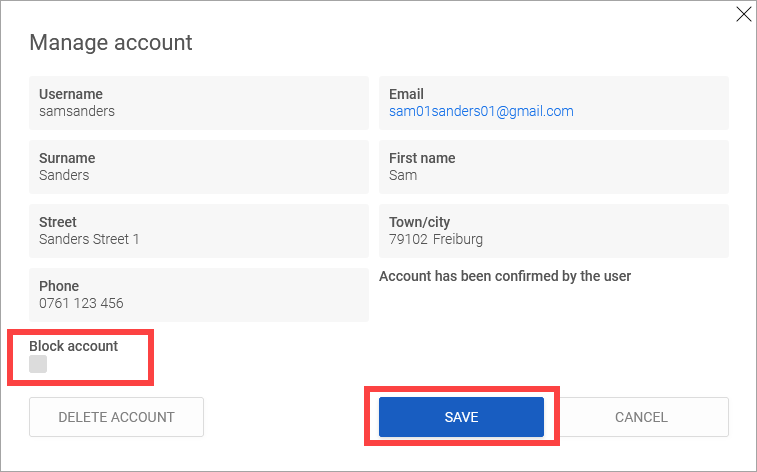
If you enable this option, locking or deleting a user in Intrexx User Management will prevent that portal user from logging in to the portal.
In this case, administrators can lock or delete users both in Intrexx User Management and in User Self Service.
Additional Settings and Overview
Below is an overview of all (additional) settings relevant to the self-registration of portal users.
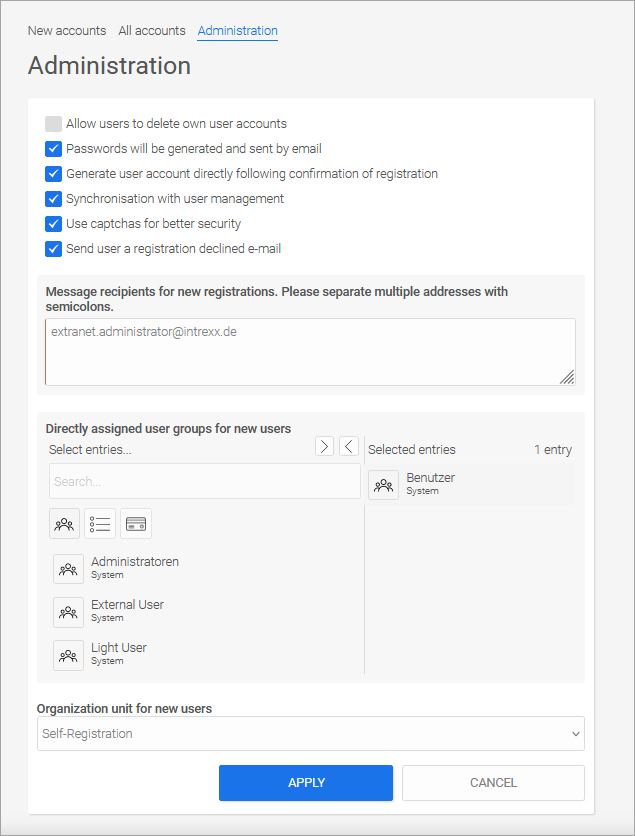
Passwords are generated and sent via email
If you select this checkbox, portal users will not be able to set their own passwords during registration. Instead, a password is generated automatically. This will be sent to the user via email.
The password policies are taken into account when generating the password (see Security Policies).
Create a user account immediately after confirming registration
If you select this checkbox, a user account will be created as soon as the portal user completes registration.
If you do not select this checkbox, the administrator will first receive a registration request that must be confirmed by the administrator. This gives you (advanced) control over who can register as a user on your portal.
Synchronization with User Management
If you enable this option, locking or deleting a user in Intrexx User Management will prevent that portal user from logging in to the portal.
In this case, administrators can lock or delete users both in Intrexx User Management and in User Self Service.
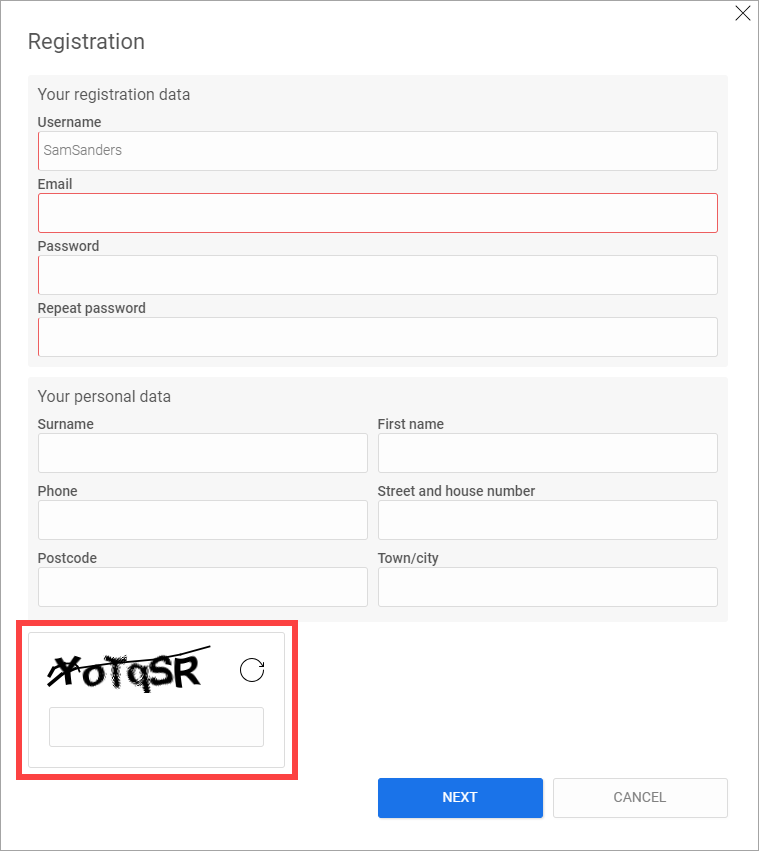
Use CAPTCHAs to enhance security
If you check this box, a CAPTCHA will be displayed to the user during registration and when changing their password. This way, you can prevent unwanted registrations—such as those made by bots.
Send an email if registration was rejected
If you select this checkbox, the person whose registration for the portal was rejected or deleted will receive an email notification.
Recipients of notifications for new registrations.
You can choose to receive email notifications about new registrations on the portal. Enter one or more email addresses here to which the notification email should be sent.
User groups assigned directly to new users
Here you can specify which user groups and distribution lists a new portal user should be added to. You can also specify which user roles the portal user should have.
To do this, select the appropriate groups, distribution lists, or roles in the left pane and use the arrow button to move them to the right pane.
For more information on user groups, see the section " User Groups and Users."
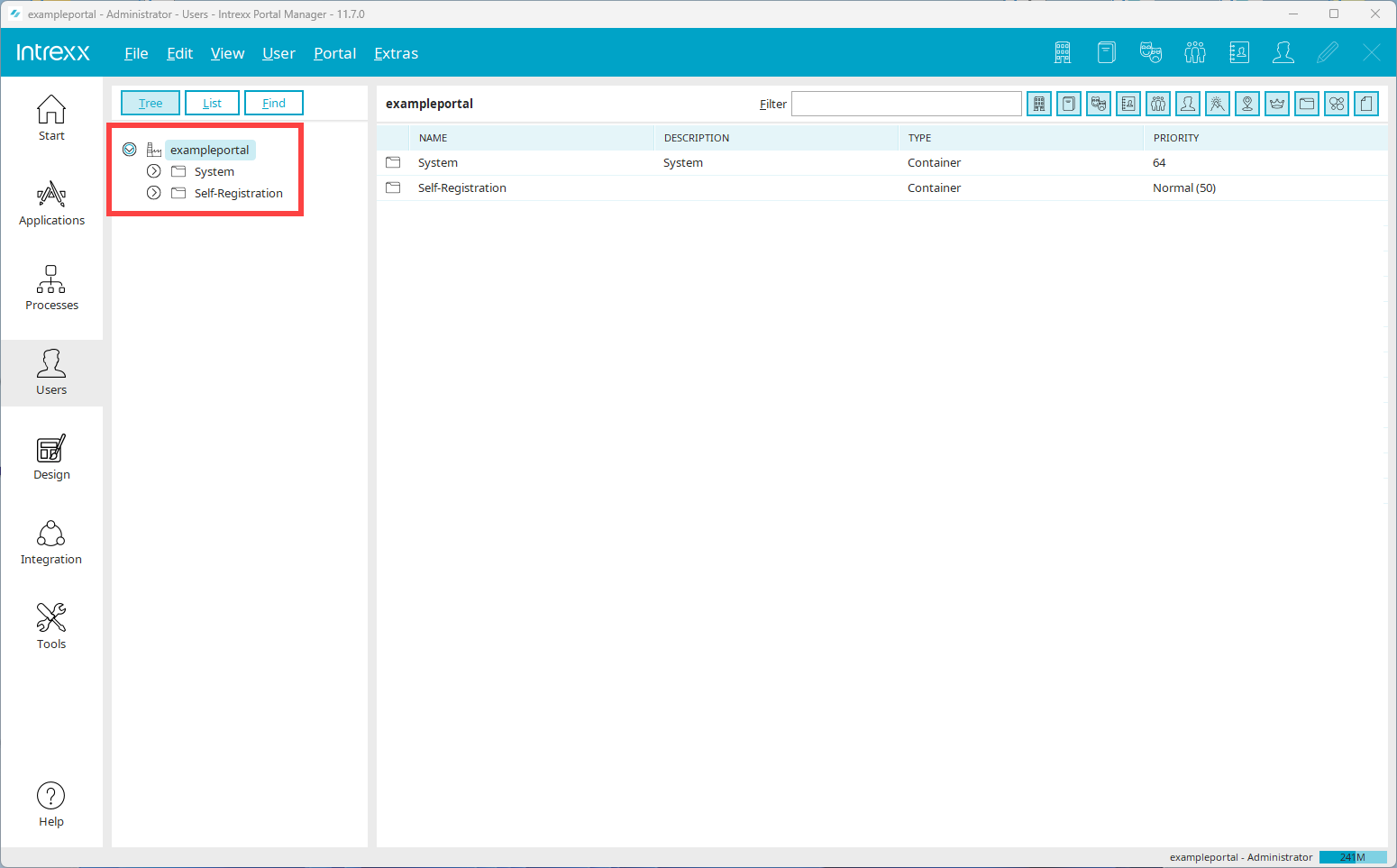
Organizational Unit for New Users
Here you can specify the organizational unit (container) in which the portal user should be created.
You can find containers in the Portal Manager under the "Users" module.
For more information on organizational areas and containers, see the section titled " Objects, Classes, and Attributes."