

Documents
The " Documents " application template provides you with a system for storing, managing, and versioning documents.
To learn how to import this template, see: Importing Online Application Templates.
Rights
Roles are automatically created when the template is imported.
As a member of the App_Documents_User role, you can create, edit, and delete your own documents.
As members of the App_Documents_Manager role, they have the same permissions as members of the App_Documents_User role and can also edit and delete documents created by other users. You also have access to the Administration page .
To learn how to add portal users as members to these roles, see: Roles and Permissions in Application Templates.
Upload Documents
To upload a document, follow these steps:
-
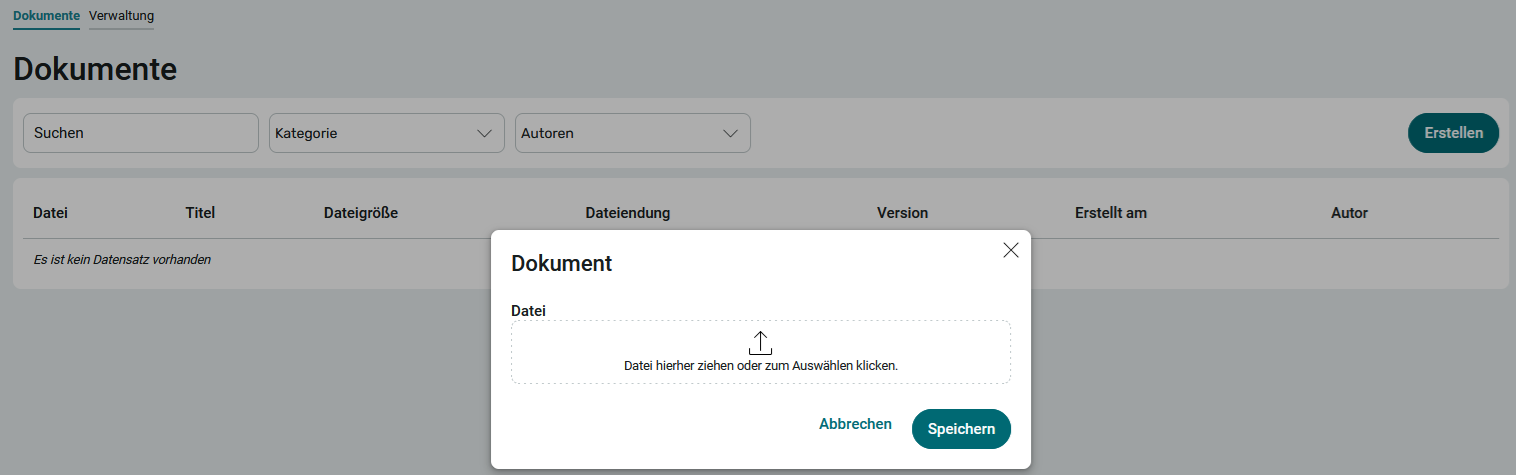
On the app's home screen, click Create.
-
Drag and drop the file onto the designated area of the dialog box.
Or
-
Click on the designated area of the dialog box, and then select the file.
-
Click Save.
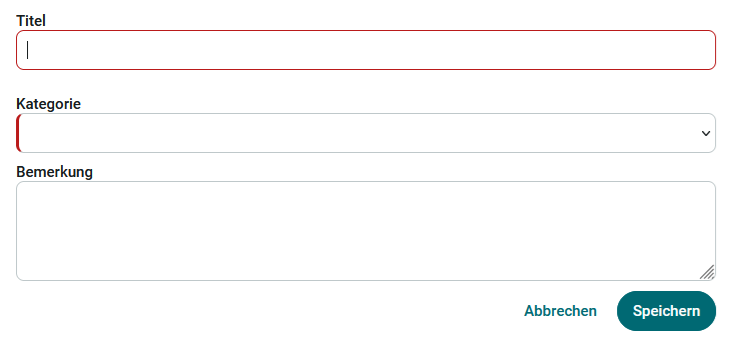
Enter a title and a category to which you would like to assign the document.
This category will help you find and filter documents later on.
-
(Optional) Enter a comment about the document. You can view the comment in the document overview, among other places. If the comments are detailed enough, you can learn about a document's contents without having to open it.
-
Click Save.

Upload documents with the same filename
You can upload documents with the same filename multiple times. When uploading via the " Create " button on the Documents page, the application detects that a document with the same filename has already been uploaded.
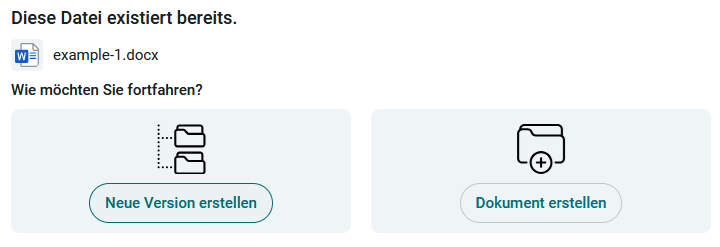
Click " Create New Version" to create a new version of the existing file with the same filename. In this case, the file is saved in the same document record as the existing file with that filename.
Click " Create Document" to create a new document record. The application will then contain two documents or files with the same filename. They are stored in two document records.
Replace Documents
To replace a document in a document record, follow these steps:
-
Click the "
 " options menu, which you'll find to the right of each document.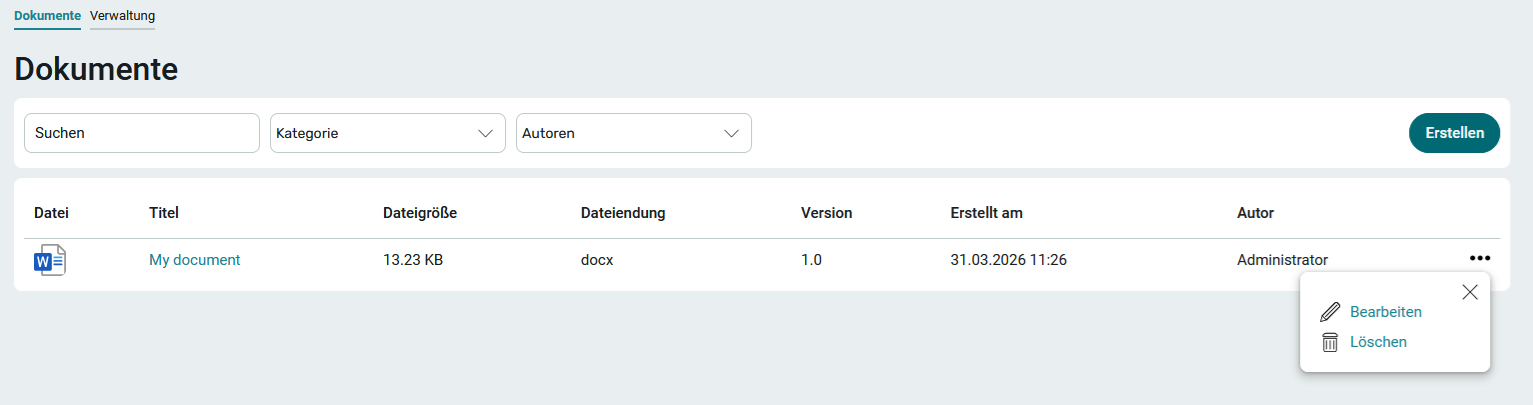
You can use this menu to edit and delete documents.Note: If the document record contains document versions, all included document versions will be deleted.
-
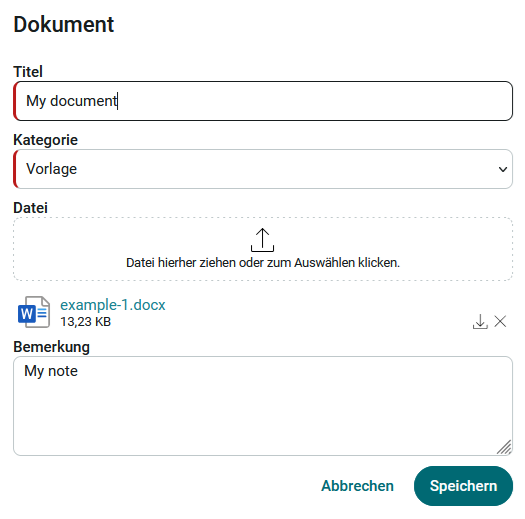
Select the " Edit" menu item.
-
Use drag-and-drop to move the file you want to replace the currently uploaded file with to the designated area of the dialog box.
Or
-
Click on the designated area of the dialog box, and then select the file.
The old file will be automatically replaced by the new file.
-
Click Save.
Upload document versions
You can upload multiple versions of a document. A version of a document is a separate physical file. The " Documents " application template interprets a document as a version of another document after it has been uploaded to the same document record.
To upload a document version, follow these steps:
-
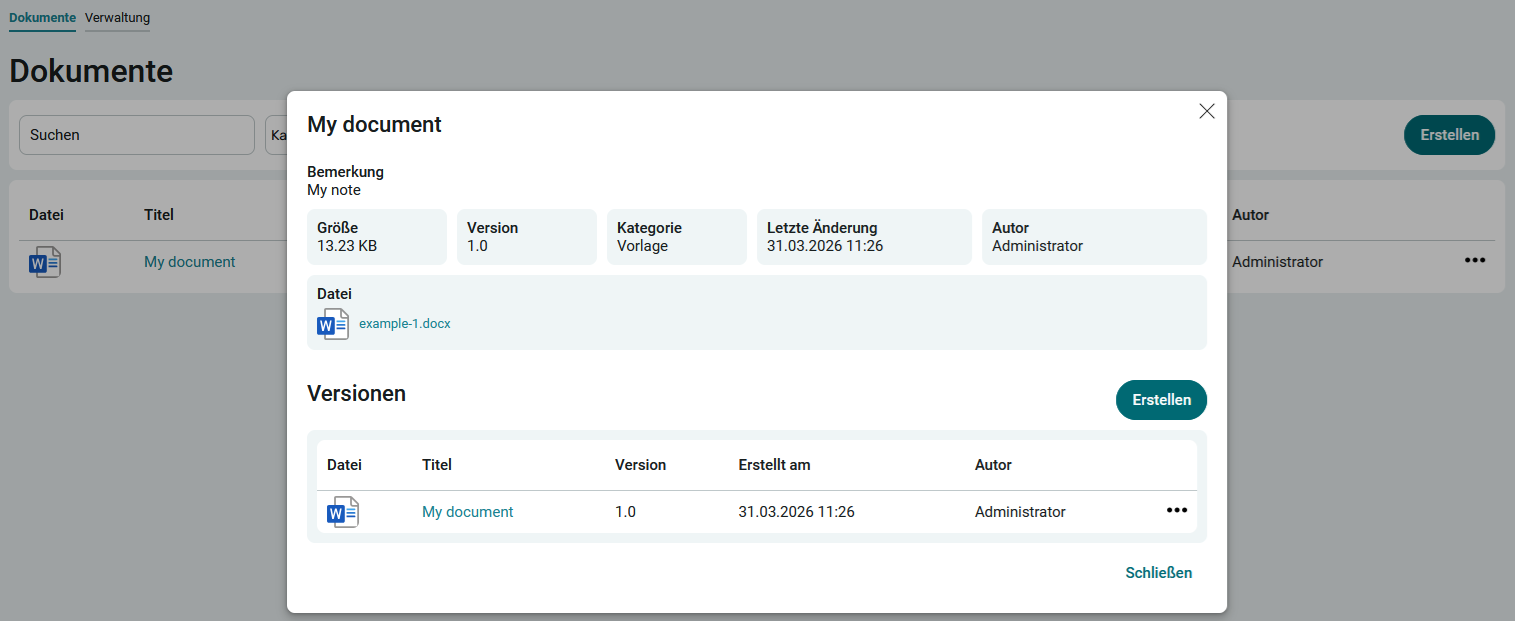
On the app's home screen, click the document title.
-
Click Create.
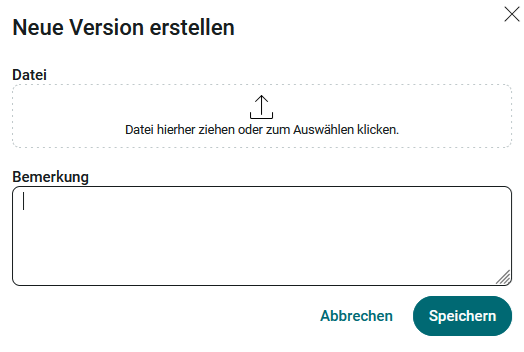
- Select the file.
-
Click Save.
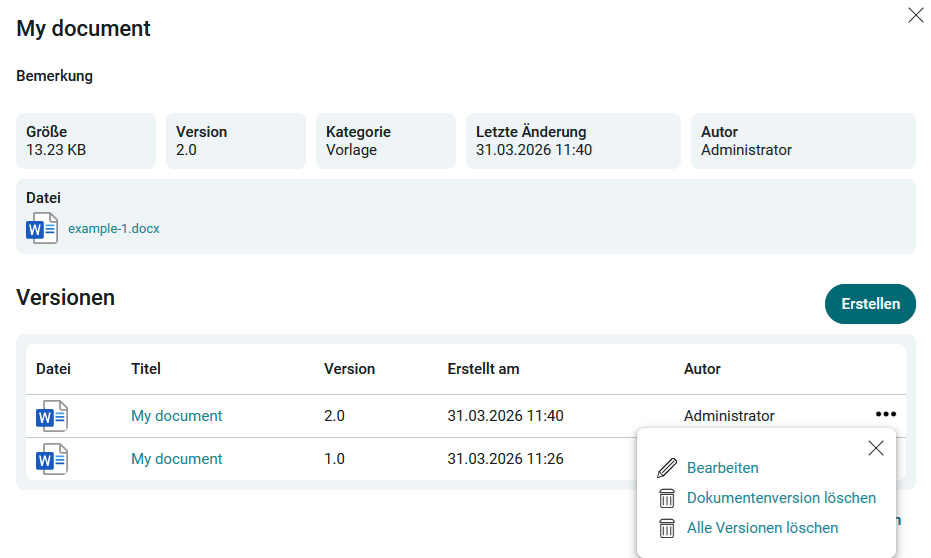
All existing versions are now displayed in the Versions table. Using the " " options menu, you can edit individual versions and delete either a single version or all versions of a document.
Administration
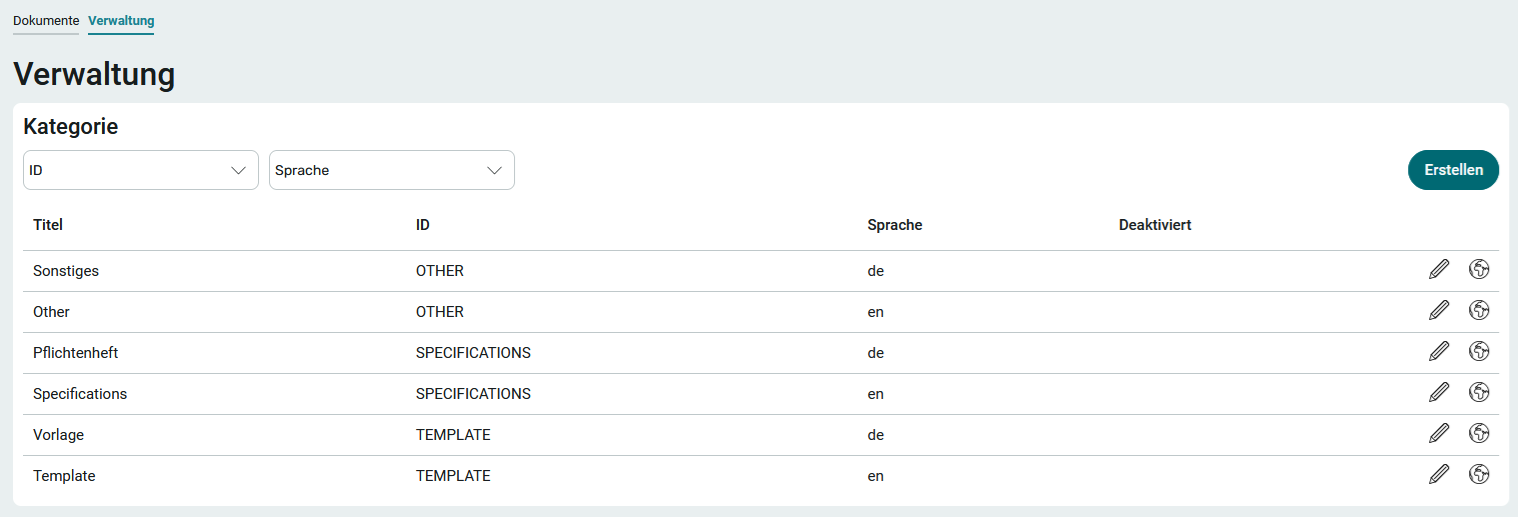
On this page, you'll find all the categories by which the documents can be filtered. Click "New" to create new categories as needed. Be sure to use a unique ID; you can use any characters you like. Once saved, the ID cannot be changed.
Categories cannot be deleted manually. They must first be disabled. Intrexx then deletes the data automatically. To disable a category, click " Edit" under "  ." On the next page, you can edit the category—with the exception of the ID—and also deactivate it using a button.
Additional language variants can be created for existing categories. This allows the category to be translated into another language. You can find all the information on this topic here: Multilingualism.