

Authentication Type
You can access the configuration dialog for the authentication type in the "Users" module via the main menu: Users > Configuration > Authentication.
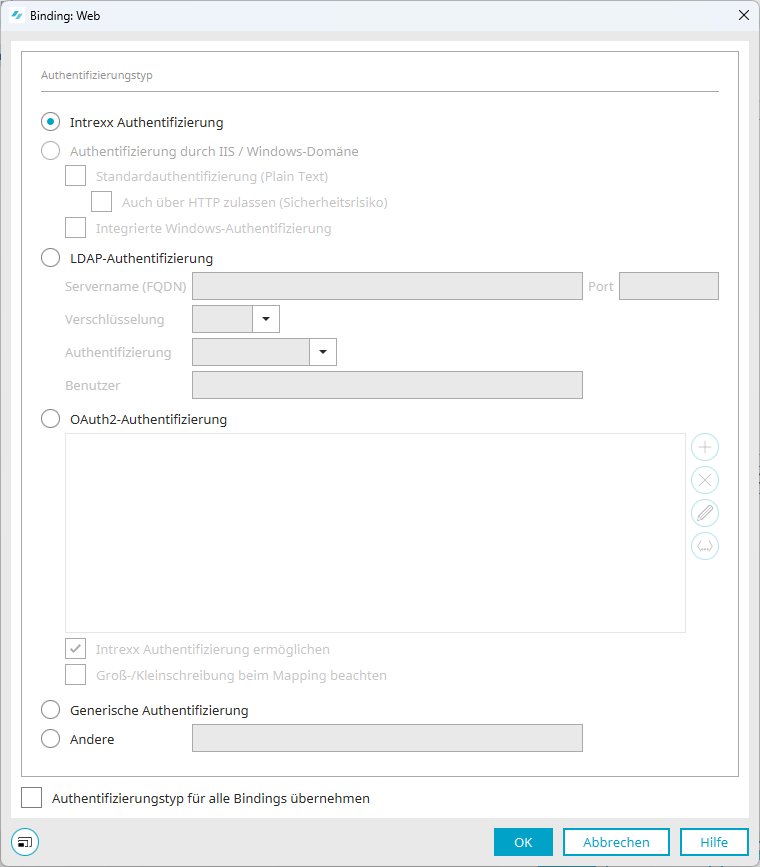
Intrexx Authentication
Regardless of whether they are members of local domains, all users log in to the portal using the username and password from the "Users" module. In the lower section of the dialog box, select a user who will assume the role of the anonymous user. An anonymous user is a user who accesses the portal without logging in. This account is used for all users before they log in. The authentication type can be changed at a later time from Intrexx authentication to authentication via a web server. However, the change should not be made until after the users have been imported.
Authentication via IIS / Windows Domain
With this setting, the user account used to log in to the NT or ADS domain is also used to log in to the portal. All users must be able to log in to the respective domain, or there must be a trust relationship with the domain of the Intrexx Portal Server.
Standard Authentication (Plain Text)
This option is required when users access the portal using older browsers that do not support encrypted login (integrated Windows authentication). In this case, the password is transmitted in plain text. Please note that with this unencrypted method of transmission, your password could be intercepted.
Also allow via HTTP (security risk)
With this setting, passwords are transmitted to the web server in plain text.
Integrated Windows Authentication
This setting allows you to log in without entering a password. The user is authenticated by the Windows system in advance.
Domain
Enter the Windows domain you want to log in to here.
Domain Controller
Enter the Windows domain controller for the domain here.
WINS Server for Name Resolution
Enter the server responsible for WINS name resolution here.
LDAP Authentication
Server Name (FQDN) / Port
Enter the server name (FQDN) and the port for authentication here.
The FQDN (Fully Qualified Domain Name) is composed of the hostname and the domain and thus refers to the complete and unique address of a website. It is used to locate specific hosts on the Internet so that they can be accessed through name resolution.
Encryption
Here, you can choose between LDAP and LDAPS.
When using LDAPS encryption, the certificate must be added to the portal properties. A message to that effect, which also explains the procedure, appears when you select LDAPS.
Authentication
Select the authentication method for your LDAP server here:
-
none
-
simple
-
secure (strong)
User
For LDAP bind login, there are three variables that are expanded at runtime in the following order:
$[LOGIN_NAME] - User's login name
$[LOGIN_DOMAIN] - User's login domain
$[DN] - User's Distinguished Name (usually populated via replication)
For more information on LDAP authentication, click here.
Closing the dialog box
When you close the dialog box, a message will appear if the selected port does not match the standard. If you want to change the port right away, close the notification window by clicking the "  " close icon in the upper-right corner. If you close the message by clicking "OK," the dialog box will also close, unless there are any other messages to be displayed. The port can then be changed by reopening the dialog box.
OAuth2 Authentication
For detailed information about this option, see the section " Enter ID Provider Data in User Management."
Generic Authentication
Generic authentication allows you to configure an authentication module for authentication via an LDAP server. In this case, the username and password are transmitted in plain text. Make sure that users can log in only through secure connections. To set up generic authentication, please contact the consulting department at Intrexx GmbH.
Others
Other authentication modules can be developed to meet your requirements. Examples of this include authentication using X.509 certificates, authentication on third-party systems, etc. If you have any questions, please contact the Consulting department at Intrexx GmbH.
Example
You can find an example of how to create and implement your own authentication module at the following link:
Apply the authentication type to all authentication scopes
The settings configured here will be applied to all other authentication scopes.