

Photo Gallery

The image gallery allows you to organize and publish images in albums on the portal.
To learn how to import this template, see: Importing Online Application Templates.
Create a photo album
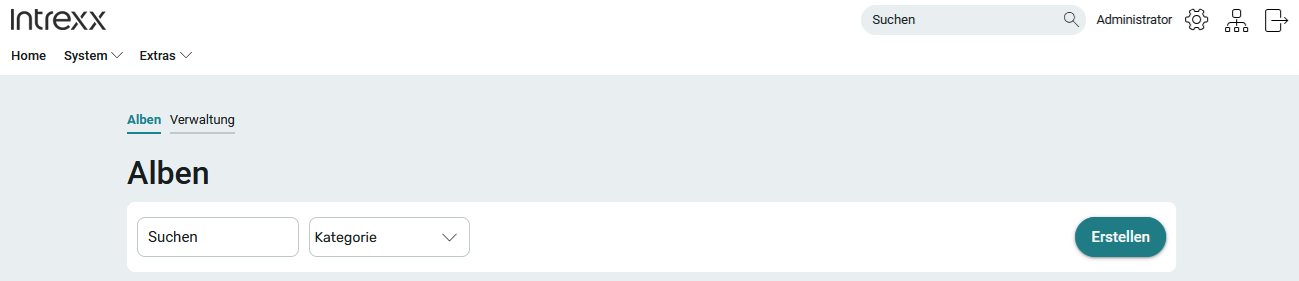
1. Click Create.
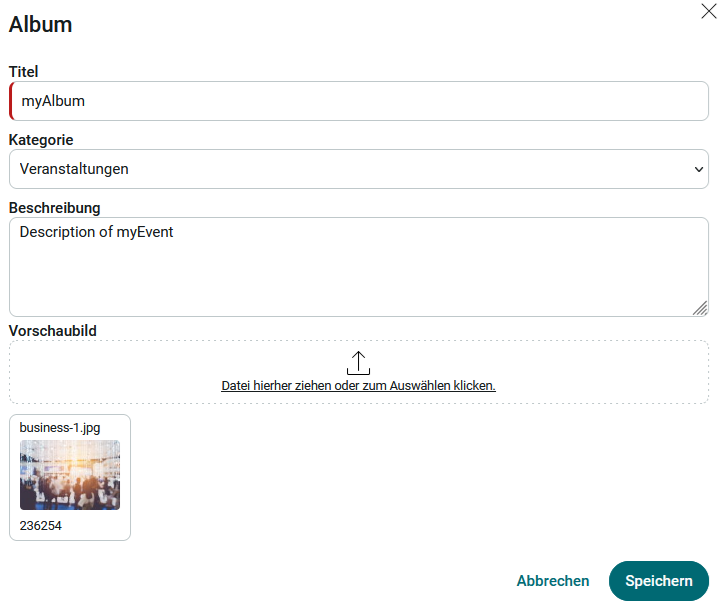
2. Enter the title and a description for the album here. Select an appropriate category and upload a preview image.
3. Click Save.
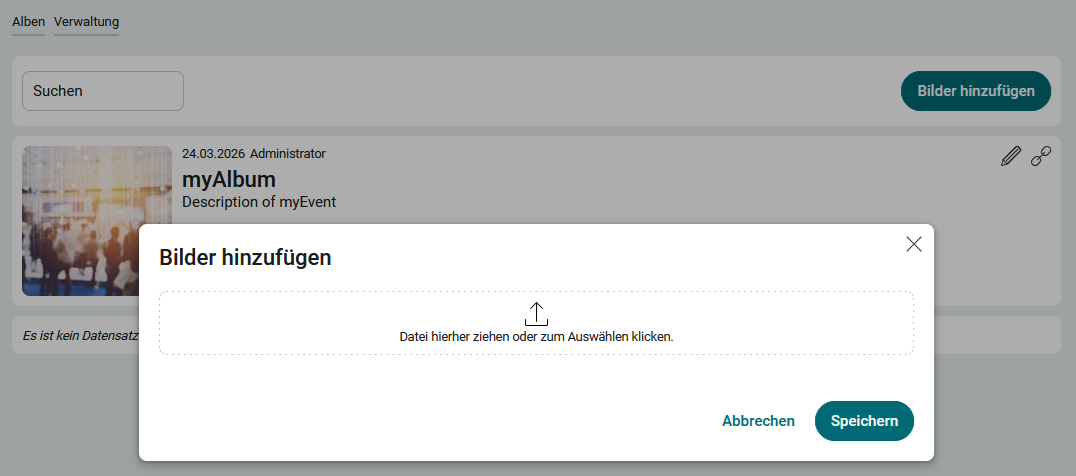
4. Click "Add Image" and upload the images you want.
5. Click Save.
Only the creator of an album can edit or completely delete the album's information by clicking "  " to edit the album.
Pictures

You can "like" pictures by clicking the heart icon and comment on them by clicking the speech bubble icon. Clicking the info icon opens a page where you can edit the image's title and description.
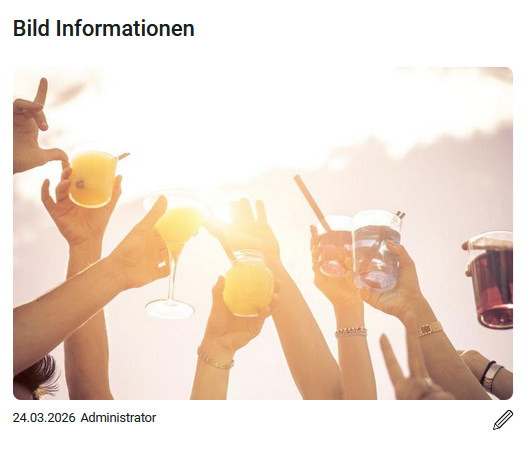
Clicking " Edit Album " opens the corresponding section with fields for the title and description.
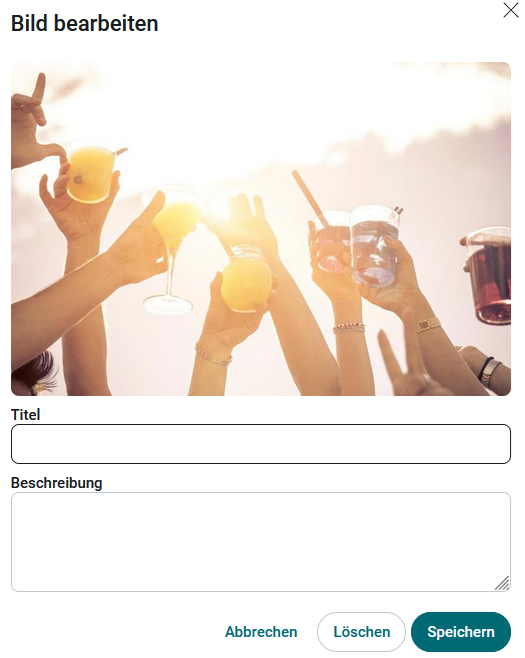
Slideshow
When you click on an album, it loads as a slideshow. When you hover your mouse over it, you'll see the usual controls for browsing through the images, as well as a play and pause button.
Add a category
Members of the App_ImageGallery_Manager role—which is automatically created in User Management when the application is imported—have access to the Administration page.
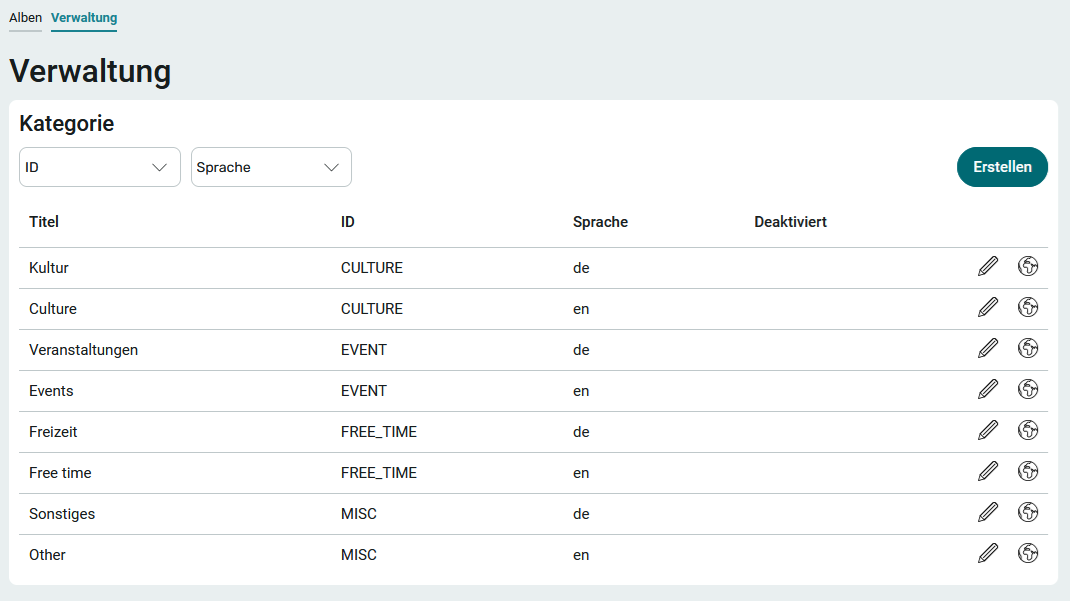
All categories are managed here. Click " Create" to create a new category. Please make sure to use unique IDs; you can use any characters you like. Once saved, the ID cannot be changed.
Clicking " Edit Category " at opens a page containing the category's details.
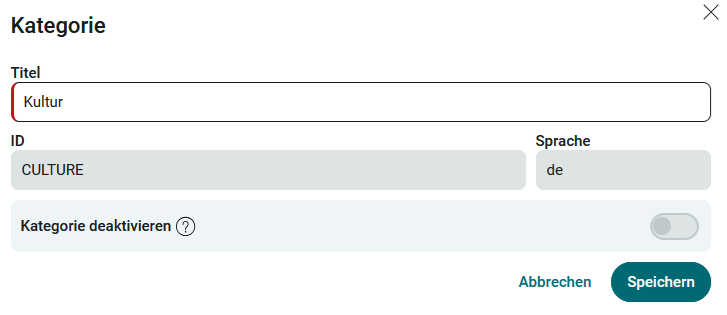
When a category is disabled, it is no longer available as a selection option. At the same time, the system checks whether the category is still in use in the application. If this is not the case, the category will be automatically deleted.
Additional language variants can be created for existing categories. This allows the category to be translated into another language. You can find all the information on this topic here: Multilingualism.
More Information