

Help Desk
Using the Helpdesk application template, you can create tickets and process and manage them as they progress through various statuses. To learn how to import the template, see: Importing Online Application Templates.
Roles
Roles are automatically created when the template is imported.
App_Helpdesk_User
As a member of this role, you can create tickets.
App_Helpdesk_Editor
Members of this role can also create tickets and assign them to a handler.
App_Helpdesk_Manager
This role allows you to manage statuses and categories. In addition, it includes all permissions for the App_Helpdesk_User and App_Helpdesk_Manager roles.
To learn how to add portal users as members to these roles, see: Roles and Permissions in Application Templates.
Requirements
Since the Helpdesk application sends notifications via email, the email service must be configured in the Tools module before it can be used. Otherwise, saving a ticket, for example, will result in a corresponding error.
Help Desk
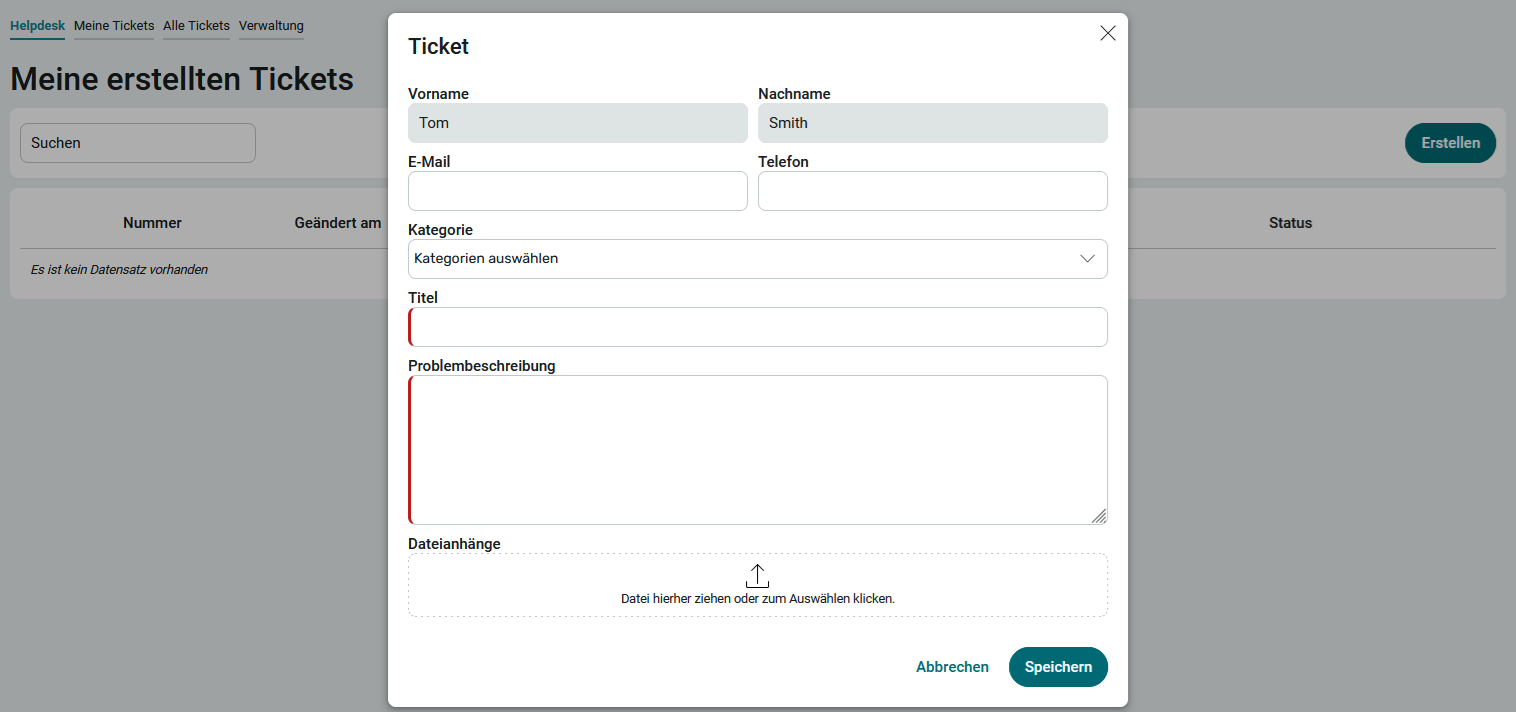
Tickets are displayed on the Helpdesk page ( the app's home screen), where you can see all the tickets you have created yourself.
Create a ticket
Click " Create " to create a new ticket. The current user is automatically entered, along with their email address and phone number, provided these are on file in the user management system.
Edit and Delete Tickets

By clicking "  Edit, " you can edit existing tickets again. You can also use this method to delete the entire ticket.
Comment on tickets
Permissions
To allow users to create, edit, and delete comments, they must be members of the App_Helpdesk_User user group. This also applies to users with the App_Helpdesk_Editor and App_Helpdesk_Manager roles.
1. Click on a ticket's title.
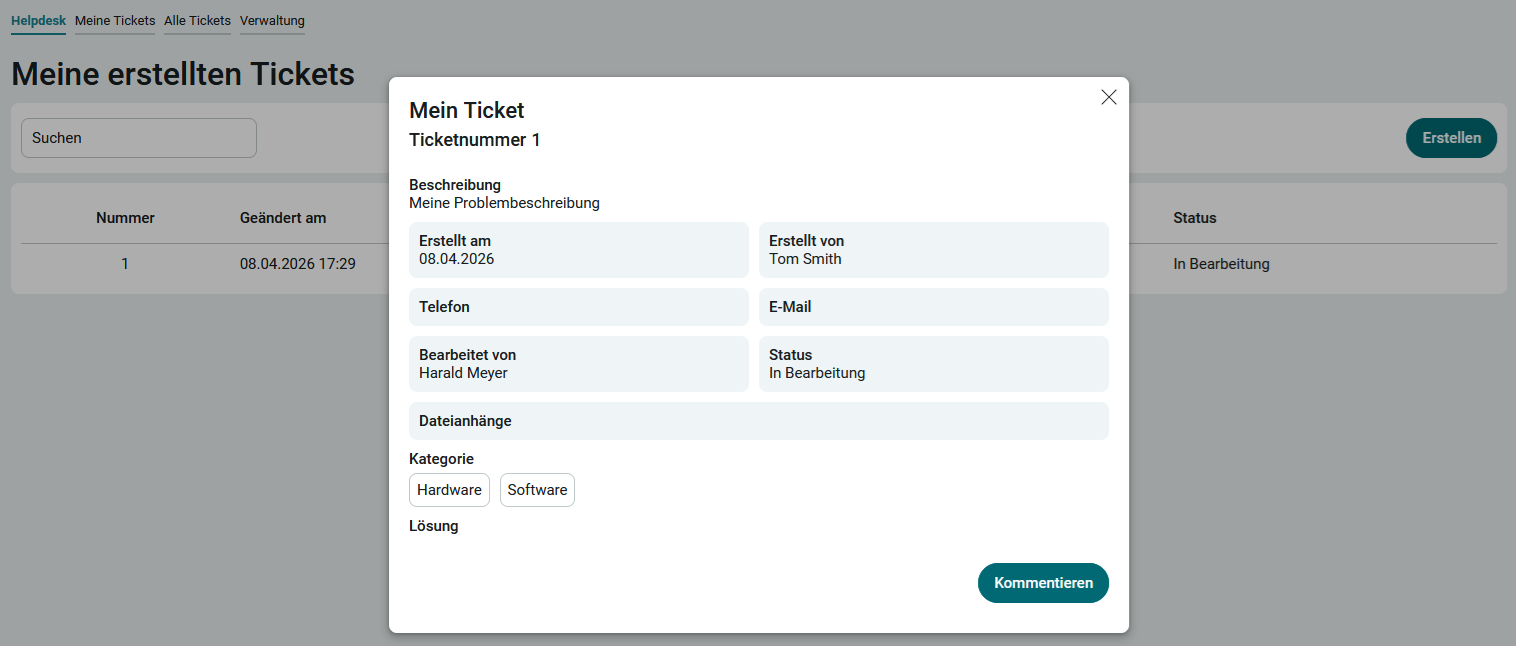
2. On the ticket details page that appears, click " Comment."
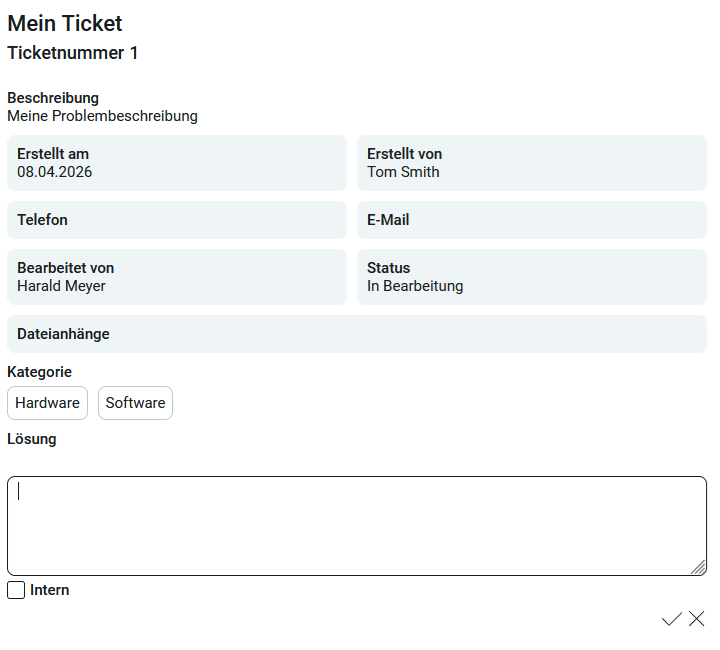
3. Enter your comment in the text box below the solution.
4. If necessary, mark the ticket as " Internal." Internal comments are not displayed when a ticket's detail page is opened from the Helpdesk page. However, internal comments can be accessed via the " My Tickets " and " All Tickets " pages and are then also marked as internal.
5. Click "  " and then " Save."
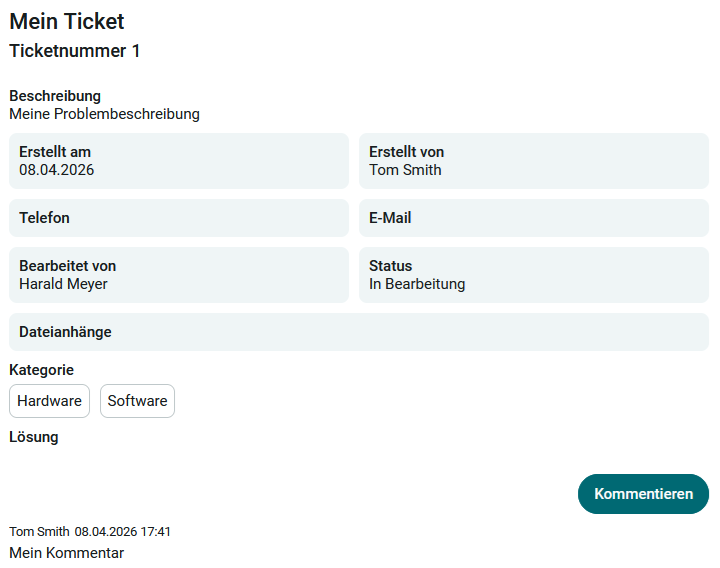
Comments are displayed below the solution. When you hover over a comment, the " " " Edit" button appears, which you can use to edit or delete the comment.
All Tickets
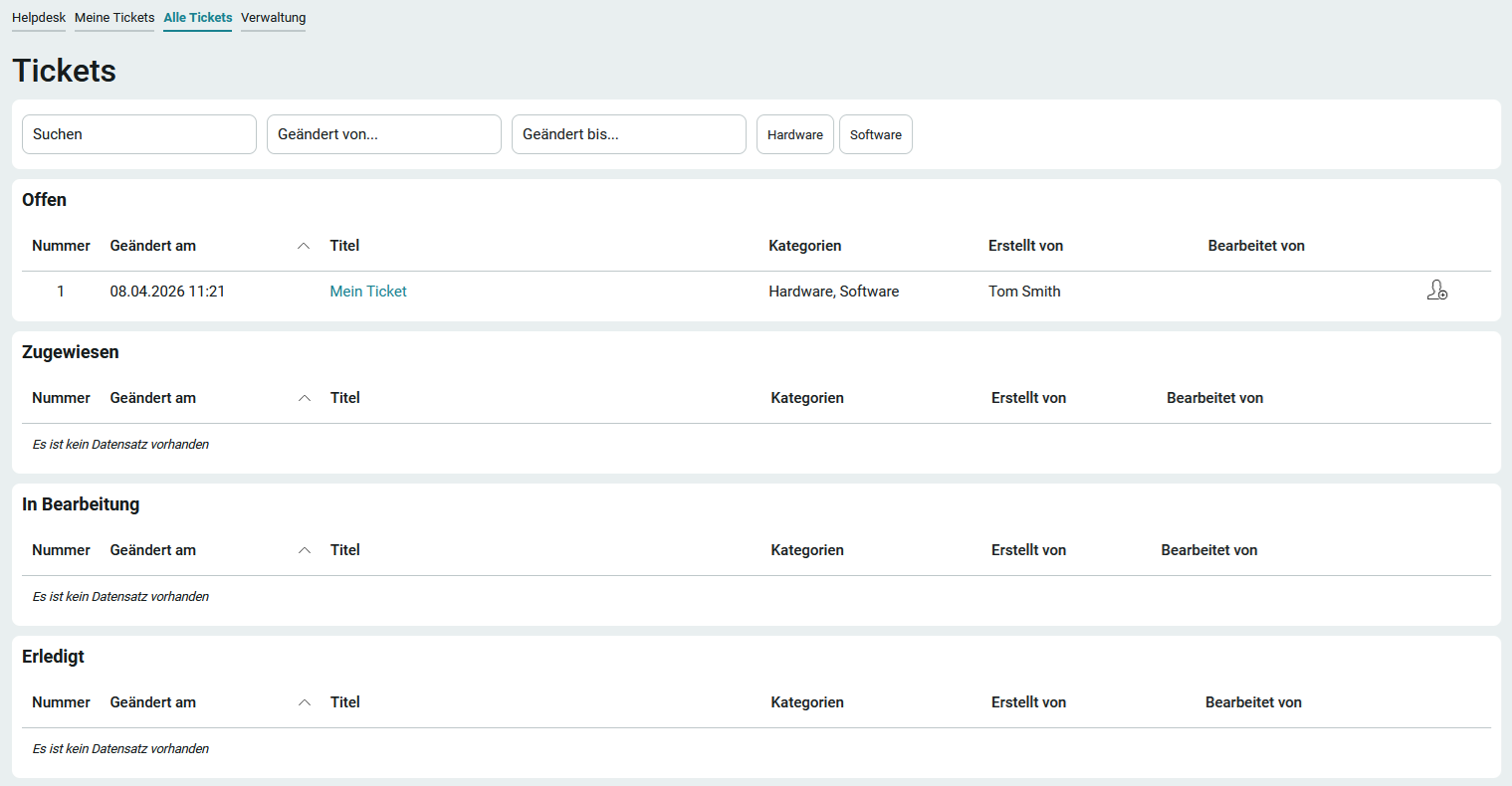
On the "All Tickets " page, if you have the appropriate permissions, you'll find an overview of all tickets with a processing status. Open tickets can be assigned to a handler here by clicking " Assign ." The user can then view the ticket on the " My Tickets" page.
My Tickets
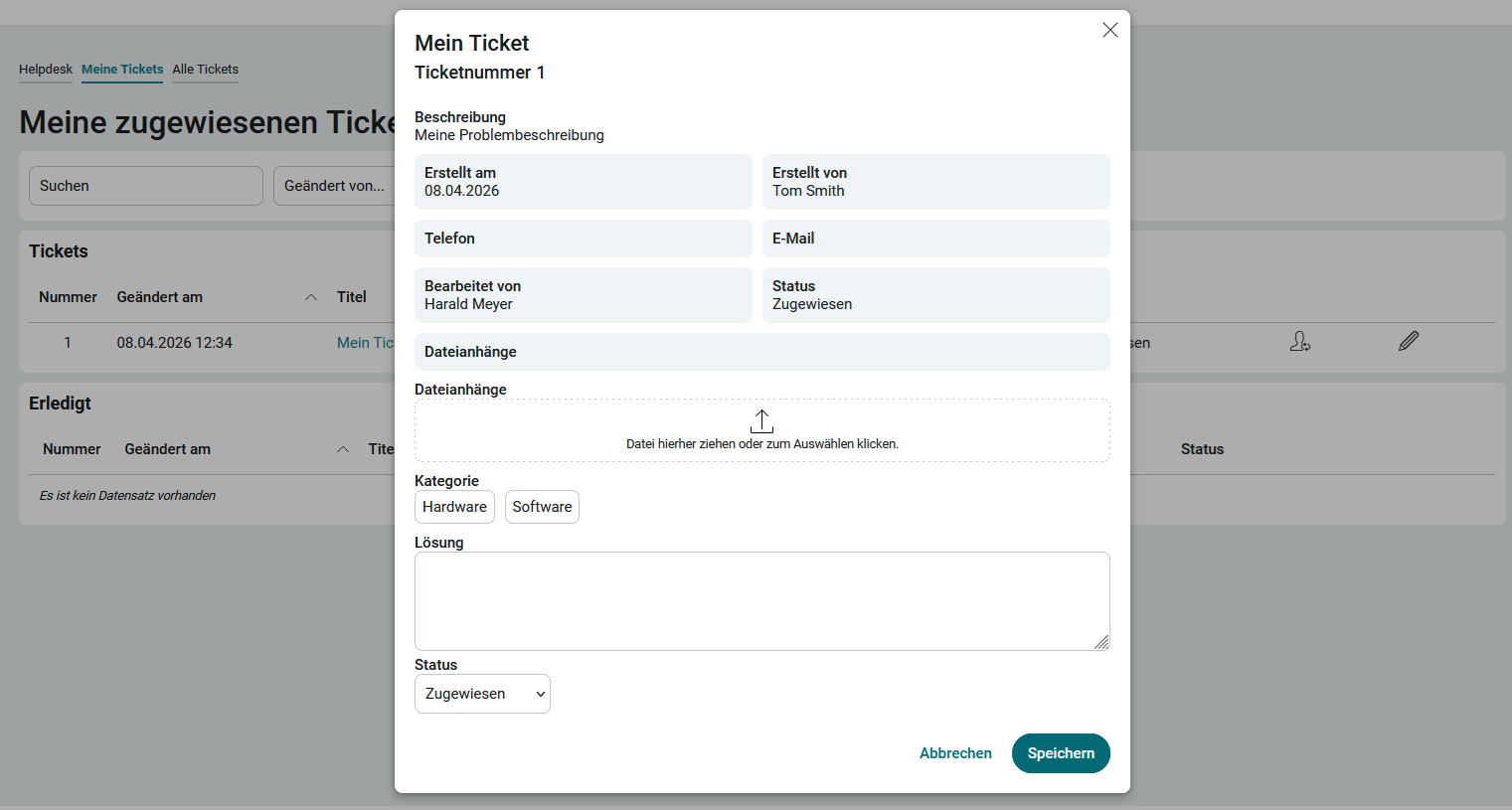
On this page, you'll find all the tickets assigned to you. By clicking " Edit," you can change the status (Assigned, In Progress, Completed) to reflect the progress of the task. In addition, a solution can be entered.
If you want to assign the task to another user, click "  " and then " Change Assignment" next to a task on the My Tickets page.
Resolved tickets are automatically moved to the " Resolved " table.
Administration
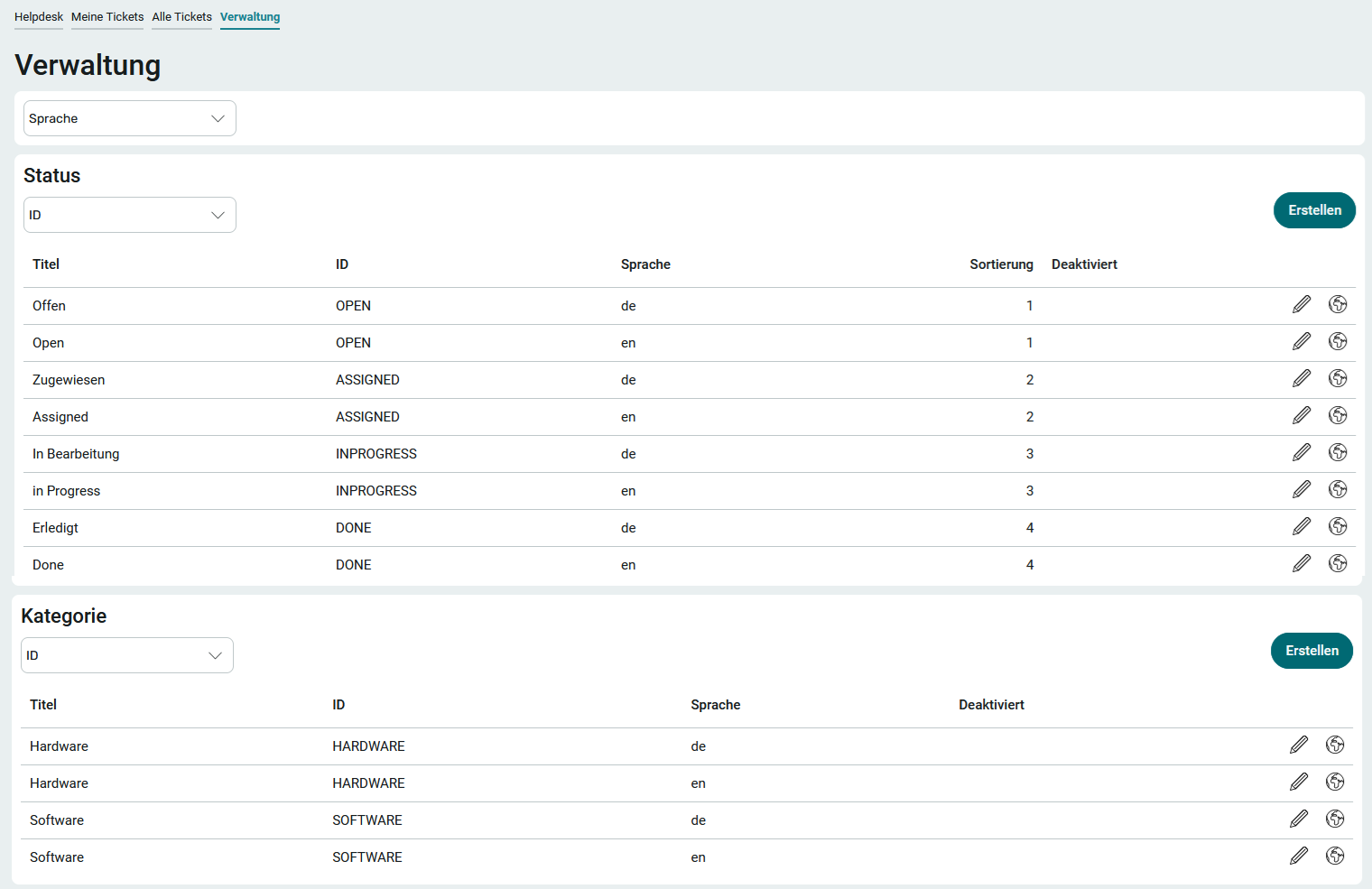
This page is used to manage statuses and categories.
Status
Click "Create" to create a new status.
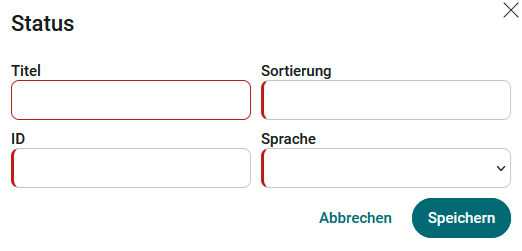
The ID that must be entered should be unique and can consist of any characters. Once saved, the ID cannot be changed.
Adjustment in Portal Manager
To add a new status, you must configure the application in Portal Manager and create a new table for the status. The table filter should then filter based on the ID of the new status.
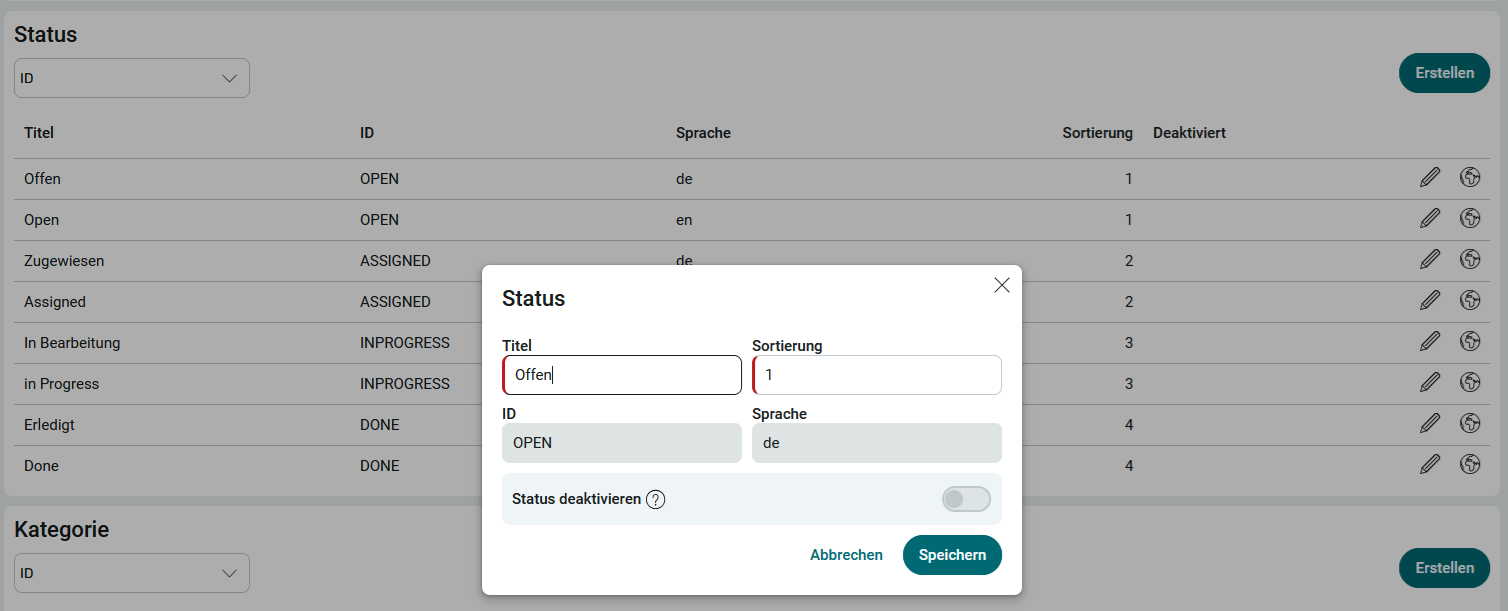
To edit an existing status, click " " > " Edit."
Statuses cannot be deleted manually. They must first be disabled. Deletion occurs automatically if the status is no longer referenced within the application.
Additional language versions can be created for existing statuses. The status can thus be translated into another language. You can find all the information on this topic here: Multilingualism.
Category
The same rules apply to creating and editing categories as to creating and editing statuses.
Additional language variants can be created for existing categories. This allows the category to be translated into another language. You can find all the information on this topic here: Multilingualism.