Data Transfer

A data transfer allows you to import data into the portal on a one-time or recurring basis according to a schedule, as well as export data from the portal.
To perform a data transfer via the app, you must first set up the appropriate connection in Portal Manager—specifically , in the Integration module. You can find all the information you need here: Data Transfer. Data transfer can also be initiated and carried out there.
Using the " Data Transfer " application template, you can also initiate a data transfer in the browser. This allows authorized users to perform data transfers without having to use the Portal Manager.
To learn how to import this template, see: Importing Online Application Templates.
Configure Permissions
After importing the application, you'll find the following in the application's properties on the Permissions tab of the application's properties.
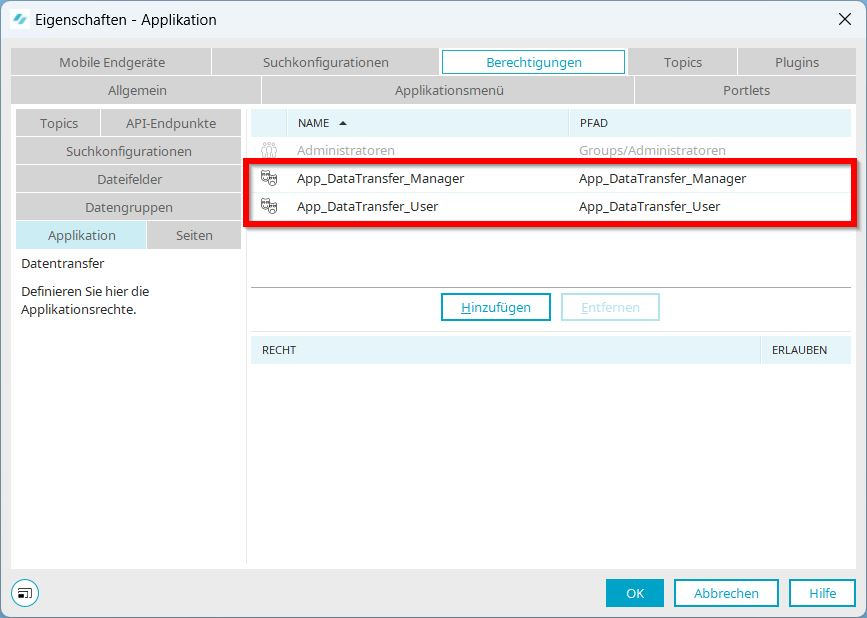
Members of the App_DataTransfer_Manager role can perform and view data transfers.
Members of the App_DataTransfer_User role can perform data transfers but cannot view them.
Set Up a Role in Portal Permissions
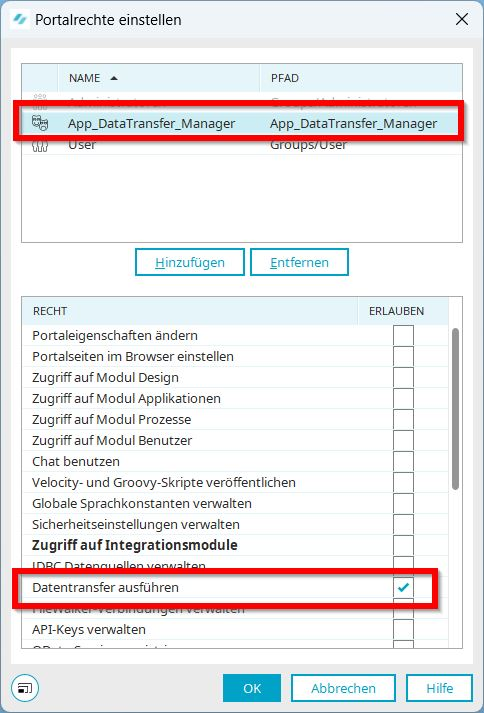
You must add the App_DataTransfer_Manager role to the portal permissions and then enable the " Perform Data Transfer " permission for that role.
To set up the necessary permissions for using the Data Transfer application, follow these steps:
-
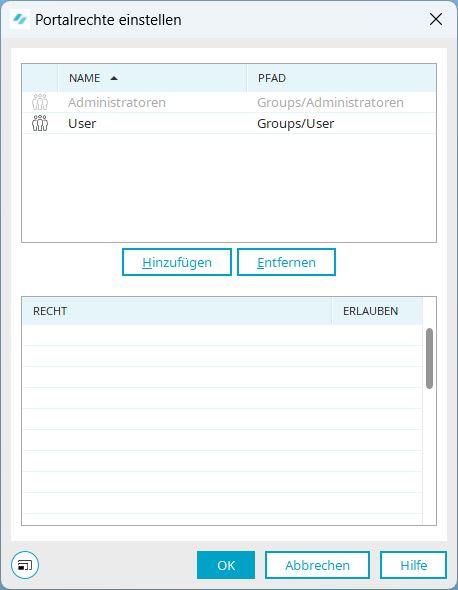
From the Portalmain menu, select the " Portal Rights" menu item.
-
Click Add.
-
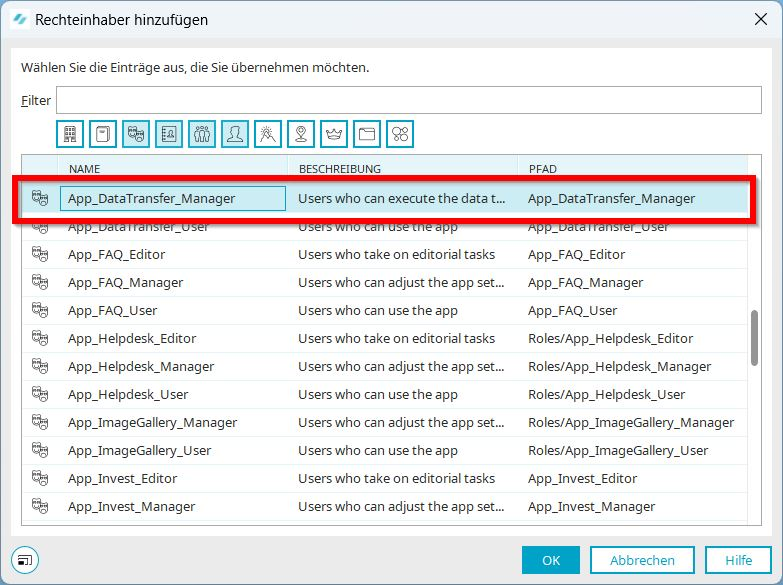
Select the App_DataTransfer_Manager role.
-
Click OK.
You will be taken back to the " Set Portal Rights" dialog box.
-
In the upper section, select the App_DataTransfer_Manager role.
-
In the lower section, select the " Perform data transfer" checkbox.
-
Click OK.
-
In the Users module, add the users who are to perform data transfers in the portal as members of the App_DataTransfer_Manager role. For more information on this, see the " User Account" section.
Start data transfer in the browser
Click "  " and then " Run Data Transfer Job Now" to start a data transfer.
The button is displayed only if you are a member of the App_DataTransfer_Manager role.
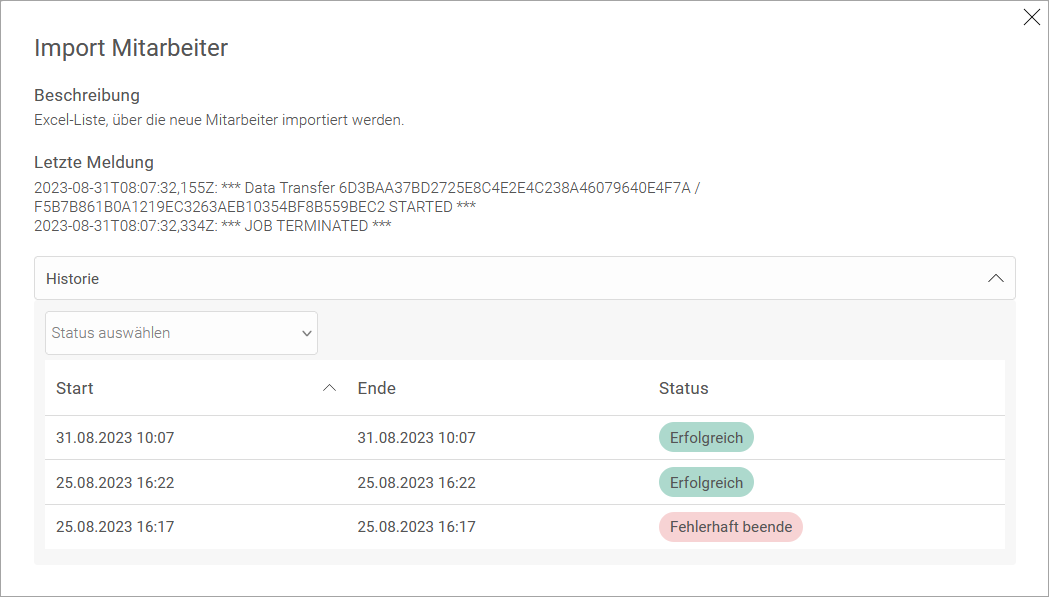
View History
Click on the title of a data transfer to view its history.