

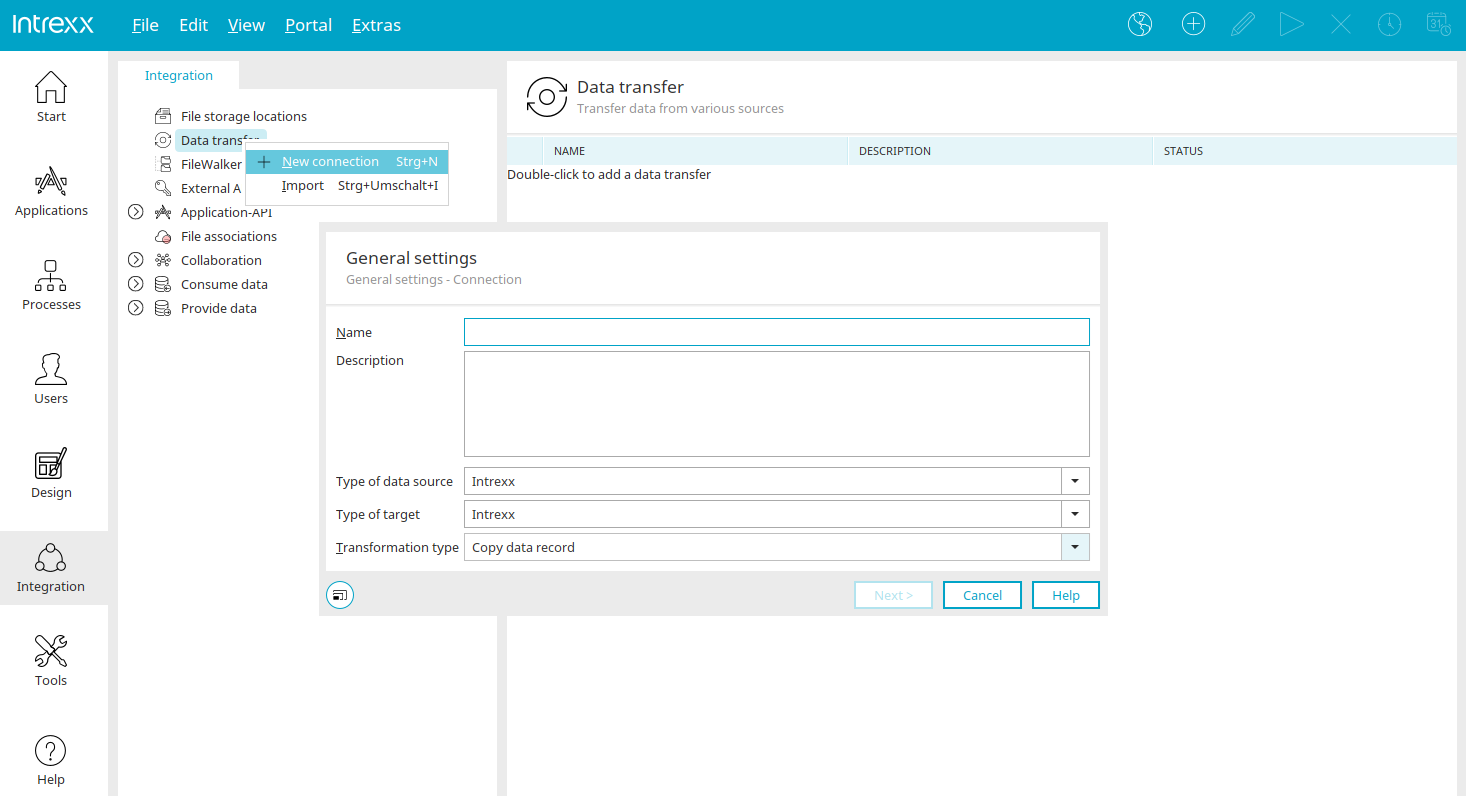
Using the data transfer feature in the "Integration" module, data can be imported and exported on a one-time or recurring basis according to a schedule. The following can be used as the source or destination:
-
Intrexx
-
Registered JDBC Data Sources
-
JDBC
-
OpenOffice Calc Spreadsheet
-
Text files
-
XML files
-
Groovy script
-
Microsoft Excel
The portal permission "Execute Data Transfer" is required to perform a data transfer.
If applications are involved, you need permissions for the application and read or write permissions for the selected data groups within the application.
Please always create a database backup before starting a data transfer. Incorrect settings may, under certain circumstances, result in the loss of original data. Intrexx GmbH. does not provide support in this case.
Edit Data Transfer Connection
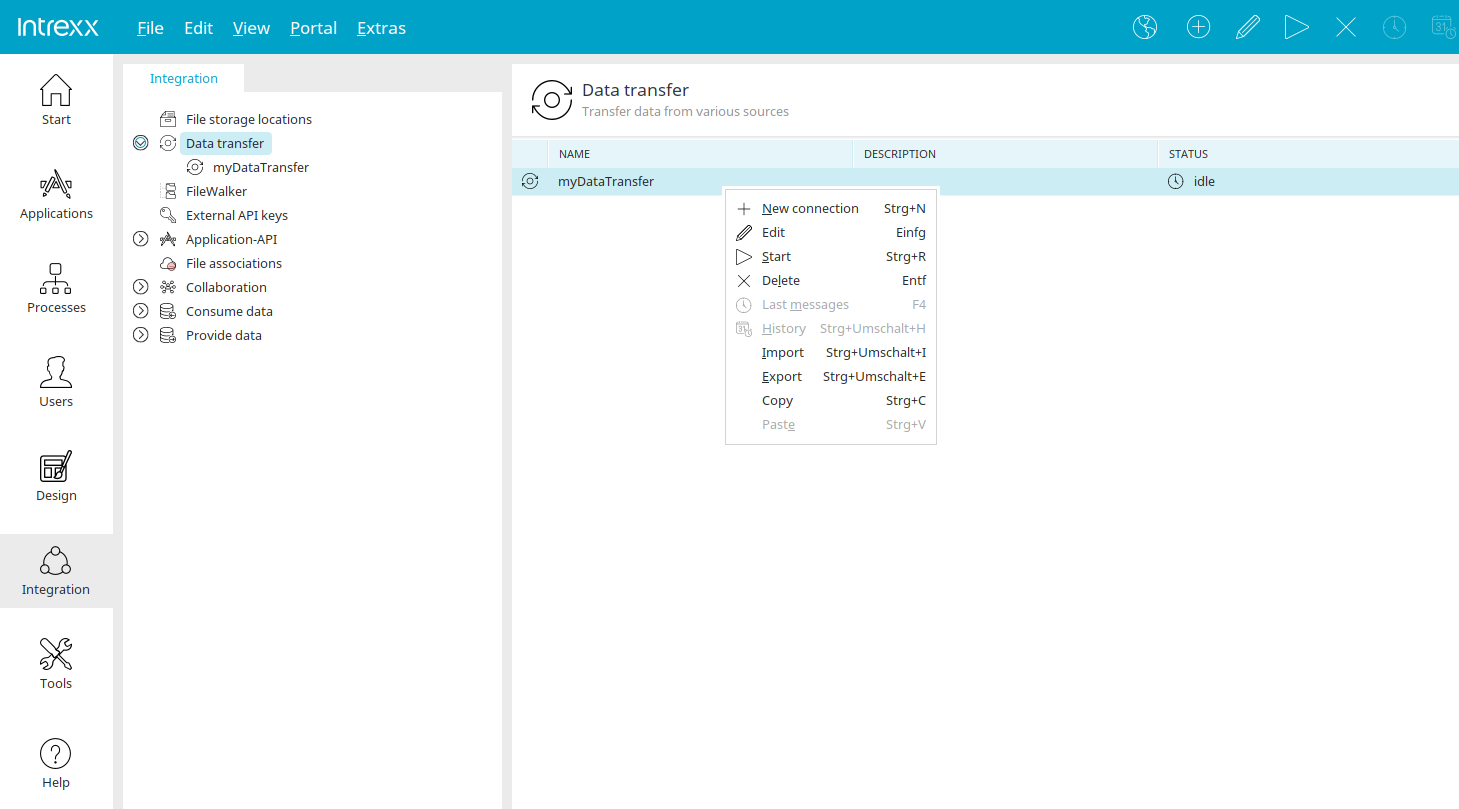
Every data transfer you have created is displayed in the right-hand pane. You can access all editing functions via the "Edit" option in the main menu when an existing data transfer is selected in the right-hand pane. A data transfer can also be started manually here.
"Name" column
The name of the data transfer is displayed here.
"Description" column
The description of the data transfer is displayed here.
"Status" Column
Displays the status of the transfer.
Start Data Transfer
When a data transfer is initiated, the start and end dates, as well as the progress status, are displayed in the right-hand pane. Progress is displayed as a percentage during execution, and a successful run is indicated as "successful" in the Status column. Please check the connection settings if data transfer is not completing successfully.
Data imported into a portal application via data transfer is not automatically indexed for search. Indexing of the target application can be triggered manually in the "Tools" module of the task scheduler using the "Task Scheduler / Start" main menu.
More Information