

Exporting and Importing Titles and Names
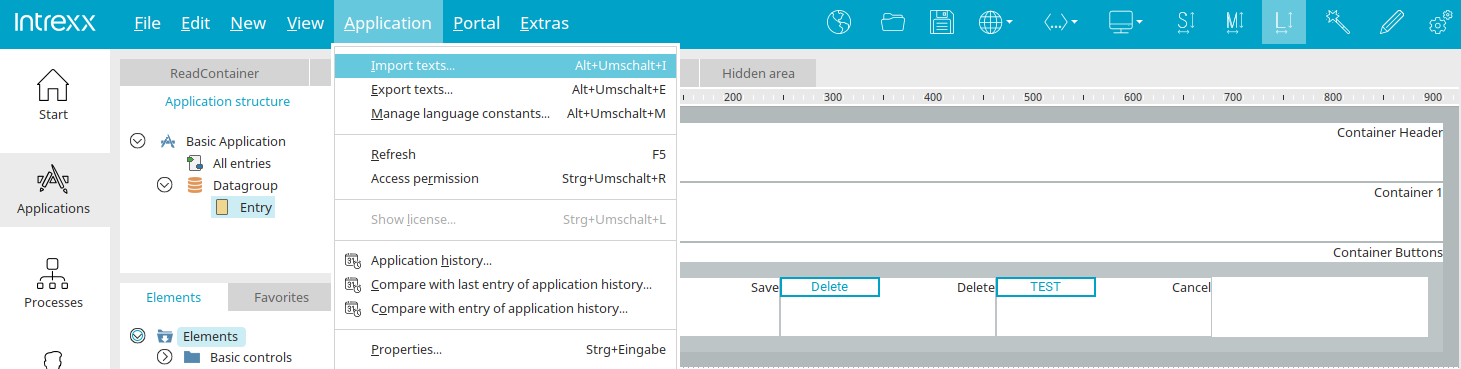
In the "Applications" and "Processes" modules, the titles and names of all elements can be exported via the main menu (e.g., Applications / Export Texts) and reimported after editing. This feature can be used to translate applications or processes into other languages.
Text and constants can be exported in CSV, XLS, or XML formats. The XLSX format is also allowed for imports.
Text Export
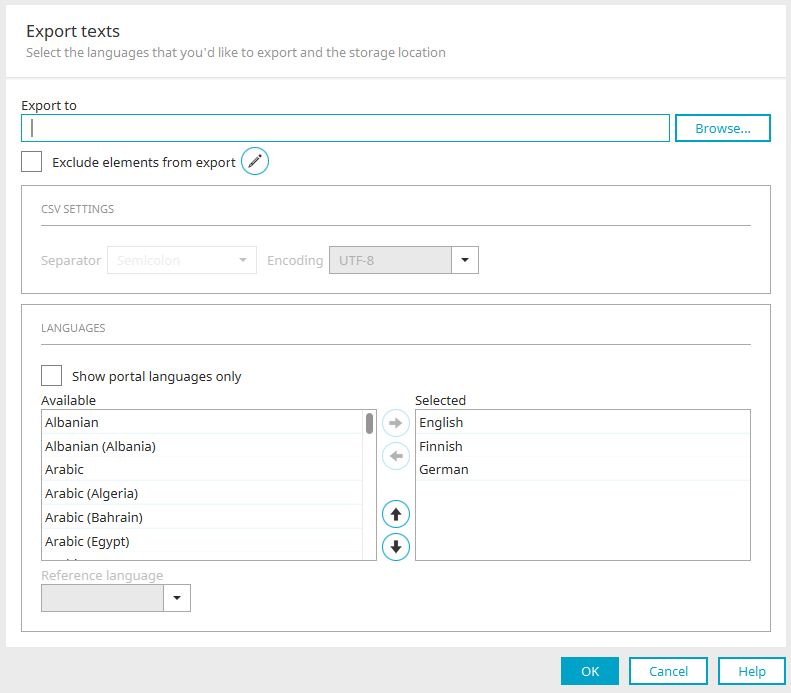
This dialog box is also used when exporting or importing global language constants. You can find more information here.
Export to - Select a location
Select an export file here. The following file formats are allowed: CSV, XLS, and XML.
Exclude Items from Export
If you set this option, clicking "  " will open another dialog where you can specify the elements whose text should not be exported under "Items Excluded from Export."
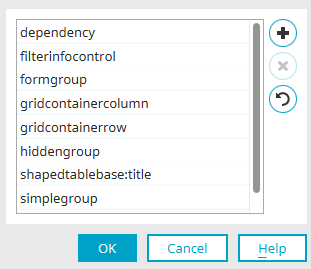
This section lists all elements that are not included in the export file. You can also specify which text elements should not be exported (e.g., shapedtablebase:title—all text in the shapedtablebase object will be exported except for the titles). Multiple text types can be concatenated using : (e.g., element:type:type[...]). The XML names of elements and their corresponding text types can be read from an export file.
 Add an element
Inserts another blank line. Double-click the cell to add the element's XML name to the list.
 Delete Element
Removes an item from the list.
 Restore Intrexx Standard
Restores the list to its original state.
Click "OK" to save the settings and close the dialog box.
CSV Settings
In CSV format, line breaks in text are encoded using <IXLB>.
Delimiters / Encoding
If you are using a CSV file for export, select the delimiter type and encoding here.
Languages
Show only languages used on the portal
With this setting, the "Available" list displays only the languages that are used as portal languages. Use the "  " arrow button to move the languages you want to edit in the translation to the "Selected" list. The order—which affects the order of the columns in the export file—can be changed using the vertical
 arrow buttons.
Source language
When exporting to an XML or XLS file, you can select a language here to serve as the basis for translation. This is indicated in the exported file.