

Edit Layout
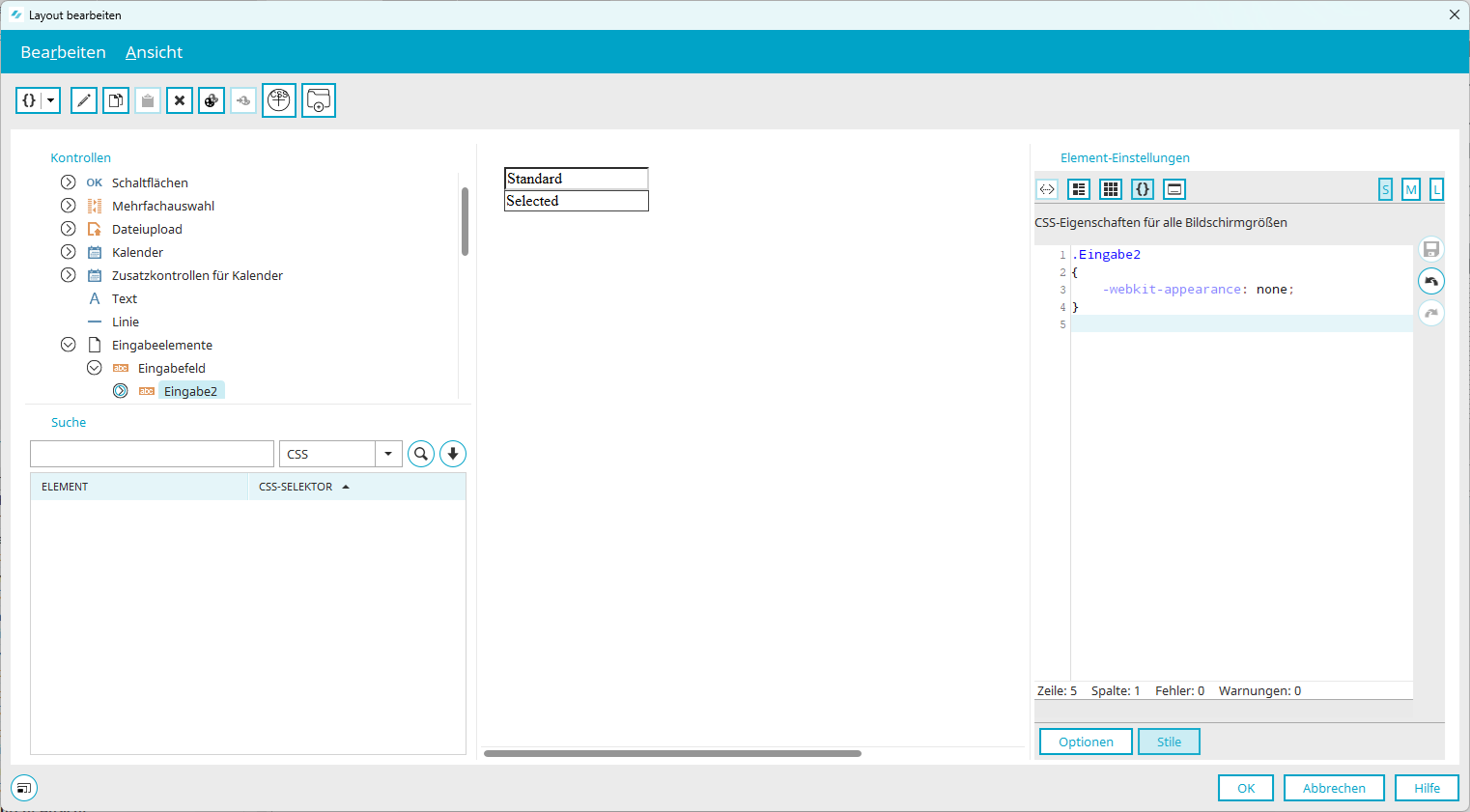
You can access this dialog in the Applications module via the Properties dialog for elements on the View tab. Click " Edit Style Class" there, then click " Select Style Class" / [Application] or [Application - Mobile Devices], and then " Edit Layout."
You can also access the dialog box from the main menu under Edit / Edit Layout.
Here you can define layout styles that can be assigned to elements in the current application via the View tab in the Properties dialog box. To do this, you must first create your own controls in the Controls section via the Edit menu, which you'll find in the upper-left corner of the dialog box. You can then edit the style properties of these custom controls in the Element Settings pane. You can find more general information about the individual areas here.
Inspections Division
In this section, you'll find a list of application controls organized in a tree structure. If you want to define your own styles for elements in your application, create a new control in the corresponding tree branch using the Edit menu.
Search Section
You can find all the information about this topic here.
Preview Area
In the middle, you'll see the preview pane, which displays the most important styles as they appear in the browser when a custom control is selected in the Controls pane.
Element Settings Section
Displays the properties of the custom control when it is selected in the Controls pane. You can find more information here.
Edit Menu
Edit Stylesheet
Opens an editor where you can edit the control styles or custom styles in the CSS. You can find more information here.
Replace Colors
You can find all the information about this menu item here.
Add a control element
Opens a dialog box where you can edit the class and title of the new control. The new control automatically inherits the styles of the parent control that you selected in the Controls section before creating it.
Add an empty control element
Same as adding a control element, but no styles are applied.
When creating new controls, please be sure to use titles that are unique across the portal. No title may appear in any other application within the current portal.
Features
Opens a dialog box displaying the class and title of the currently selected control.