

Tagging Bookmarks / Tagging Bookmarks View
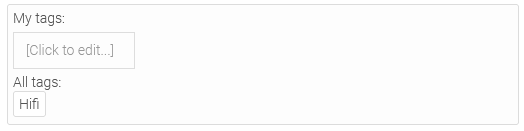
The "Tagging - Bookmarks" input field allows you to set bookmarks for data records. In search configurations, you can set the system to include tags in the search results. Tags can be used as filters (e.g., for view tables) via a dependency.
Using the "Tagging - Bookmarks View" view element, existing tags can be displayed as a data view in a word cloud or on appropriate pages. The "Tagging - Bookmarks View" element also displays hashtags that have been entered and saved in a text field, provided that the corresponding setting has been enabled in the Properties dialog.
Both elements belong to the "Additional Controls" element category.
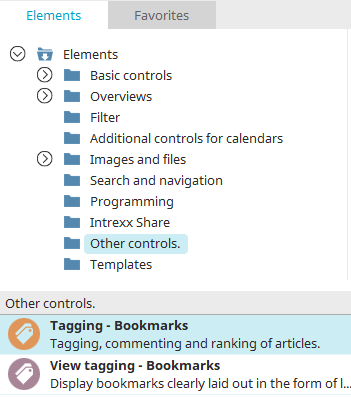
You can find the tagging element in the "Applications" module under "Elements. " You can create a new element by dragging and dropping it from here onto the workspace.
For more information on creating elements, click here.
The element's Properties dialog box opens automatically when the element is created. You can open the Properties dialog box for an existing element by double-clicking the element on the workspace, selecting "Properties" from the context menu, or choosing "Edit / Properties" from the main menu, provided that the "Tagging" element is selected on the workspace.
Tagging Bookmarks - General
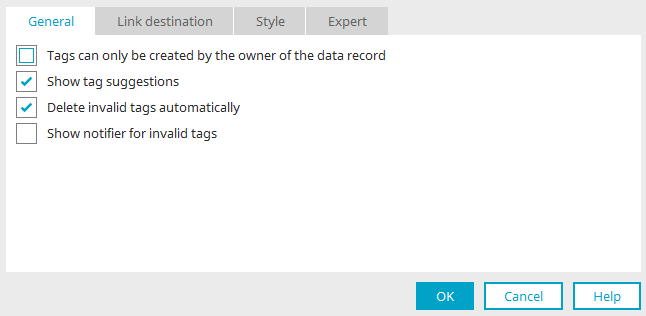
In the Properties dialog box for the "Tagging - Bookmarks" element, you'll find the following settings:
Tags can only be added by the owner of the record
With this setting, only the owner of the record can create tags. If this setting is not enabled, only users with sufficient permissions can create tags.
Show Tag Suggestions
When text is entered into this element, suggestions are displayed in a tooltip based on the existing tags. Clicking on a suggestion adds it as a tag.
Automatically delete invalid tags
A tag is invalid if it contains characters that are neither letters nor numbers (e.g., special characters such as /, $, §, etc.). With this setting, the invalid tag is deleted when you exit the tagging check.
Display a notification for invalid tags
With this setting, a message will appear indicating that a tag may only contain letters and numbers.
Tagging, Bookmarks, View - General
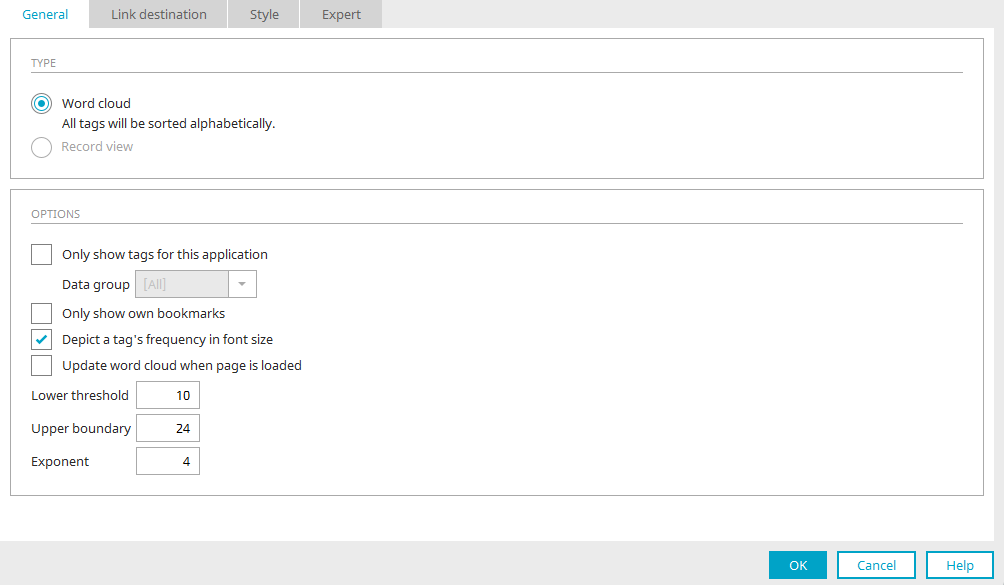
In the properties dialog for the "Tagging - Bookmark View" element, you can set the element to display as a word cloud or a data set view. There are various options for each of these in the dialog box:
Word Cloud Options
Show only tags from this application
If this setting is not enabled, all tags that have been entered in the current portal will be displayed. If this setting is enabled, you can also select a data group to which the display of tags is restricted.
Show only my bookmarks
This option displays only the bookmarks you have created yourself.
Display the frequency of a tag based on font size
Increases the font size when a tag is used frequently.
Refresh the Word Cloud page when it loads
Updates the word cloud when the page loads.
-
Lower threshold
Sets the minimum font size for the word cloud entries.
-
upper threshold
Sets the maximum font size for the word cloud entries.
-
Exponent
ensures that the entries are distributed evenly.
"Record View" Options
View Suggested Tags
When text begins with the # character, a tooltip displays suggestions based on existing tags. Clicking on a suggestion inserts it into the text as a hashtag.
Filter a table by tags
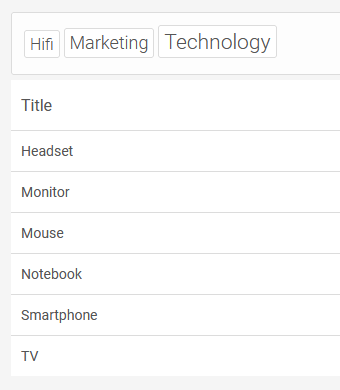
To filter a table using tags, create a "Tagging Bookmark" element on the page that contains the table—as shown in the figure above, the "Tagging Bookmark View" set to "Word Cloud."
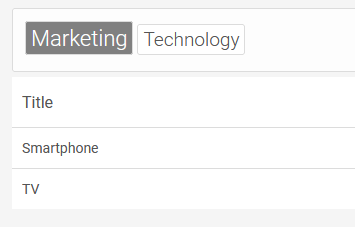
Clicking on one of the tags will filter the table accordingly.
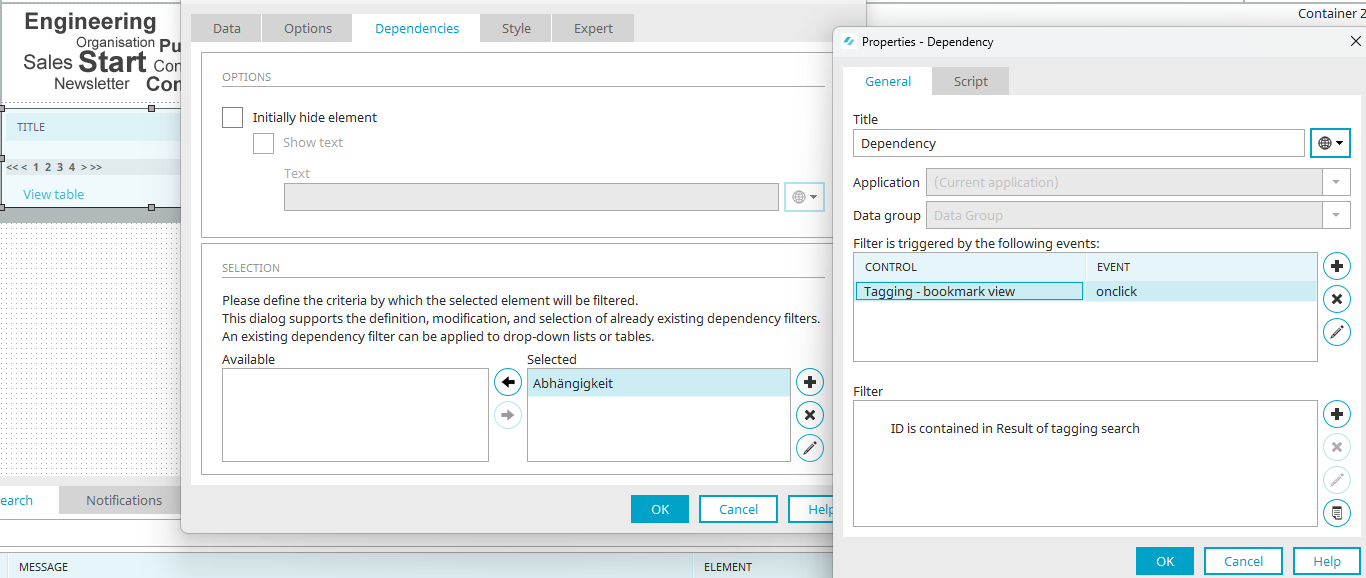
For the "Tagging - Bookmark View" element, no jump target may be set in order for the table to be filtered. In the table's dependency, the element is defined as the triggering control with the "onclick" event.
Click "Edit Filter" under "  " to create the filter definition.
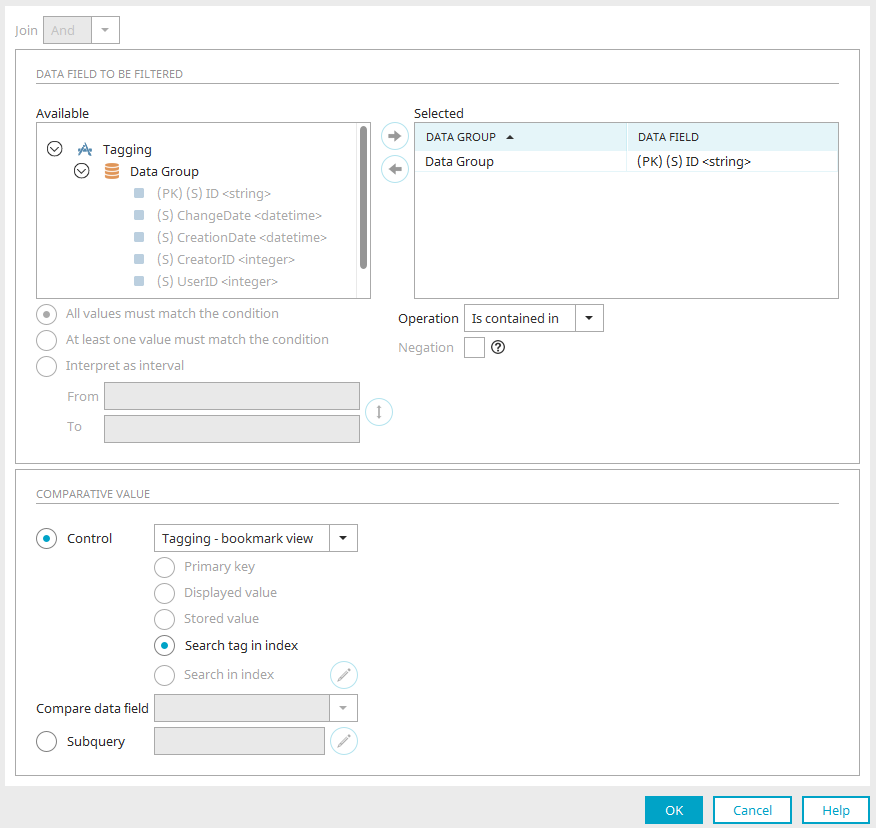
Select the primary key of the data group as the data field to filter by. Specify the operator and select the "Tagging - Bookmarks View" element as the control. Select the "Tag Search" option there.
The table will then be filtered accordingly.