

 1.1 Text Alternatives
Provide text alternatives for all non-text content so that it can be converted into other formats needed by the user, such as large print, Braille, symbols, or simpler language.
Non-text content
(A)
 9.1.1.1a Alternative Text for Control Elements
All non-text content presented to the user has a text alternative that serves an equivalent purpose, with the exception of the situations listed below.
Controls, Input If the non-text content is a control or accepts user input, it has a name that describes its purpose. (See Success Criterion 4.1.2 for additional requirements regarding controls and content that accept user input.)
Time-Based Media If the non-text content consists of time-based media, then text alternatives must provide at least a descriptive identification of the non-text content. (See Guideline 1.2 for additional requirements regarding media.)
Test: If the non-text content is a test or exercise that would be invalid if presented as text, then text alternatives must provide at least a descriptive identification of the non-text content.
Sensory: If non-text content is primarily intended to create a specific sensory experience, then text alternatives should at least provide a descriptive identification of the non-text content.
CAPTCHA If the purpose of the non-text content is to confirm that a person—and not a computer—is accessing the content, then text alternatives are provided that identify the purpose of the non-text content. In addition, alternative forms of CAPTCHAs are provided that utilize output formats tailored to different types of sensory perception in order to accommodate various disabilities.
Decoration, Formatting, Invisible If non-text content is purely decorative, is used solely for visual formatting, or is not presented to the user at all, then the content is implemented in such a way that assistive technology can ignore it.
Description
The meaning or function of screen buttons, icons, graphics, etc., cannot be perceived or understood by people who are blind.
Example - Image button with a plus symbol
A button like this is usually immediately obvious to a sighted user, since they can perceive the (visual) context. This way, the sighted user will know that clicking this button will, for example, create a new customer or a new item.
For a visually impaired user, the function of the image button is not apparent. A screen reader can recognize and read aloud that an element is a button based on the HTML tag <button>. However, the plus symbol and its meaning in the current context are "invisible" to a screen reader. Therefore, it is necessary to make the button's function accessible to the screen reader using alternative text.
To ensure that a portal or application page is accessible, it is essential that you provide text alternatives for all non-textual content. Text alternatives play an essential role in accessibility, as they can be converted by assistive technologies into other forms of perception (visual, auditory, tactile).
For example, a screen reader reads aloud textual descriptions of images and animations, and a Braille display renders them in Braille. A text alternative for audio content makes the content accessible to people who are deaf.
Text alternatives also help everyone understand non-textual information and make it accessible to search engines.
The WCAG describes several exceptions to the guideline outlined here. These are described at the following link: Non-text content - Exceptions
Relevance and Applicability
General Implementation
Below are some general guidelines for implementing this policy.
-
Alternative text should be brief. It should convey the purpose of the image, not describe the image. When writing the text alternative, consider which details are important. Depending on the context, a completely different text alternative may be appropriate for the same image.
-
Text alternatives are crucial for assistive technologies. For accessibility purposes, it is not necessary to provide an image with a title (title attribute). You should only do this if you want to include additional information in the title that goes beyond what is provided in the text alternative.
-
Image links should describe the purpose of the link, not the image itself.
-
Decorative images should have an empty (or meaningless) alt text.
-
Complex images, such as charts or graphs, should have a detailed description placed near the image. The image's alternative text should describe where the corresponding image is located.
Implementation in Detail
 Element - Image
Element - Image
9.1.1.1b Alternative Text for Graphics and Objects
Images or graphics are among the most common use cases for saving text alternatives.
Step-by-Step
To enter text alternative for the "Image" element, follow these steps:
-
On the "General" tab, click the "
 " icon (Edit Text Alternative).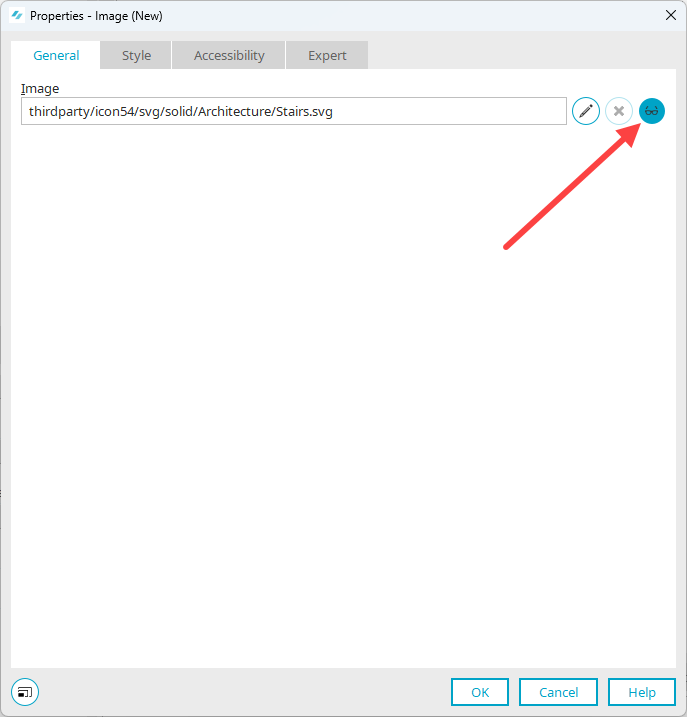
The "Text Alternative" dialog box appears.
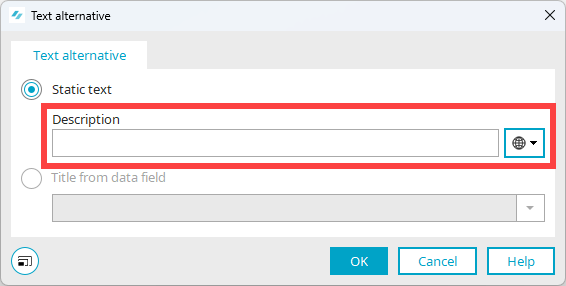
-
Enter the text alternative in the "Description" field.
Element - Button
9.1.1.1a Alternative Text for Control Elements
Choose between three types of button when creating a button:
-
Button
-
Text
-
Image
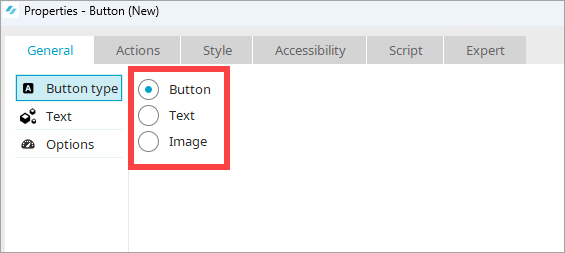
When it comes to accessibility, the "Image" option is particularly important.

|
For example, if you use an image with the text "New," a screen reader will not be able to identify that text. |

|
A picture or an icon with a symbol cannot be interpreted by a screen reader either. |
In both cases it is necessary to save a text alternative. This text alternative should not only repeat the text on the button or indicate the meaning of the symbol. Rather, the action that is initiated by pressing the button should be described.
For example, the text alternative could be "Create a new customer" or "Create a new project."
Step-by-step guide
To add text alternative to an "Image" button, follow these steps:
-
Select the "Image" button type.
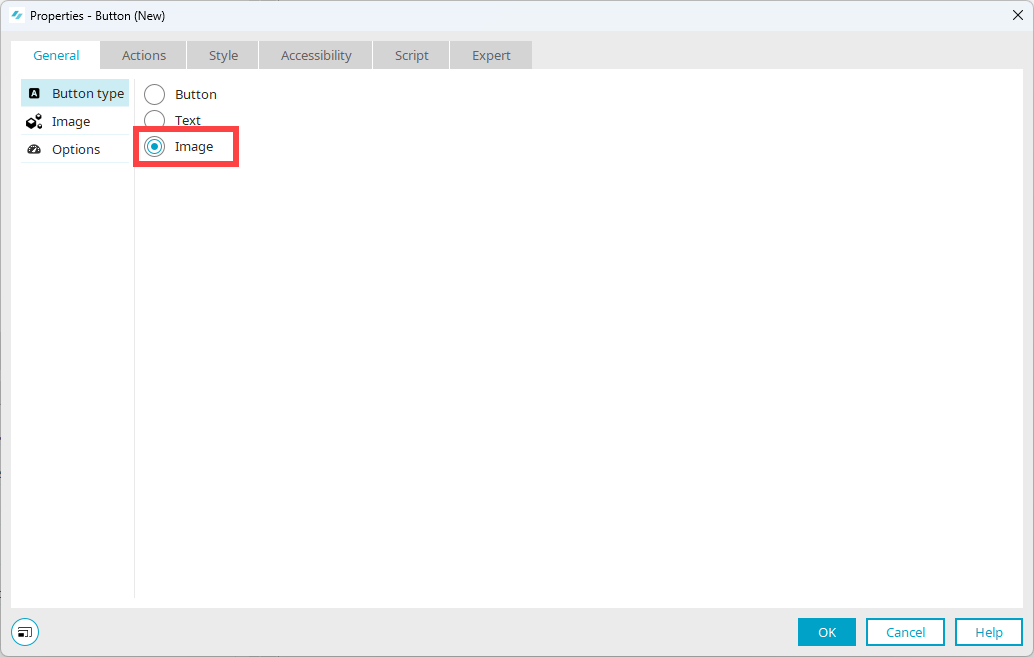
-
In the navigation pane, select the "Image" entry.
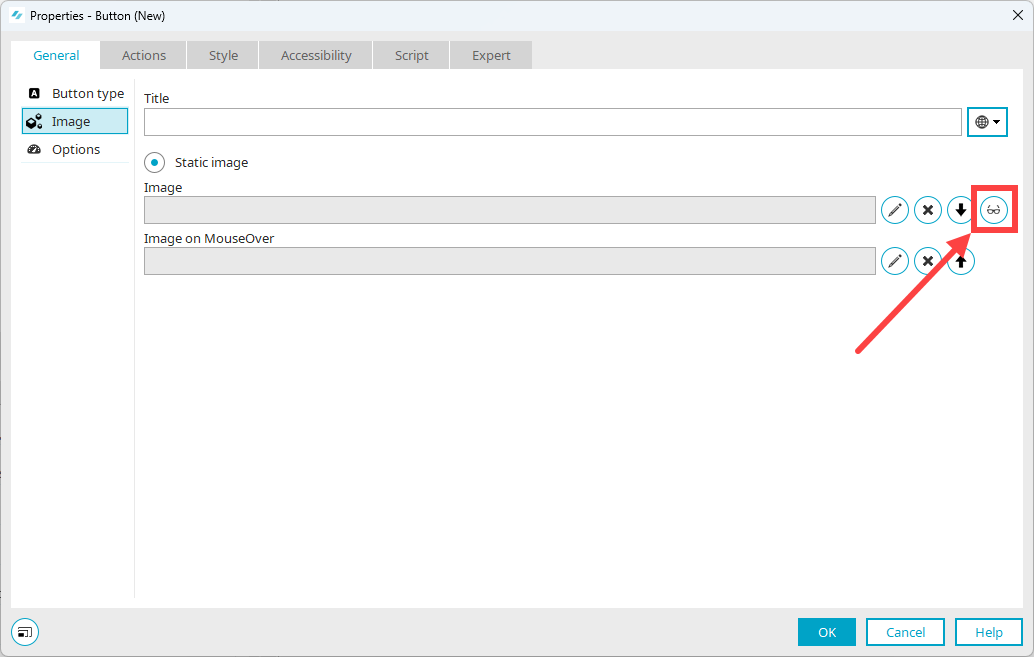
Please note that the text entered in the "Title" field is not used as alternative text. It is not interpreted by screen readers.
-
Click the "
" icon (Edit text alternative).The "Text Alternative" dialog box appears.
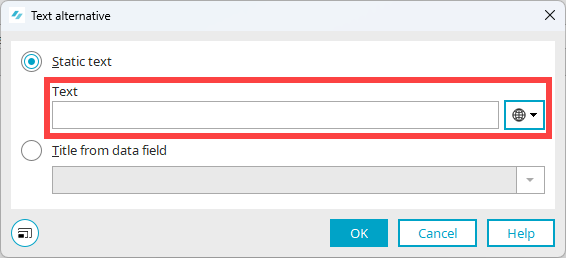
-
Enter the alternative text in the "Description" field.
More Information
Icons in Tables
You can use icons in tables. The magnifying glass icon and the pencil icon are often used.
Text alternatives for the icons used in tables must also be saved.
Step-by-Step
To add a text alternative to an icon in a table, proceed as follows:
-
Select the icon to add a text alternative.
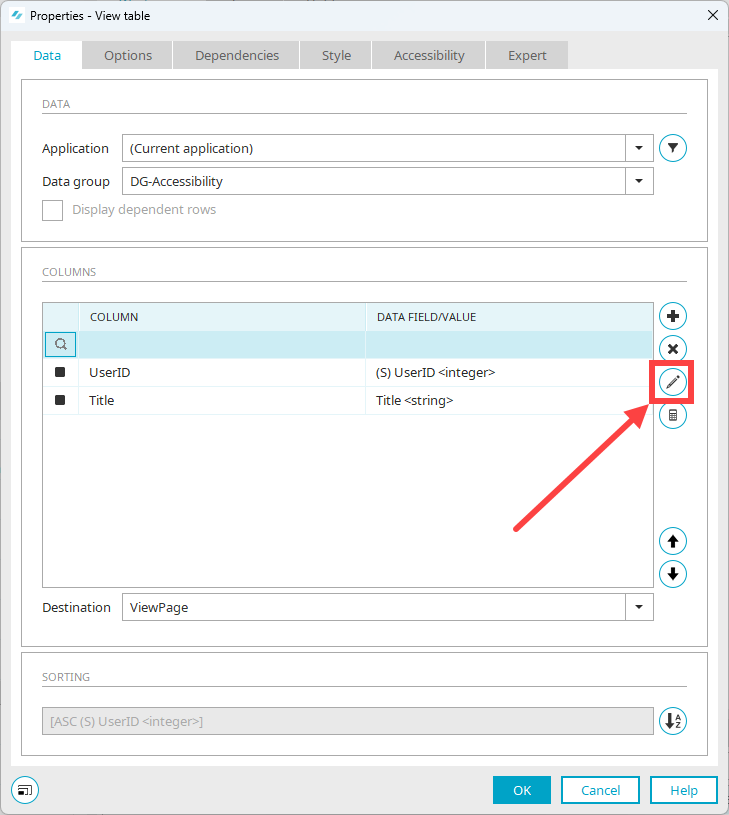
-
Click the "
 " icon.
The "Image Button" dialog box will appear.
-
In the navigation pane, select the "Image" entry.
-
Click the "
" icon (Edit text alternative).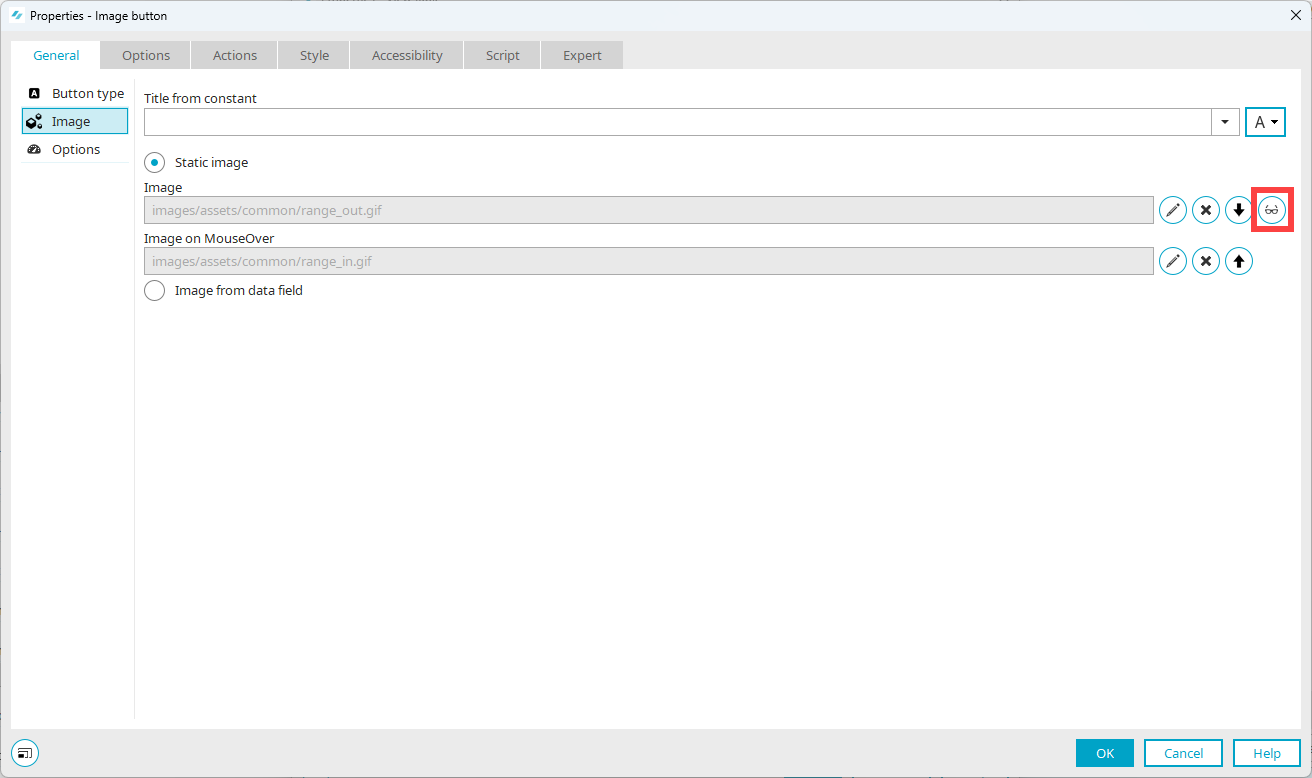
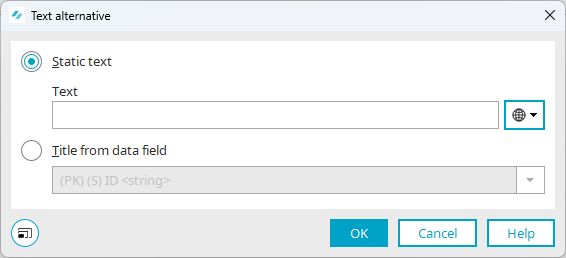
The "Text Alternative" dialog box appears.
-
Enter the alternative text in the "Description" field.
More Information
Element - Diagram
You cannot enter a text alternative for the "Diagram" element. However, you can specify the graphic in more detail with ARIA roles and attributes.
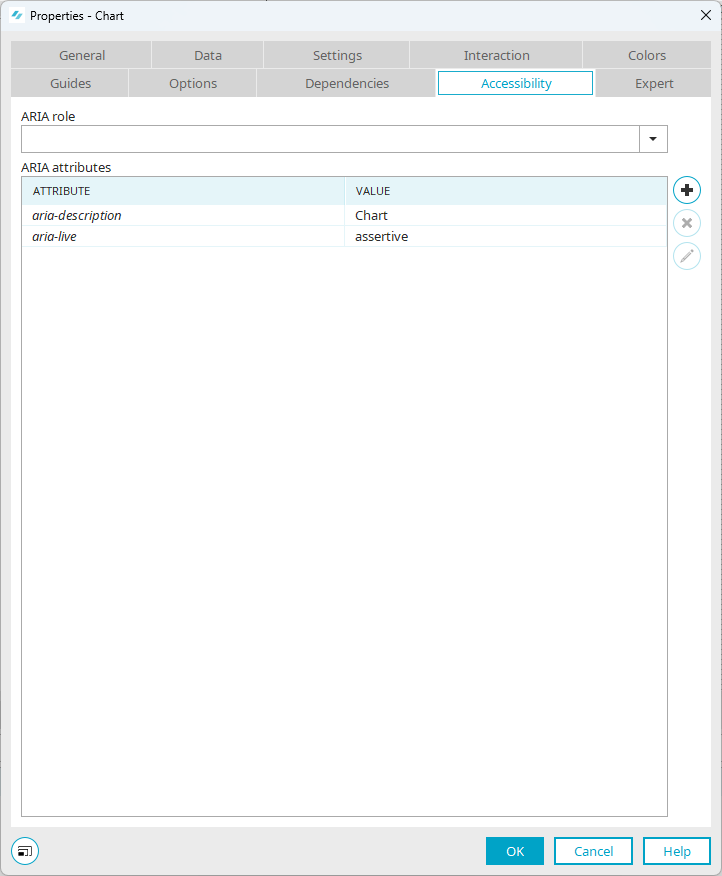
If you do not manually specify an ARIA role, the "graphics-datachart" role is set by default on the published application page.
More Information
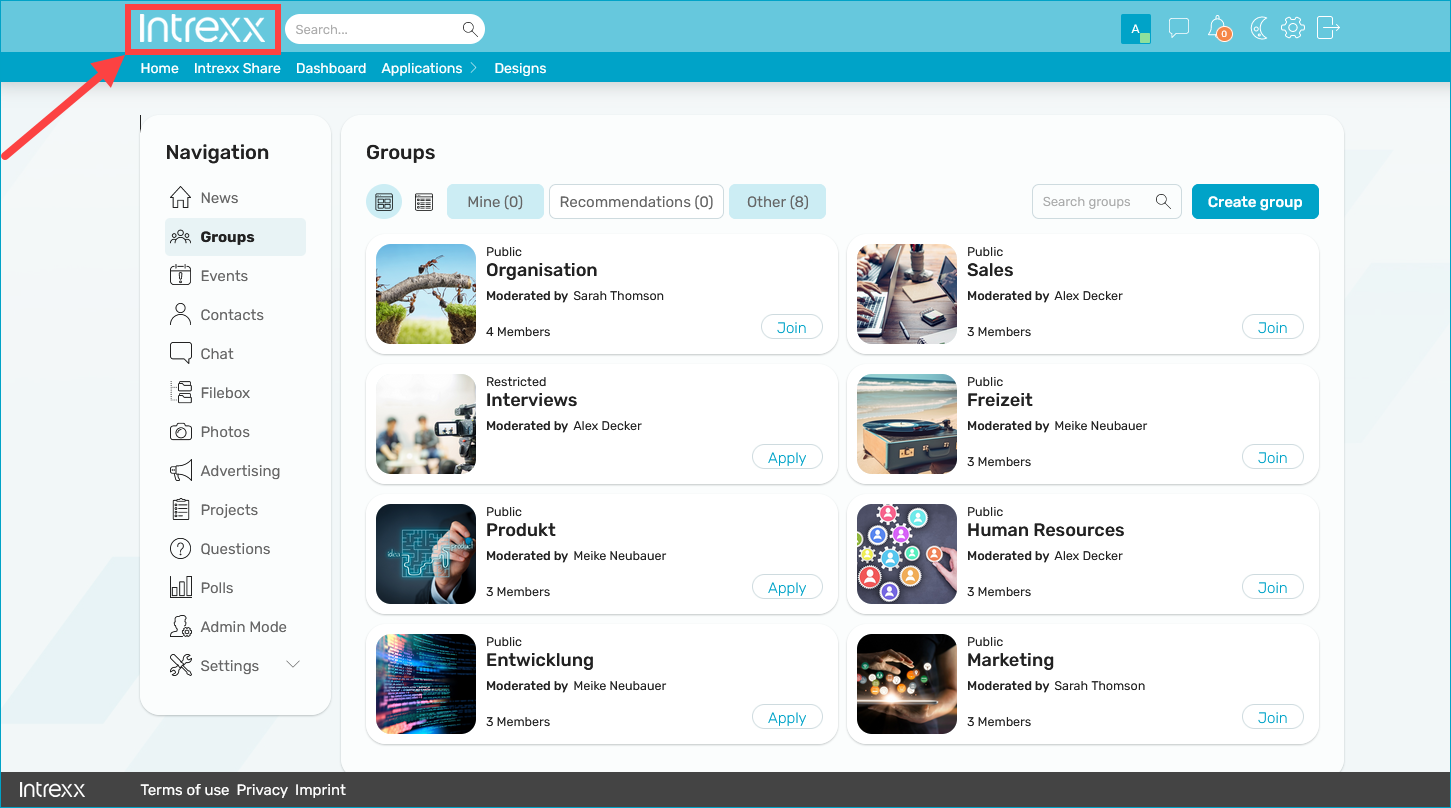
Home Logo
A company logo is often found in the upper left corner of a portal. It is usually linked to the portal home page. It is helpful to include this information in the link text. For example, a link text could read: "Intrexx - Go to the Home Page."
Step-by-Step
To manually adjust the link text for the home logo, do the following:
-
Launch the "Design" module.
-
Open the layout.
-
In the Structure view, select the "Link" element
 ("Enclosing Container > Container Header > Grid Header > Homelink / Action Controls Column")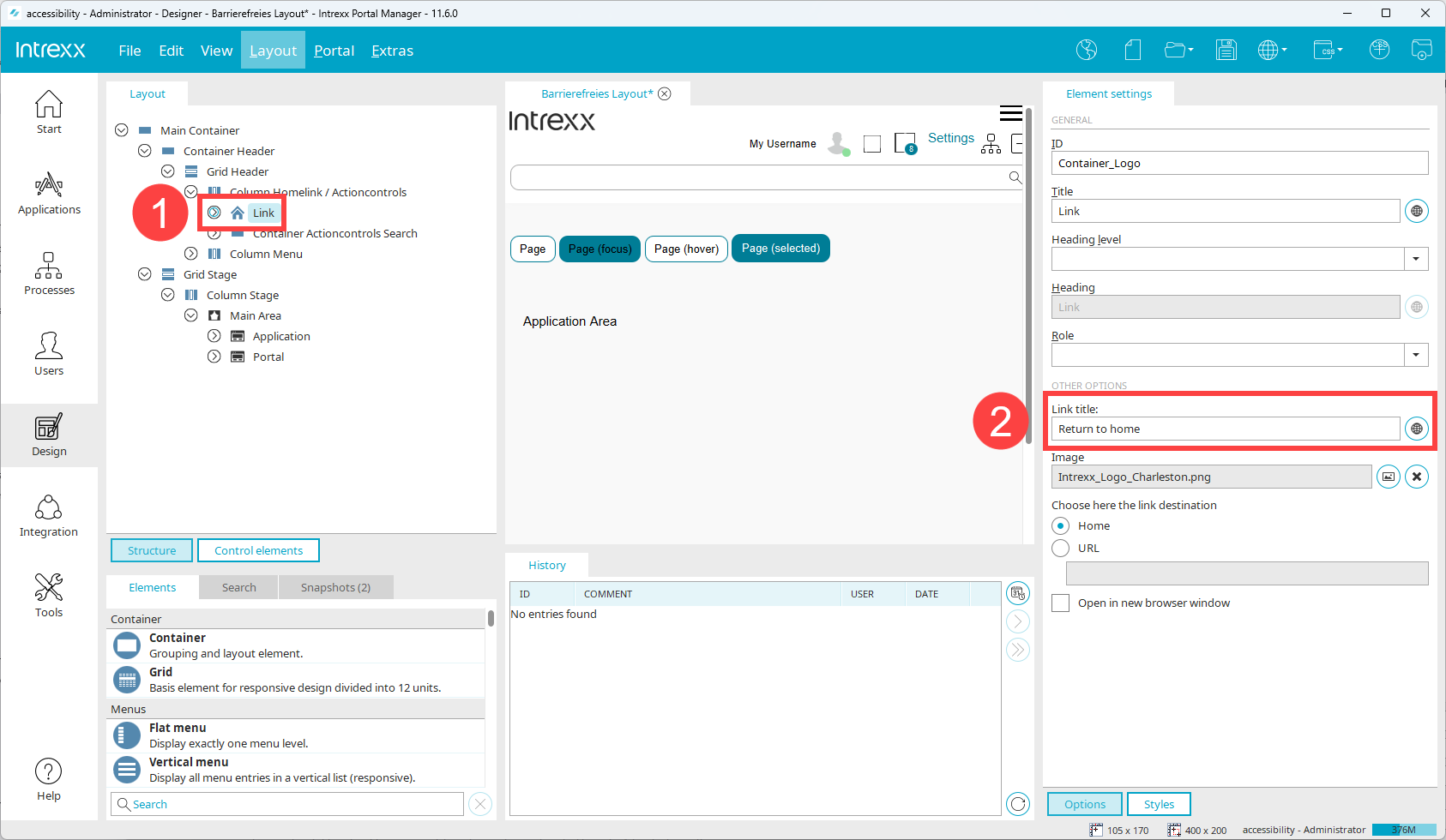
In the element settings, the "Link Title" field is displayed as "
 ."
." -
Adjust the link text.
Images with no (informative) function—decorative images (layout graphics)
Jewelry Images (Layout Graphics)
9.1.1.1c Empty "alt" attributes for layout graphics
Decorative images or decorative pictures do not have an informative function and should not contain text alternatives. Decorative images can include spacers, color areas, patterns or purely decorative graphics, for example. An empty alt attribute should be used to mark decorative images.
Any decorative images used by Intrexx are marked with an empty alt attribute. If you want to use additional decorative images, be sure not to use any text alternatives.
CAPTCHAs
9.1.1.1d Alternatives to CAPTCHAs
Currently, the CAPTCHA element in Intrexx does not have an accessible design. If you need CAPTCHAs, you should implement a text-based alternative.
More Information