

Anonymization of User Data for Deleted Users
This feature allows you to anonymize sensitive data from deleted users. Sensitive user data is replaced with anonymized values. The data fields to be anonymized, as well as the anonymization process, can be customized in the configuration dialog. Anonymization can take place either immediately after a user is deleted or after a specified period of time has elapsed.
Anonymization Settings
You can access the configuration dialog for anonymization settings in the "Users" module via the main menu: Users > Configuration > Anonymization Settings.
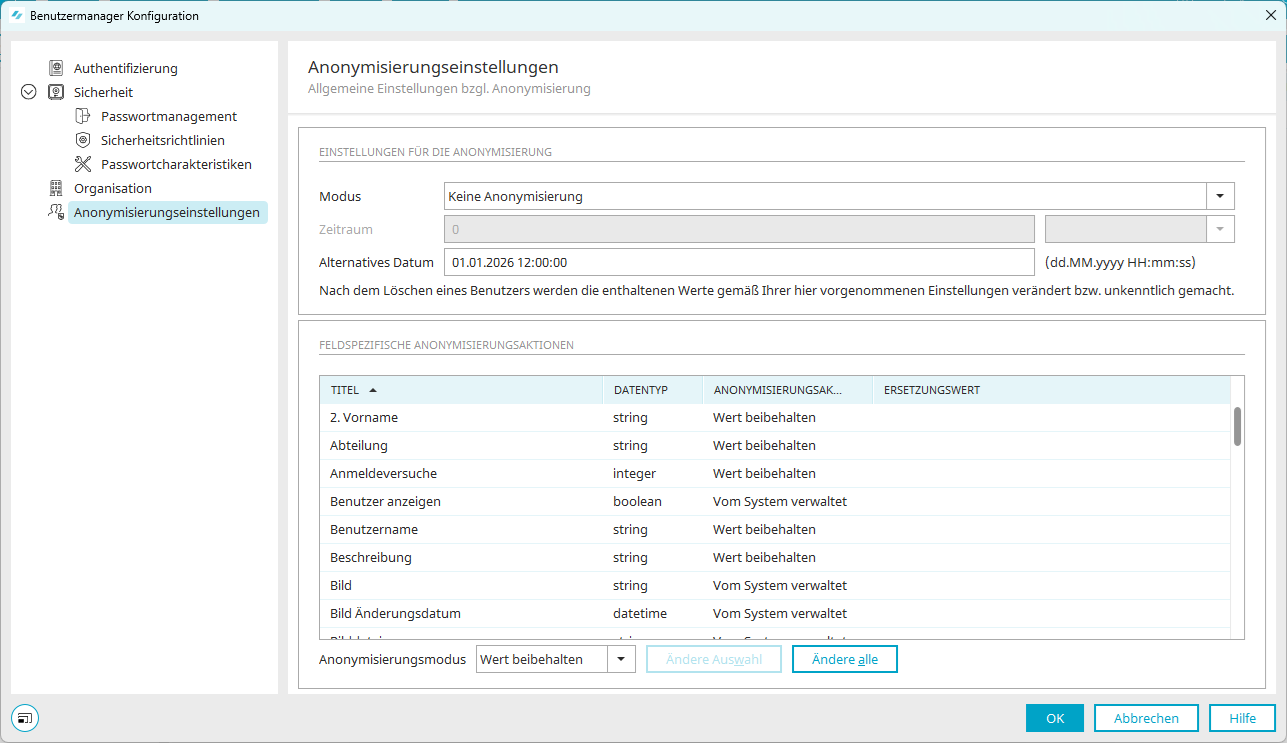
Anonymization Settings
Mode
-
No anonymization
No anonymization takes place; the system continues to operate as before. -
Anonymization as soon as possible
Deleted users are anonymized the next time the anonymization job runs in the task scheduler. -
Anonymization after a specified period of time
Data will be anonymized after the period configured here has elapsed.
Time period
A time period can only be set if the " Anonymization after a defined time period " mode has been selected.
It defines the time period after which a deleted user is anonymized. The specified time period must be at least as long as the interval configured in the anonymization job.
Valid units: minutes, days, weeks, years.
Alternative Date
For inventory data without a deletion date, an alternative date must be used to calculate the time period.
Field-Specific Anonymization Actions
For each of a user's data fields, you can specify individually how it should be handled during the anonymization process. To do this , click in the " Anonymization Action " column for each entry . This opens a drop-down list with the following selectable actions:
-
Keep the value
The field remains unchanged. -
Set an empty value
The data field is set to zero (only for fields that allow zero ). -
Replace Value
During anonymization, the data field is set to a defined replacement value, which can be entered in the " Replacement Value " column.
System-Managed Fields
Fields with the entry " Managed by the system " in the " Anonymization Action " column cannot be edited. Such fields are usually set to zero.
Anonymization Mode
To simplify editing, you can select " Keep Value " or " Set to Empty " from the drop-down list below the table.
Clicking " Change Selection " then applies the selected anonymization action to all currently selected user fields in the " Anonymization Action " column of the table. Clicking " Change All " applies the selected anonymization action to all user fields.
Task Planning
Anonymization is performed using a configurable job in the task scheduler in the Tools module.
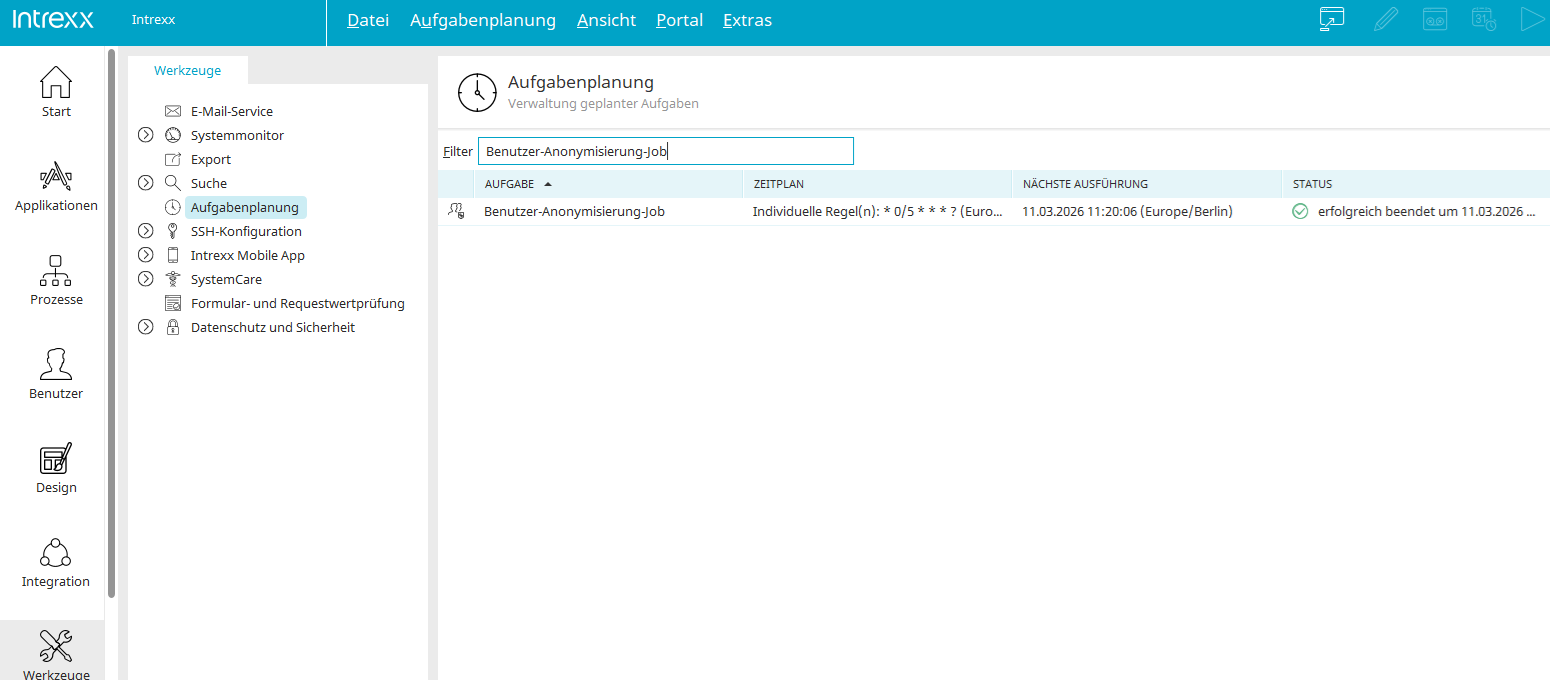
Look for " User Anonymization Job" here in the right-hand pane.
You can find out how to set a schedule—and thus the interval and rules for running the job—here: