

Tips & Tricks - Resizing Images
Using a Groovy script, images in a specified folder can be automatically resized as part of a process—for example, to create thumbnails. To do this, go to the "Processes" module. Create a new process and remove any existing elements.
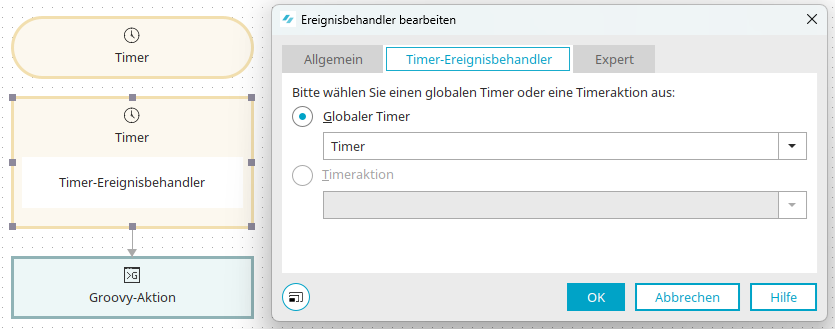
Create a global timer and then a timer event handler. In the Timer Event Handler Properties dialog box, on the "Timer Event Handler" tab, select the global timer you created earlier.

Link a new Groovy action to the timer event handler you created earlier. In the Groovy action's Properties dialog, open the Intrexx Editor. Paste the following script:
            import static groovy.io.FileType.FILES
import de.uplanet.lucy.server.scripting.groovy.ImageHelper

def dirImagePath = new File("IMAGE_DIRECTORY_PATH")
def strFileName
def strThumbnailName
def fileThumbnail

dirImagePath.eachFileRecurse(FILES){image ->
	if (!image.name.endsWith("_thumbnail.png"))
	{
		strFileName = image.name

		if(ImageHelper.isSupportedImageFormat(image.path))
		{
			strThumbnailName = "${strFileName[0..strFileName.lastIndexOf(".")-1]}_thumbnail.png"
			fileThumbnail    = new File(image.path, strThumbnailName)

			if (!fileThumbnail.file)
				ImageHelper.scaleImage(inputFile:image.path, outputFile:"${image.parent}/${strThumbnailName}", maxWidth:100, maxHeight:100)
			else
				g_log.warn("Thumbnail for image ${strFileName} already exists.")
		}
		else
		{
			g_log.error("Error creating thumbnail for ${strFileName}. Format is not supported.")
		}
	}
}
The import statement at the beginning of the script includes the "ImageHelper" class, which is required for scaling. Next, the variables are defined. With
def dirImagePath = new File("IMAGE_DIRECTORY_PATH")
Specify the directory in which to search for the images to be scaled. Instead of "IMAGE_DIRECTORY_PATH," enter the desired destination path here (e.g., c:/scale-images). Using the statement
dirImagePath.eachFileRecurse(FILES)
All files within the specified starting directory are processed recursively. With the following if statement
if (!image.name.endsWith("_thumbnail.png"))
This ensures that only those files are processed that are not already thumbnails themselves. The next step is to check whether the image provided is in a supported file format. If the format is valid, a scaled thumbnail is created. If a format is encountered that is not supported by the "ImageHelper" class, a corresponding error message is logged in the process's log file. With the line
def strThumbnailName = "${strFileName[0..strFileName.lastIndexOf(".")-1]}_thumbnail.png"
Create a new filename for the thumbnail image. To make them easier to identify, the suffix "_thumbnail" is appended to the original filename. The thumbnail generated in this example is saved in PNG format. The format can be changed if necessary. The PNG, JPEG, and BMP file formats are supported. The actual scaling of the original image is performed using the `scaleImage` method of the `ImageHelper`. Scaling occurs only if no thumbnail image is available for the specified file. This is checked using the preceding if statement.
            if (!fileThumbnail.file)
ImageHelper.scaleImage(inputFile:image.path, outputFile:"${image.parent}/${strThumbnailName}", maxWidth:100, maxHeight:100)
This method is called using what are known as named parameters. This means that parameters are passed in the form parameter:value and that the parameters have fixed names. The two parameters "inputFile" and "outputFile" are required; all others are optional. The following parameters are available:
|
Name |
Description |
|---|---|
|
inputFile |
Required parameters—the input file as a File object (java.io.File) or as a string (path relative to the portal directory). |
|
outputFile |
Required parameters—the output file as a File object (java.io.File) or as a string (path relative to the portal directory). |
|
format |
Output format of the scaled image (PNG, JPEG, or BMP). The default value here is PNG. |
|
width |
The width of the scaled image. |
|
height |
The height of the scaled image. |
|
maxWidth |
The maximum width of the scaled image. The image will be scaled to this value while maintaining its aspect ratio. |
|
maxHeight |
The maximum height of the scaled image. The image will be scaled to this value while maintaining its aspect ratio. |
|
scaleX |
The horizontal scaling factor used to scale the image. |
|
scaleY |
The vertical scaling factor used to scale the image. |
|
shrinkOnly |
If this parameter is set to true, the image is scaled only if the resulting image is smaller than the original image. shrinkOnly can only be used in conjunction with maxWidth or maxHeight. |
The parameters "width," "maxWidth," and "scaleX," as well as "height," "maxHeight," and "scaleY," are mutually exclusive and cannot be used together. Close the script editor and save the process. Start the Global Timer by selecting "Start Global Timer Job" from the context menu. If the process completed successfully, you will find a scaled preview image for each supported image in the directory you specified in the script.