

Background
Intrexx and the front-end web server are installed on the same (physical or virtual) server. In this scenario, an encrypted connection is required (only) between the front-end web server and the browser.
The certificate must be stored on the front-end web server.

The front-end web server typically stores the web server's certificate along with the certificate chain leading up to the root CA's certificate. In addition, the private key associated with the server certificate's public key is required. Without it, the server cannot encrypt data.
If the server certificate was signed by a private CA—that is, one that is not widely known—it must be added to the trusted CA store on the clients (computers, mobile devices, browsers, apps, etc.). Intermediate certification authorities in the certificate chain should also be included in the designated storage locations.
More Information
Use a Front-End Web Server (Reverse Proxy)
Import a Certificate into IIS (Internet Information Services)
Step-by-Step
To import a certificate into IIS, follow these steps:
-
Start IIS.
-
On the home page, select "Server Certificates."
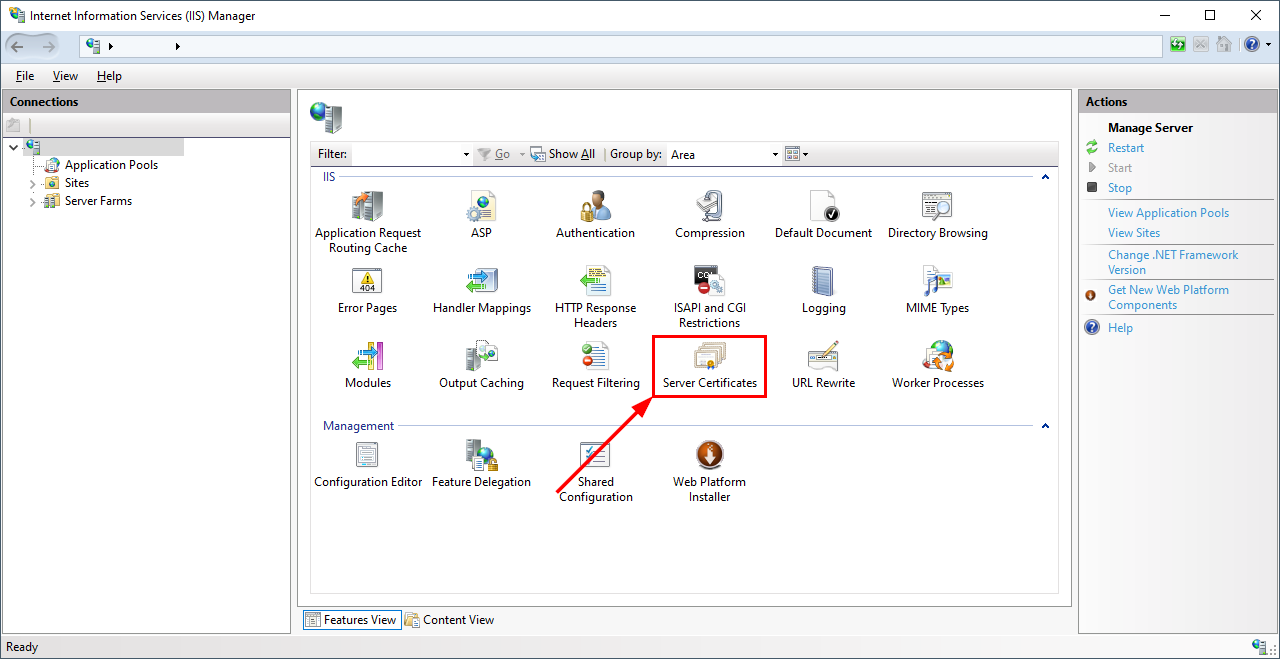
-
In the right-hand navigation pane, click "Open Feature."
You will be taken to the server certificates overview.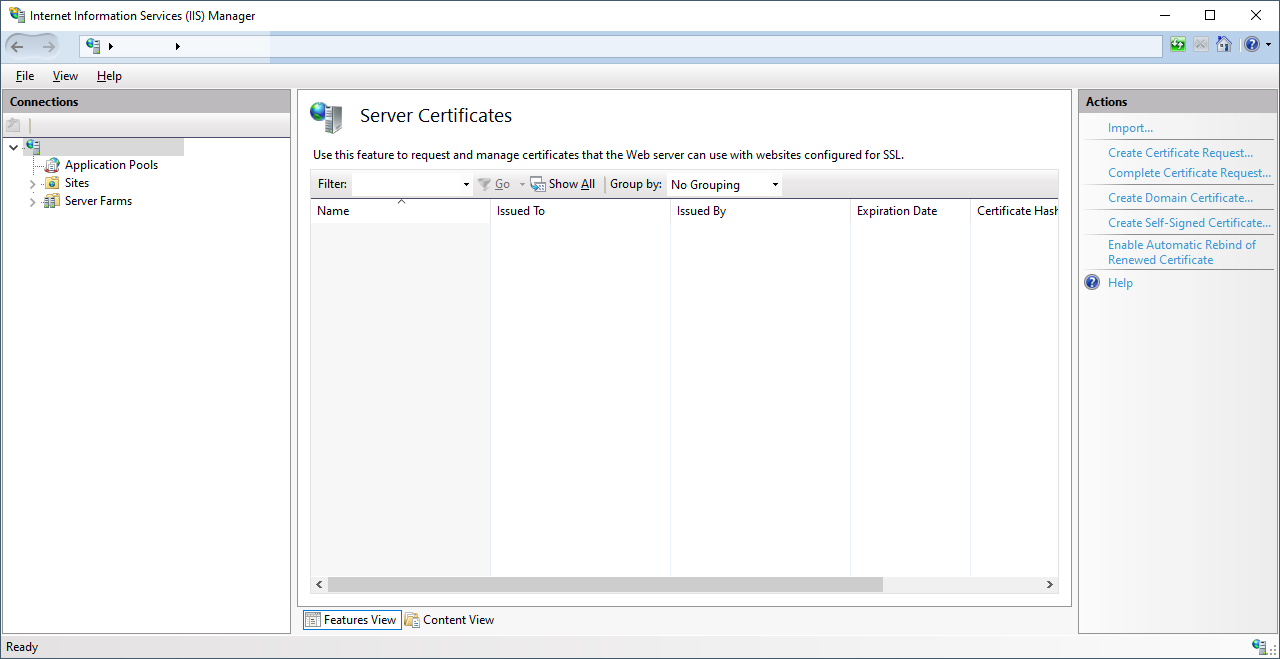
-
In the right-hand navigation pane, click "Import."
The "Import Certificate" dialog box appears.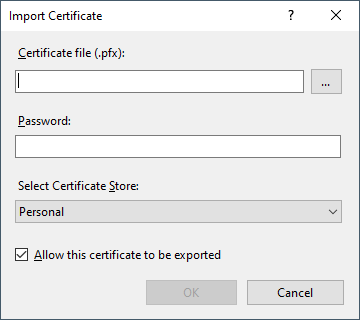
-
Select your certificate file and enter the corresponding password.
-
Click "OK."
You will be taken back to the certificate overview.
The imported certificate is displayed.
You have imported a certificate into IIS.
You can now add a website's certificate in IIS.
Add a Certificate to a Website in IIS
Starting Point: You have already created a website in IIS.
Step-by-Step
To add a certificate to a website that has already been created in IIS, follow these steps:
-
Start IIS.
-
Select the website for which you want to store a certificate.
-
Click "Bindings."
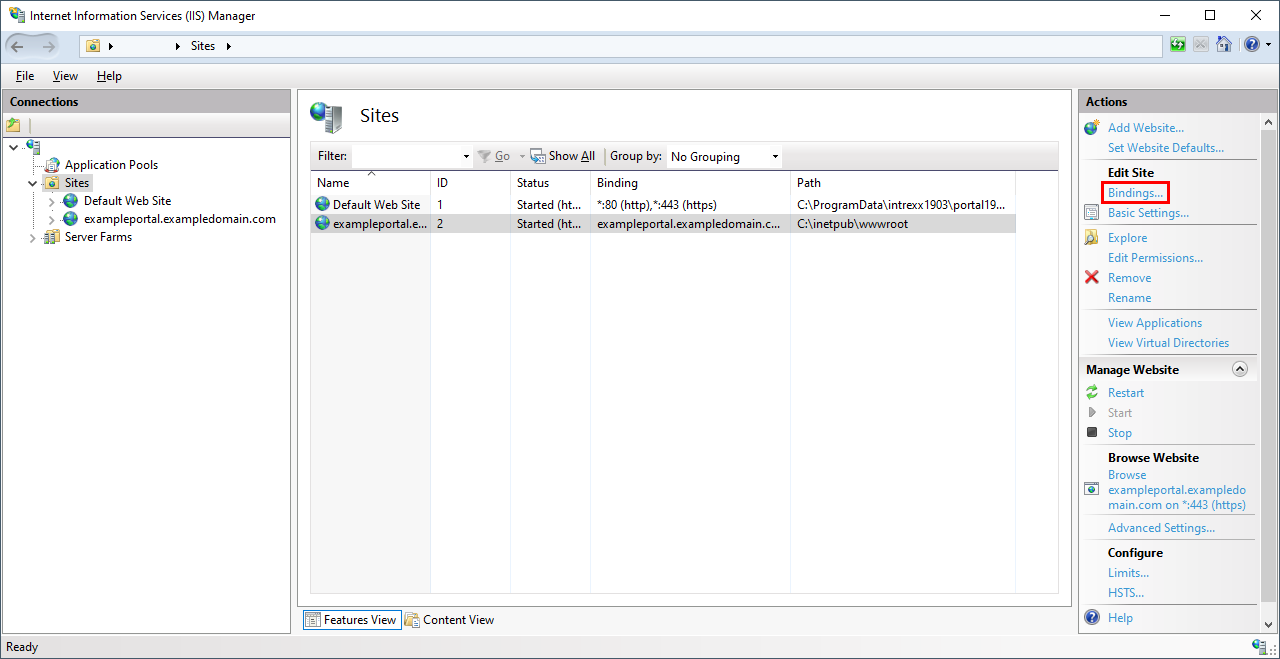
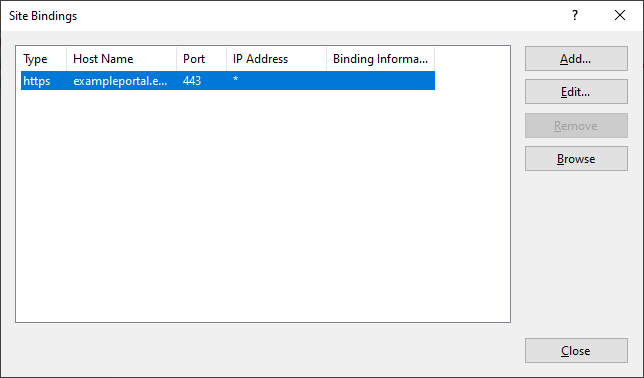
The "Site Bindings" dialog box appears.
-
Select the desired binding.
-
Click "Edit."
The "Edit Site Link" dialog box appears.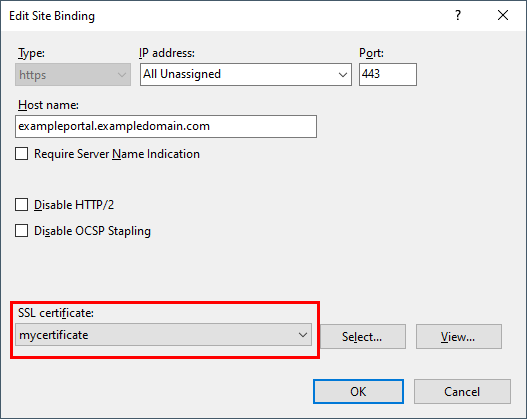
-
Under "SSL Certificate," select the desired certificate.
You have added a certificate for a website that has already been created in IIS.
Scenario: You are creating a new website in IIS.
Step-by-Step
To add a certificate for a new website in IIS, follow these steps:
-
Start IIS.
-
In the left navigation pane, select the "Sites" menu item.
-
In the right-hand navigation pane, click "Add Website."
The "Add Website" dialog box will appear. -
In the "Type" drop-down menu, select "https."
The "SSL Certificate" selection field appears in the dialog box.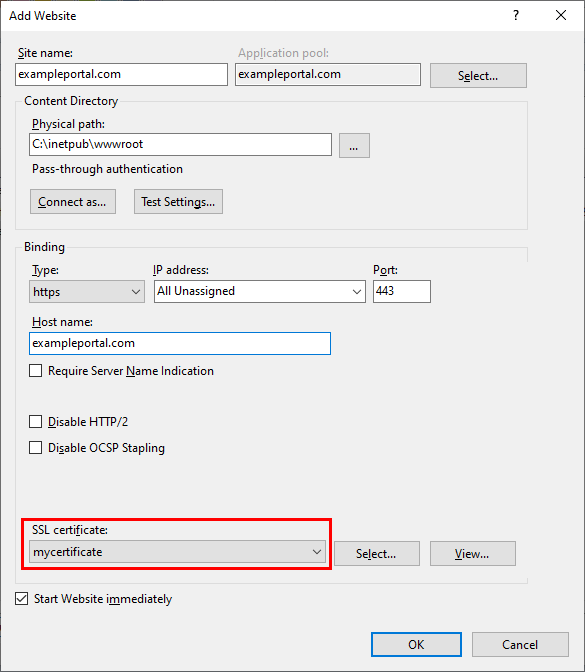
-
Under "SSL Certificate," select the desired certificate.
You have added a certificate for a new website in IIS.
More Information
Configure a Certificate in NGINX
The encryption settings for NGINX must be specified in the "portal-intranet.conf" and "portal-internet.conf" configuration files.
For more information about NGINX in Intrexx, see the following link: Configuring NGINX.
For general information on setting up encrypted connections in NGINX, see the following links:
NGINX SSL Termination
Configuring HTTPS Servers