

Importing File Locations
When you import applications that contain file locations, after the overview page where you selected the application for import, you will be taken to a dialog for mapping the file locations.
Import File Location
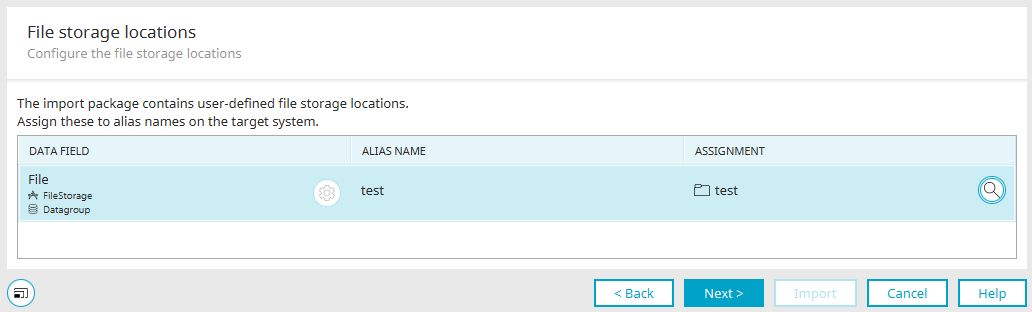
"Data Field" Column
Displays the name of the data field from the export application that uses the file location.
 Advanced Settings
Opens a dialog box where you can edit the advanced settings for the file location.
"Alias Name" column
Displays the alias name of the file location.
"Assignment" Column
Displays the assigned file location. File locations that have the same name on the target system are automatically mapped.
 Existing file locations
Opens a dialog box where the assignment can be made manually.
Existing file locations
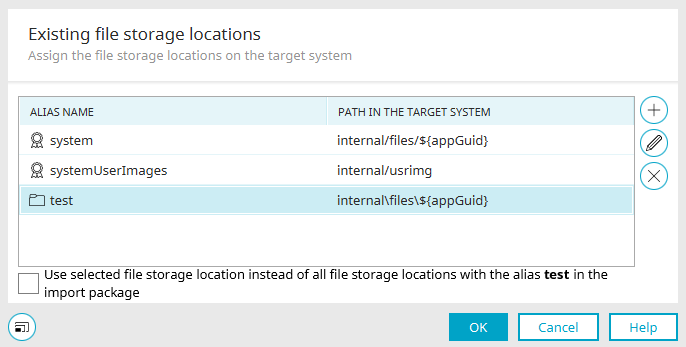
"Alias Name" column
Displays the alias name of the file location.
"Path in Target System" Column
Displays the directory associated with the file's location. The following symbols are used to indicate the type of file location:
-
 System File Location
 -
 Custom File Location
 -
 Newly created file location

 / Edit file location
Each one opens a dialog box where you can configure a new file location or edit an existing one.
 Delete File Location
Deletes the currently selected, newly created file location.
Replace the selected file location with all file locations that have the alias <alias name> in the import package
With this setting, the selected file location is assigned to all file fields that have the same file location.