

Azure Active Directory is now Microsoft Entra ID
Please note that Microsoft has renamed "Azure Active Directory" to "Entra ID".
Further information about this can be found under the following links:
To be able to access Microsoft SharePoint from your Intrexx portal, you must first register it with Microsoft Azure as an application (app).
During the registration of your Intrexx portal in Microsoft Azure, a client ID (application ID), a tenant ID (directory ID) and a client secret are generated.
You will need this information later in order to set up a data source in the Intrexx Connector for SharePoint Server/Online.
Step-by-step guide
Proceed as follows to register an Intrexx portal in Microsoft Azure as an application (app):
-
Log in to Microsoft Azure with (https://portal.azure.com or https://entra.microsoft.com/) using your Microsoft 365 login data.
You will find yourself on the Microsoft Azure homepage.
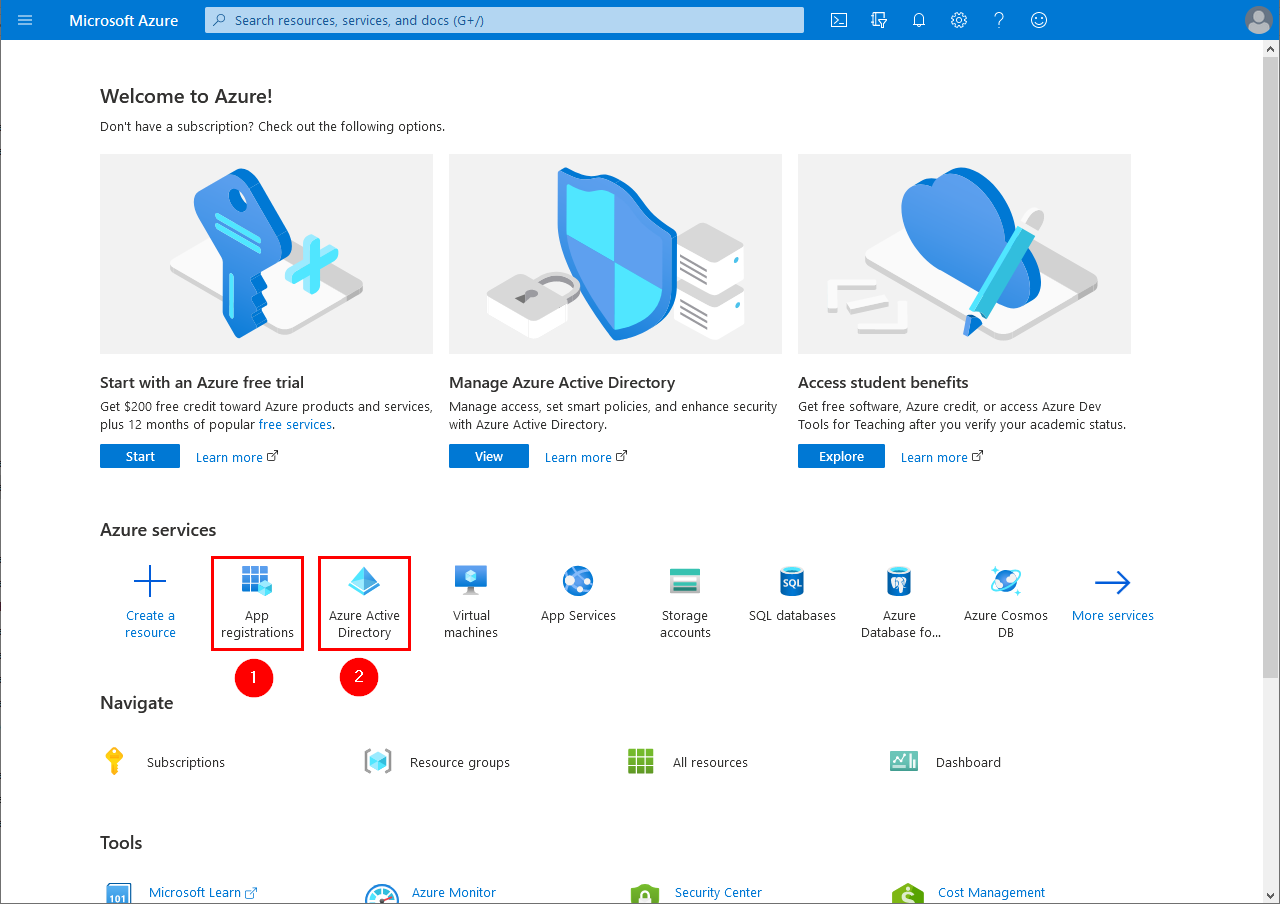
You can register your Intrexx portal as an app either via the menu item
 App registrations or
  Azure Active Directory.
The following provides a description for the Azure Active Directory.
-
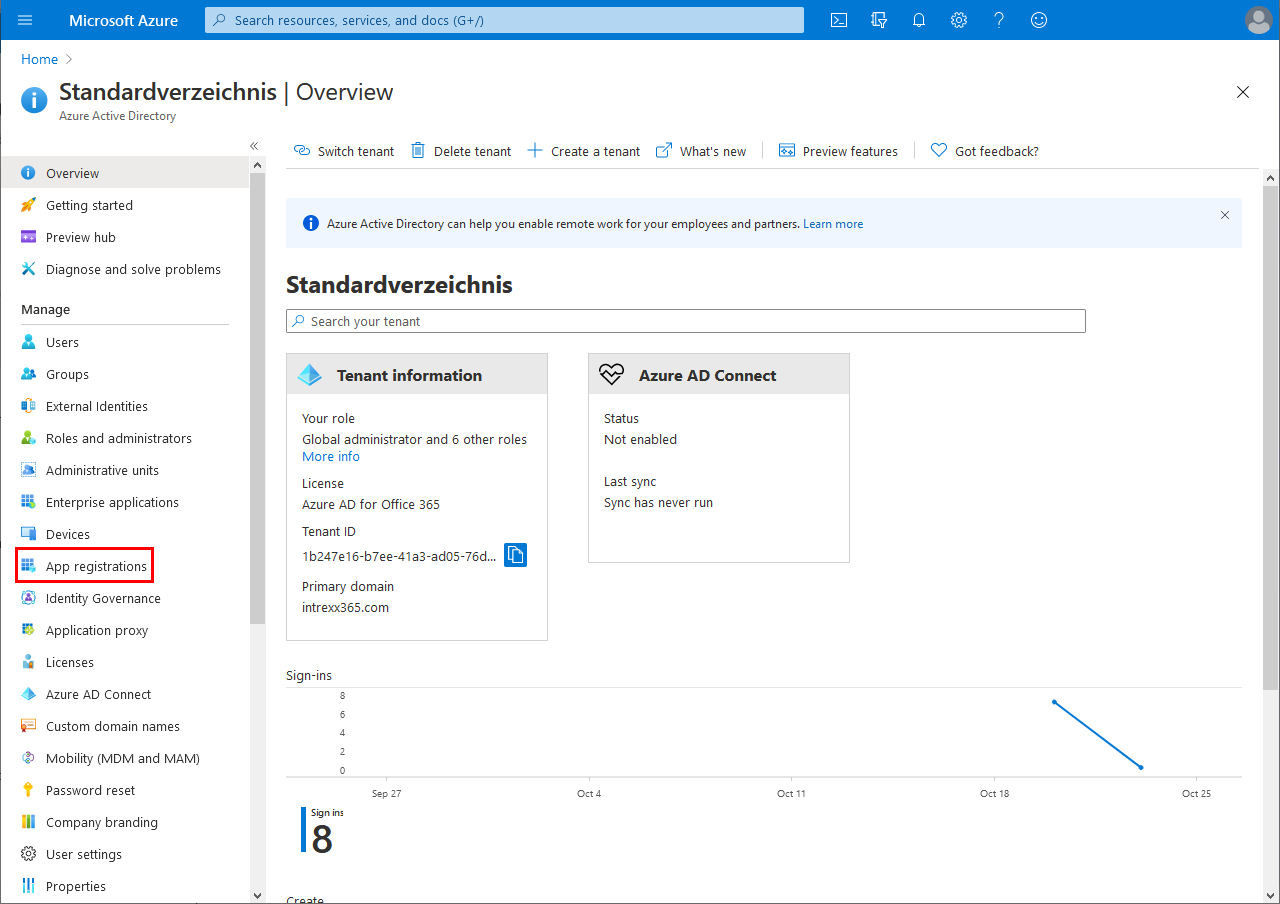
Click on
Azure Active Directory.You will now be on the Azure Active Directory homepage.
-
Click on the menu item "App registrations".
You will now be on the "App registrations" page.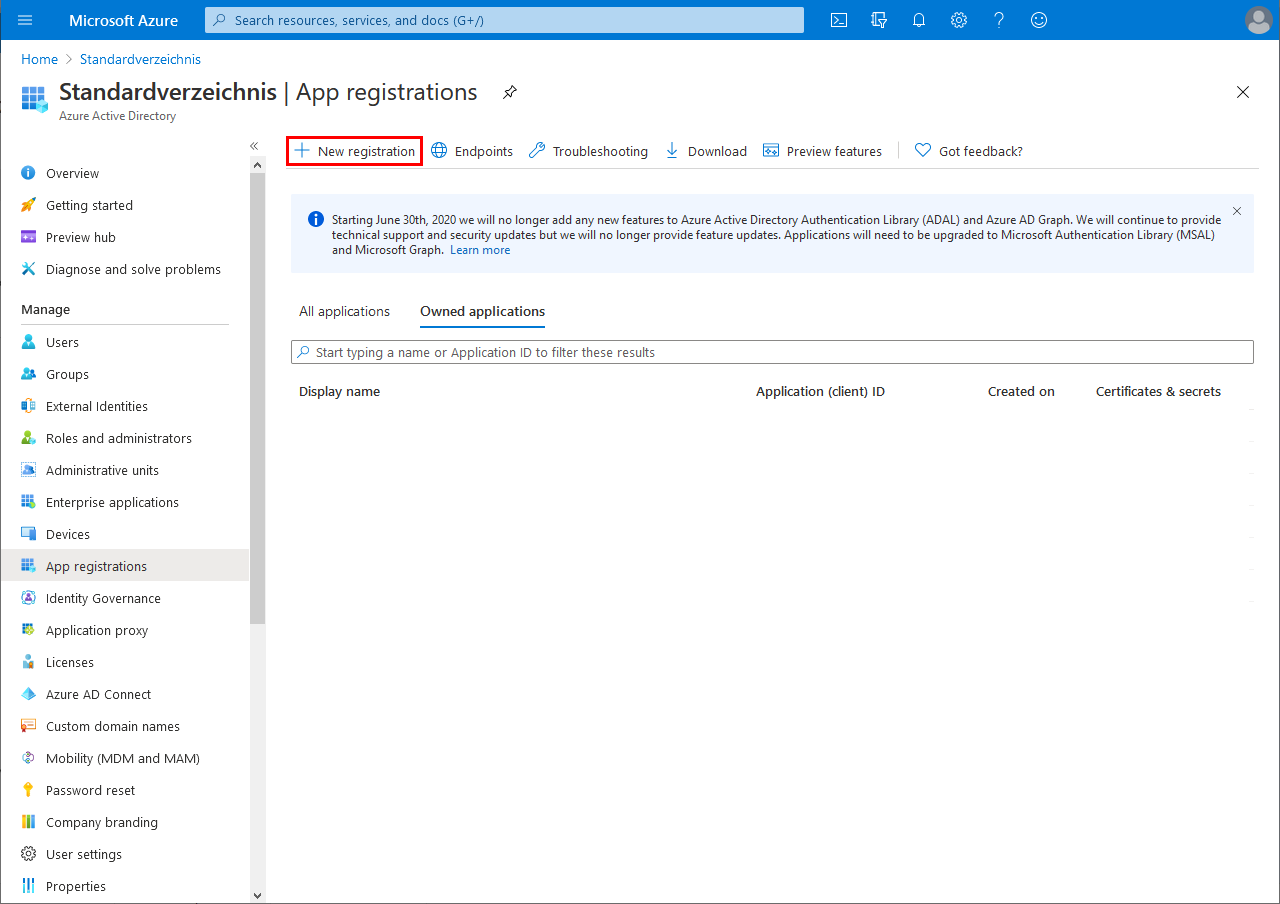
-
Click on "New registration".
You will now be on the "Register an application" page.

Name
Enter the name that your portal will be registered under in Microsoft Azure here. Choose any name you like.
Supported account types
Select which account types can access Intrexx here. Click on the "Help me choose..." button provided by Microsoft on this page for further information.
Redirect URI (optional)
The redirect URI or the redirect URI from the Intrexx Connector for SharePoint Server/Online must be entered here. However, you can also enter the redirection URI later, after you have completed the app registration.
In these instructions, it is assumed that you only create the Intrexx Connector for SharePoint Server/Online after registering your portal in Azure, so that the redirect URI is not yet available at this time.
In this case, leave the "Redirect URI (optional)" field empty and enter the redirect URI after you have created the Intrexx Connector for SharePoint Server/Online.
More detailed information is available in section Store redirect URI in Microsoft Azure.
-
Click on "Register".
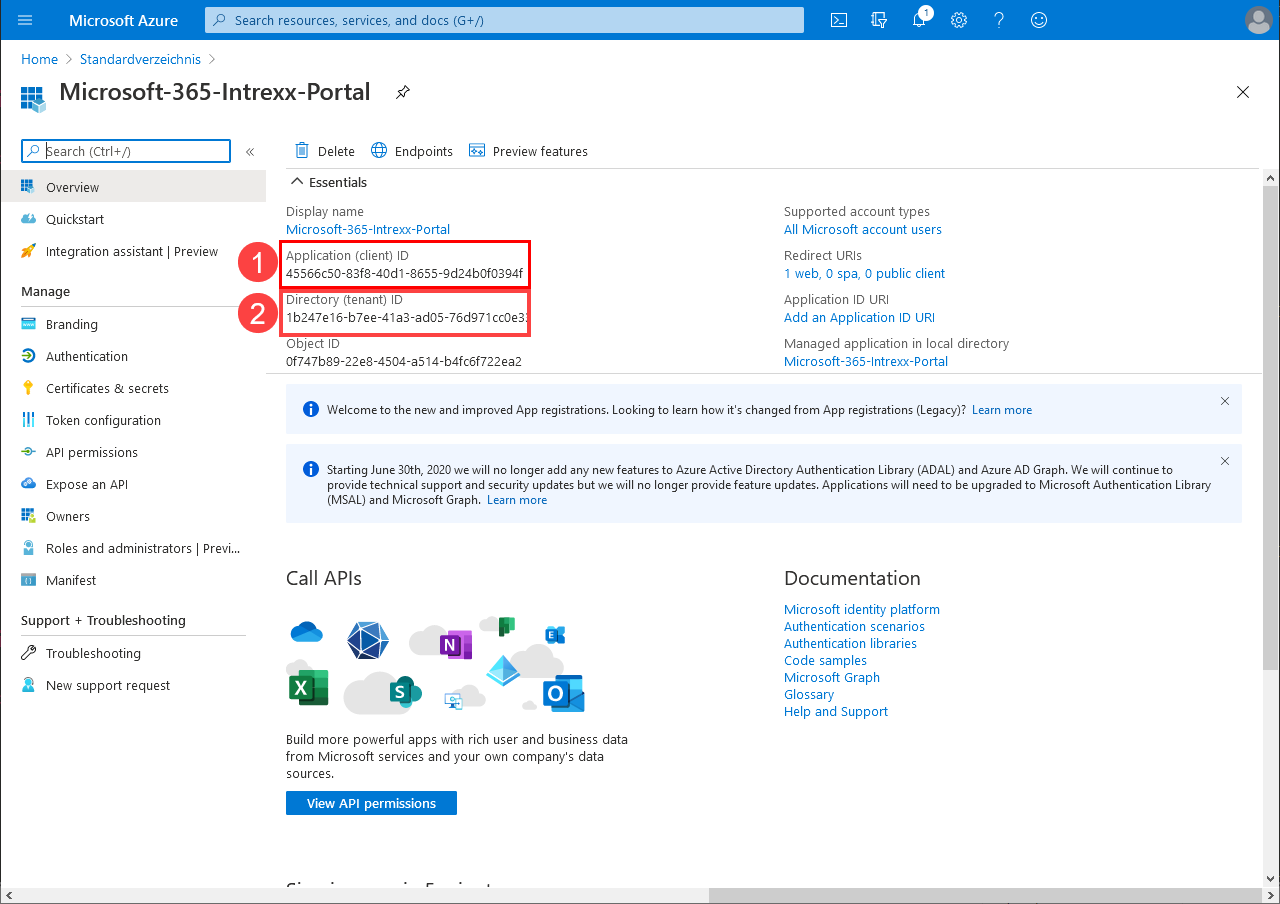
You will now be on the app page that provides you with all relevant information about the created app.
You can find the client ID (
) and tenant ID () here.Copy the client ID and the tenant ID.
You will need this later to set up the data source in Intrexx Connector for SharePoint Server/Online (Create Intrexx Connector for SharePoint Server/Online).
-
Click on the menu item "Certificates and secrets".
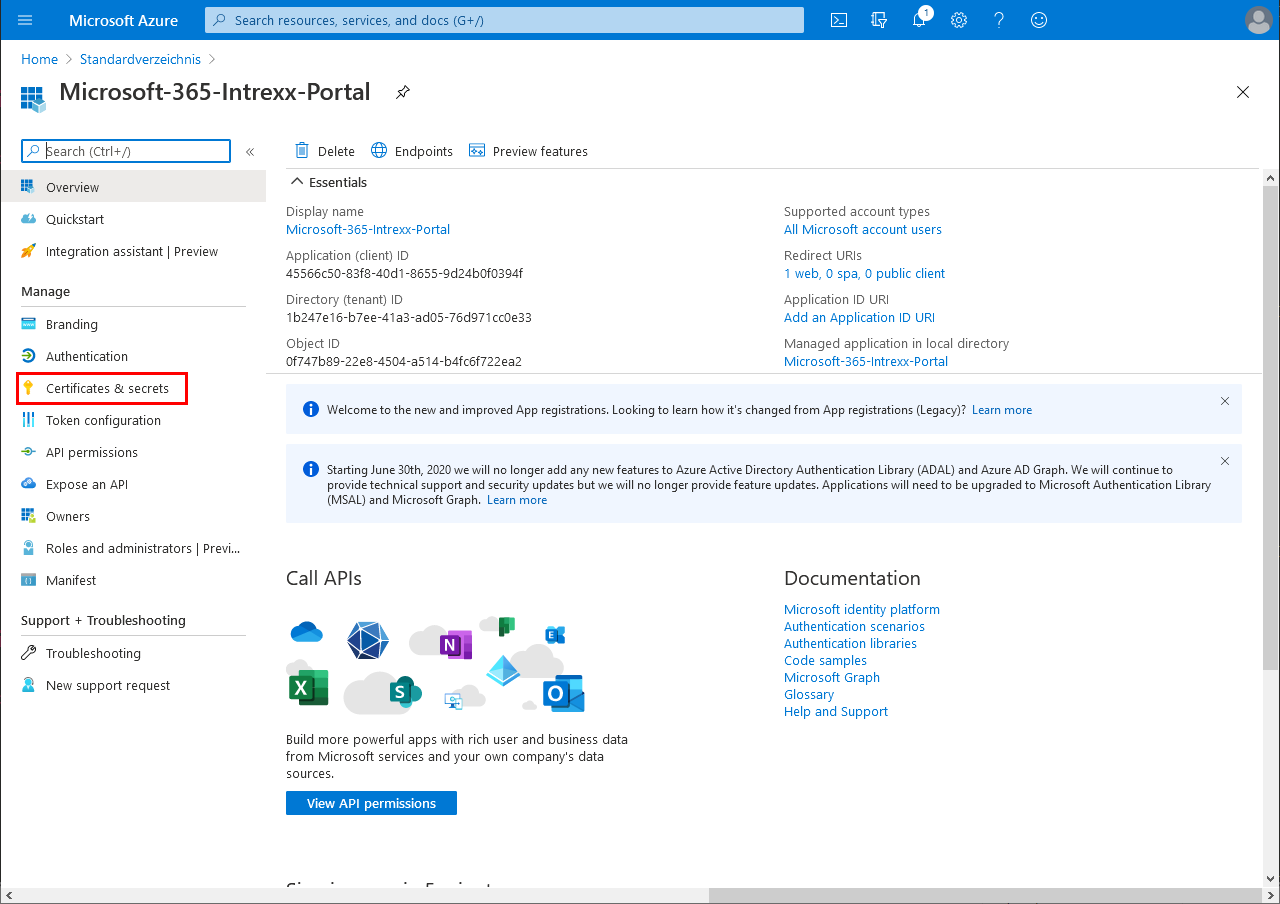
You will now be on the "Certificates and secrets" page.
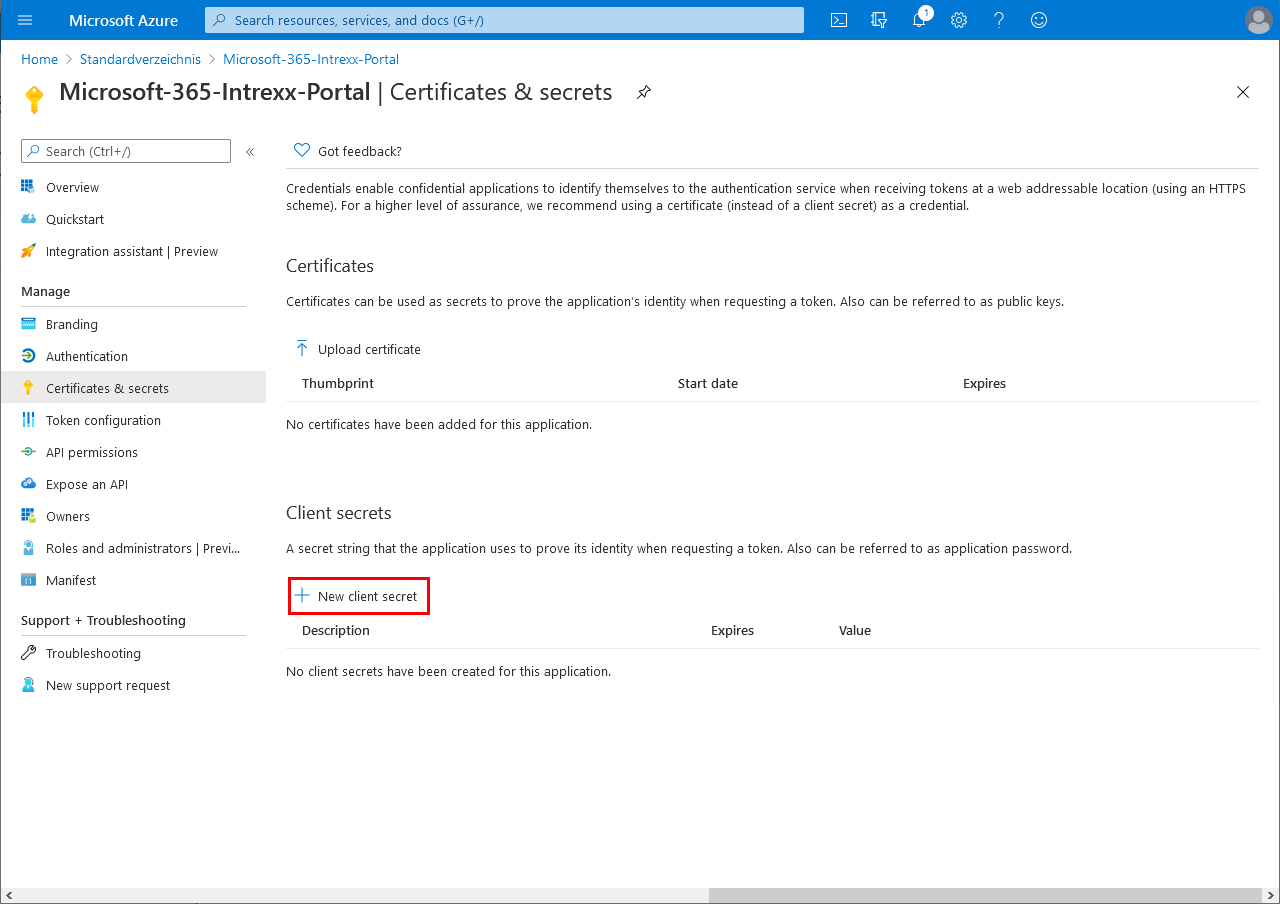
-
Click on "New client secret".
The "Add a client secret" area will appear.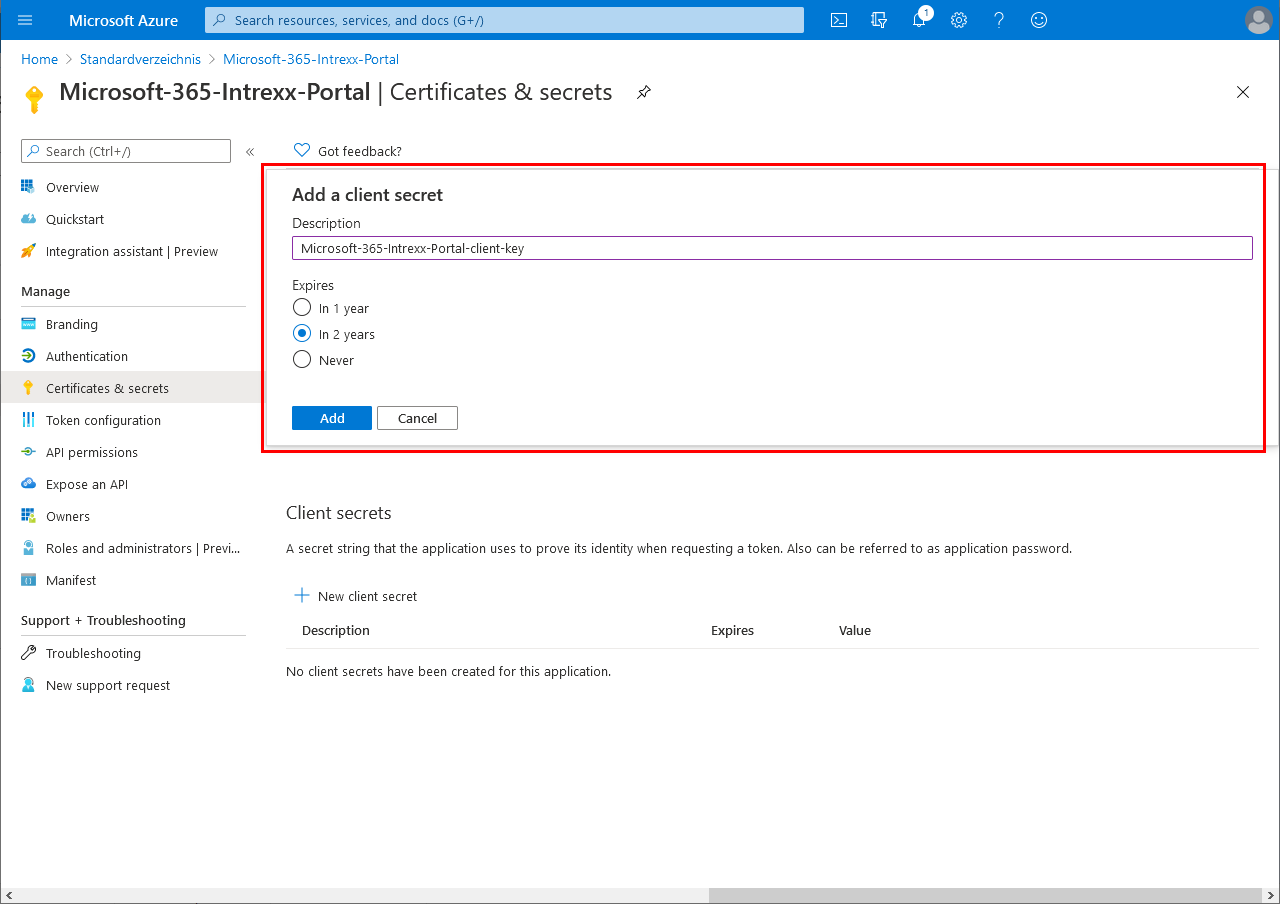
-
Provide your client secret with a description and define when it should expire.
-
Click on "Add".
You will be taken back to the "Certificates and secrets" page.
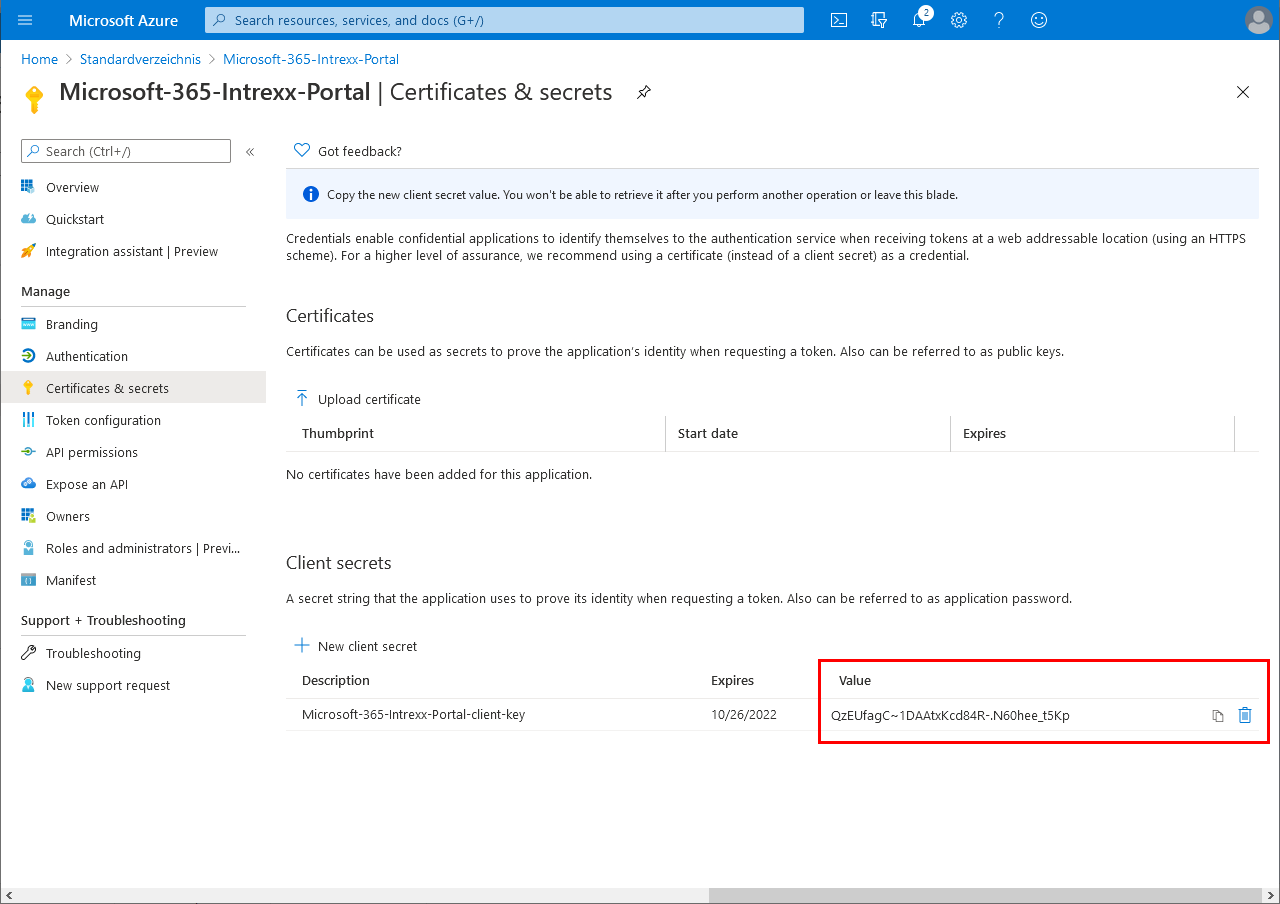
The value and ID of the secret client key are displayed at the bottom right.
You will need this later to set up the data source in Intrexx Connector for SharePoint Server/Online (Create Intrexx Connector for SharePoint Server/Online).
-
Copy the value (!) of the client secret.
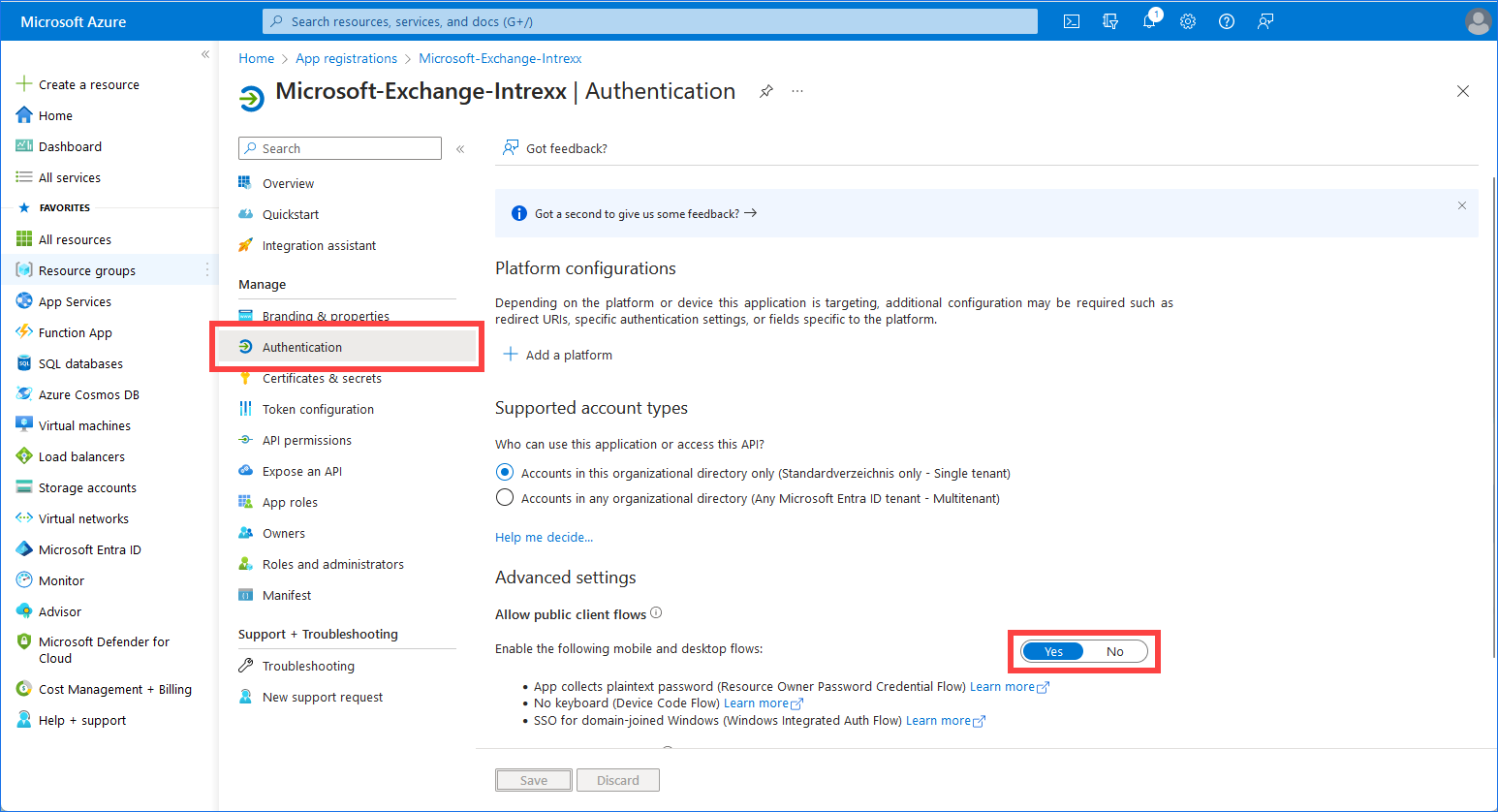
- Click on the "Authentication" menu item.
-
Click on "Yes" for "Allow public client flows".
-
Click on "Save".
You have registered your Intrexx portal in Microsoft Azure.
At the same time, you have generated and copied the client ID, tenant ID and client secret.
Your next steps
Specify API permissions for Intrexx Connector for SharePoint Server/Online