

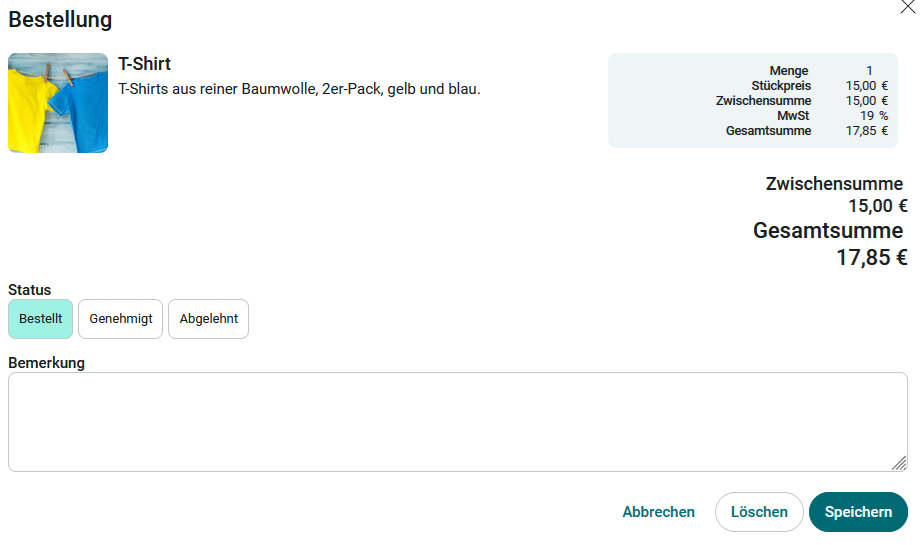
This application includes an online store with basic features and workflows. To learn how to import the template, see: Importing Online Application Templates.
Roles
Roles are automatically created when the template is imported.
App_Shop_User
As a member of this role, you can order items from the store.
App_Shop_Manager
Users with this role can, among other things, add or delete new items in the store. You can change the status of orders. In addition, you have all the rights associated with the App_Shop_User role.
To learn how to add portal users as members to these roles, see: Roles and Permissions in Application Templates.
Edit Article
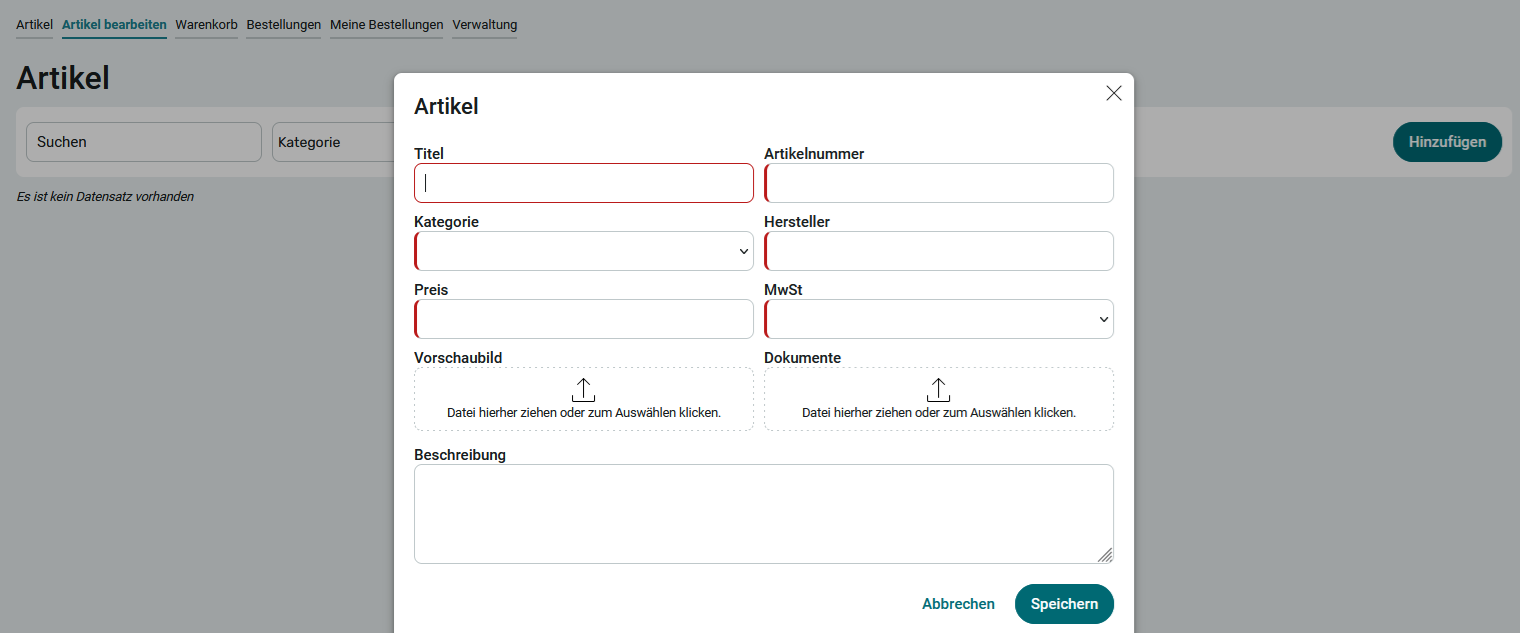
As a member of the App_Shop_Manager role, you can access the Edit Item page. There, you can add new items. Click " Create " and enter the details for the item. Click Save.
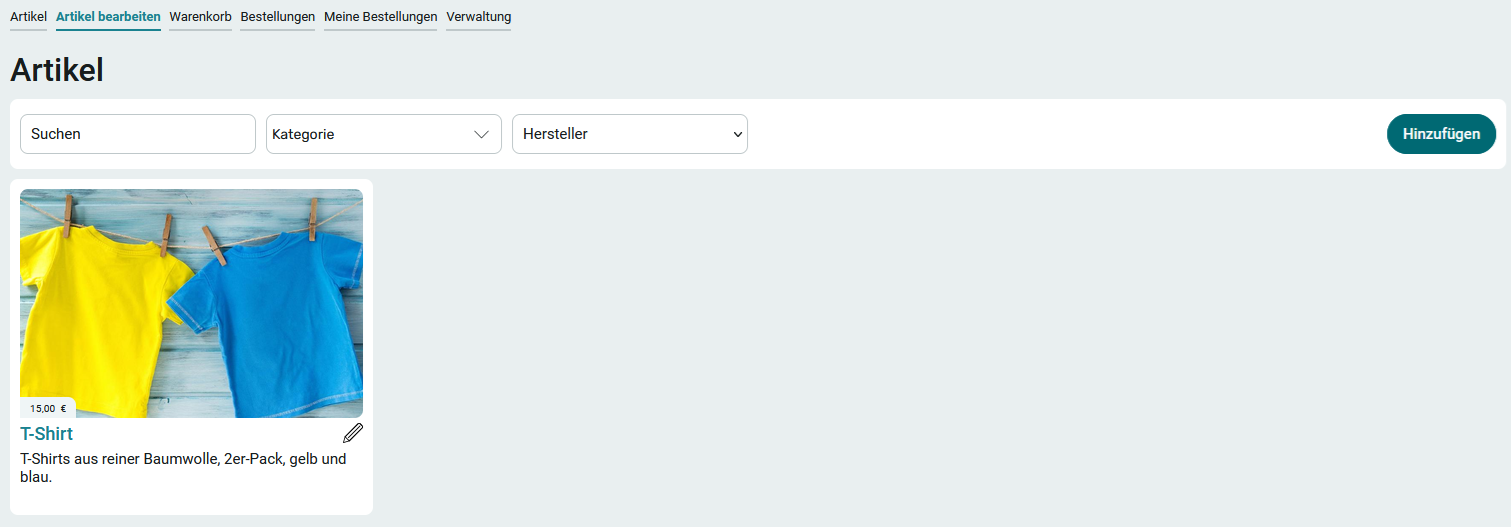
The new item will now appear on the " Edit Item " page and can now be ordered by other users as well. By clicking "  Edit, " you can modify the item details again or delete the item.
Order an item
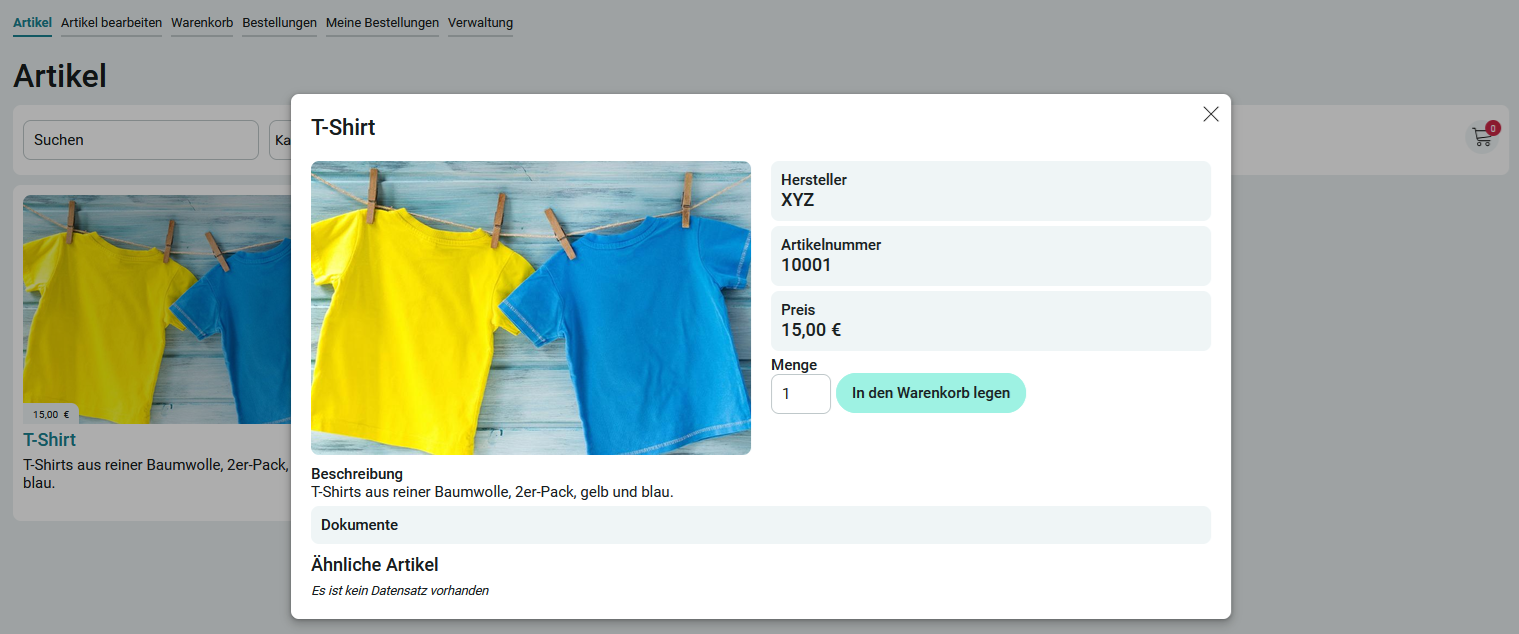
On the "Items " page — the app's home page—you can order items. Simply click on the item you want there, and then click " Add to Cart" on the next page.

The number of items ordered is displayed in the shopping cart icon on the right. You can access your shopping cart either by clicking the shopping cart icon or by going directly to the Shopping Cart page.
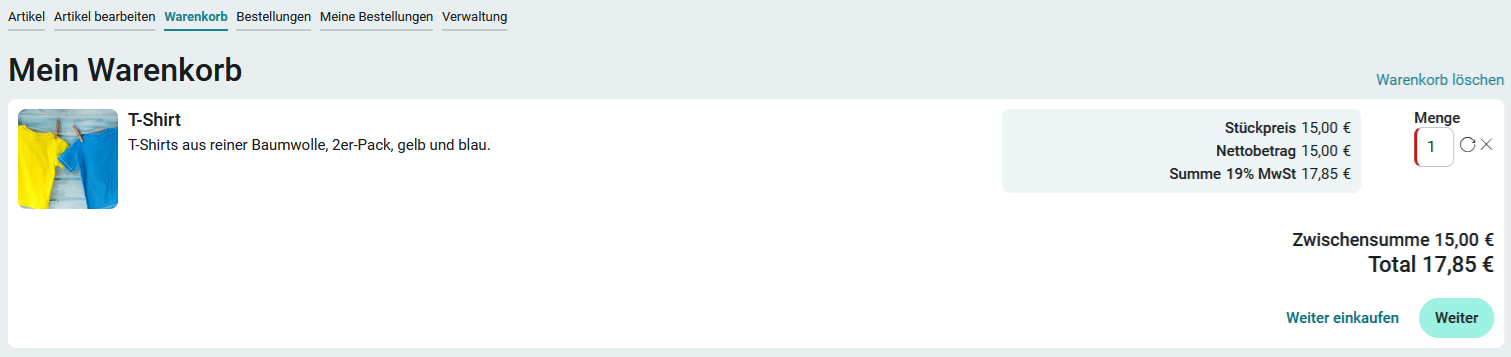
Click Next.
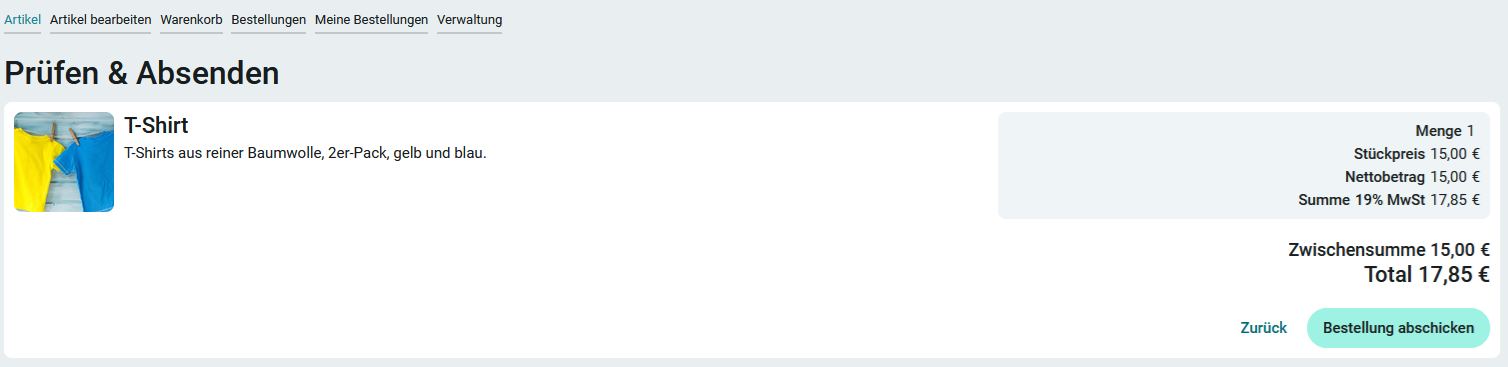
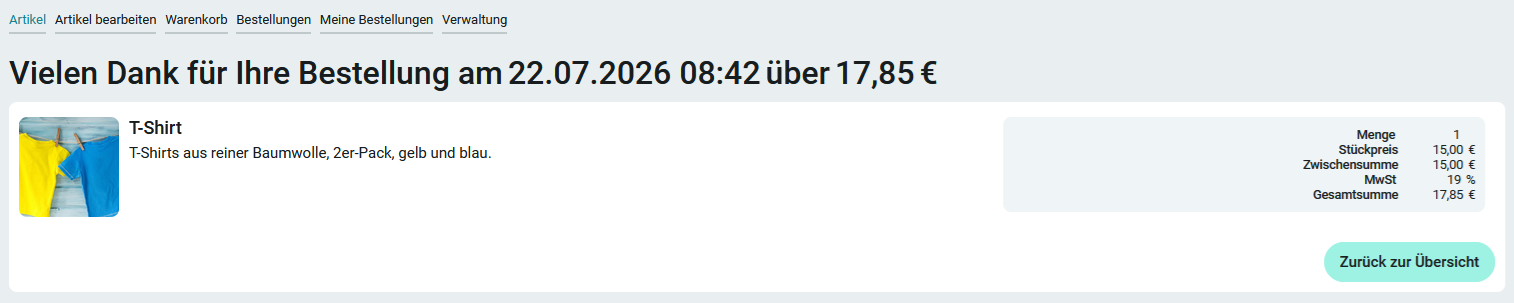
Click here to submit your order.
My Orders
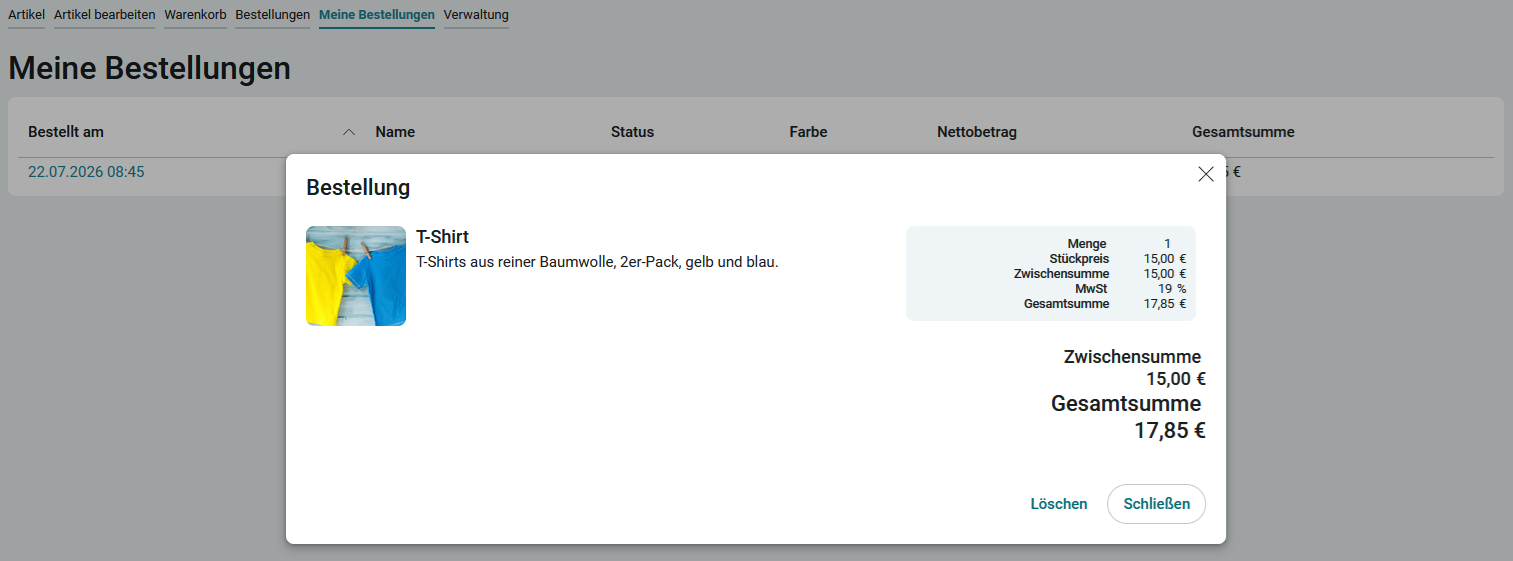
On this page, you'll find a table showing all the orders you've placed yourself. You can view each order here and delete it if necessary.
Orders

Members of the App_Shop_Manager role have access to the Orders page, where all orders can be processed. To do this, click the link in the " Ordered on" column for each entry.
Here, the order status can be changed to " Approved" or " Rejected." The user who placed the order will see the updated status on the My Orders page.
Administration
Members of the App_Shop_Manager role have access to the Administration page, where they can edit categories, VAT rates, statuses, and settings.
Categories
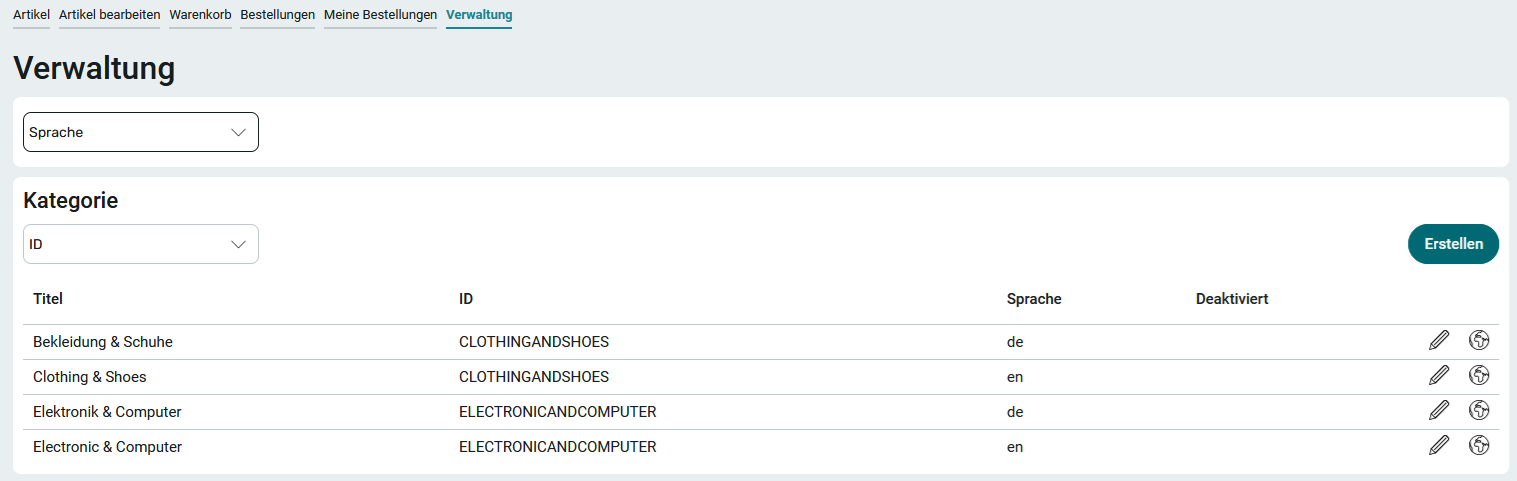
You can edit a category by clicking " " Edit .
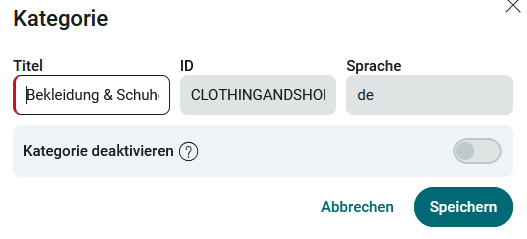
To delete an existing category, you must first deactivate it. The system then checks whether there are any entries that still reference the category. If not, the category will be automatically deleted at regular intervals. Disabled categories can no longer be selected.
To create a completely new category, click Create.
Additional language variants can be created for existing categories. This allows the category to be translated into another language. You can find all the information on this topic here: Multilingualism.
Value-Added Tax
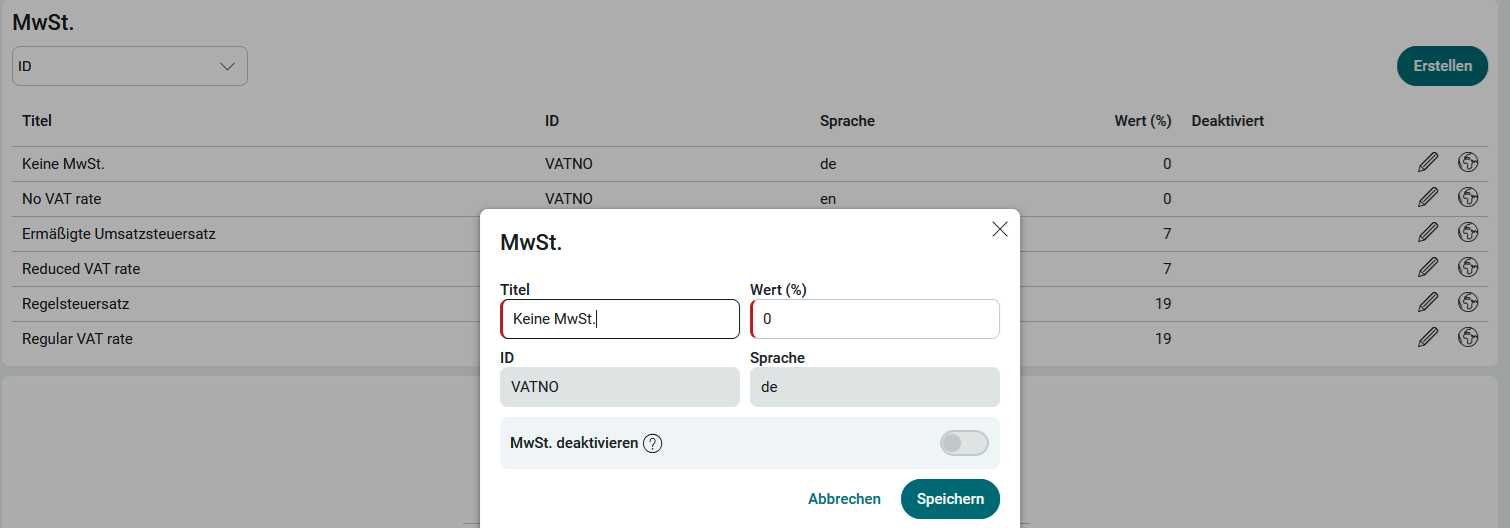
Value-added tax can be managed in the same way as categories and can also be entered in multiple languages. The same rule applies here: To delete an entry, you must first deactivate it.
Status
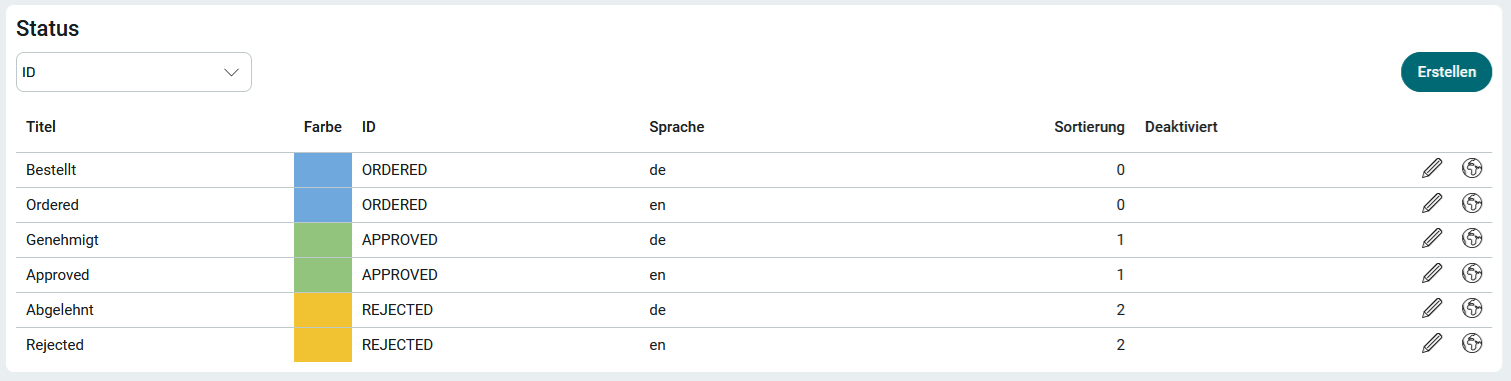
On this page, you can manage the status of your orders. To edit a status, click " " > " Edit."
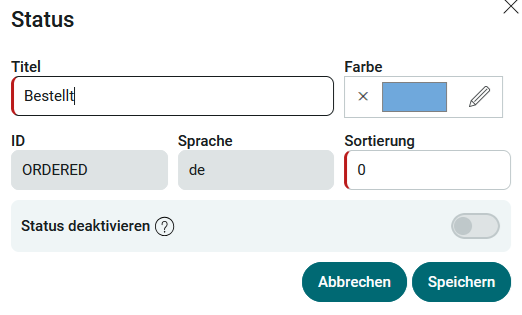
Among other things, you can also change the color of the status here. The same applies here: to delete a status, you must first deactivate it.
Additional language versions can be created for existing statuses. The status can thus be translated into another language. You can find all the information on this topic here: Multilingualism.
Settings

Click Edit to display the list of currencies. There, you can select the currency to be used for the entire store. If the " Show Prices " setting is disabled, prices will not be displayed anywhere in the store.