

Analyze Log Files
Here, you can clearly view and analyze all the details from log files.
In addition, a diagnostic report can be generated as a ZIP file.
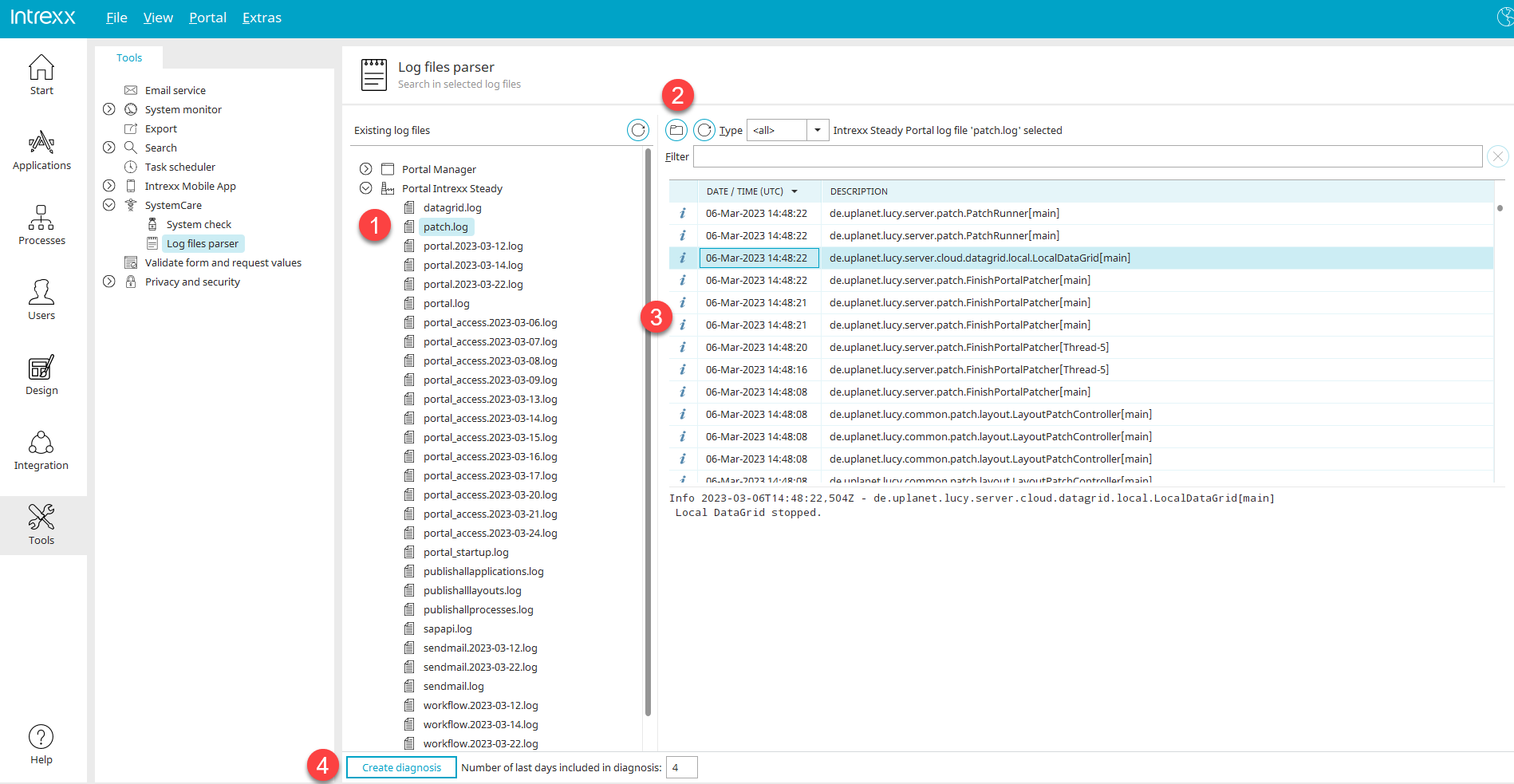
The "Access to Tools" portal permission is required to view the portal log files.
1. Existing log files
Here you can access the Portal Manager's log files and the portal's log files.
Double-clicking will display the list of the corresponding log files. You can refresh the list by clicking "Reload Log File Tree" at  . Select a log file to view its contents in the right-hand pane (3).
2. Open, refresh, filter by type, and search log files
Clicking "Open Log File" at  opens a dialog box where you can select and load a log file from a directory.
"Reload Log File" updates the contents of the log file in section (3).
Using the "Type" drop-down list, you can filter the list of log entries by message type
-
Info
-
Warning
-
Error
-
Debug
-
Start Information
be restricted.
You can search for terms in the "Filter" field.
3. Log File Contents
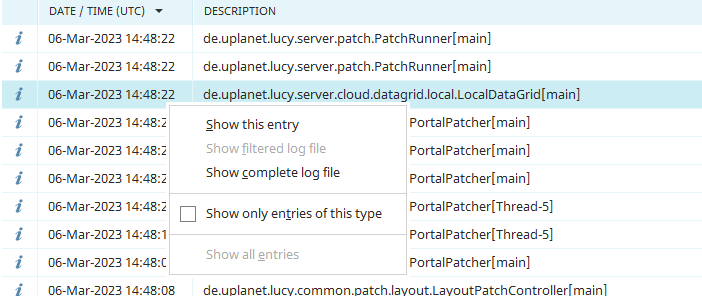
Here you can see the date and time when the log file entry was written. The text of the log entry is also displayed.
In the context menu for an entry, you'll find the following functions:
View this entry
Opens a dialog box that displays the full text of the entry.
View Filtered Log File
Displays only the text of the log entry in the dialog that contains the search term from the filter field (Section 2).
View the complete log file
Opens a dialog box that displays the full text of the log file.
Show only entries of this type
Filters the list of log entries based on the currently selected type. The type is automatically selected from the drop-down list at the top.
Show all entries
Clears the "Show only entries of this type" setting.
4. Diagnosis
Clicking "Diagnostics" creates a ZIP file that can be used, for example, for support purposes. You can find more information here.
Log Dialog
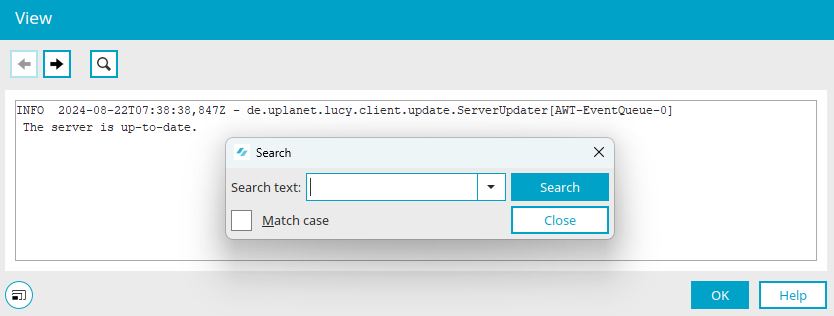
In the log dialog, you can switch to full-screen view using the "View" menu.

 View Previous Log Entry / View Next Log Entry
Scroll through the log entries within the file.
 Search
Opens a dialog box where you can search for terms in the log file.