

How to Connect to Your Portal
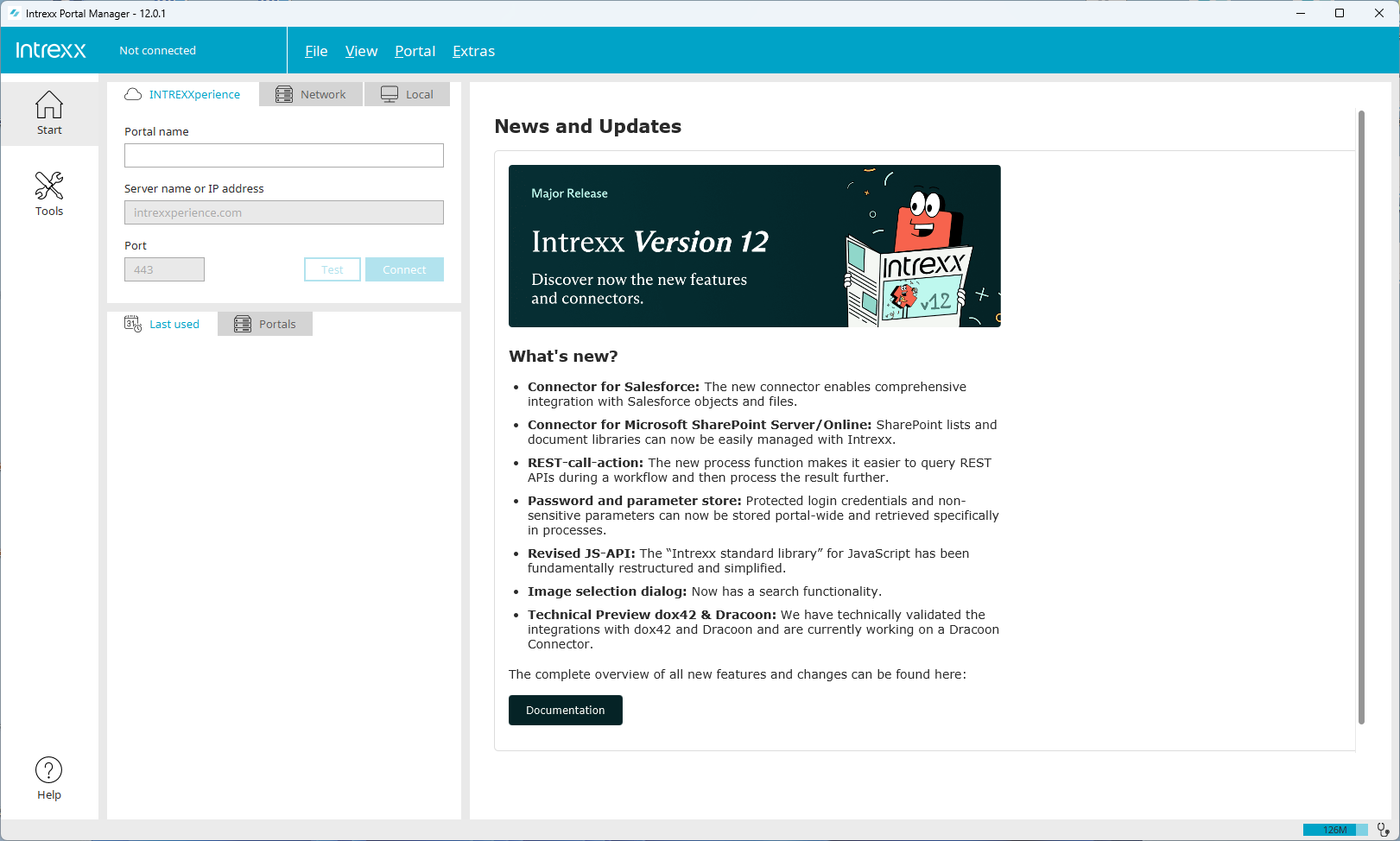
After you have created a portal and launched the Intrexx Portal Manager, the welcome screen will appear.
In the login area of the home screen, you will find the three tabs "INTREXXperience"  , "Network"
  , and "Local"
  .
.
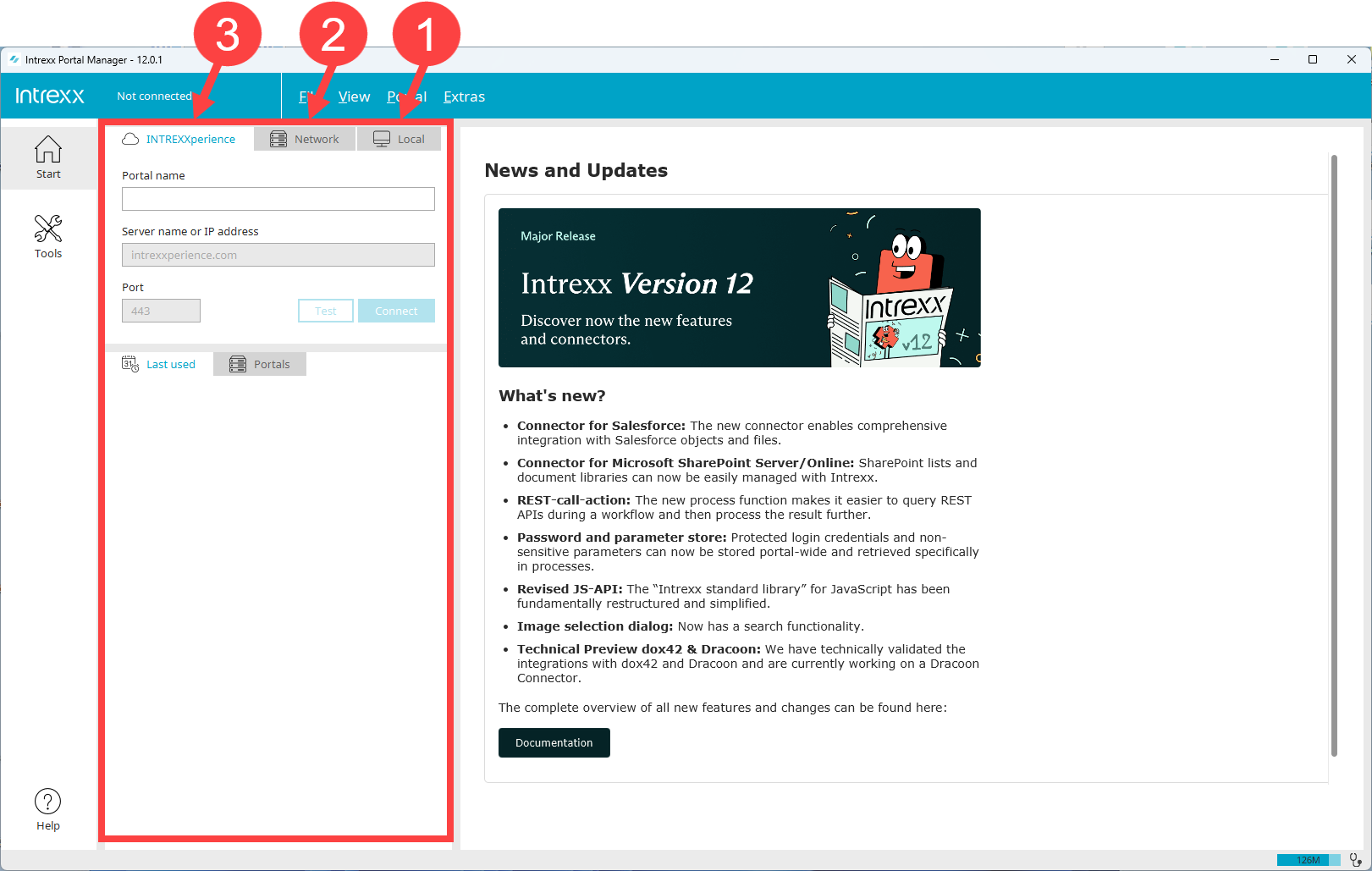
Which of the three login options is right for you depends on how you use the Portal Manager or how Intrexx is implemented in your organization.
Option 1 – Local
This login option is right for you if you have Intrexx installed locally on your IT infrastructure and if you want to access your portal using the "Integrated Portal Manager," which is installed along with Intrexx.
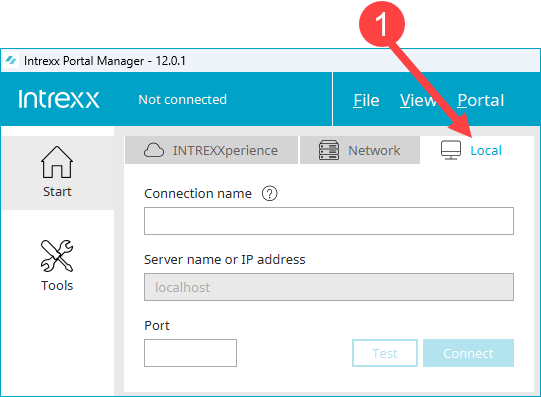
Connection Name
Enter a name here for the connection to your portal. Choose any name you like. The name is then saved and displayed as a hyperlink under "Recently Used" in the login area. To register at a later time, simply click on the hyperlink displayed.
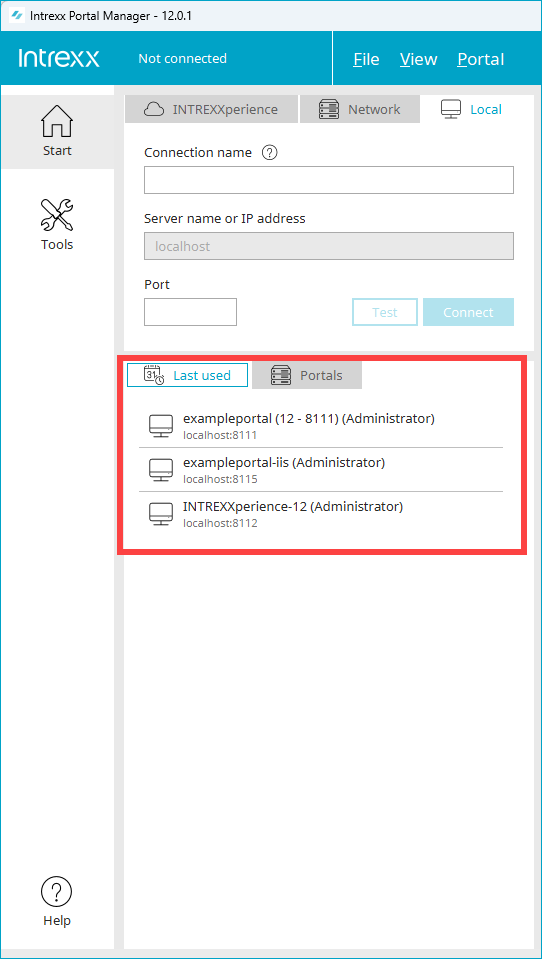
Server name or IP address
"localhost" is set as the default for this login option. You cannot edit this entry.
Port
Enter the port for the portal you want to connect to here.
The port can be found in the portal properties or in the "portal.cfg" file. You can find them here:
<intrexx-installation-directory>/org/<portal directory>/internal/cfg/portal.cfg
Use this button to test whether the Portal Manager can establish a connection to the portal.
Use this button to connect to the portal.
Option 2 - Network
This registration option is right for you in the following two cases:
-
The Intrexx Portal Server is installed on a server within your IT infrastructure, and you can access it via your network.
-
You use Intrexx as a PaaS ("Platform as a Service") and have received the corresponding login credentials from Intrexx GmbH.
This version is a cloud-based solution. In other words, Intrexx GmbH provides you with the infrastructure along with the Intrexx Portal Server.
In both cases, use the Portal Manager to log in.
The Portal Manager does not require installation. You can download it and start right away. The Portal Manager can connect to different versions of the Intrexx Server. It automatically synchronizes its own version with the portal server's version.
Download
Please contact our support team to download the Portal Manager.
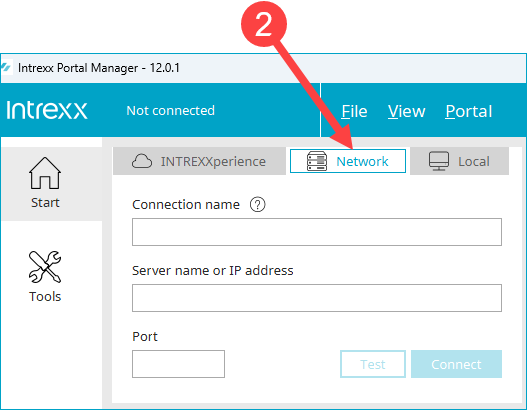
Connection Name
Enter a name for your portal connection here. You can choose any name you like. The name is then saved and displayed as a hyperlink under "Recently Used" in the login area. For later registrations, you only need to click on the hyperlink displayed.
Enter the name you received from Intrexx GmbH here.
Server name or IP address
Network: Enter the server name or IP address of the server on which the Intrexx Portal Server is installed. The server name must be specified as a hostname without a preceding protocol and without a trailing slash.
PaaS: Enter the server name you received from Intrexx GmbH here.
Port
Network Enter the port of the portal you want to connect to here.
The port can be found in the portal properties or in the "portal.cfg" file. You can find them here:
<intrexx-installation-directory>/
PaaS Enter your portal's port here. This is usually port 8101.
You can use this button to test whether the Portal Manager can establish a connection to the portal server or the portal.
You can use this button to connect to the portal server or the portal.
Option 3 – Intrexxperience
This registration option is right for you if you'd like to learn more about Intrexx and have received access to an "INTREXXperience" portal through our website or by contacting an Intrexx employee. The INTREXXperience Portal is a test portal with numerous preinstalled applications. It is hosted by the Intrexx GmbH, and you can access it via the Internet.
For detailed information about INTREXXperience, see the section INTREXXperience - Try Intrexx for 30 days."
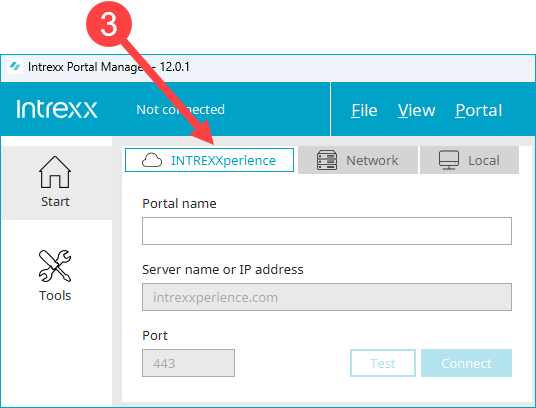
Portal Name
Intrexx GmbH will provide you with the name of the portal.
Server name or IP address
For this login option, "intrexxperience.com" is specified as the server name. You cannot edit this entry.
Port
Port 443 is stored for this login option. You cannot edit this entry.
You can use this button to test whether the Portal Manager can establish a connection to the portal.
Use this button to connect to the portal.
Collect user data
After you click the "Connect" button, the "Log In" dialog box will appear. Here, you will be prompted to enter your login information.
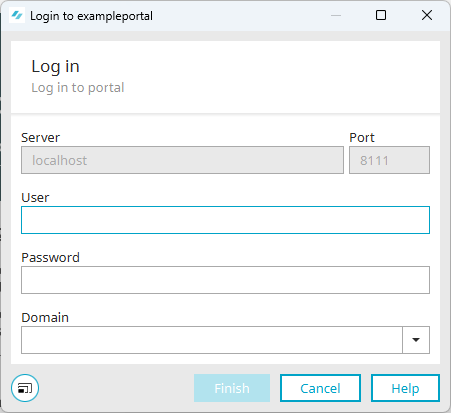
Server, Port
The server and port you entered in the login section are displayed here.
Username / Password
Enter your login information here. These are stored in User Management (User Account).
Domain
If a domain (login domain) is specified for you in User Management, you must select it here in order to log in.
More Information