

Integration of Alternative Messaging Providers
The "seven.io" phone provider, which is preconfigured by Intrexx, can be replaced with any messaging provider. Your own hardware (phone systems, GSM cards) or software can also be integrated if necessary.
The following steps must be performed:
-
Copy the "00-phone-service-context" file and place it in the appropriate directory in the portal
-
Request the necessary information from the provider
-
Create a process that sends text messages or makes voice calls
-
Integrating the provider into the respective method
Copy the "00-phone-service-context" file and save it in the portal
To use an alternative messaging provider with Intrexx, you must copy the 00-phone-service-context file and place it in the appropriate directory in the portal.
You can find the 00-phone-service-context file in the following directory:
<intrexx-installation-directory>\samples\custom-phone-service\internal\cfg\spring\custom
Copy the file and paste it into the following directory:
<portal directory>\internal\cfg\spring\custom
Restart the Portal Server service.
The required information from the provider
A service provider requires the following information to send a voice call or text message:
-
API Key: To use Connect, you need an API key, which is provided by the provider. You can obtain information directly from your provider.
-
Request methods for the REST call action: schema, port, hostname, path
-
Storing the API key in the login information store
Overview of the Process Structure
Here, we'll cover the process that retrieves information from Intrexx and passes it on to the provider.
Overview of the tasks in the process:
-
Generic event handler:
It responds to the "Multi-Factor Authentication" event if the SMS or voice call method has been selected.
-
Groovy Promotion:
The message data (sender, message) is determined using Groovy and written to the processing context.
-
Remaining Call Campaign
The Rest-Call executes the request and sends the text message or voice call to the messaging provider stored in the registration information store.
Text Message
To send an SMS through an alternative provider during multi-factor authentication, open the Portal Manager and navigate to the "Processes" module. Create a new process.
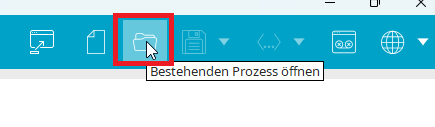
Click the Task Manager icon on the toolbar.
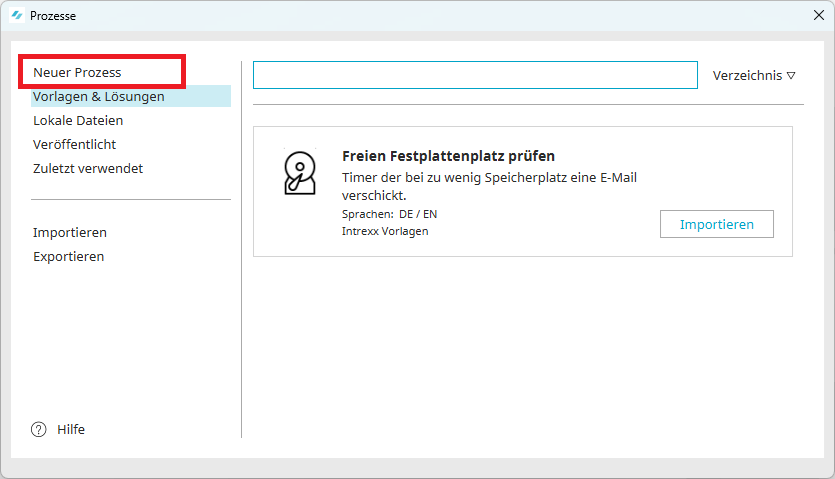
In the Process Manager, click the first entry, "New Process."
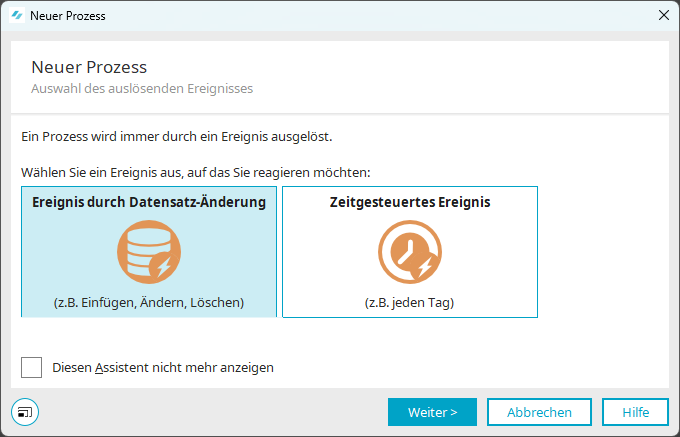
Cancel the "New Process" dialog box by clicking the "Cancel" button.
Generic Event Handler
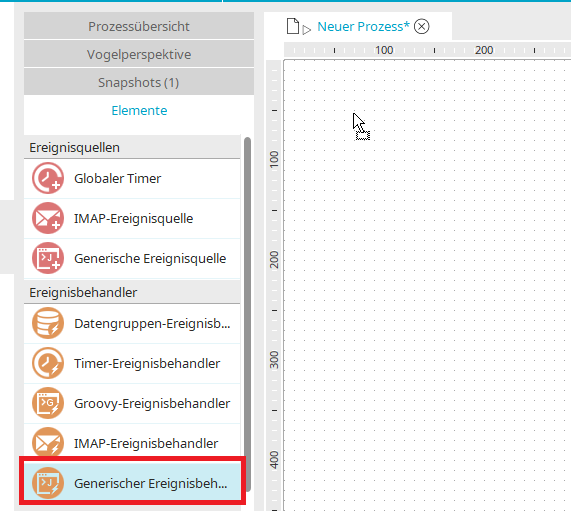
Add the "Generic Event Source" to the process using drag-and-drop.
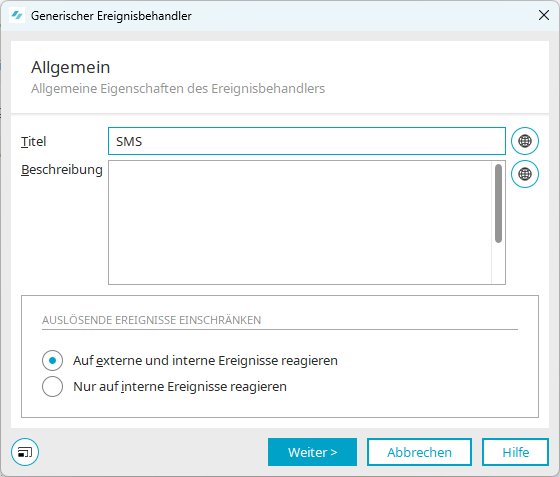
Assign the title "SMS." The process responds to external and internal events.
Click "Next."
Configuration
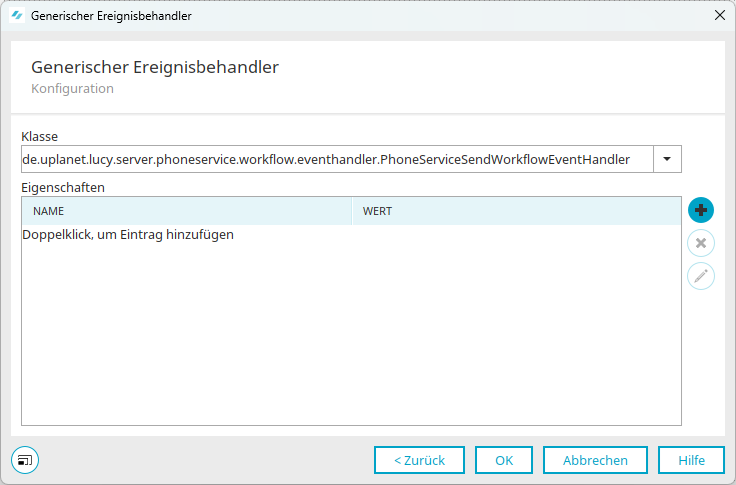
Select the class from the list
"de.uplanet.lucy.server.phoneservice.workflow.eventhandler.PhoneServiceSendWorkflowEventHandler"
from.
Use the plus icon to add a new entry.
Enable SMS
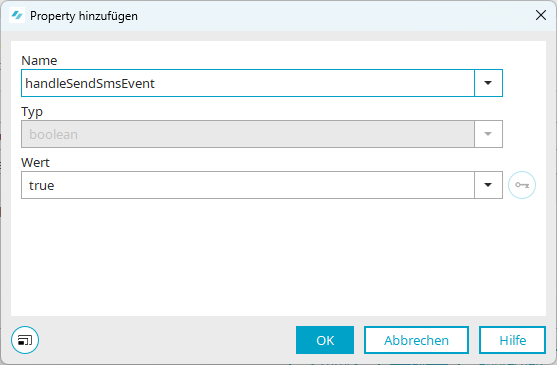
The sending of text messages should be taken into account:
Select the "handleSendSmsEvent" class and set its value to "true."
Turn off voice calls
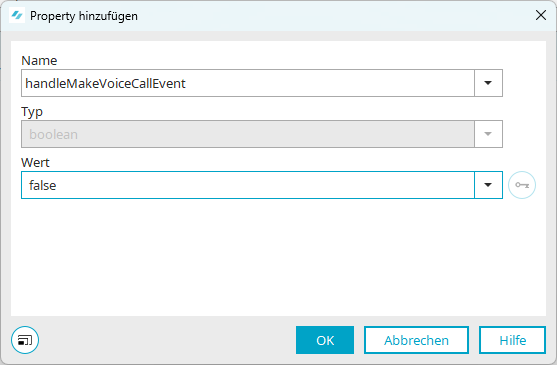
Use the plus icon to add a new entry so that voice calls are ignored.
Select the "handleMakeVoiceCallEvent" class and set its value to "false."
Close all open dialog boxes by clicking "OK."
Groovy Event
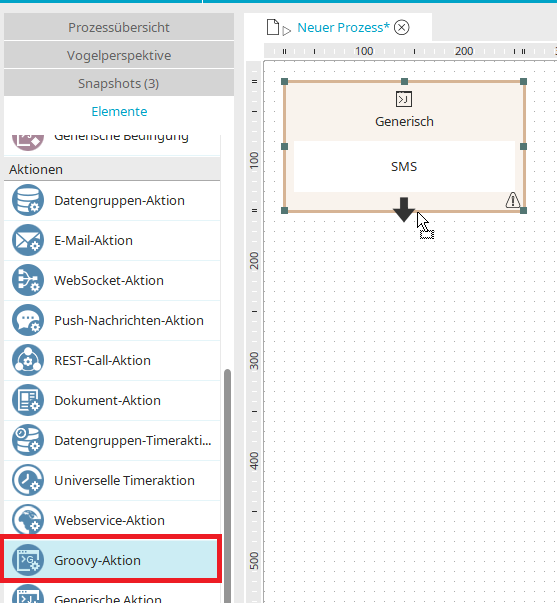
Add a Groovy action to the generic event handler.
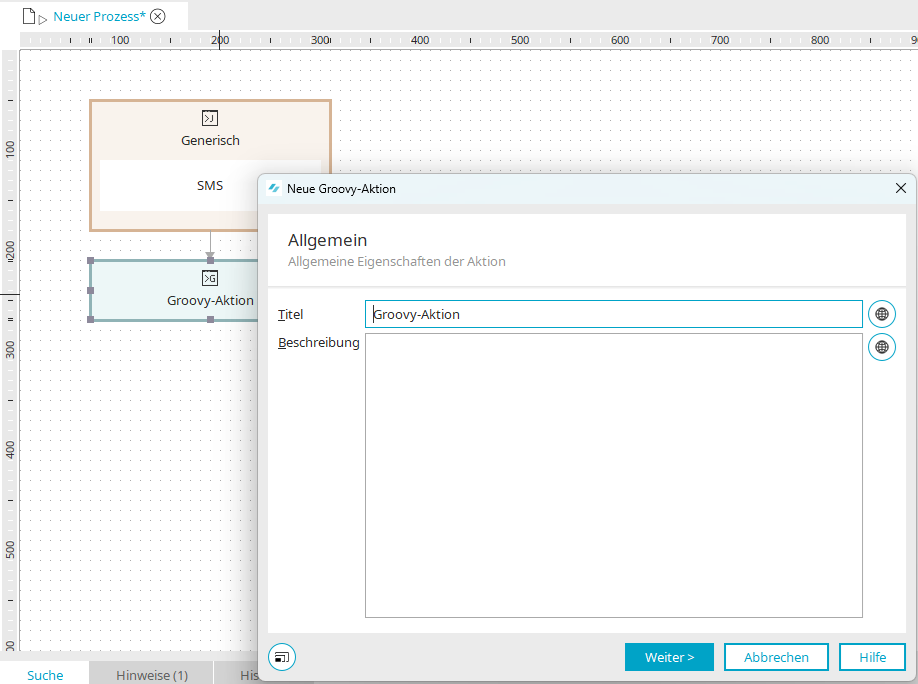
Double-click to open the Properties dialog box.
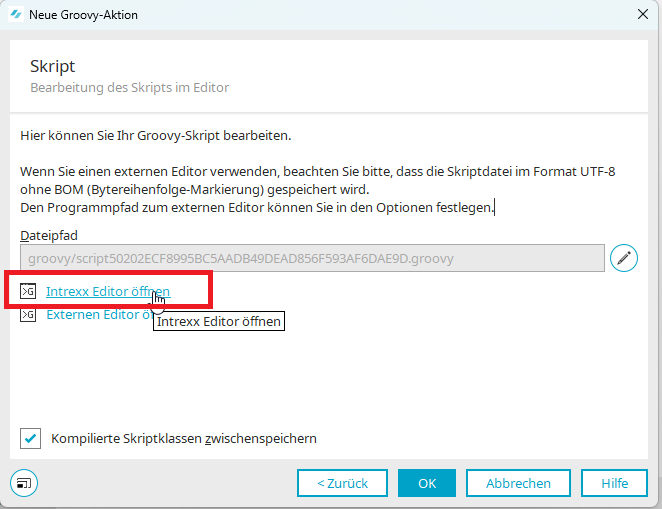
Click "Next" and open the Intrexx Editor by clicking the link with the same name.
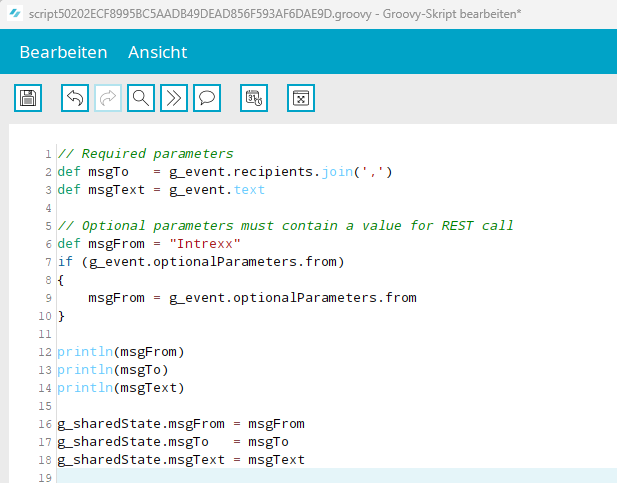
The Intrexx script editor opens.
Upload the following script, which determines the sender, recipient, and text and writes them to the processing context in Intrexx:
// Required parameters
def msgTo   = g_event.recipients.join(',')
def msgText = g_event.text

// Optional parameters must contain a value for REST call
def msgFrom = "Intrexx"
if (g_event.optionalParameters.from)
	{
		msgFrom = g_event.optionalParameters.from
	}
g_sharedState.msgFrom = msgFrom
g_sharedState.msgTo   = msgTo
g_sharedState.msgText = msgText
Click "OK" to close all open dialog boxes.
REST Call Action
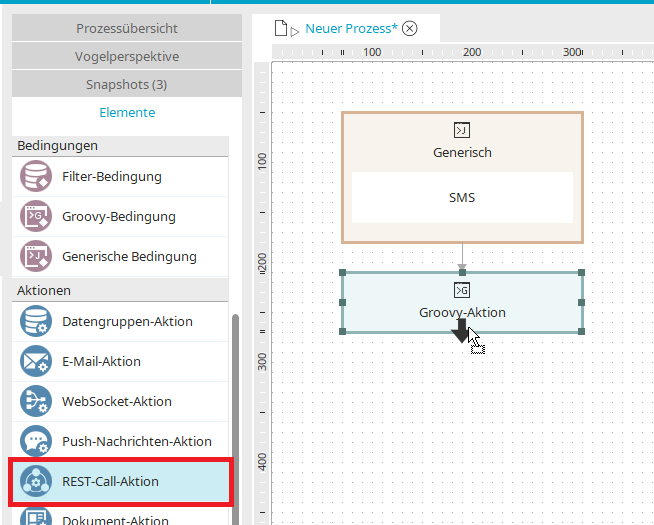
Now add a REST Call action to the Groovy action.
General
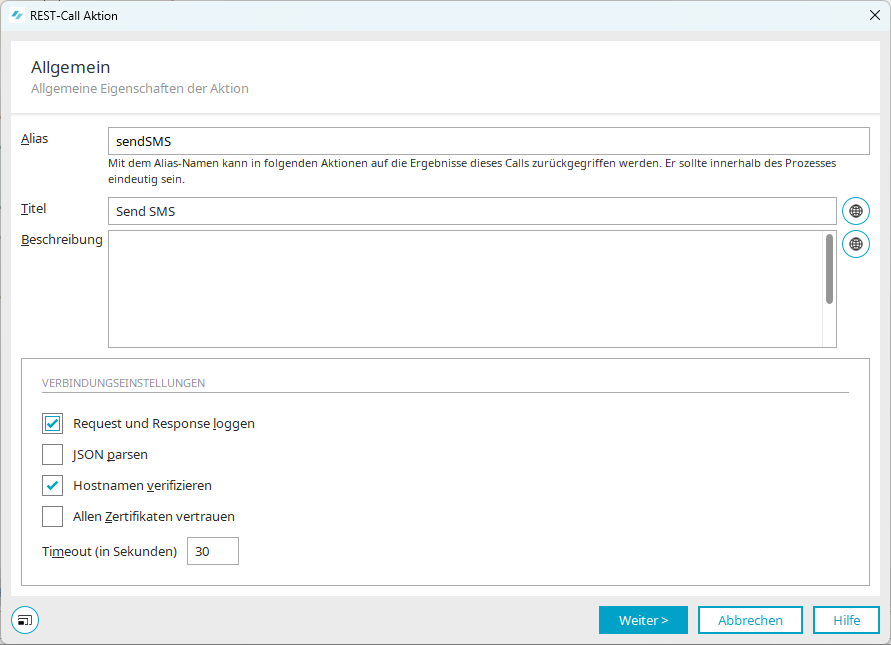
Set the alias to "sendSMS" and the title to "Send SMS." In the connection settings, select the "Log requests and responses" and "Verify hostnames" checkboxes.
Click "Next."
Authentication and Headers
We will configure authentication using the external provider's API key.
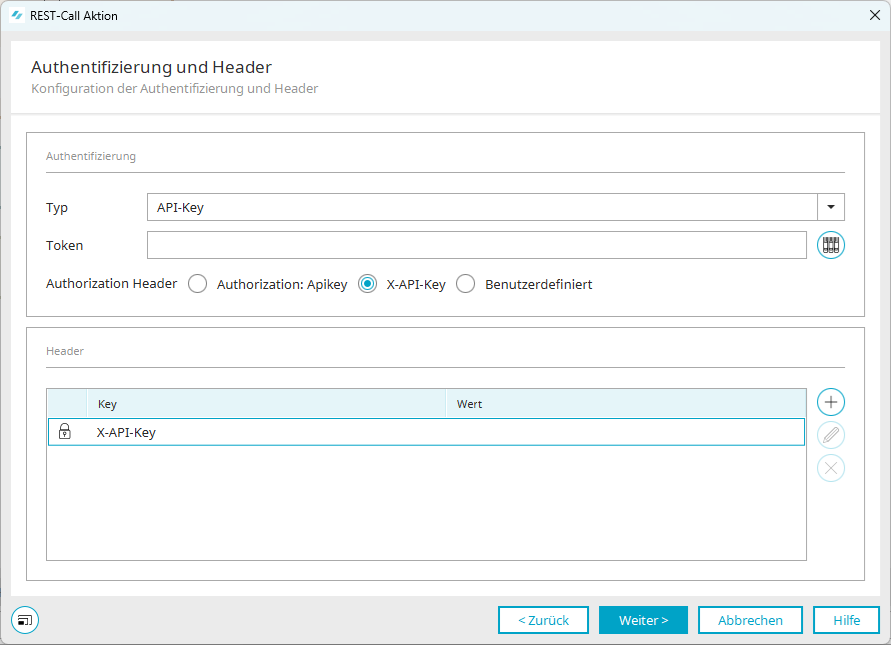
Select "API Key" from the list, and then select the "X-API Key" option.
Resource Mapping
We will now populate the resource mapping with our values from the credential store and the processing context:
-
Provider's API key
-
msgFrom
-
msgTo
-
msgText
We will process this information in this and subsequent dialogs in the request.
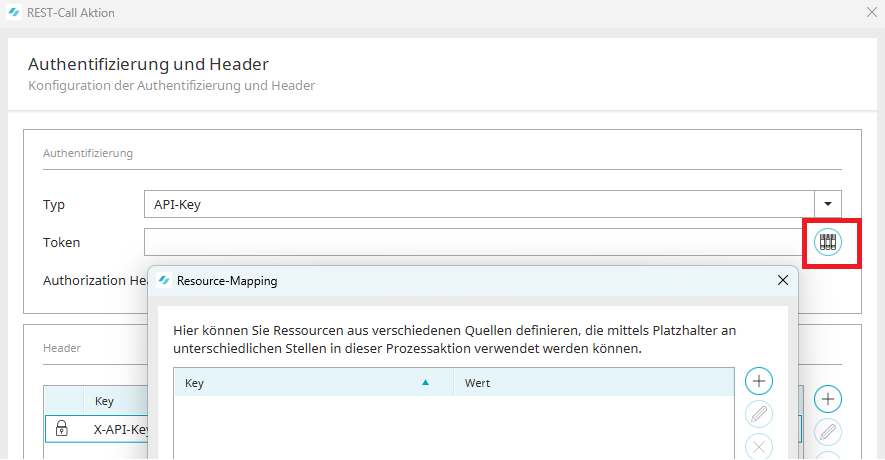
Click the "Resource Mapping" icon next to the "Token" field.
apiKeyProvider
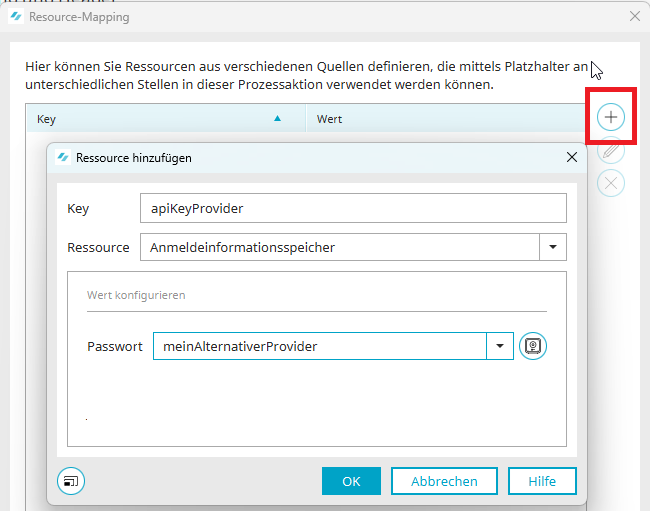
In Resource Mapping, click the plus icon to add a new resource:
-
Key: apiKeyProvider
-
Resource: Authentication Information Store
-
Password: Select the entry for your provider's stored API key
Click "OK" to confirm the dialog box.
msgForm
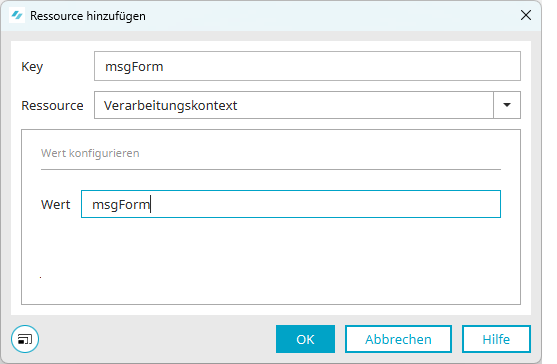
In Resource Mapping, click the plus icon again to add the "msgForm" resource from the processing context.
-
Key: msgForm
-
Resource: Processing Context
-
Value: msgForm
Click "OK" to confirm the dialog box.
msgTo
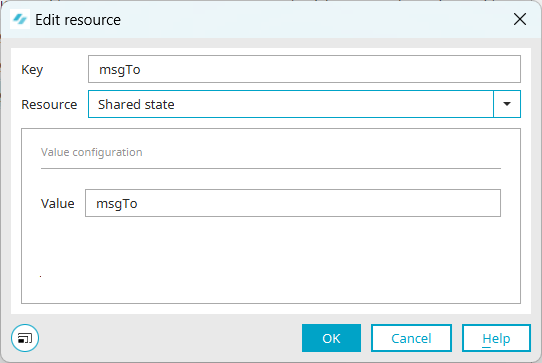
Use the plus icon to create a new resource:
-
Key: msgTo
-
Resource: Processing Context
-
Value: msgTo
Click "OK" to confirm the dialog box.
msgText
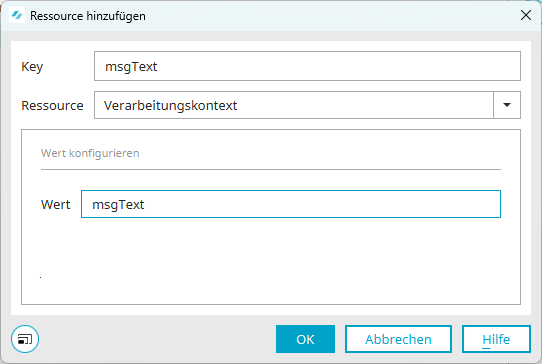
Use the plus icon to create a new resource:
-
Key: msgText
-
Resource: Processing Context
-
Value: msgText
Click "OK" to confirm the dialog box.
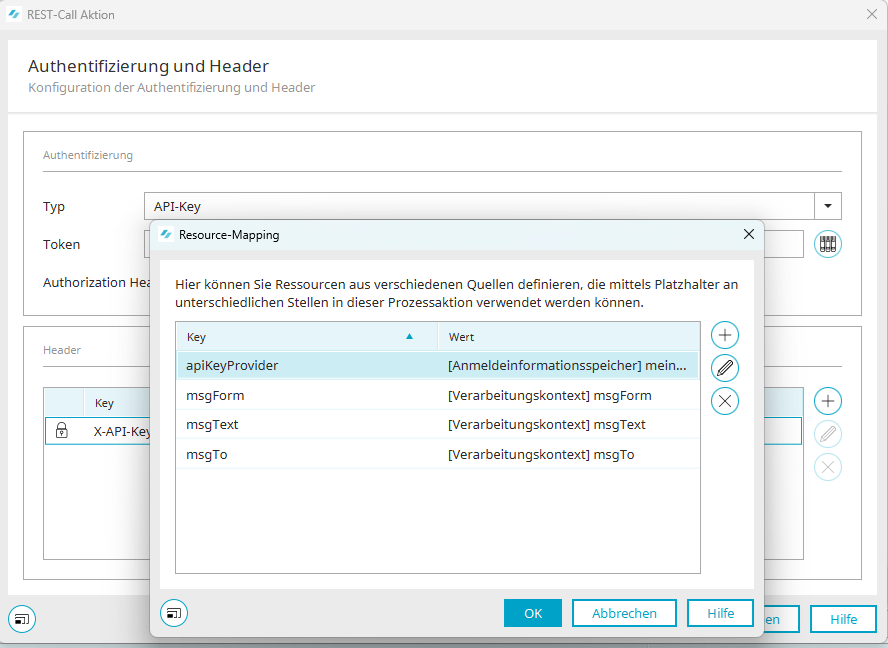
All resources have now been defined.
Please select the "apiKeyProvider" resource and click "OK" to confirm.
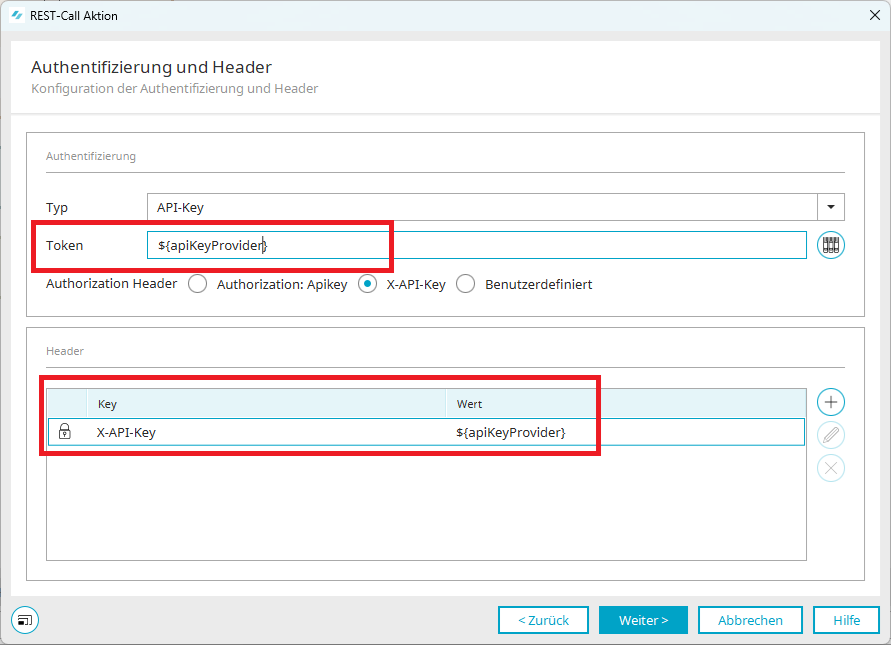
The selected resource was added to the "Token" and as a value in the "Header."
Headers
Create two new entries in the header:
-
Accept
-
Content-Type
Click the plus icon to define the following entries:
Accept
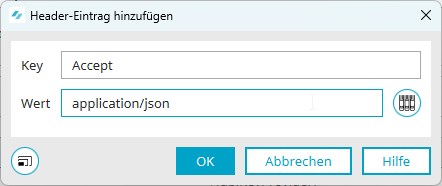
Key: Accept
Value: application/json
Click "OK" to confirm the dialog box.
Content-Type
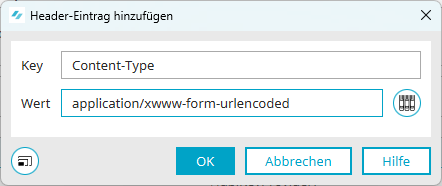
Key: Content-Type
Value: application/xwww-form-urlencoded
Click "OK" to confirm the dialog box.
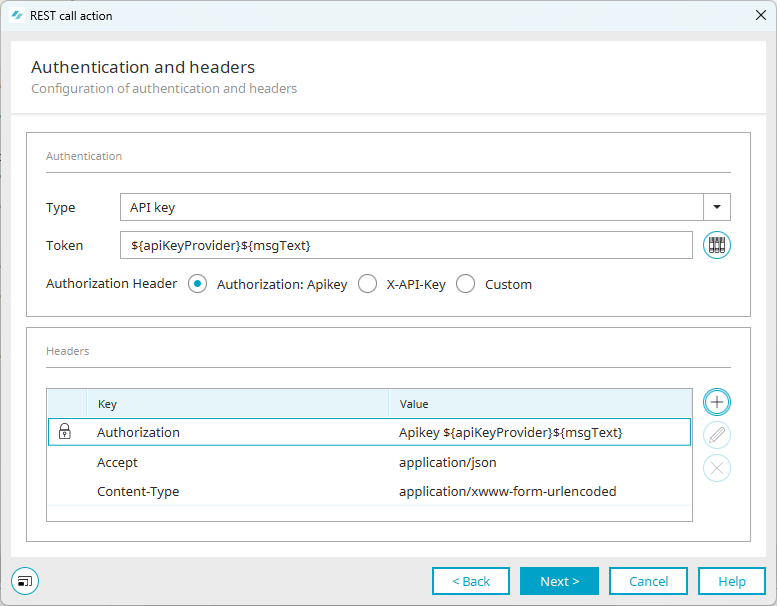
The "Authentication and Headers" dialog is now closed.
Click "Next."
Request
In the request, we'll now make sure that the messages are used. To do this, set the method to "POST."
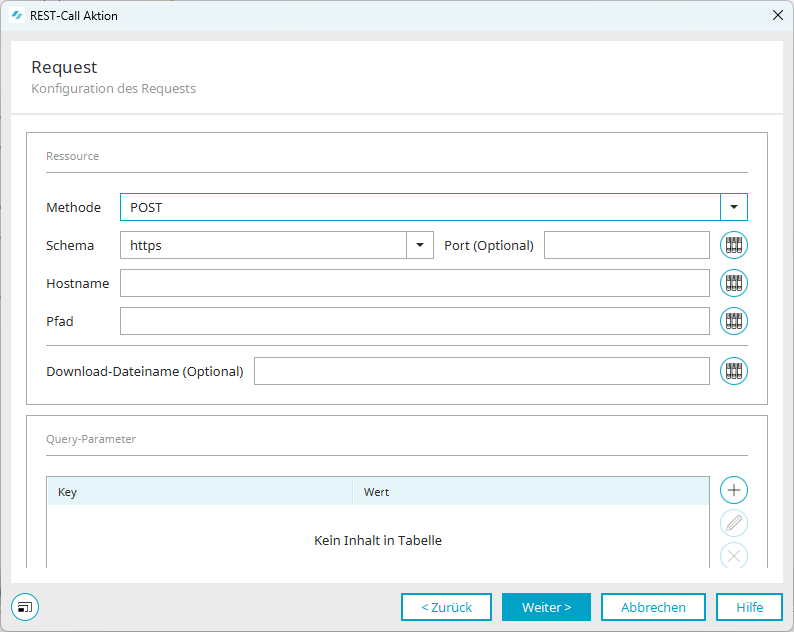
Fill in the following fields with the information provided by your provider:
-
Diagram
-
Hostname
-
Path
Click "Next."
Body
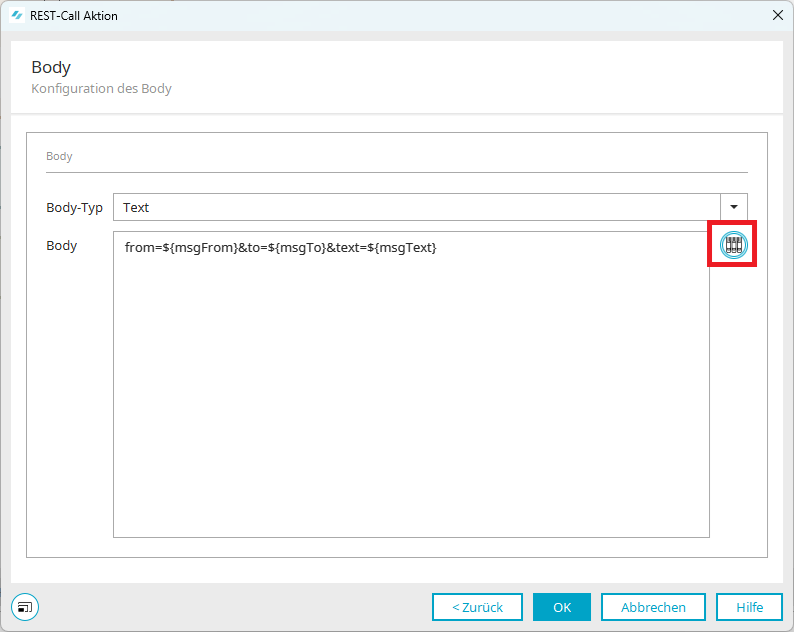
The SMS message is now defined in the body.
You can use the icon on the right to access the resource mapping, where you have stored all the necessary entries from the processing context.
Enter the sender, recipient, and message text as follows:
from=${msgFrom}&to=${msgTo}&text=${msgText}
Click "OK" to confirm the dialog box.
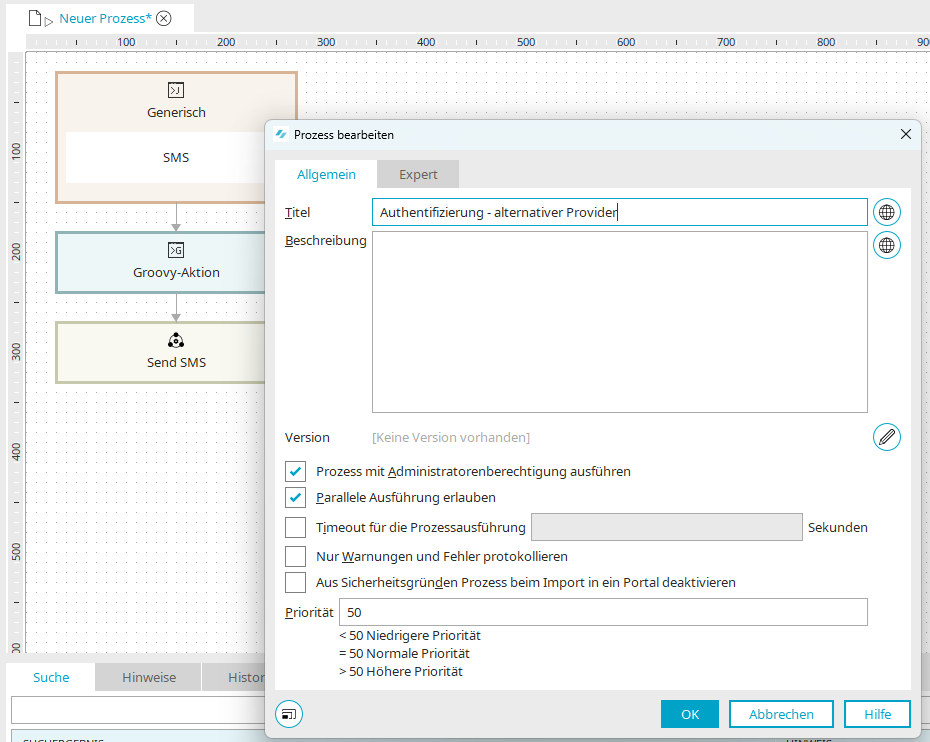
Open the process properties by double-clicking the process tab. Assign the title "Authentication - Alternative Provider." Click "OK" to confirm the dialog box and save the process.
The process is now active: If multi-factor authentication via the "SMS" method is selected, the process takes effect and sends the necessary information to the user.
Voice Call
To place a voice call through an alternative provider during multi-factor authentication, open Portal Manager and navigate to the "Processes" module. Open the "Authentication - Alternative Provider" process you just created.
Generic Event Handler
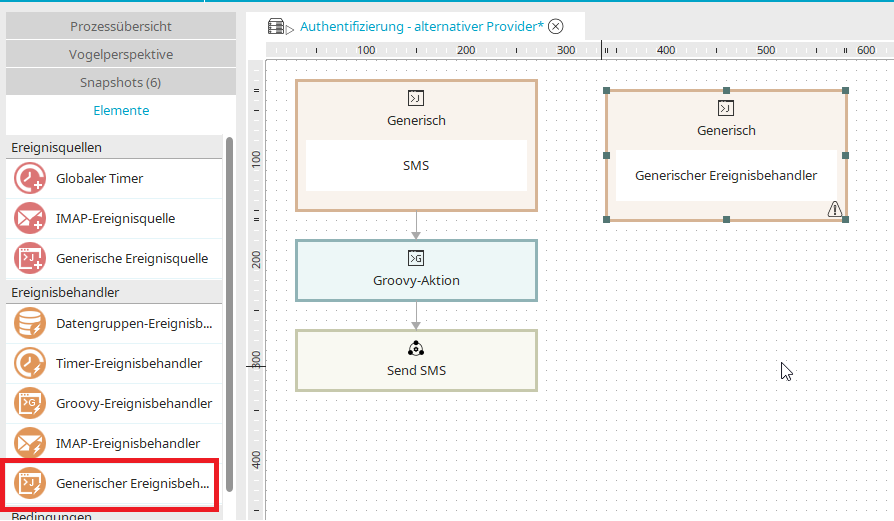
Drag and drop the "Generic Event Handler" into the process.
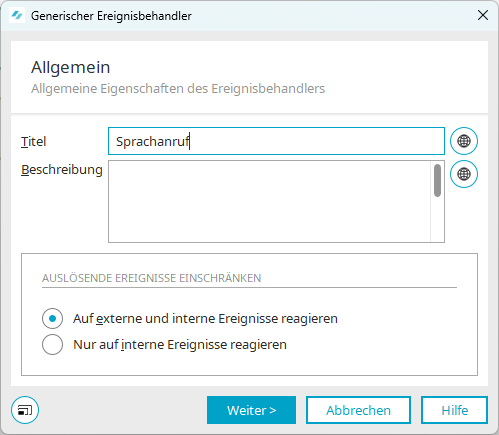
Assign the title "Voice Call." The process responds to external and internal events.
Click "Next."
Configuration
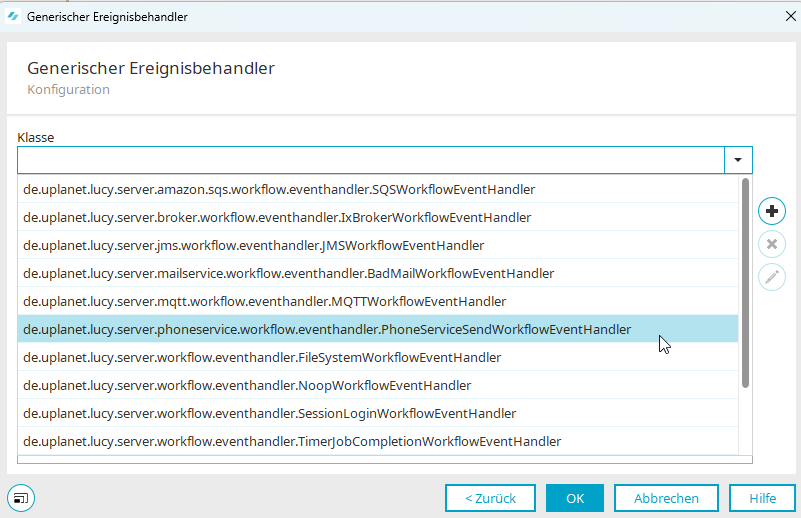
Select the class from the list
"de.uplanet.lucy.server.phoneservice.workflow.eventhandler.PhoneServiceSendWorkflowEventHandler".
Enable Voice Calls
Use the plus icon to add a new entry.
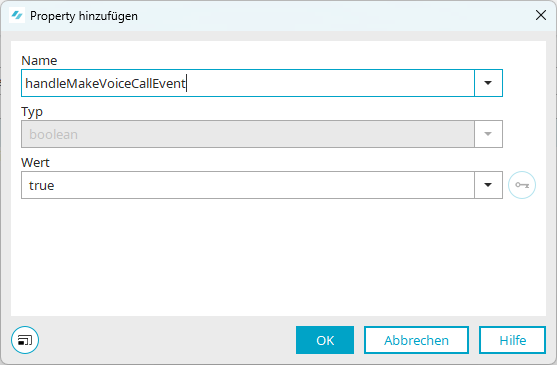
The voice call should be taken into account:
Select the "handleMakeVoiceCallEvent" class and set its value to "true."
Turn off SMS
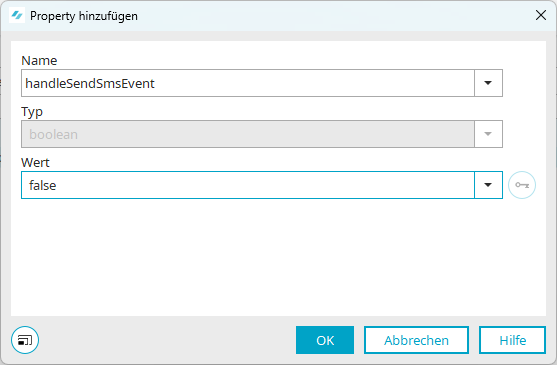
Use the plus icon to add a new entry so that voice calls are ignored:
Select the "handleSendSmsEvent" class and set its value to "false."
Close all open dialog boxes by clicking "OK."
Groovy Event
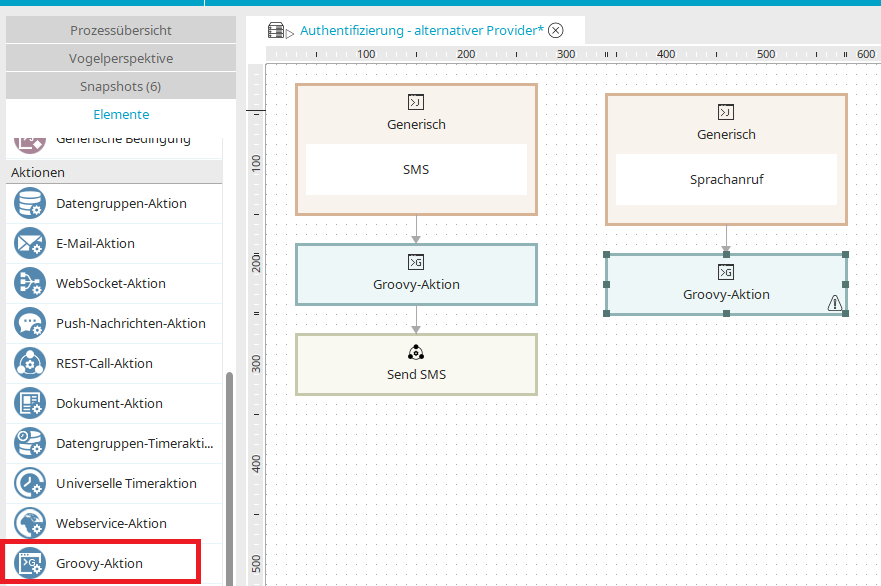
Add a Groovy action to the generic event handler.
Double-click to open the Properties dialog box. Click "Next" and open the Intrexx Editor by clicking the link with the same name.
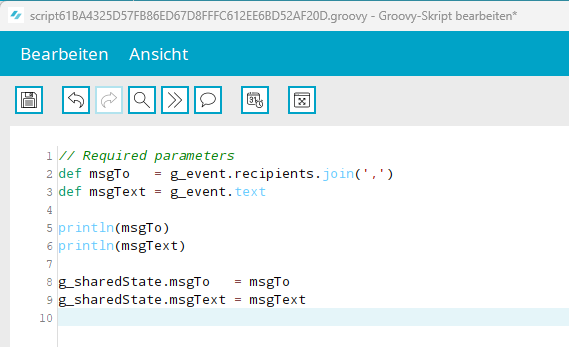
Upload the following script, which identifies the recipient and text and writes them to the processing context in Intrexx:
// Required parameters
def msgTo   = g_event.recipients.join(',')
def msgText = g_event.text
println(msgTo)
println(msgText)
g_sharedState.msgTo   = msgTo
g_sharedState.msgText = msgText
Click "OK" to close all open dialog boxes.
REST Call Action
Now add a REST Call action to the Groovy action.
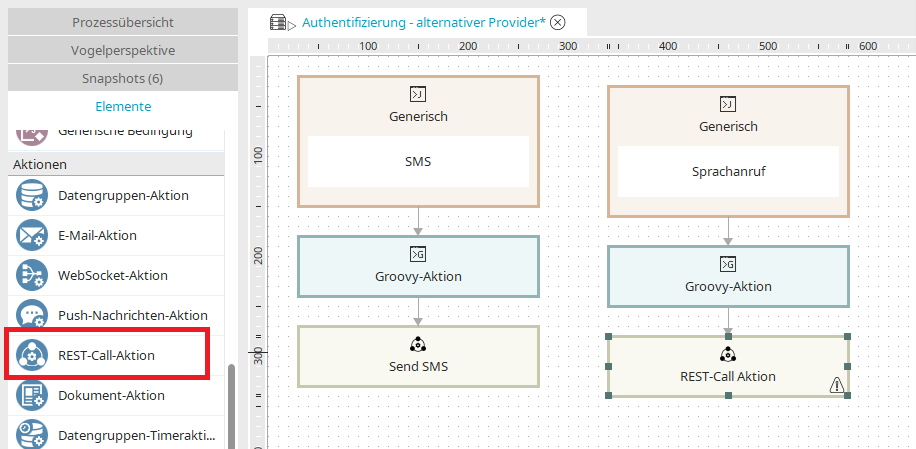
Double-click to open the Properties dialog box.
General
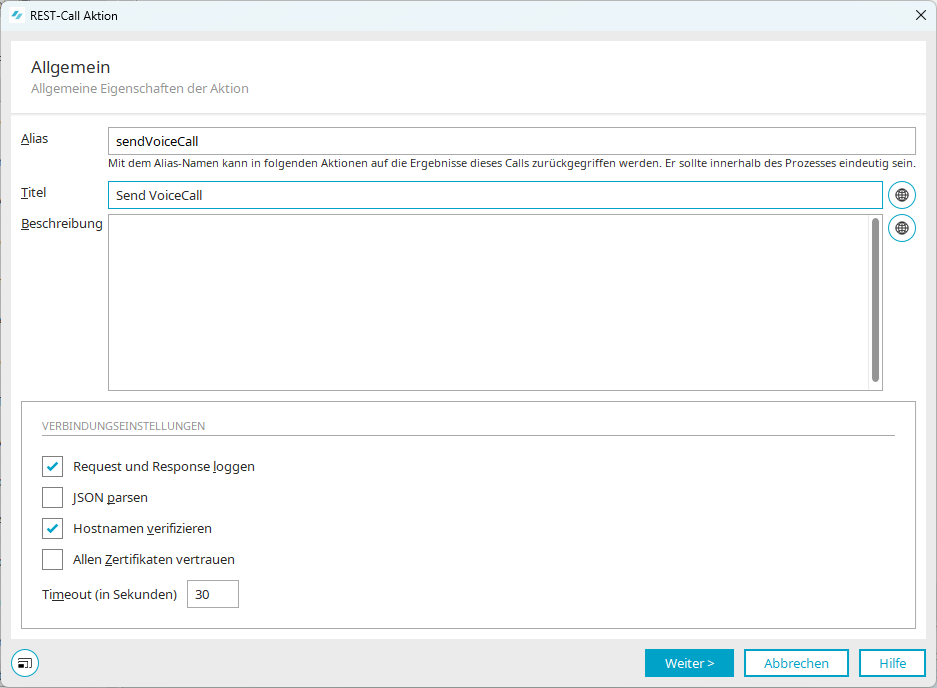
Set the alias to "sendVoiceCall" and the title to "Send VoiceCall." In the connection settings, select the "Log requests and responses" and "Verify hostname" checkboxes.
Click "Next."
Authentication and Headers
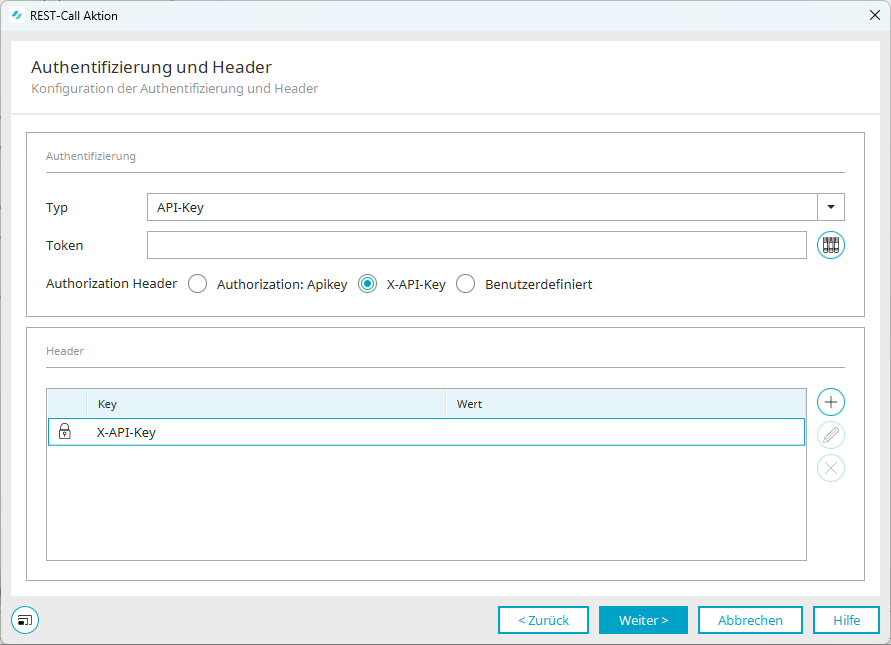
We will configure authentication using the external provider's API key. Select "API Key" from the list and choose the "X-API Key" option.
Resource Mapping
We will now populate the resource mapping with the values from the credential store and the processing context:
-
Provider's API key
-
msgFrom
-
msgTo
-
msgText
We will process this information in this and subsequent dialogs in the request.
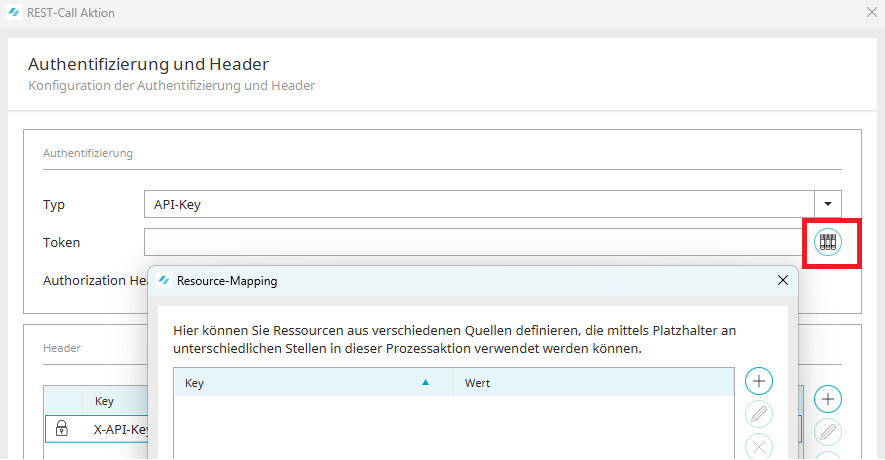
Click the "Resource Mapping" icon next to the "Token" field.
apiKeyProvider
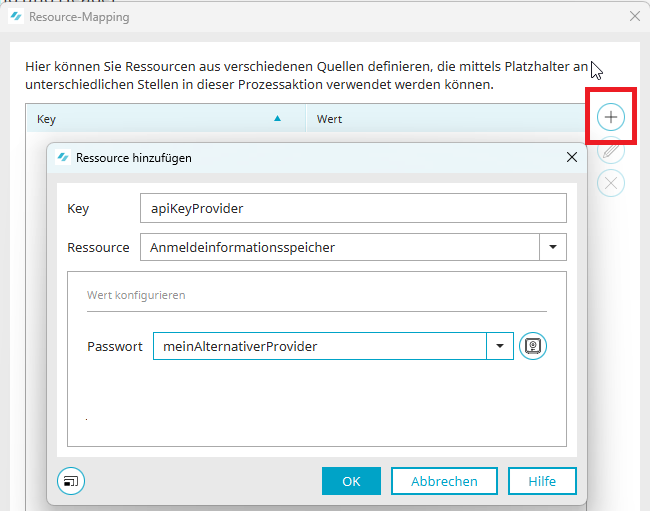
In Resource Mapping, click the plus icon to add a new resource:
-
Key: apiKeyProvider
-
Resource: Authentication Information Store
-
Password: Select the entry for your provider's stored API key
Click "OK" to confirm the dialog box.
msgForm
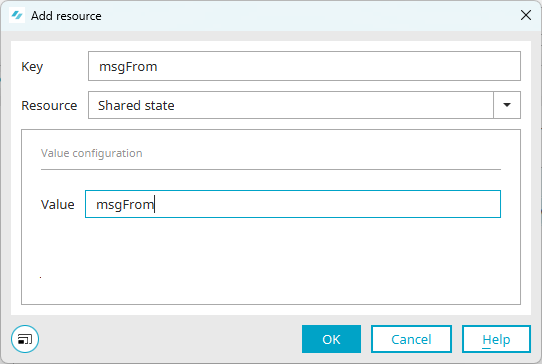
In Resource Mapping, click the plus icon again to add the "msgForm" resource from the processing context.
-
Key: msgForm
-
Resource: Processing Context
-
Value: msgForm
Click "OK" to confirm the dialog box.
msgTo
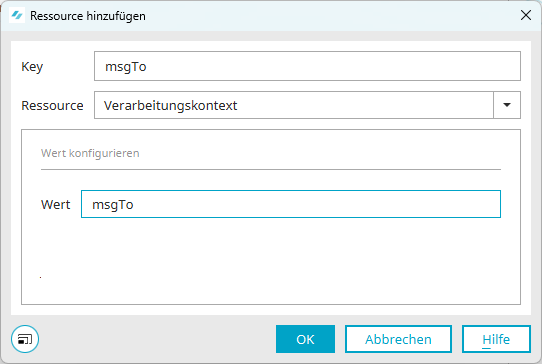
Use the plus icon to create a new resource:
-
Key: msgForm
-
Resource: Processing Context
-
Value: msgForm
msgText
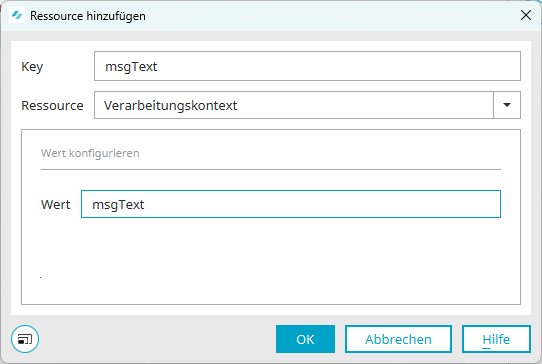
Use the plus icon to create a new resource:
-
Key: msgText
-
Resource: Processing Context
-
Value: msgText
Click "OK" to confirm the dialog box.
All resources have now been defined.
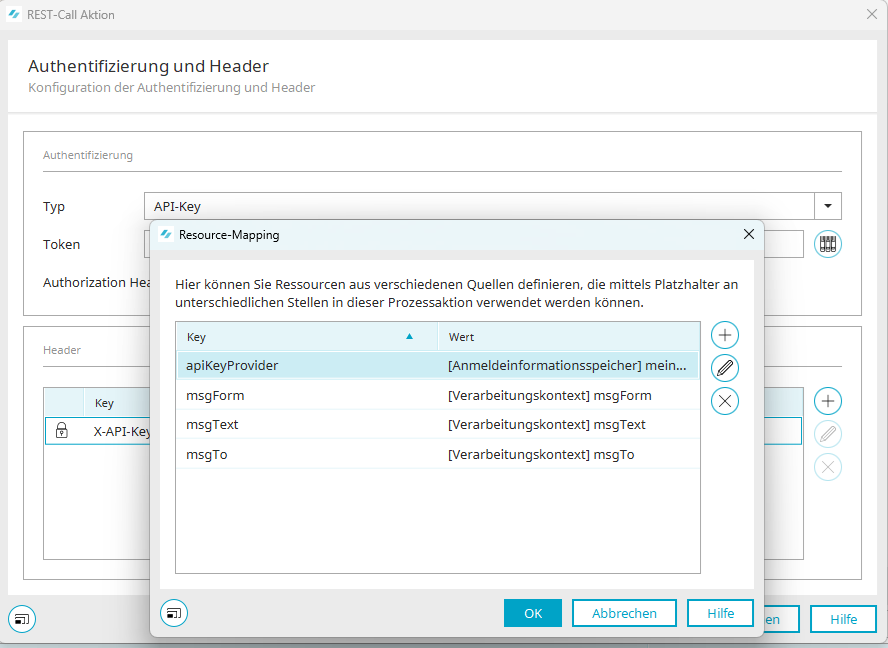
Please select the "apiKeyProvider" resource and click "OK" to confirm.
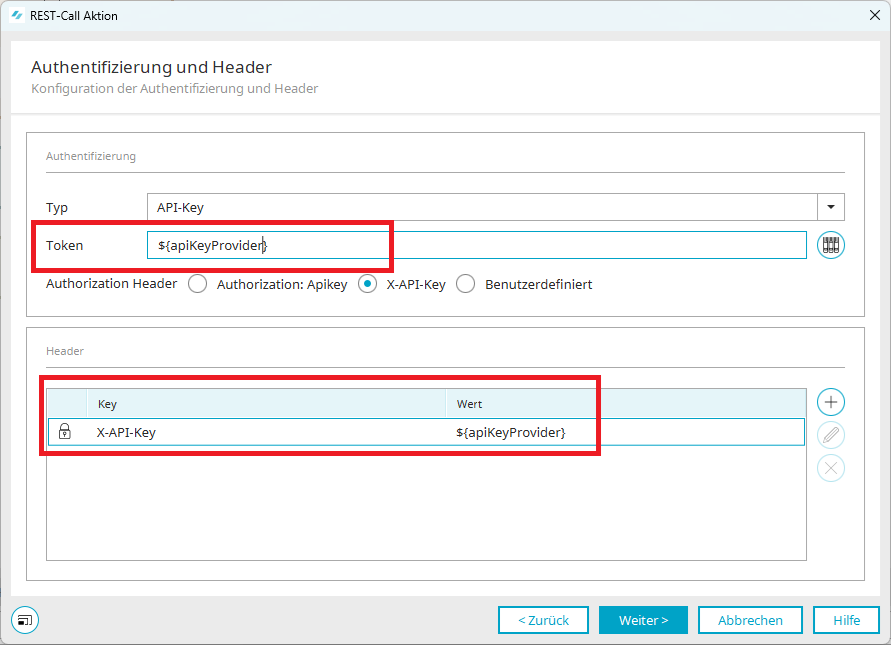
The selected resource was added to the "Token" and as a value in the "Header."
Header
Create two new entries in the header:
-
Accept
-
Content-Type
Click the plus icon to define the entries:
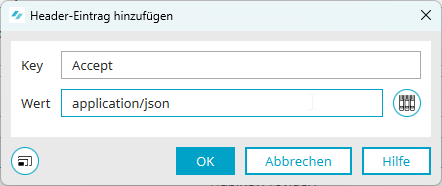
Accept
-
Key: Accept
-
Value: application/json
Click "OK" to confirm the dialog box.
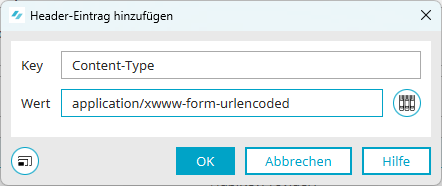
Content-Type
-
Key: Content-Type
-
Value: application/xwww-form-urlencoded
Click "OK" to confirm the dialog box.
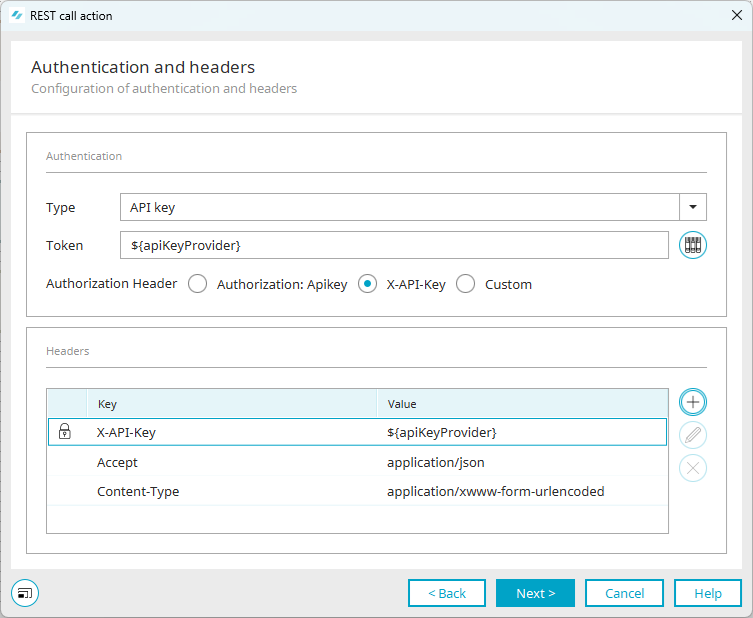
The "Authentication and Headers" dialog is now closed.
Click "Next."
Request
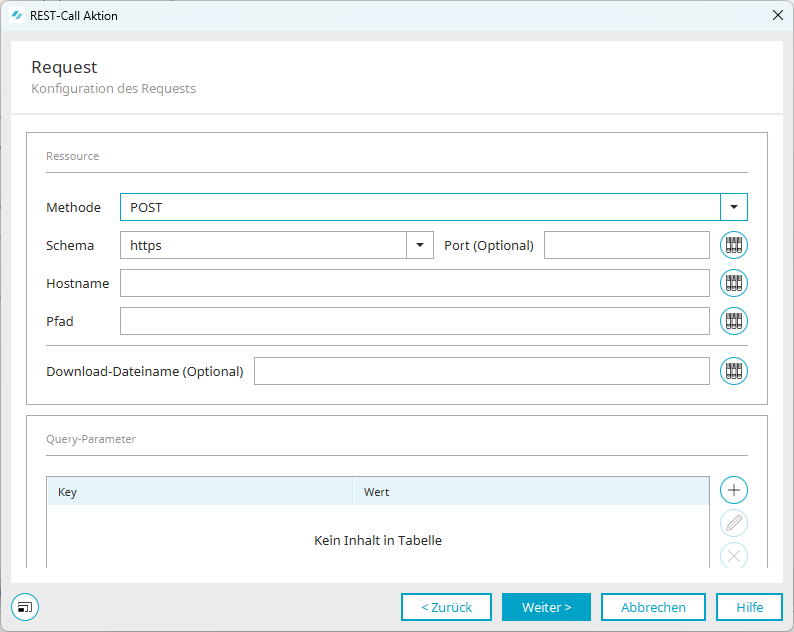
In the request, we'll now make sure that the messages are used. To do this, set the method to "POST."
Now fill in the following fields with the information provided by your provider:
-
Diagram
-
Hostname
-
Path
Click "Next."
Body
The SMS message is now defined in the body.
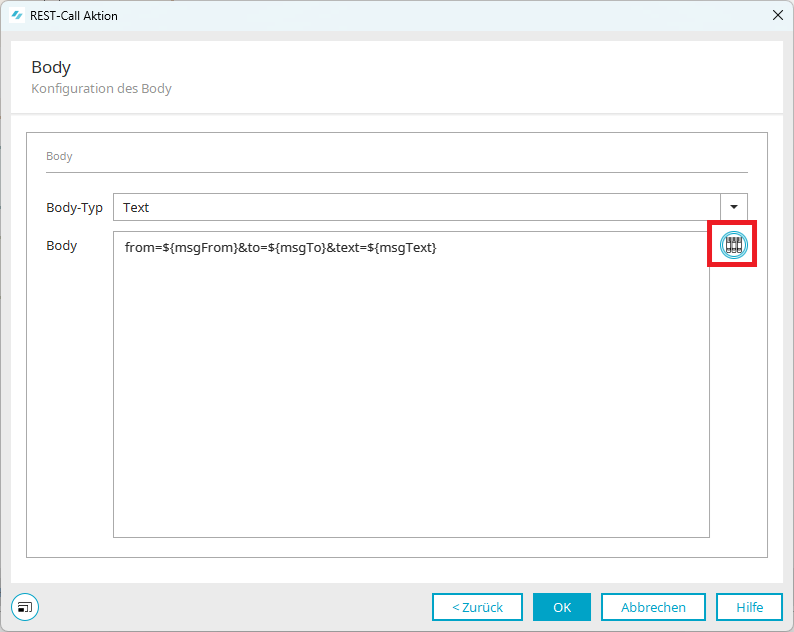
You can use the icon on the right to access the resource mapping, where you have stored all the necessary entries from the processing context.
Enter the sender, recipient, and message text as follows:
from=${msgFrom}&to=${msgTo}&text=${msgText}
Click "OK" to confirm the dialog box. The process is complete. When multi-factor authentication via the "voice call" method is selected, the process begins and sends the required information.