

Visitor Reception
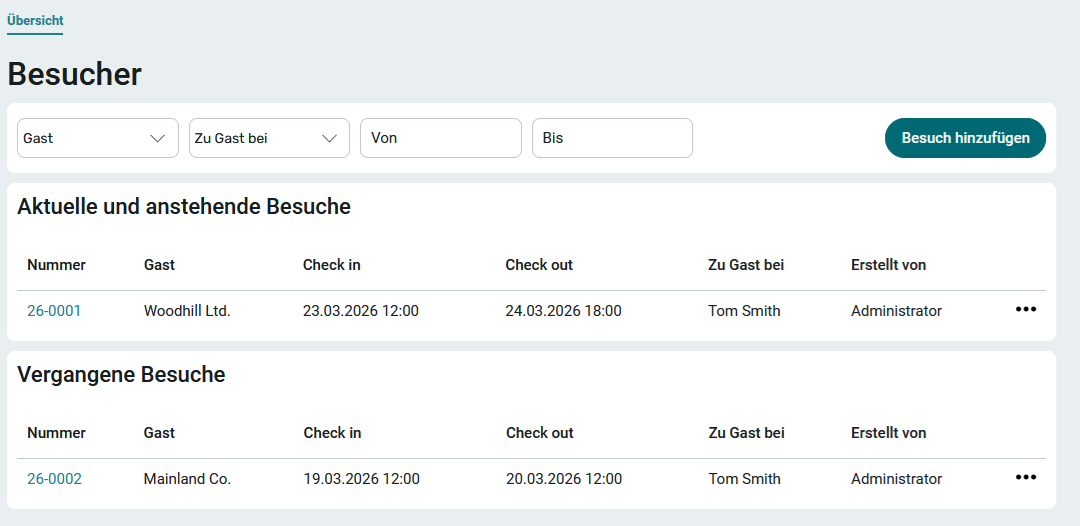
This application gives you an overview of visitors who are expected, currently on site, or have already left your company.
To learn how to import this template, see: Importing Online Application Templates.
As a member of the App_Visitor_User role, you have access to the Overview and Today's Visitors pages.
As a member of the App_Visitor_Editor role, you have access to the Overview and Today's Visitors pages. On the Overview page, as an editor, you also have the option to add new visits for individual guests.
Overview
On the Overview page, you can see current and upcoming visits, as well as all past visits.
When you click on a number , the visitor details will be displayed.
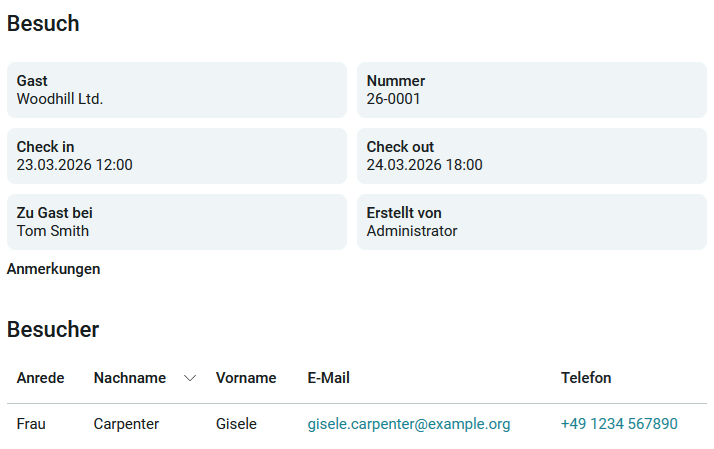
Add a visit
Step-by-Step
To add a visit, follow these steps:
1. Click " Add Visit."
2. Enter the visitor's information.
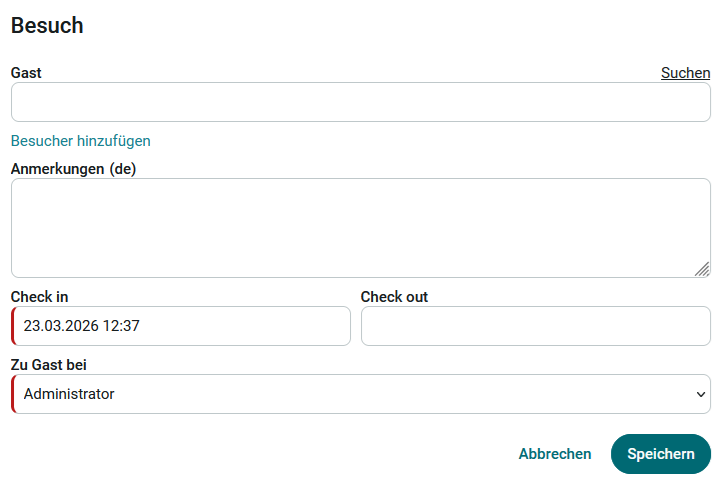
The visitor's name (company name) is entered in the " Guest" field. When you click " Search," all companies that were saved during previous visits will be displayed for you to choose from. You can enter a note below. In " Check-In," you can enter the date and time of arrival, and in " Check-Out," you can enter the date and time of departure. In "Visiting," you can select the employee you are visiting. The selection field displays all portal users who are members of the App_Visitor_User or App_Visitor_Editor role.
3. Click " Add Visitor."
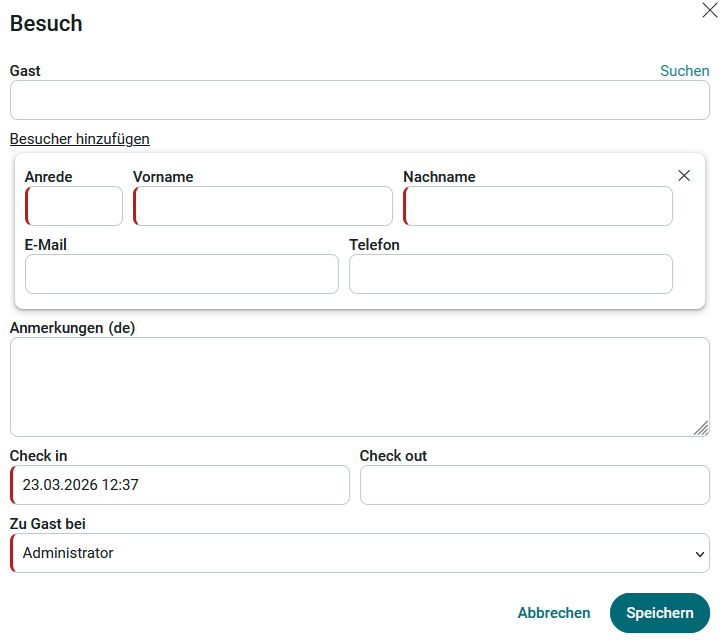
A new section appears where the visitor's information can be entered. This step can be repeated as many times as necessary until all of a guest's individual visitors have been recorded.
4. Click Save.
Options
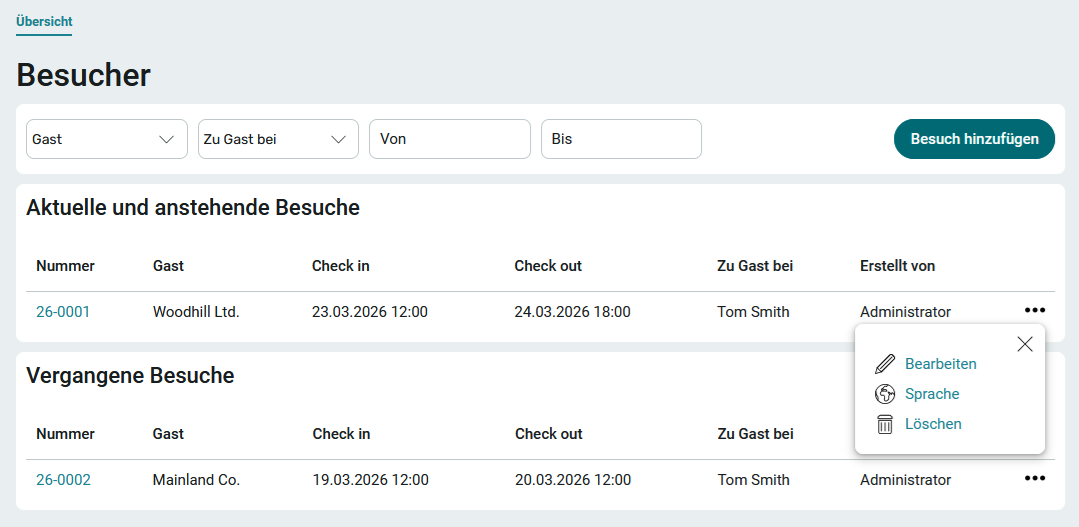
As a member of the App_Visitor_Editor role, you'll find the Options button on the Overview page for each visitor. Using the menu, you can edit the data, as well as enter or delete it in multiple languages.
Portlet
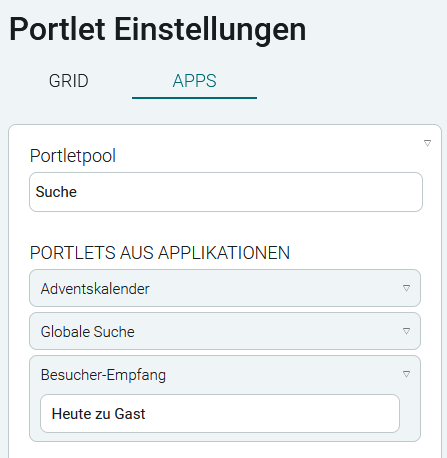
The "Visitor Reception " application includes a prebuilt portlet of the same name that you can integrate into the portal.

To learn how portlets work and how to integrate them into portal pages, see: Portlets.