

Statistics
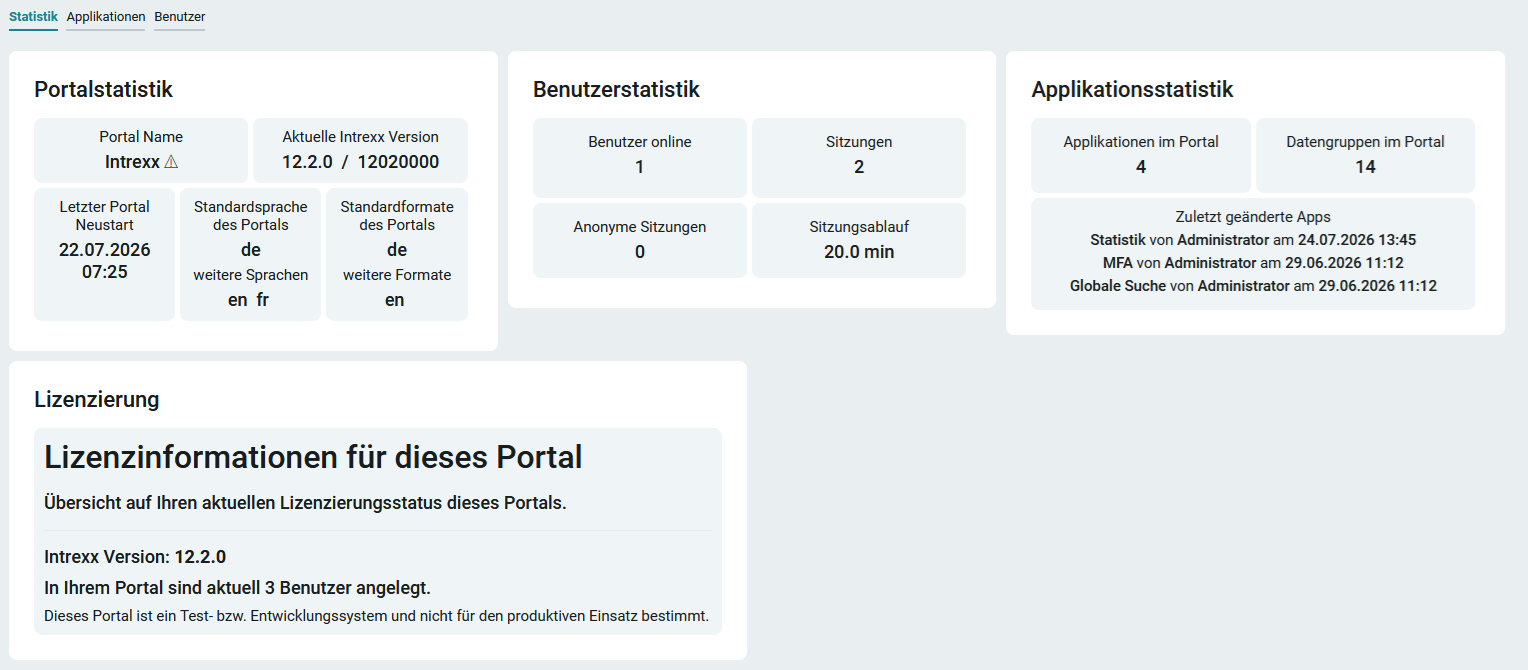
This application provides you with portal, user, and application statistics. You'll also find the license information there. To learn how to import the template, see: Importing Online Application Templates.
Roles
Roles are automatically created when the template is imported.
App_Statistic_User
Users with this role can view the statistics.
App_Statistic_Manager
As a member of this role, you can exclude users from the list of active users ("Excluded Users"). In addition, it includes all permissions associated with the App_Statistic_User role.
To learn how to add portal users as members to these roles, see: Roles and Permissions in Application Templates.
User Tracking
To enable the collection of user-related data, enable user tracking in the portal properties. You can find all the information on this topic here:User Tracking.
Statistics
Portal Statistics
Here you can view information about your portal, such as the Intrexx version and when the portal was last restarted.
User Statistics
Here you can see, among other things, the number of users currently logged into the portal.
Application Statistics
Here you can see the number of applications and data groups in your portal. You'll also see the three most recently modified applications.
Licensing
Among other things, this page shows which licensing model you are using for your portal.
User
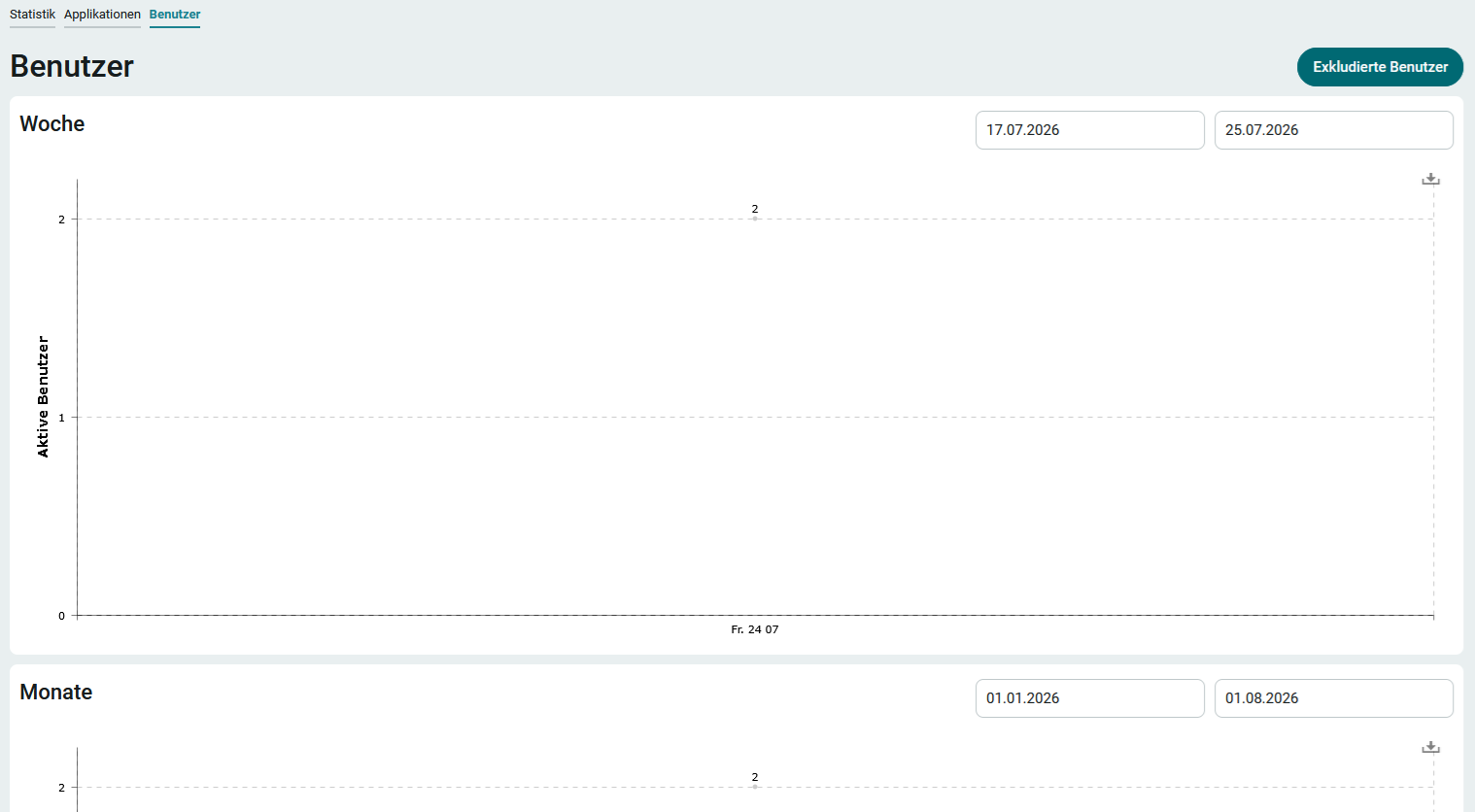
In the "Week " chart, you can see the number of active users over the past 7 days. The " Months " chart shows the number of active users over the past few months. The time periods can be changed using the date fields.
Clicking " Excluded Users " opens a page where you can exclude users from the list of active users.
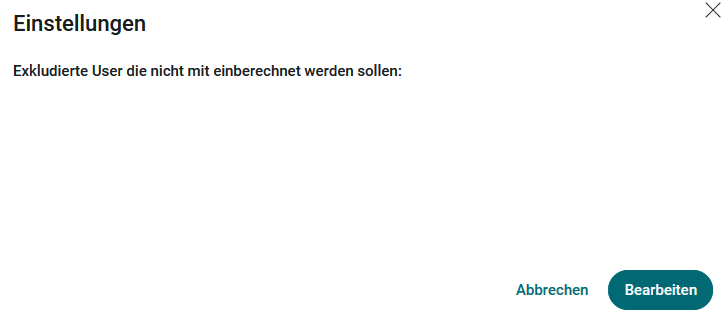
Click " Edit" here.
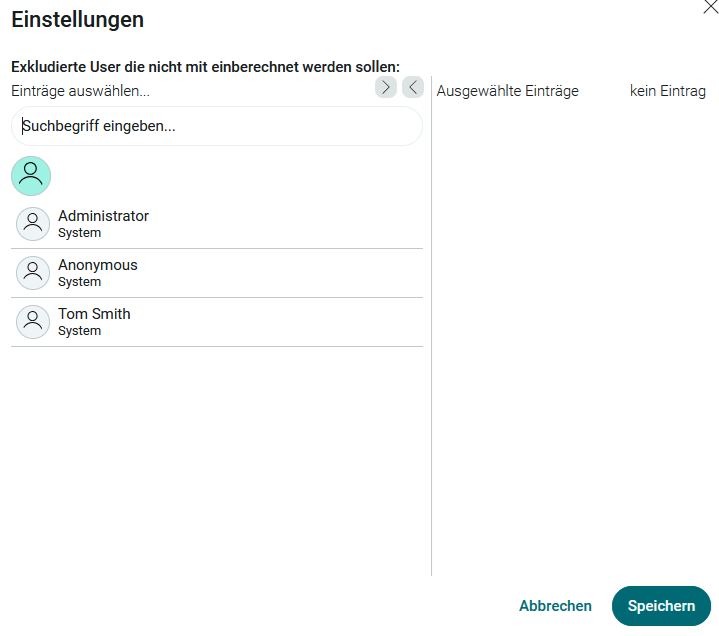
Select the users here and click Save.
Applications
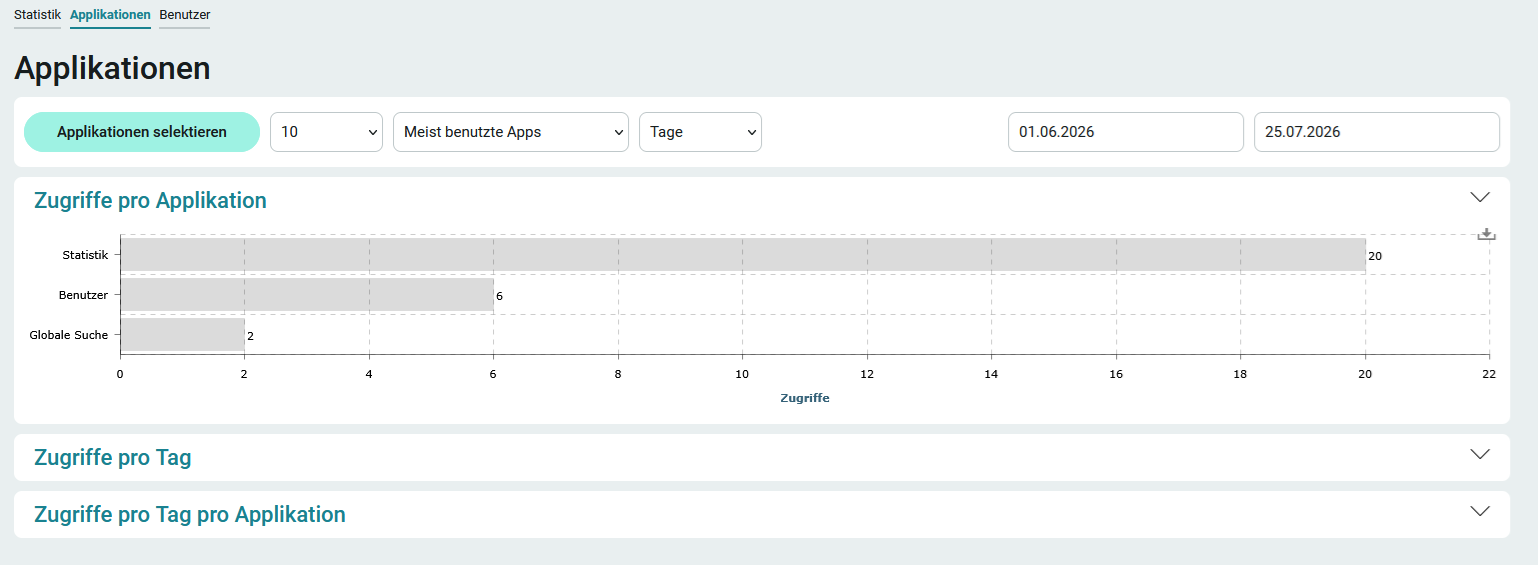
On this page, you'll find statistics on the use of the applications in the portal. There are three analysis options available:
-
Hits per Application
-
Daily Visits
-
Hits per day per application
At the top of the page, you'll find filters to narrow down the statistics. By clicking "Select Applications," you can choose individual applications and compare them with one another.
By clicking the "  " icon, which you'll find in the upper-right corner of each chart, you can export the statistics in XLSX, CSV, and JSON formats.
Delete Statistical Data
To delete the statistical data, you must delete the unwanted data (*.log files) from the <portal>\internal\statistics directory.
Here, you can delete all the data or just the data from a specific time period. This is especially recommended when there are a large number of log files or data entries in the statistics and old information is no longer needed.