

Short links
Short links can be seen as an alias for a URL on a page in the portal. Short links can be shared with colleagues or external partners, for example, and make it easier to find the desired page. A short link is easy to read. As a result, users are more likely to know what page to expect when they click on the link.
The short link redirects the user per HTTP Redirect to the desired Intrexx page in the portal. The destination can be at any level of depth in the page structure of the portal.
Create shortlinks
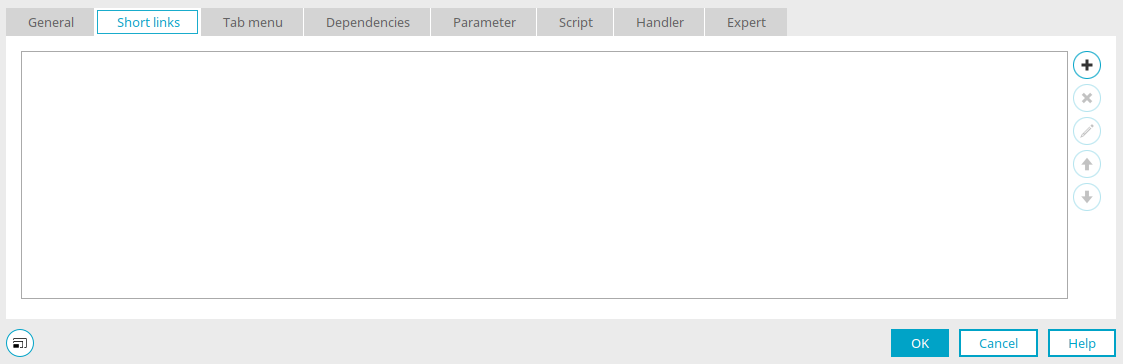
Any number of shortlinks can be created on the "Shortlinks" tab in the properties dialog of application pages.
 Create shortlink /
  Edit shortlink
Click on this button to create a new shortlink or edit an existing shortlink.
Properties Shortlink
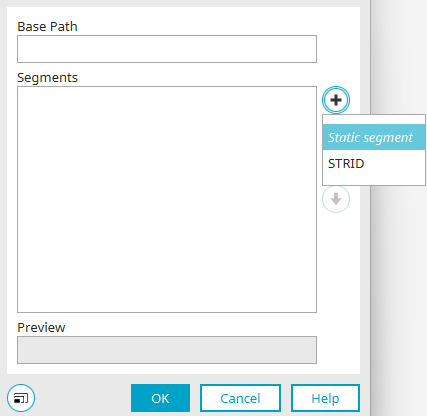
The first part (the first path segment) of the short link is a custom static text, the second part can be any parameter or another static text, for example. The short link path can be made from any number of segments.
Base path
Enter the static text without a leading slash to be used as the base path.
Segments
All created segments are listed here.
Preview
The short link is made up of the base path and segments and displayed here in the preview. It can be downloaded here and sent by email, for example.
Add segment
Opens a menu from which you can select whether static text or a parameter of the page should be used - e.g. the GUID or the STRID (primary key) for identifying the data record on an input page that should be loaded when the shortlink is clicked. Selecting the parameter enters the parameter directly as a segment.
When page parameters are deleted, the application developer is notified. The corresponding segments are removed from the link and the link can be adjusted again.
Selecting "Static segment" opens a dialog where a new short link can be created.
Create segment

Enter the text to be used as part of the shortlink and click "OK".
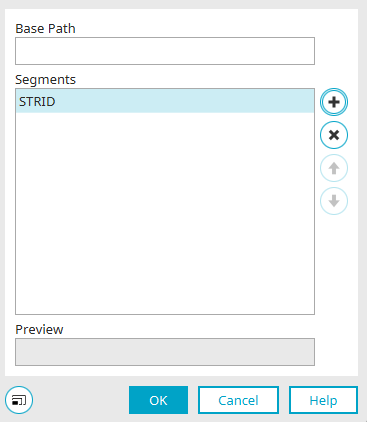
 Remove segment
Deletes the selected segment from the list.

 Move up / down
Changes the order of the segments.
Click "OK" to save the changes and close the dialog again.
Delete short link
Deletes the selected short link from the list.
Move up / down
Modifies the order of the short links.
Use shortlinks
When a user clicks on a short link, the corresponding page is loaded. If placeholders are used instead of static segments, the placeholders must be replaced with definite values.
Examples
| Defined shortlink: | /Seminars/${category} |
| Loaded with: | https://<server>/Seminars/Basics |
The ${category} parameter can be used, for example, to filter offered seminars by category.
| Defined shortlink: | /test/${STRID} |
| Loaded with: | https://<server>/test/<recordID> |
The short link loads the page on which the short link is defined with the corresponding data record.
More information
When an application is deleted, the short links defined there are deleted as well. The following web connector configuration parameters are not compatible with the short link feature:
-
connector.portalserver.scheme of ConnectorServlet
-
connector.portalserver.schemeOverrideHeader of ConnectorServlet
-
connector.portalserver.host of ConnectorServlet
-
connector.portalserver.hostOverrideHeader of ConnectorServlet