

Custom Solr Configuration
Starting with Intrexx Steady Track 10.15, you can manually adjust the configuration of the Solr search server while creating a portal. In particular, you can choose whether to use the Solr search server in standalone mode or SolrCloud mode.
For more information on using the Solr search server in cloud mode, see the following link, among others: https://solr.apache.org/guide/solr/latest/getting-started/tutorial-solrcloud.html
You configure Solr individually while creating a portal, after you have set up the front-end web server (Create a New Portal).
Step-by-Step
To configure Solr to your specific needs, follow these steps:
-
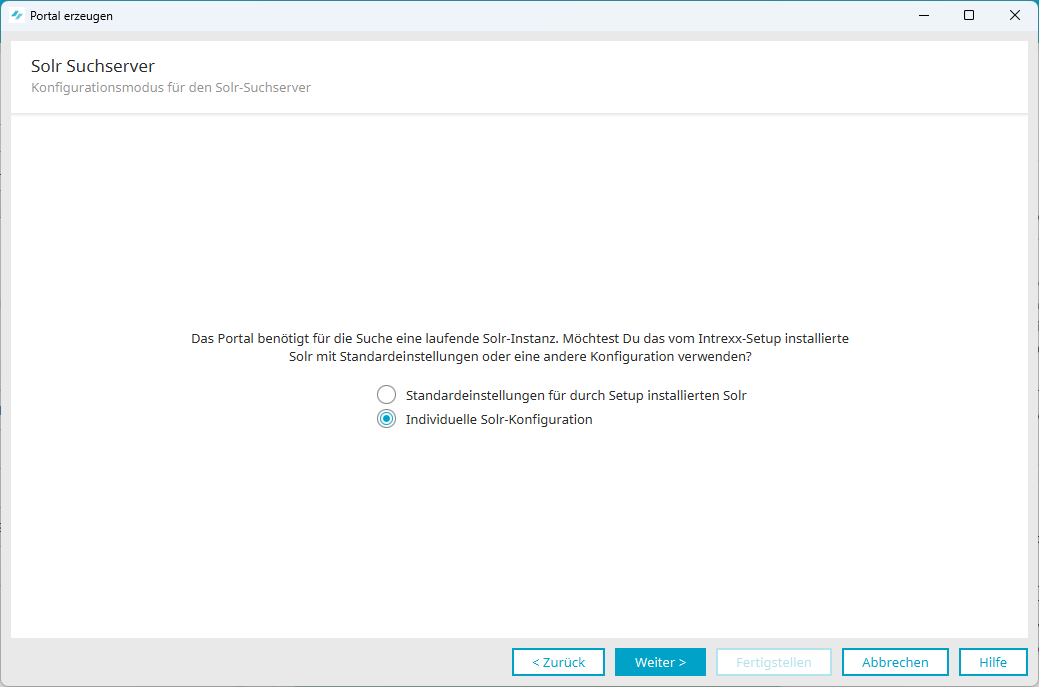
Select the "Custom Solr Configuration" option.
-
Click "Next."
This will take you to the "Solr Search Server - Connection Settings" dialog box.
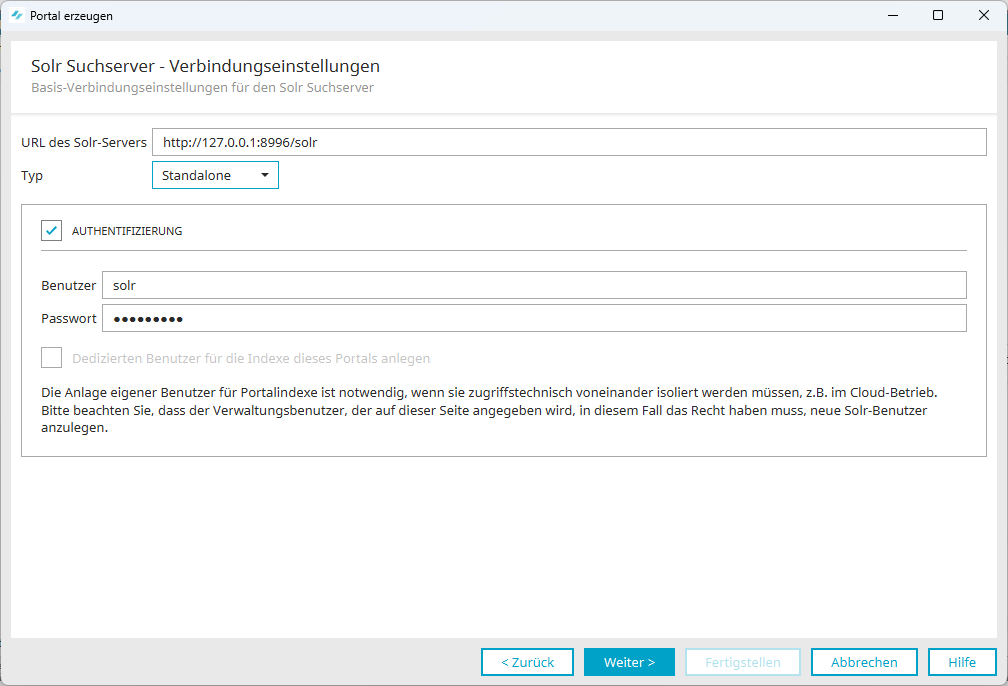
URL of the Solr server
The URL of the Solr search server is displayed here.
Example
http://127.0.0.1:8987/solr
If you have not installed the Solr Search Server on "localhost" or if you are using a different port, enter the appropriate information here.
You can access the Solr Search Server's graphical user interface by entering the Solr Search Server's URL in a browser.
Type
Here, you can choose between the HTTP (Standalone) and SolrCloud server types.
By default, the Solr search server is installed in standalone mode. The Solr search server is installed on the same server as the Intrexx Portal Server. The default username "solr" and the default password "SolrRocks" are used for authentication on the Solr search server.
Select the "SolrCloud" option if you want to configure custom settings for the Solr search server. This is especially true if you want to set up SolrCloud or make changes to the authentication settings on the Solr search server.
For more information about SolrCloud, please visit the following link: https://solr.apache.org/guide/solr/latest/getting-started/tutorial-solrcloud.html.
Authentication
Starting with Intrexx Steady Track 10.15, the Intrexx Portal Server authenticates itself with the Solr search server using a username and password.
When creating a new portal, the default username and password are preset. Please change this information.
If you uncheck the "Authentication" checkbox, you will log in to the Solr search server without authentication.
Create a dedicated user for this portal's indexes
Select this checkbox if you want to use your own users for portal indexes. The checkbox can only be selected if you have chosen "SolrCloud" from the "Type" drop-down menu.
It is necessary to create separate user accounts for portal indexes if they need to be isolated from one another in terms of access, e.g., in a cloud environment. Please note that the administrator specified on this page must have the permission to create new Solr users in this case.
-
Click "Next."
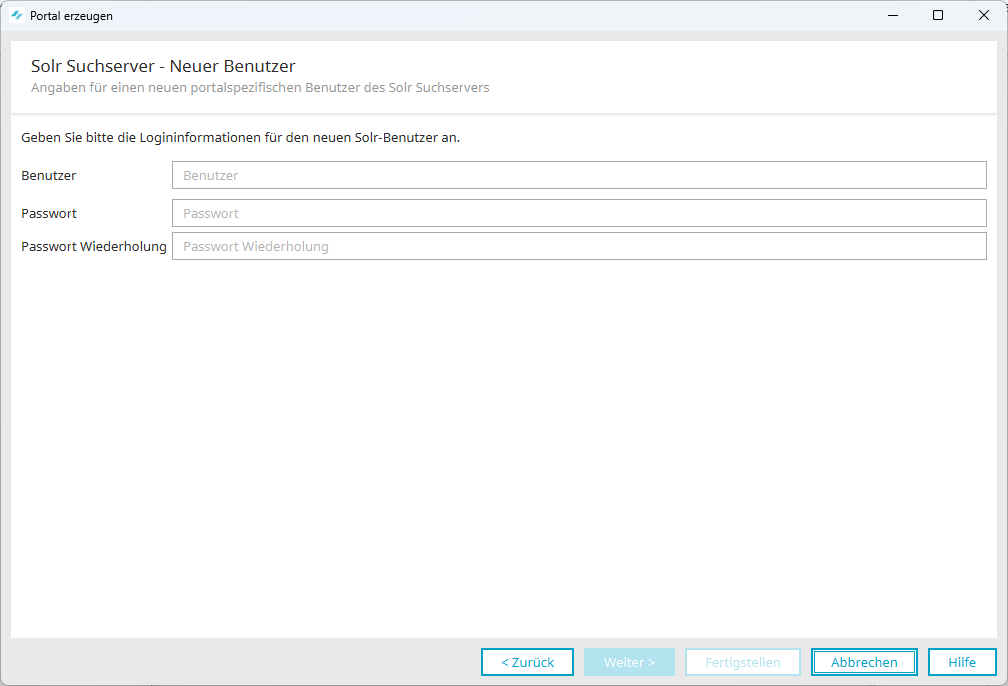
If you have selected the "Create a dedicated user for this portal's indexes" checkbox, the "Solr Search Server - New User" dialog box will appear.
-
Enter the user information.
-
Click "Next."
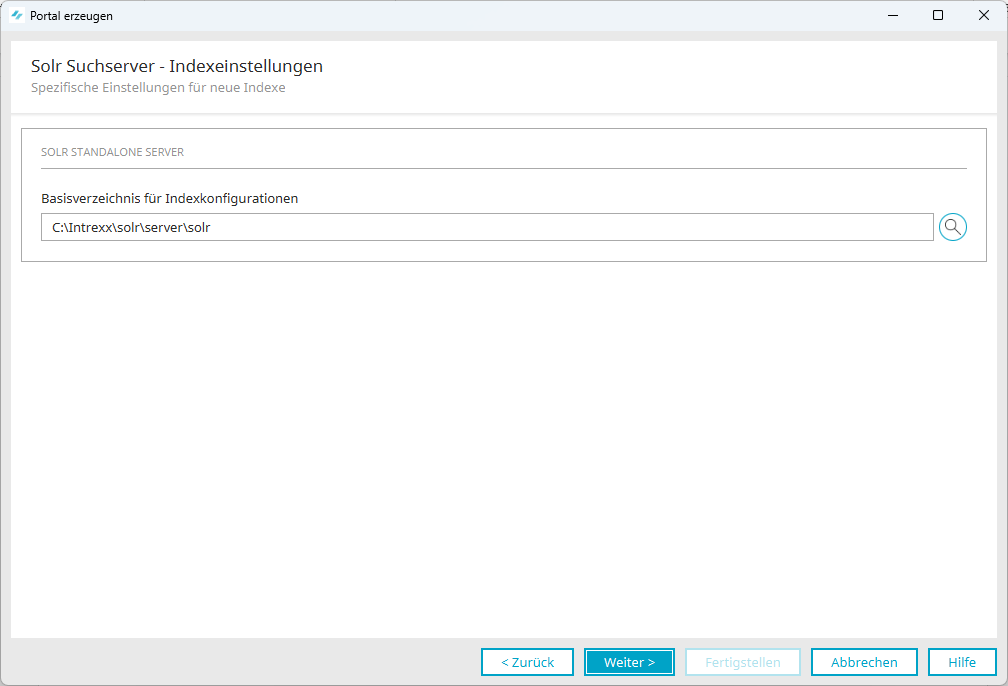
This takes you to the "Solr Search Server - Index Settings" dialog box.
-
Here you can customize the base directory for index configurations.
The default directory `solr/server/solr` is located in the Intrexx installation directory if the Solr search server was installed as part of the Intrexx setup.
-
Click "Next" to continue creating the portal.
More Information