

Please note that this scenario is intended only for test and development portals.
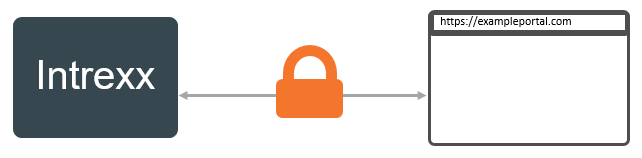
Starting Point: You have already created the portal.
You can encrypt the connection between the Intrexx Portal Server and the browser using a self-signed certificate or a certificate issued by a certification authority. If you use a certificate issued by a certification authority, you must store it in a certificate store. You must create this manually.
Step-by-Step
To set up an encrypted connection for this scenario, follow these steps:
-
Open the portal properties (Portal > Portal Properties).
-
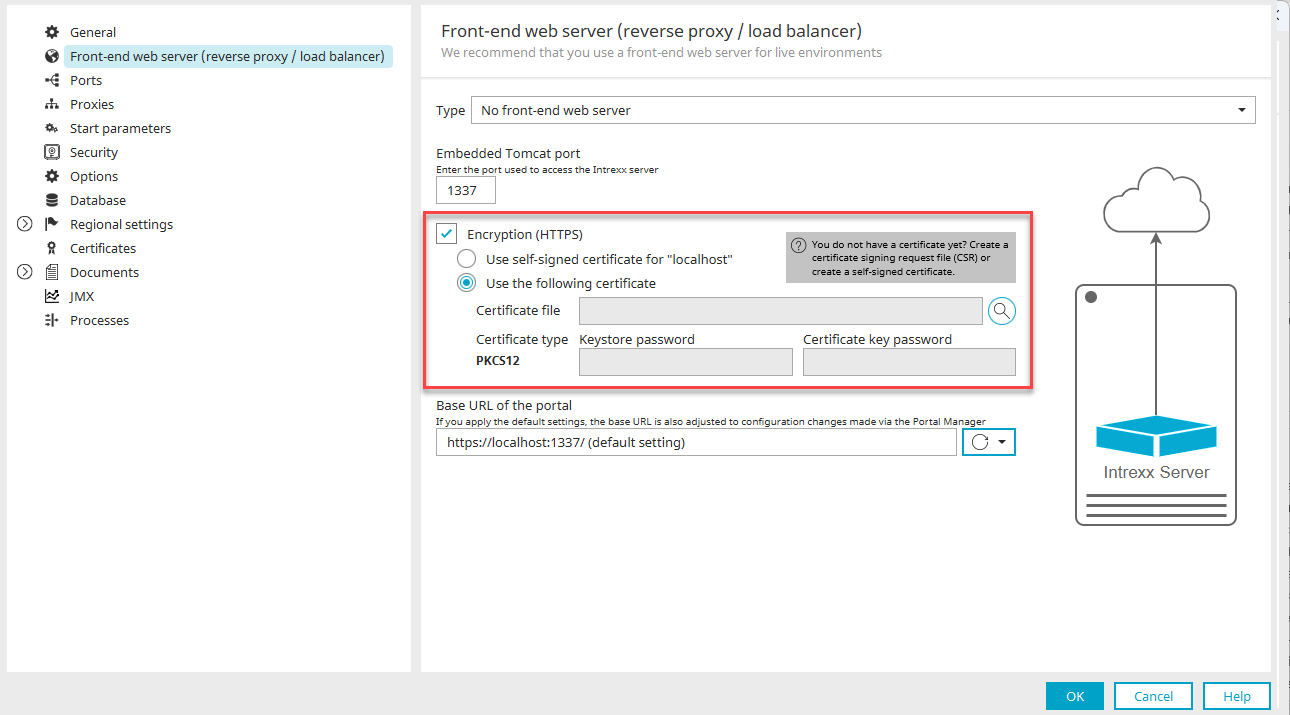
Under Frontend Web Server (Reverse Proxy / Load Balancer) > Type "No Frontend Web Server," select the option "Encryption (HTTPS) > "Use a self-signed certificate for 'localhost'" or "Use the following certificate."
Name
Description
Type
Select "No front-end web server" here.
Embedded Tomcat Port
Enter the port here through which Embedded Tomcat should be accessible. This is usually port 1337.
Encryption (HTTPS)
Select this checkbox if you want to establish an encrypted connection between Intrexx or the embedded Tomcat and the browser.
Self-signed certificate for "localhost"
Select this option if you want communication between the embedded Tomcat and the browser to be encrypted using a self-signed certificate (for test or development portals).
In this case, Intrexx automatically generates a self-signed certificate and uses it for the encrypted connection.Use the following certificate
Select this option if you have a certificate.
You usually need to store this certificate in a certificate store that you have created manually beforehand. (The certificate used here will not be stored in your portal's certificate store.)Certificate File
You can use the "
 " icon to locate the certificate file.
Certificate Type
Select the type of certificate store (keystore) here where you have saved the certificate file.
Key Storage Password
Enter the password here for the keystore where you have stored the certificate file.
Certificate Key Password
Enter the key for the certificate file here.
Note: The keystore password and the certificate key password are often the same.
Portal Base URL
The base URL must be specified here.
The first part consists of the minutes. Please note that "https" is specified here. The second part consists of specifying the hostname that you have defined in the NGINX configuration file. Note that a trailing slash (/) is included. It is essential that you enter the correct information so that your portal can be accessed in the browser. -
Enter the required information.
You have set up an encrypted connection between the Intrexx Portal Server and the browser.