

Intrexx Components - Portal Server and Portal Manager
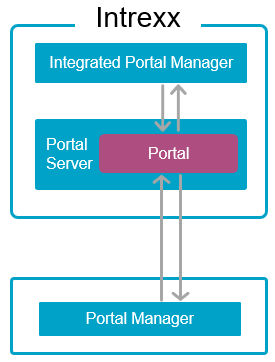
Intrexx consists of two core components: "Portal Server" and "Portal Manager." To install, operate, and use Intrexx, it is helpful to understand the interaction between these two components.
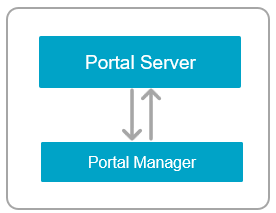
Portal Server
The Portal Server is the main component in Intrexx. It contains several components, including the web server (Embedded Tomcat) on which your portal or applications and processes run. Multiple portals can run on one Portal Server. Usually, the search service for your portal (Apache Solr) also runs on the Portal Server.
The Portal Server runs continuously after installation (as a service), except when running updates.
The Portal Server does not actually have a graphical user interface. To access the portal server or your portal, you need the Portal Manager.
Portal Manager
The Portal Manager is the other main component in Intrexx. It is a separate program that exists independently from the Portal Server and runs separately as its own service.
In the classic setup, the Portal Manager is installed on your (physical or virtual) server with the Portal Server when you run the setup. You can start the installed Portal Manager there, for example, in the Start menu.
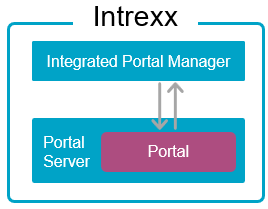
The Portal Manager is also available in a version that does not require installation. You can download this version to your computer (client) and run or launch it immediately.
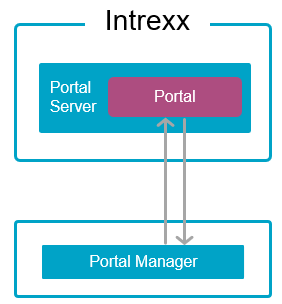
This version of the Portal Manager must be purchased separately. It can be downloaded via the settings in the portal. You can find instructions here: Download Portal Manager.
Portal
Once you have created a portal, you can download the Portal Manager that corresponds to your Intrexx version at any time through the portal.
-
Enter the URL of your portal into the browser.
-
Log in to your portal.
-
Click on Settings
 (
( ).
). -
Click the "Portal Manager" menu item (
 ).
).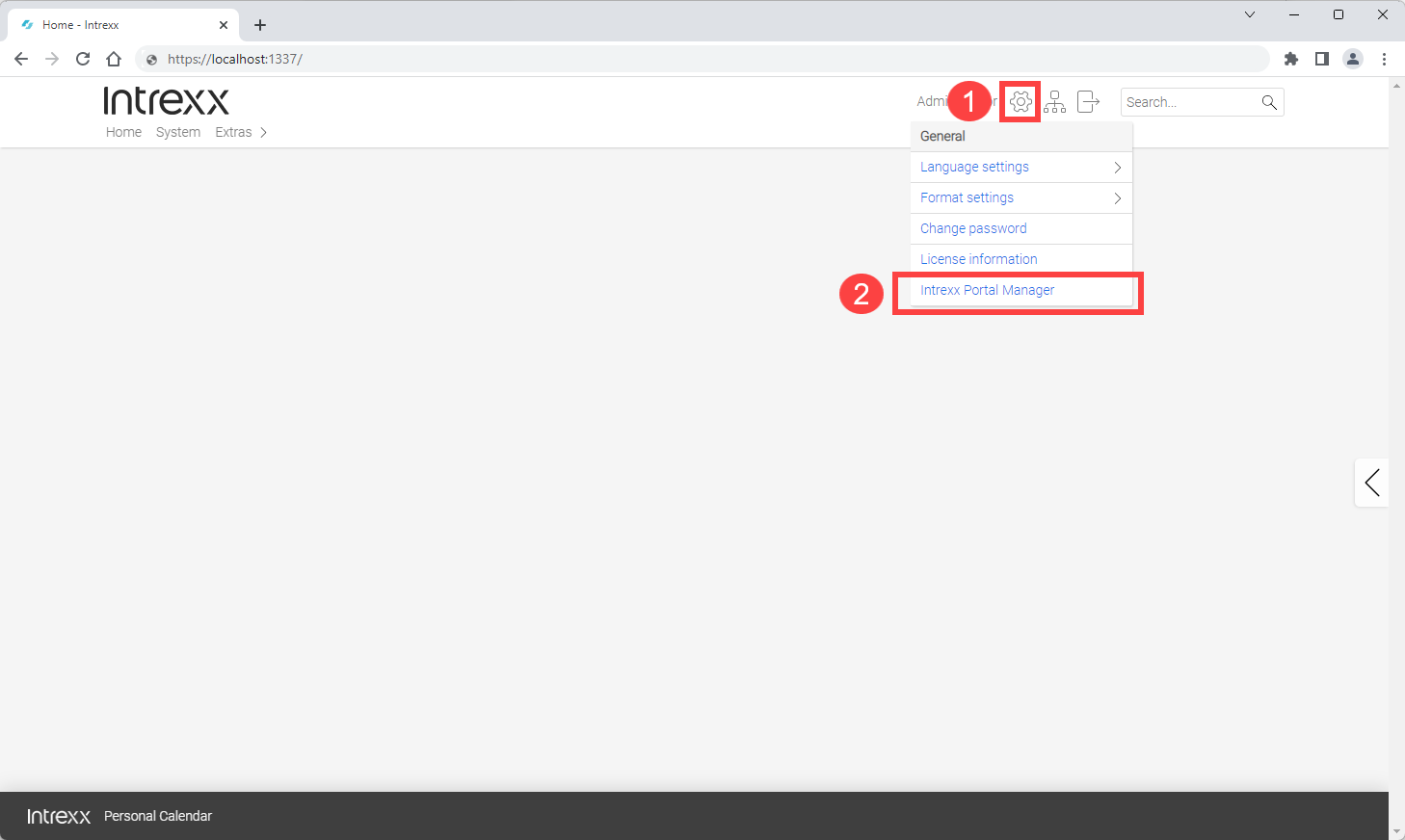
The Portal Manager download will begin.
"Portal Manager" and "Integrated Portal Manager"
The online help usually does not distinguish between the version of the Portal Manager that is installed during setup and the version that you must obtain separately. This is because both versions essentially have the same range of functions.
In some scenarios, however, it may be necessary to refer to the Portal Manager installed. This is required for some administrative tasks, for example. In such cases, the term "Integrated Portal Manager" is used in the online help.
Using the Portal Manager
Using Portal Manager, you can connect to your portal and then use Intrexx's features.
If you are using Intrexx in the PaaS version or in a Docker container, only the Portal Manager is available to you. The Integrated Portal Manager cannot be used with these variants.
If you use the on-premises version, both the Portal Manager and the Integrated Portal Manager are available to you.
Features
With the Integrated Portal Manager, you can perform central administrative tasks. These include, among other things, performing updates and creating, deleting, and importing portals.
These administrative tasks cannot be performed using Portal Manager.
With the PaaS option, administrative tasks are performed by Intrexx GmbH, so you do not need to use the Integrated Portal Manager.
Connect to the portal
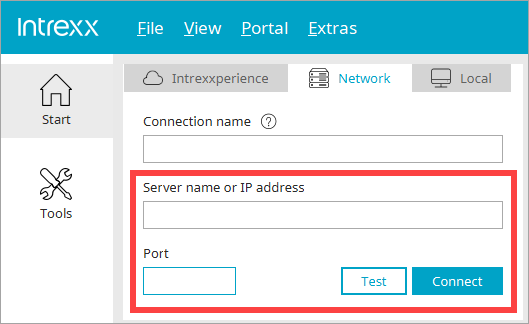
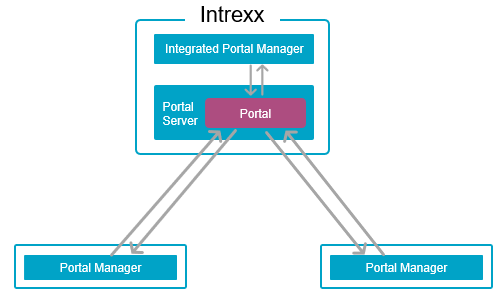
When you connect to a portal using Portal Manager, you'll need the name or IP address of the server on which the Intrexx Portal Server is installed. To do this, you'll need the port through which the portal is accessible.
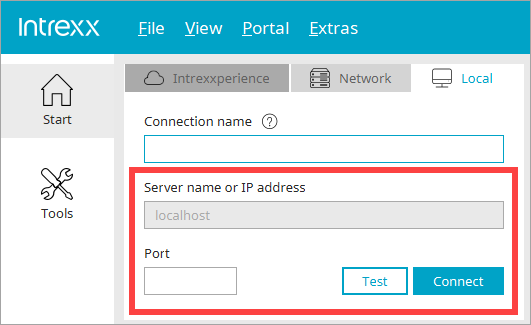
When you connect to a portal using the Integrated Portal Manager, all you need is the portal's port number. Since the Integrated Portal Manager and the Portal Server are located on the same physical or virtual server, the server name is "localhost."
Additional Connection Scenarios - Examples
PaaS: You can use Portal Manager to access your portal from your computer via the Internet.
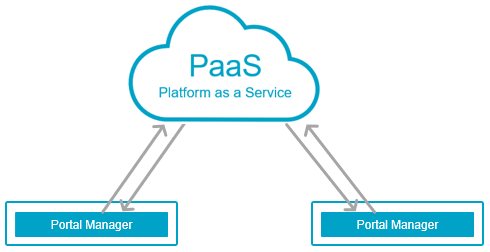
Docker : With the Docker container version, you can also use the Portal Manager to access your portal from your computer via the Internet.
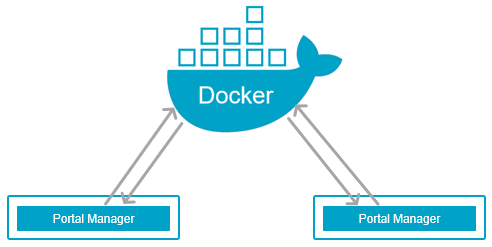
On-Premises: You can use Portal Manager to access your portal from your computer via the local network or the Internet.
You can start the Integrated Portal Manager on the server where the Portal Server is also installed and perform administrative tasks.
Portal Manager version and Portal Server version
The versions of the Portal Manager and the Portal Server must match.
If you launch the Integrated Portal Manager and try to connect to a portal running on a portal server with a different version than the Portal Manager, you will receive an error message. A connection cannot be established.
The Portal Manager behaves differently. When connecting to a portal, the Portal Manager checks to see if it is the same version as the Portal Server. If the versions differ, a message will appear informing you that you need to update the Portal Manager. The update may involve either an upgrade or a downgrade of the Portal Manager.
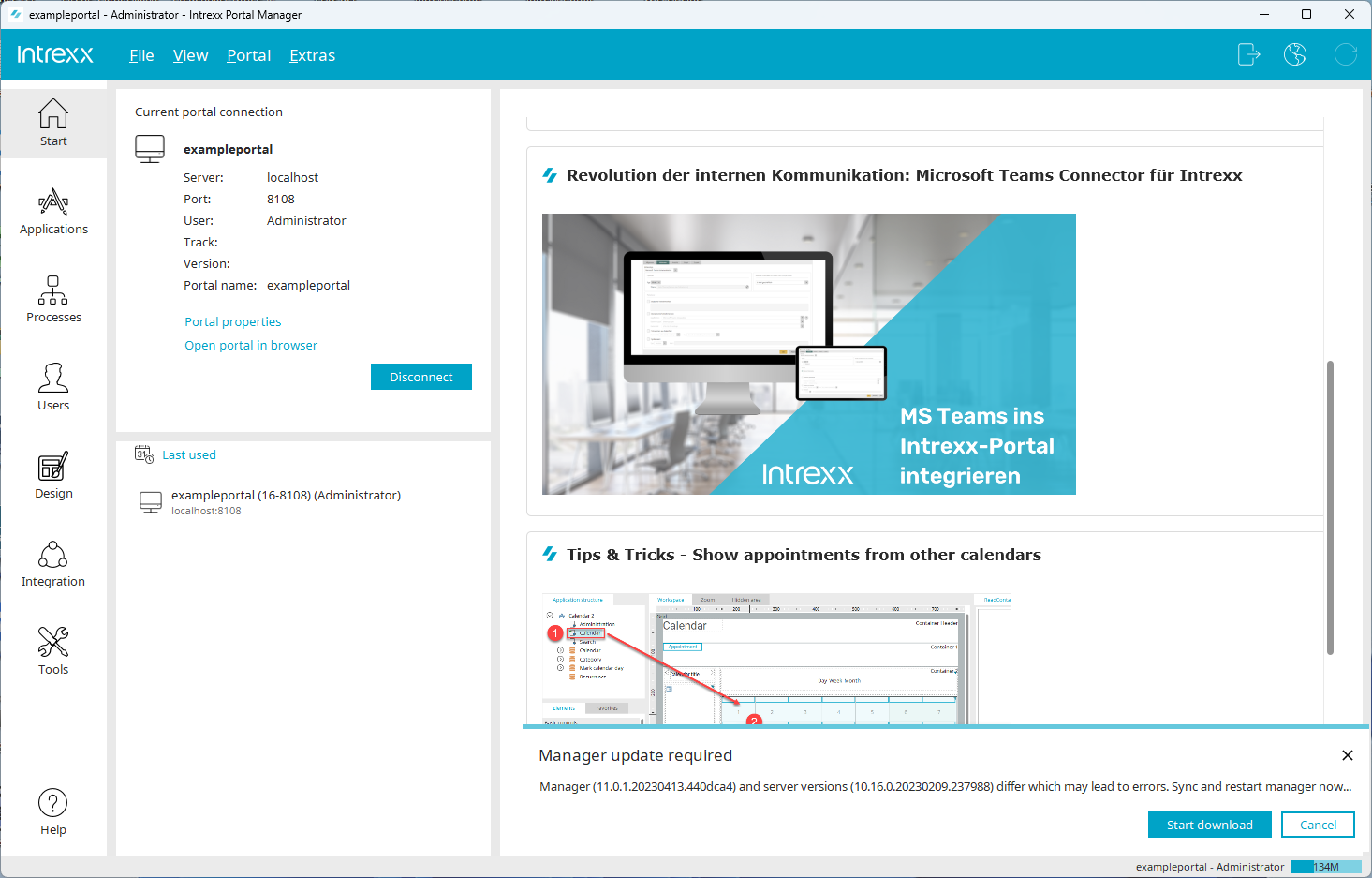
You can start the download and then complete the synchronization between Portal Manager and Portal Server.
The Portal Manager will automatically restart in the appropriate version.
Note
You must run Portal Manager as an administrator in order to synchronize it with the Portal Server.
More Information
For more detailed information on the architecture of Intrexx, see the following section: