

Approve Software Request
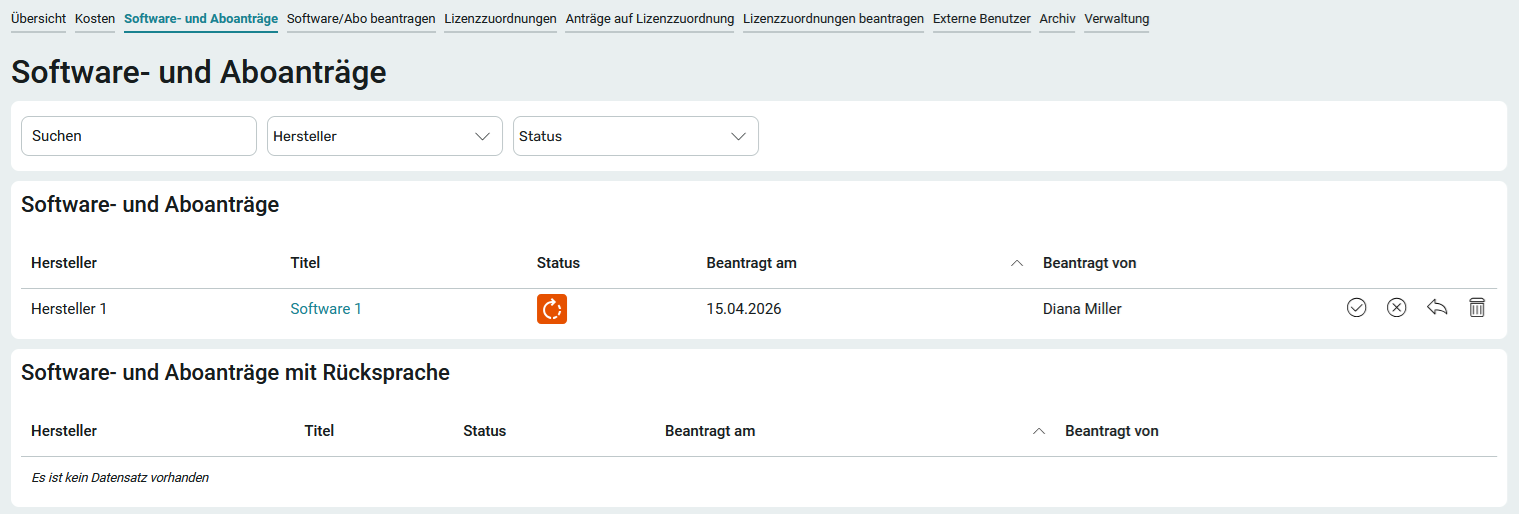
Members of the App_LicenseManager_Manager role can approve software and subscription requests on the Software and Subscription Requests page.
1. For the software request you want to approve, click "  " and then " Approve."
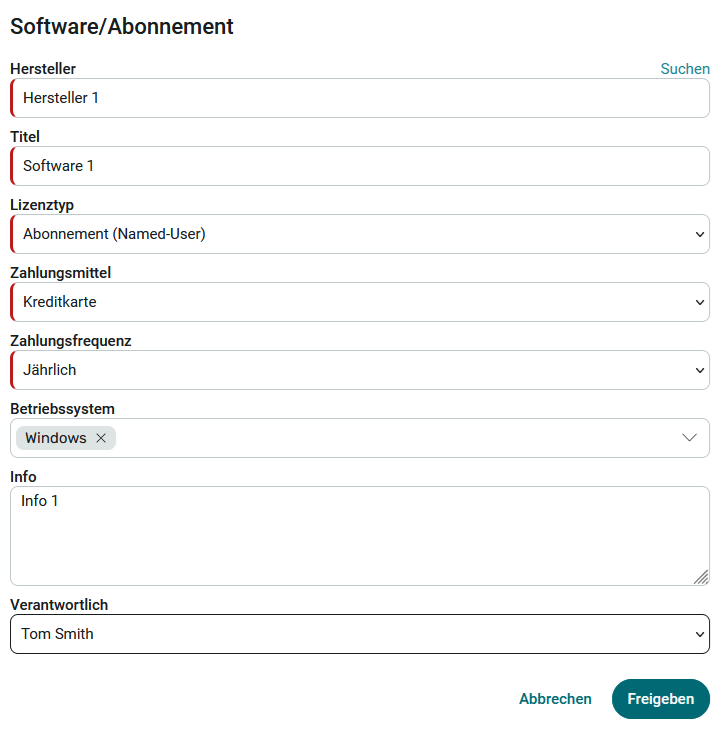
2. Select a license type and enter the relevant information. Optionally, a responsible person can be selected, for example, to determine who is authorized to perform software updates or who serves as the point of contact for the relevant IT employee.
3. Click Share.
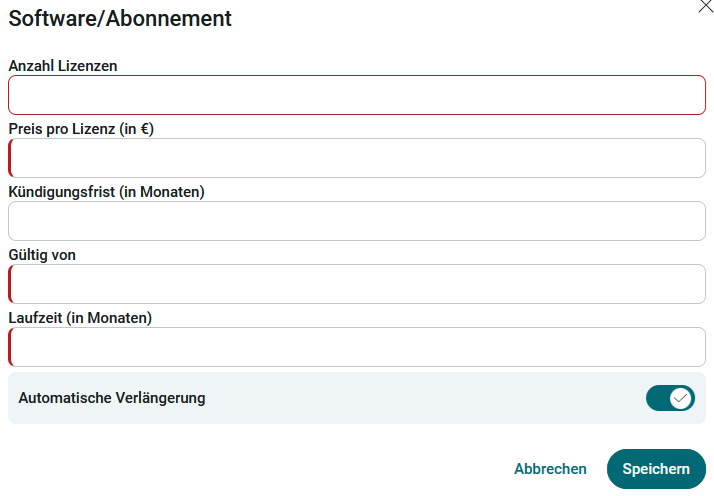
4. Enter the relevant information here.
5. Click Save.
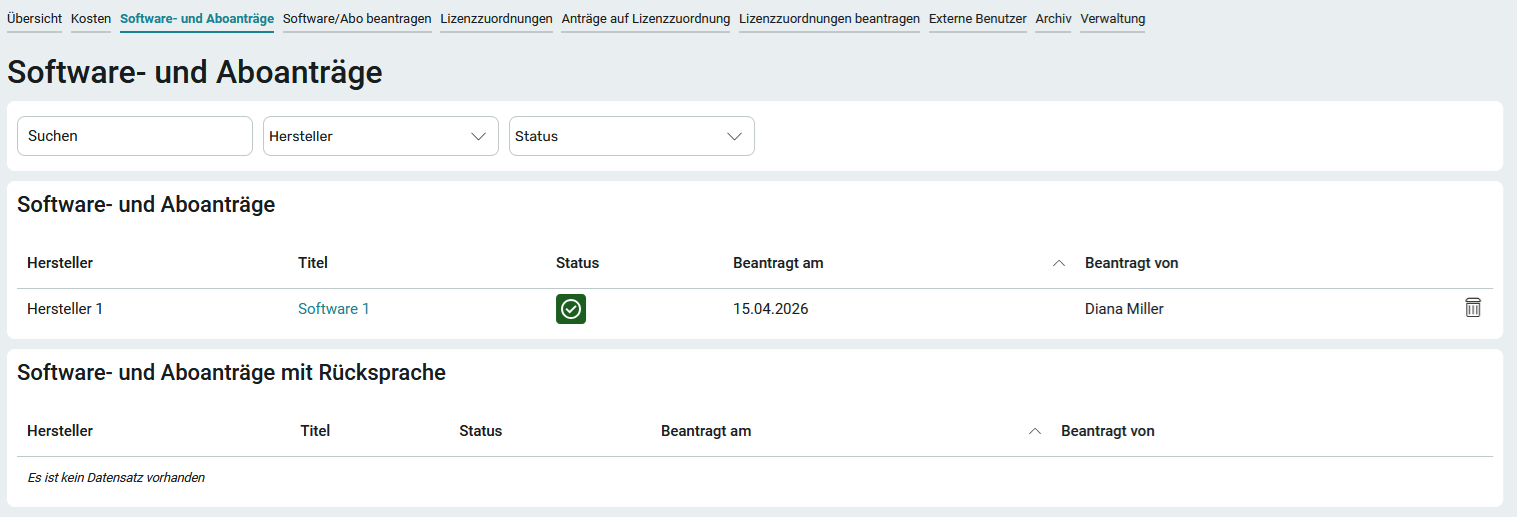
The software request will now be displayed on the Software and Subscription Requests page with the corresponding status.
Reject Software Request
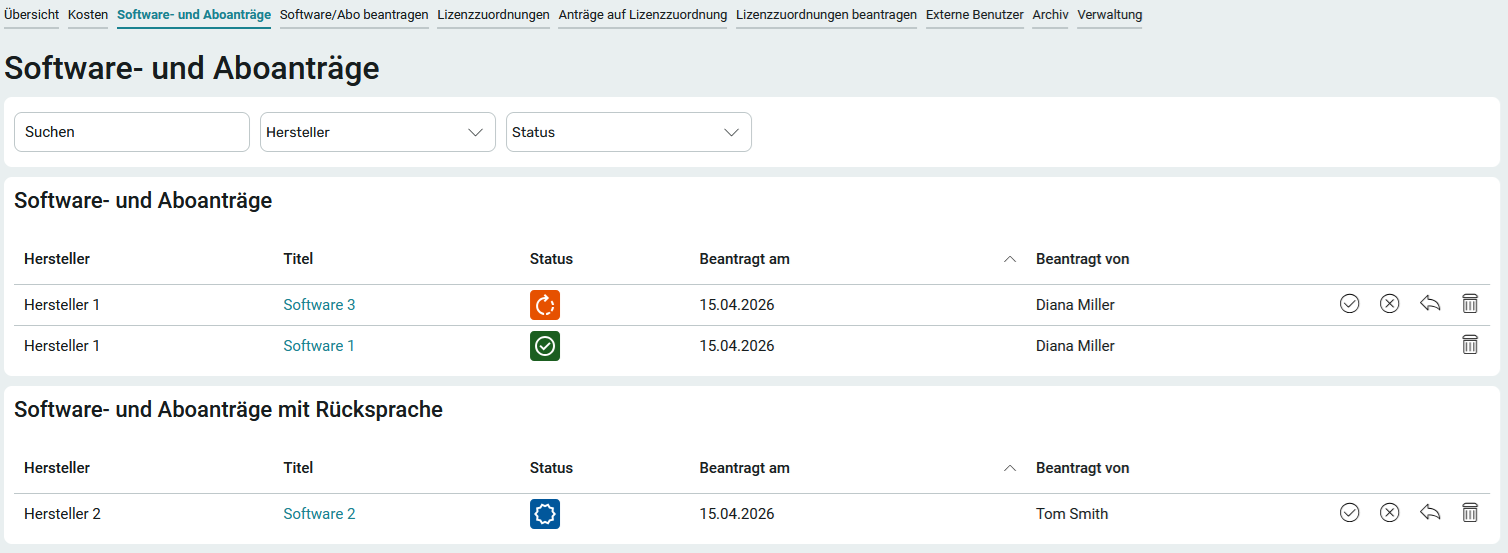
To reject an application, click "  " and then "Reject."
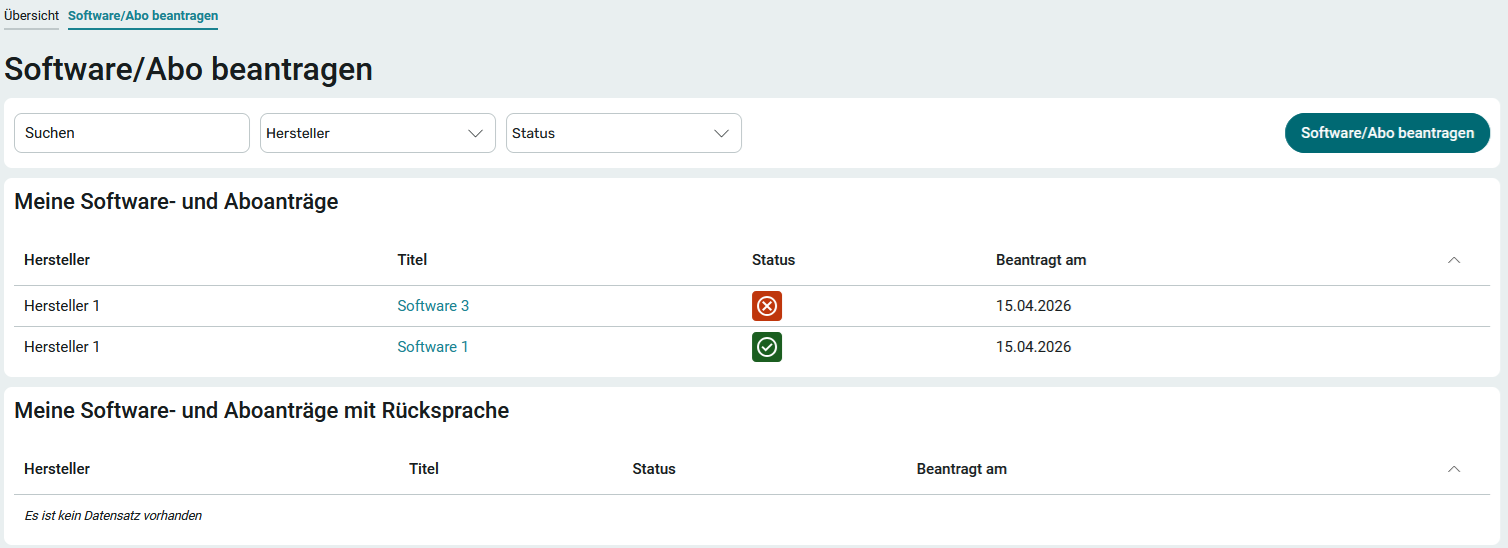
The applicant will then see the rejected request on the "Request Software/Subscription " page, along with the corresponding status.
Motions Requiring Consultation
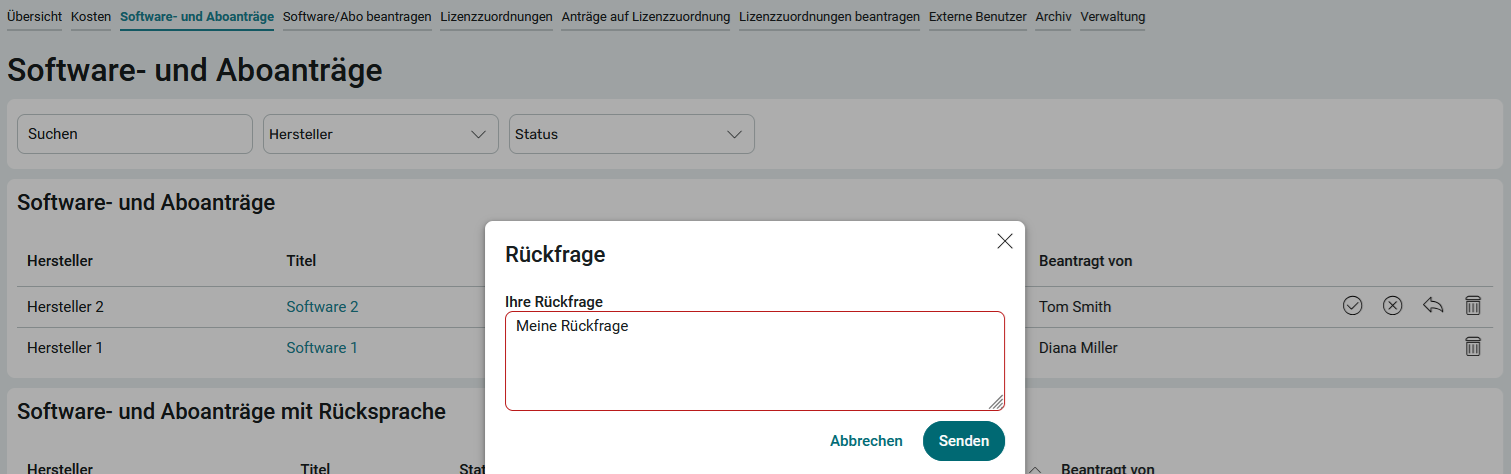
If you have any questions for the applicant before approval, click "  " under the relevant application. You can ask the question on the following page. After saving, this request will appear in the "Software and Subscription Requests " section with a note for follow-up.
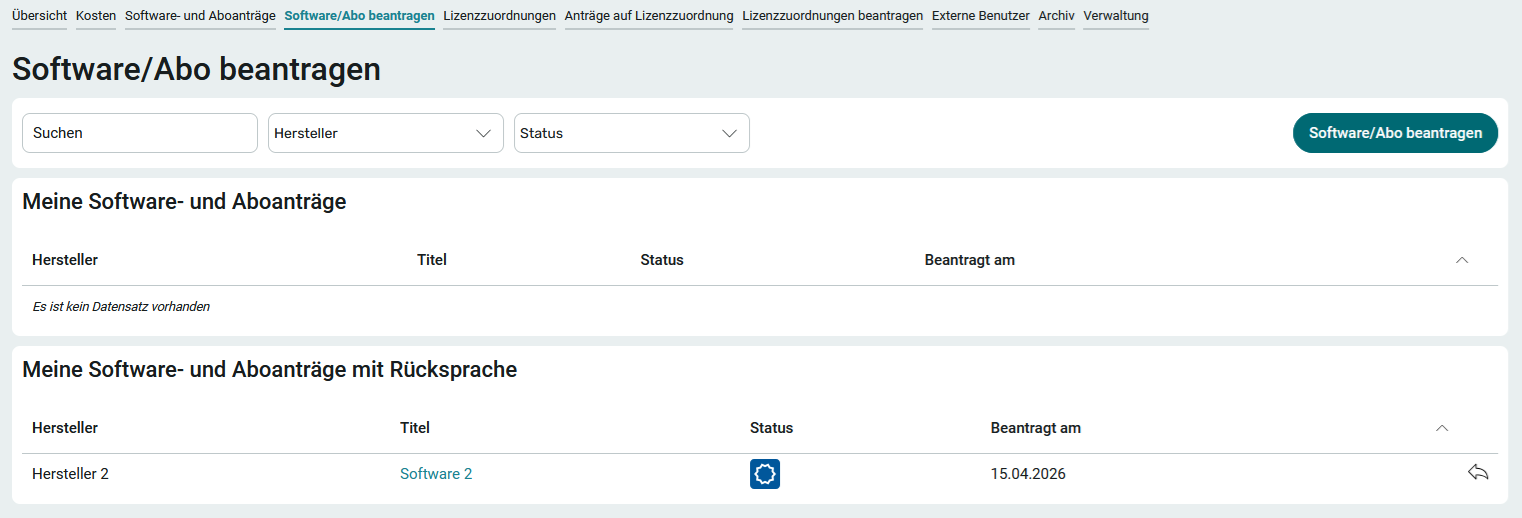
The applicant can now view this request on the " Request Software/Subscription" page—where they can also create requests —in the " My Requests " section under "Pending Review. " He can comment on the query by clicking "Query " at .
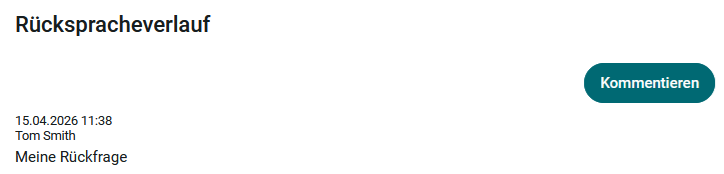
Click "Comment" to respond to the inquiry.
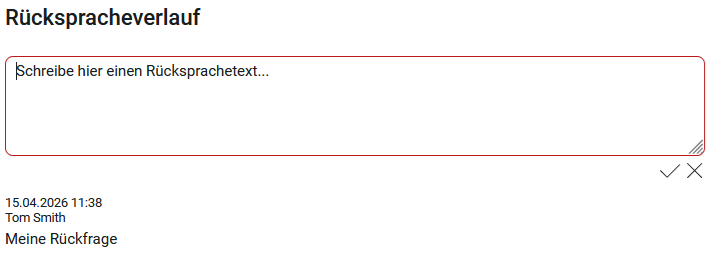
This allows for communication regarding the request, from the initial submission through to its approval or rejection. The progress of the consultation is displayed accordingly at the bottom of the dialog box.
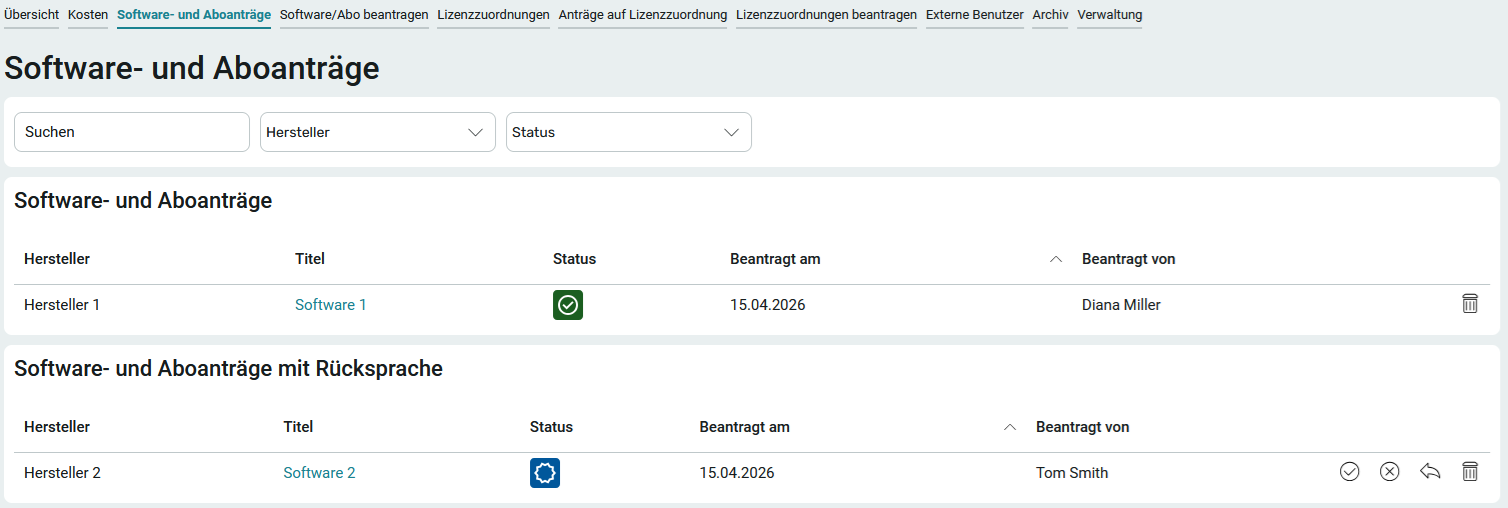
If the applicant has completed the consultation, the buttons used to assign the status will appear to the right of the entry in the " Software and Subscription Requests with Consultation " section.
Delete Requests
Next to each request, you'll find the "  " button. Clicking on it will delete the corresponding application.
License Types
The input fields displayed vary depending on which license type you select. The following license types are available in the standard version:
Subscription (Named User)
With this type of license, the license is assigned to a specific, named individual.
Subscription (Concurrent Users)
With this type of license, licenses are distributed among multiple users who do not need to use the software at the same time.
Subscription (Usage)With this type of license, the license is purchased without being restricted to specific users.
Purchase Without MaintenancePurchase with Maintenance
Purchase with Installment Payments
Freeware
If you have sufficient permissions, you can view license types on the Administration if you have the necessary permissions.