

Once you have chosen the PaaS option, you will receive the necessary login credentials for your portal from Intrexx GmbH. To edit your portal, you must first download the Portal Manager and then connect to your portal. The connection is made via the Internet.
Login credentials
Your login credentials include the URL of your portal, the portal name, your username, and the corresponding password.
|
URL |
exampleportal.company.com |
|
Portal Name |
exampleportal |
|
Username |
john.doe |
|
Password |
mypassword |
Download Portal Manager
You can download the Portal Manager from several locations.
Portal
Go to the Portal at any time to download the Portal Manager that corresponds with your Intrexx version.
-
Enter the URL of your portal into the browser.
-
Log in to your portal.
-
Click on Settings
 (
( ).
). -
Click the "Portal Manager" menu item (
 ).
).
The Portal Manager download will begin.
Connect to Your Portal
-
Start the Portal Manager.
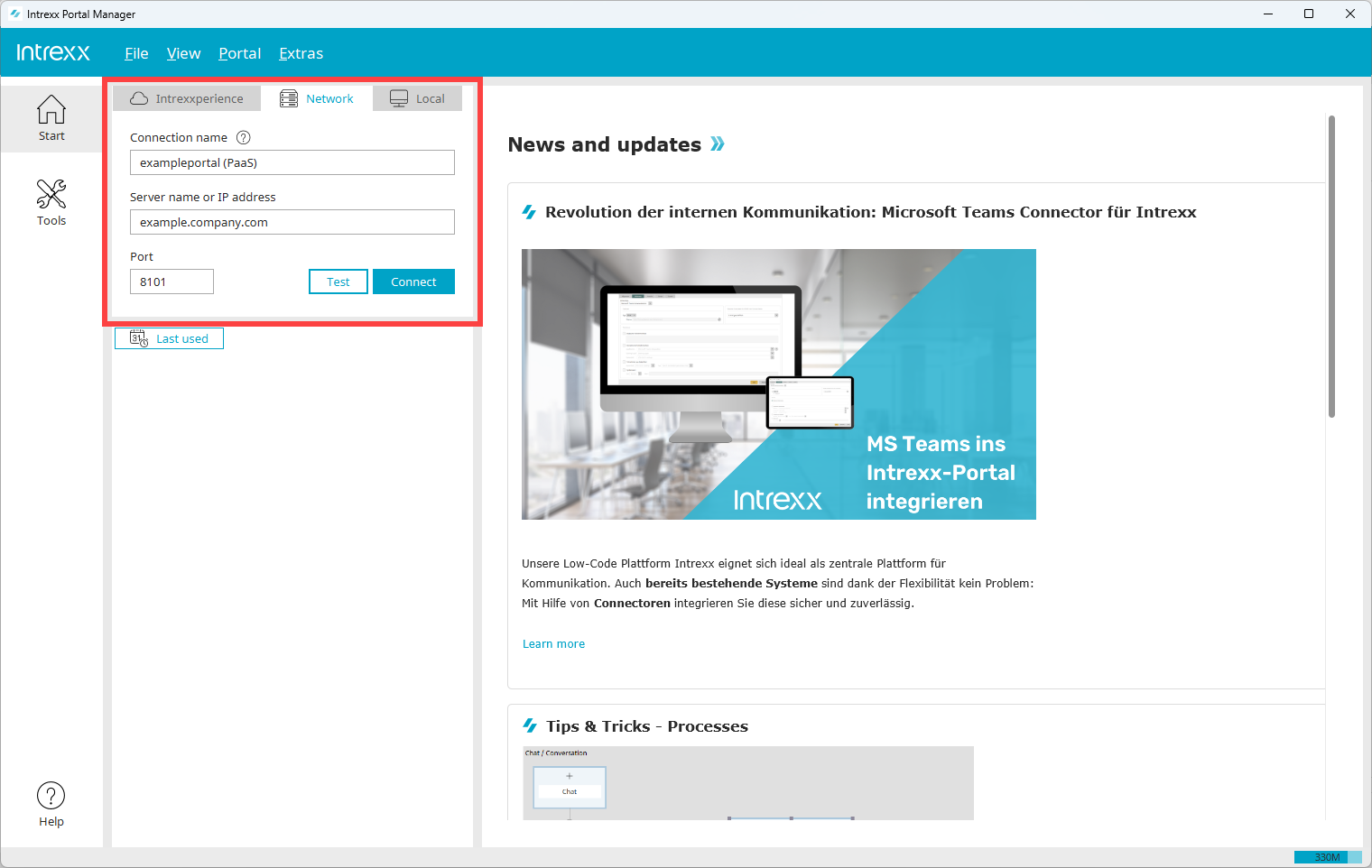
Connection Name
Enter a name here for the connection to your portal. Choose any name you like. The name is then saved and displayed as a hyperlink under "Recently Used" in the login area. To register at a later time, simply click on the hyperlink displayed.
Server name or IP address
Enter the URL where your portal can be accessed here.
Port
Enter the port number here that your portal is accessible on.
-
Click .
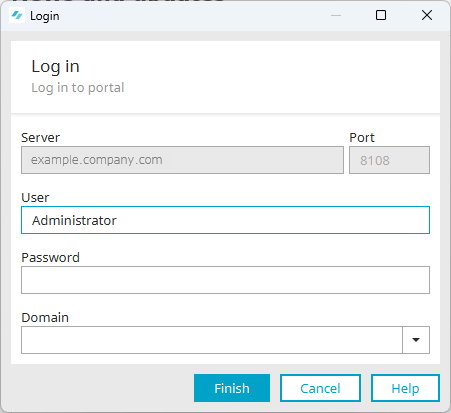
The login dialog box appears.
-
Enter your user information here.
-
Click .
The Portal Manager is displayed with all modules and features.
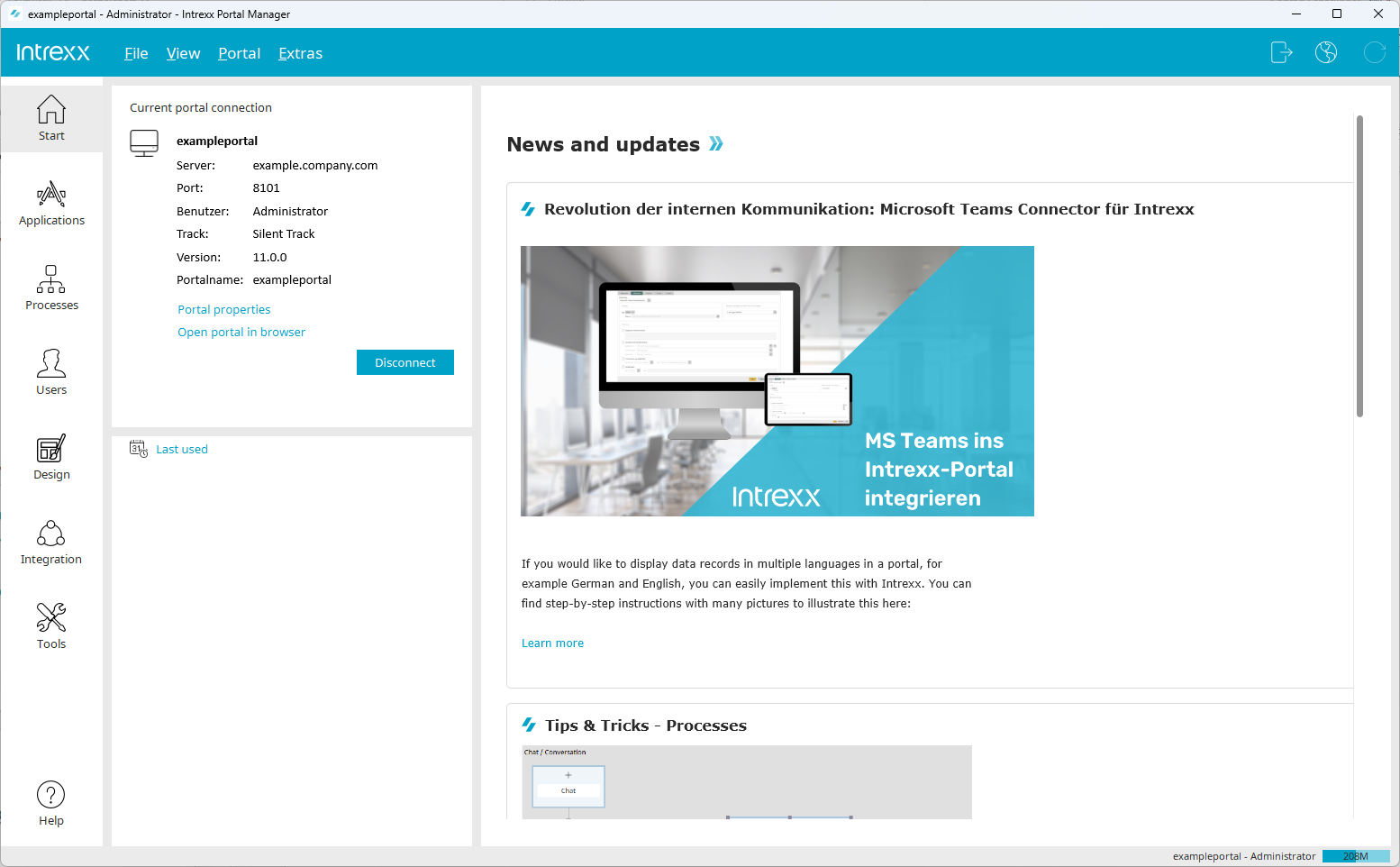
You have logged in to your portal and can now use the features you want.